Domain control validation
Domain Control Validation (DCV) is how a certificate authority (CA) verifies your control over a domain before issuing a certificate. Complete DCV for your Edge Security Acceleration (ESA) site domain using DNS or HTTP validation.
Validation methods
-
DNS validation: Add a TXT record provided by the CA to your domain's authoritative DNS. Validation completes when the CA queries this record over the public internet.
-
HTTP validation: Place a verification file provided by the CA at a specific URL path on your web server. Validation completes when the CA accesses this file over the public internet.
Important
-
For sites that have switched DNS resolution to ESA, DCV for free certificate applications completes automatically.
-
For NS-integrated sites, ESA uses DNS validation. After you apply for a free certificate, ESA automatically adds the required TXT record.
-
For CNAME-integrated sites, ESA uses HTTP validation. After you apply for a free Let's Encrypt certificate, ESA points of presence handle the CA's validation request directly. If you use a free
DigiCertcertificate, configure fallback DCV to ensure proper certificate issuance and renewal.
-
-
After a certificate is issued, you can delete the TXT record that was used for DCV. Deleting the record does not affect the normal use of the issued certificate. DCV behavior during renewal differs by connection method: for NS-integrated sites, ESA automatically completes DCV validation, and you do not need to keep the previous TXT record; for CNAME-integrated sites that have not enabled managed DCV, you must reconfigure the DNS validation record (TXT or CNAME) before the certificate is renewed. Confirm your connection method and managed DCV status before the certificate expires.
-
If your site has not switched DNS resolution to ESA, complete DCV manually using the provided information, or use managed DCV when applying for a free certificate. For more information, see Manual Domain Control Validation.
NoteThe DCV token expires after one hour.
Manual domain control validation
Prove domain ownership to obtain an SSL/TLS certificate. Choose DNS or HTTP validation below.
DNS validation
If your domain is not hosted on Alibaba Cloud, complete steps 6 and 7 in your DNS provider's console.
-
In the ESA console, navigate to Websites. In the Website column, click the target site.
-
In the left-side navigation pane, choose .
-
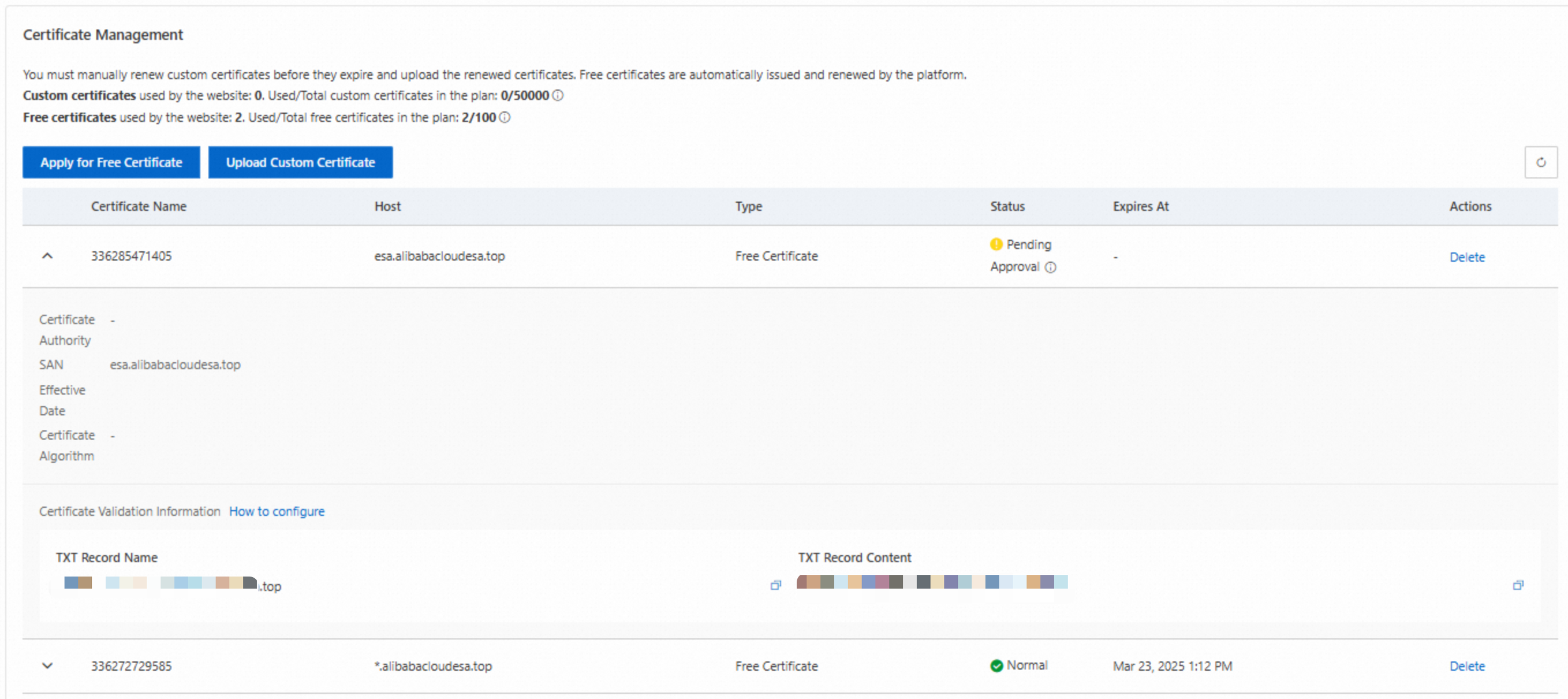
On the Edge Certificates page, in the Certificate Management section, copy the generated TXT Record Name and TXT Record Content.
NoteIf your certificate covers multiple domains, the Certificate Validation Information section lists an entry per domain. Add a DNS record for each entry to your authoritative DNS.
-
Log on to the Alibaba Cloud DNS console.
-
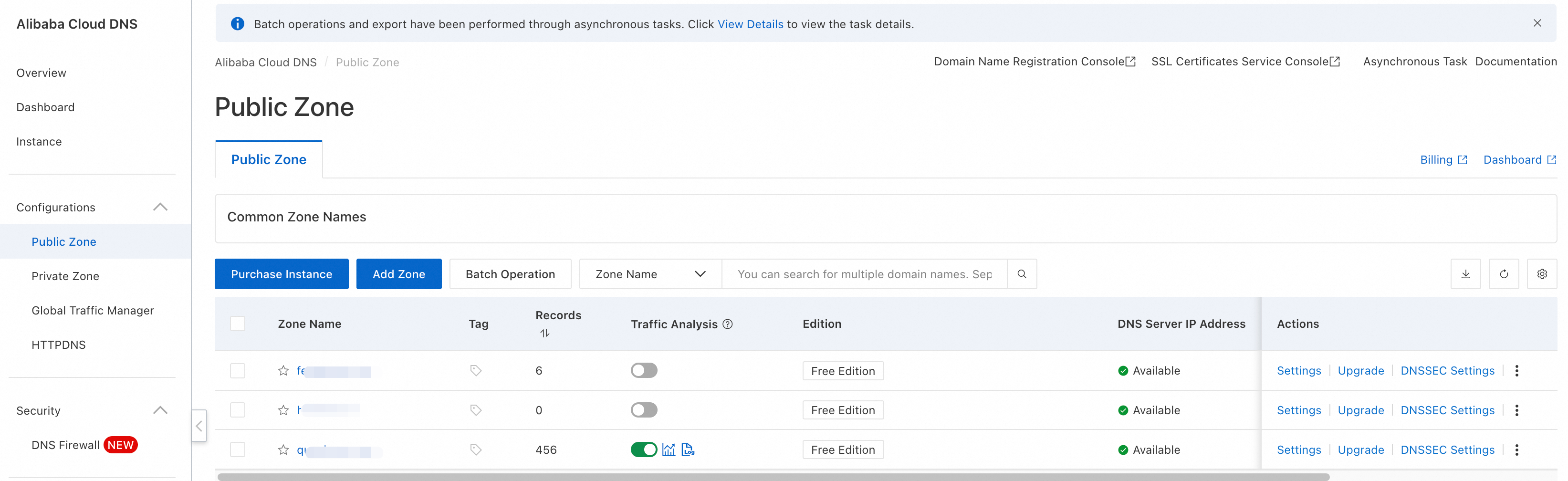
In the left-side navigation pane, click Public Zone.
-
On the Public Zone page, find the domain associated with your site and click Settings in the Actions column.
-
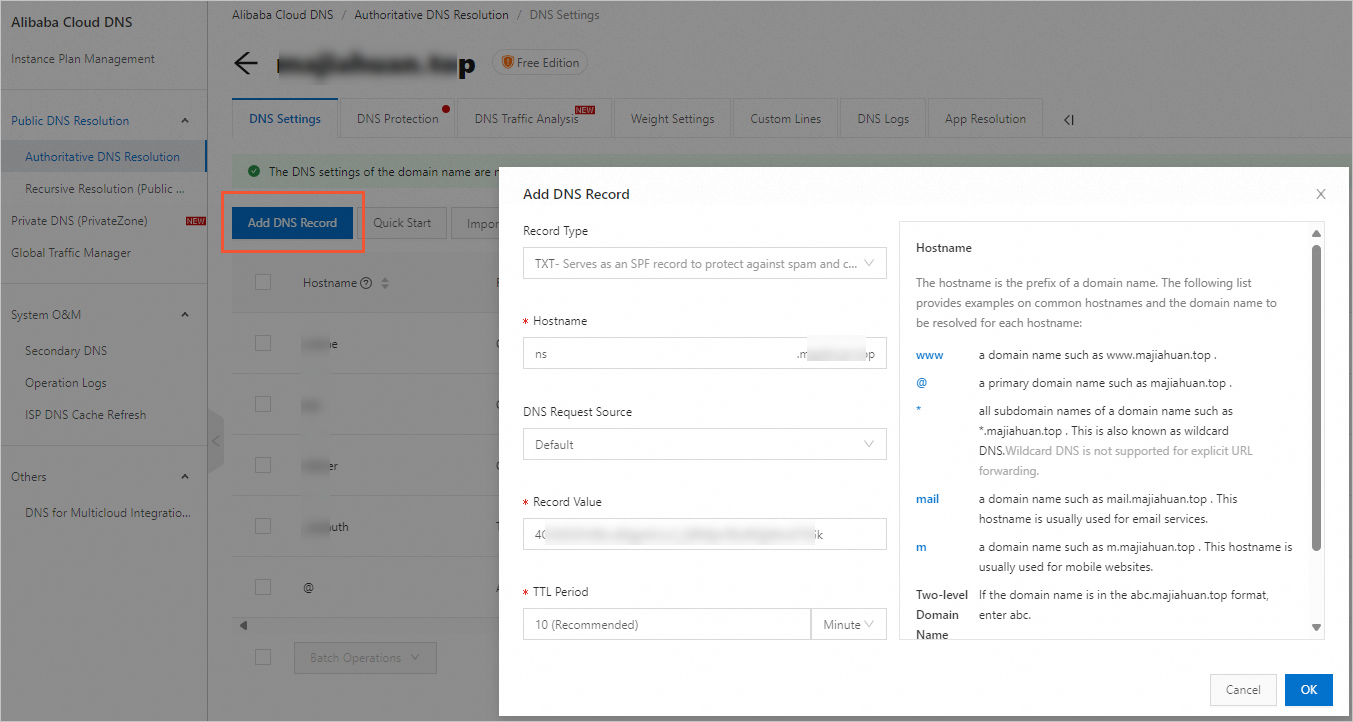
On the Settings page, click Add Record. Set Record Type to TXT. For Hostname, enter the TXT Record Name that you copied. For record value, enter the TXT Record Content that you copied. Click OK.
HTTP validation
-
In the ESA console, navigate to Websites. In the Website column, click the target site.
-
In the left-side navigation pane, choose .
-
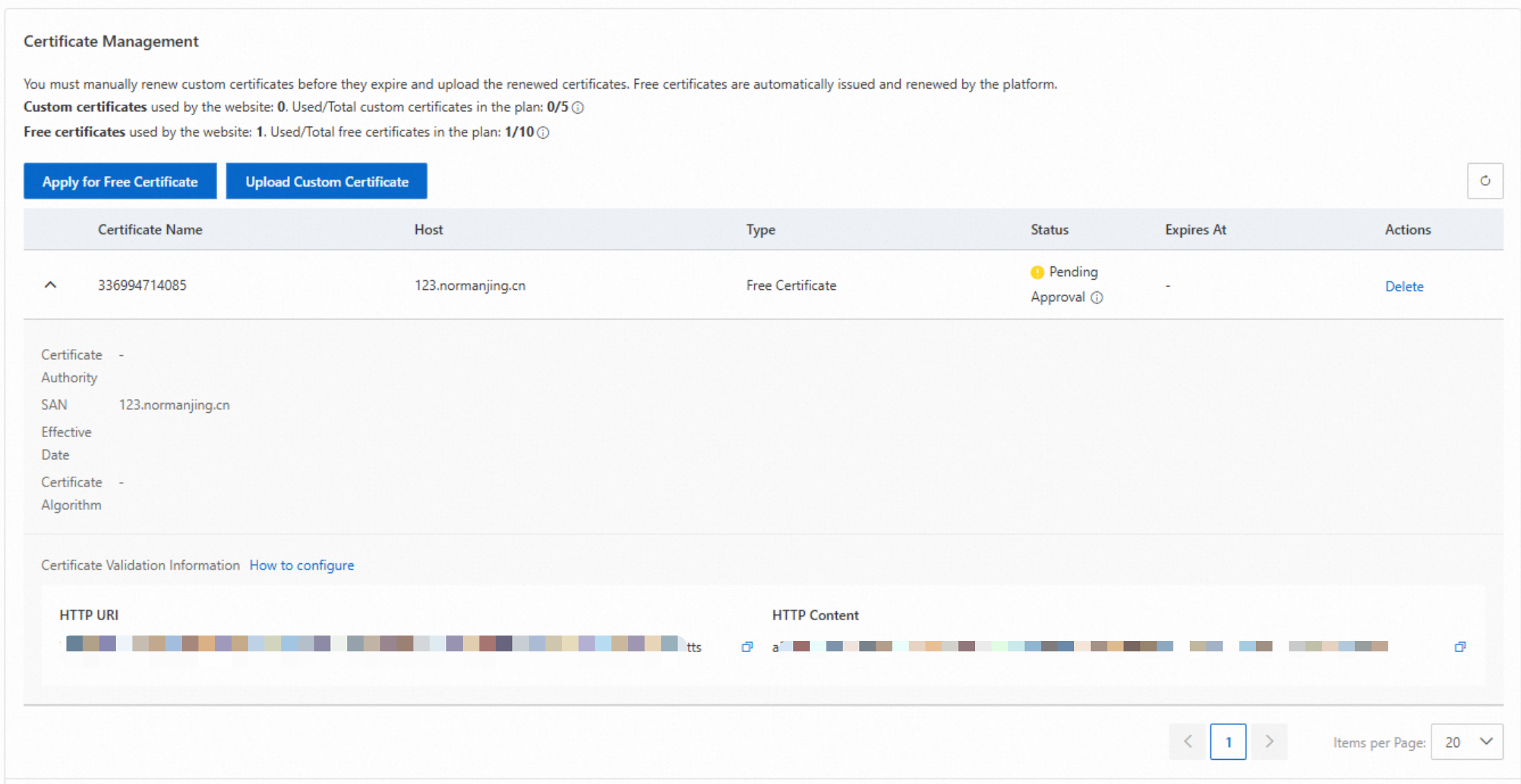
On the Edge Certificates page, in the Certificate Management section, copy the generated HTTP URI and HTTP Content.
-
On your public web server, create a file at the path specified by the HTTP URI. The file content must match the HTTP Content copied in the previous step.

-
Run
curl -v <HTTP_URI>to verify. A200 OKresponse confirms the file is configured correctly.
