Configure environments
Create, edit, and delete environments, and manage deployed versions through upgrades, switches, and rollbacks.
Create an environment
-
In the ESA console, choose Websites, and in the Website column, click the target site.
-
In the navigation pane on the left, choose , and click Create Environment.
NoteAn environment can only be set to read-only after creation.
-
On the Create Environment page, enter an Environment Name, set the filter rules and initial position, and then click OK.
Edit an environment
-
In the ESA console, choose Websites, and in the Website column, click the target site.
-
In the navigation pane on the left, choose .
-
Edit the , and then click OK.
Note-
You can only edit the deployed version if the environment is first in the sequence.
-
Setting an environment to read-only also makes its deployed version read-only.
-
Traffic filters can be modified for all environments except production.
-
Change the deployed version
You can Promote, Roll Back, or switch the version deployed in an environment.
Upgrade a version
-
In the ESA console, choose Websites, and in the Website column, click the target site.
-
In the navigation pane on the left, choose .
-
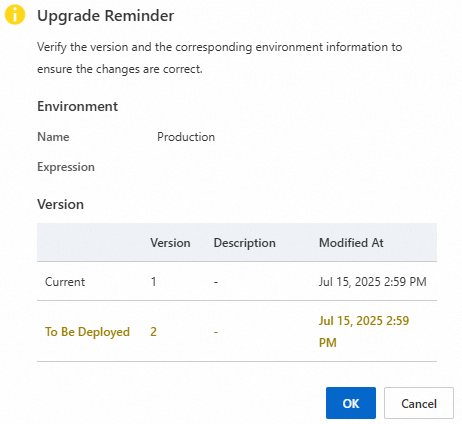
A confirmation dialog displays the current and target versions. Verify the change and click OK.
Roll back a version
-
In the ESA console, choose Websites, and in the Website column, click the target site.
-
In the navigation pane on the left, choose .
Note-
Rollback reverts the environment to the previously deployed version. You cannot roll back if no previous version exists.
-
-
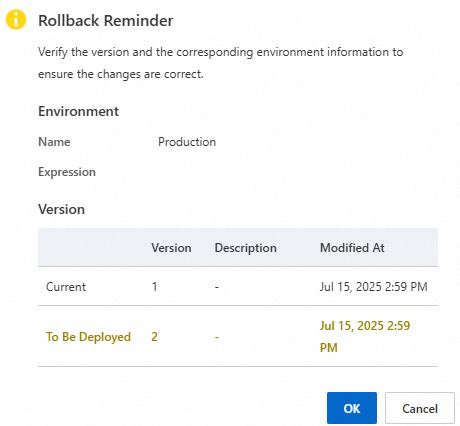
On the Rollback Reminder page, verify the target version and environment, then click OK.
Switch a version
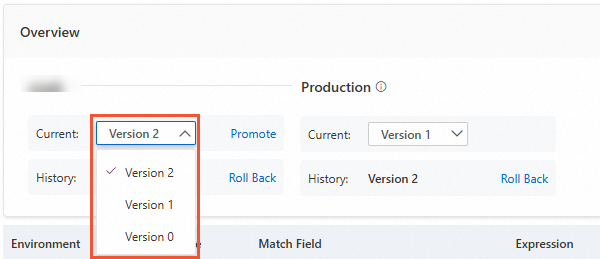
Switch the version deployed in an environment. The new version takes effect immediately after confirmation.
-
In the ESA console, choose Site Management, and in the Website column, click the target site.
-
In the navigation pane on the left, choose .
-
In the Overview area, locate the target environment and select the desired version.
Delete an environment
-
In the ESA console, choose Websites, and in the Website column, click the target site.
-
In the navigation pane on the left, choose , and then click OK.
Note-
Ensure the environment is not receiving active requests before deletion. The system does not verify this automatically. This action is irreversible.
-
The production environment (created by default when version management is enabled) cannot be deleted.
-