Global WAF
Global WAF enables you to create unified security rules for all sites under your Enterprise plan. This enables centralized policy management and one-click deployment across all sites.
Use cases
When multiple sites face attacks with identical characteristics, use Global WAF to set a unified security baseline for sites under your Enterprise plan. For example, block a specific IP or deny access to sensitive paths across all sites at once. New sites inherit this rule group automatically.
If example01.com, example02.com, and example03.com are all targeted by malicious traffic from 192.168.0.1, configure one blocking rule in Global WAF. The rule syncs immediately across all sites, eliminating per-site configuration.
Rule priority
Global WAF rules have the highest priority. They take effect before all site-specific WAF rules (including all editions) to ensure unified policies execute first.

-
Global WAF processes first: All requests are evaluated against global rules. If a rule matches:
-
Site WAF acts as fallback: If no global rule matches, site-specific WAF rules apply. If a rule matches:
-
Block: Immediately block the request and record an event log. Do not proceed further.
-
Monitor: Skip remaining site rules, allow the request, and record an event log.
-
Challenge: Present a JavaScript Challenge or slider CAPTCHA. If passed, allow the request and log the event.
-
-
If neither Global nor site rules match, allow the request.
Example
Site example01.com has a rule blocking IP 192.168.0.1, but Global WAF includes a rule allowing that same IP. Because Global WAF takes precedence, all requests from 192.168.0.1 follow the global allow policy, not the site-level block rule.
Configure Global WAF
-
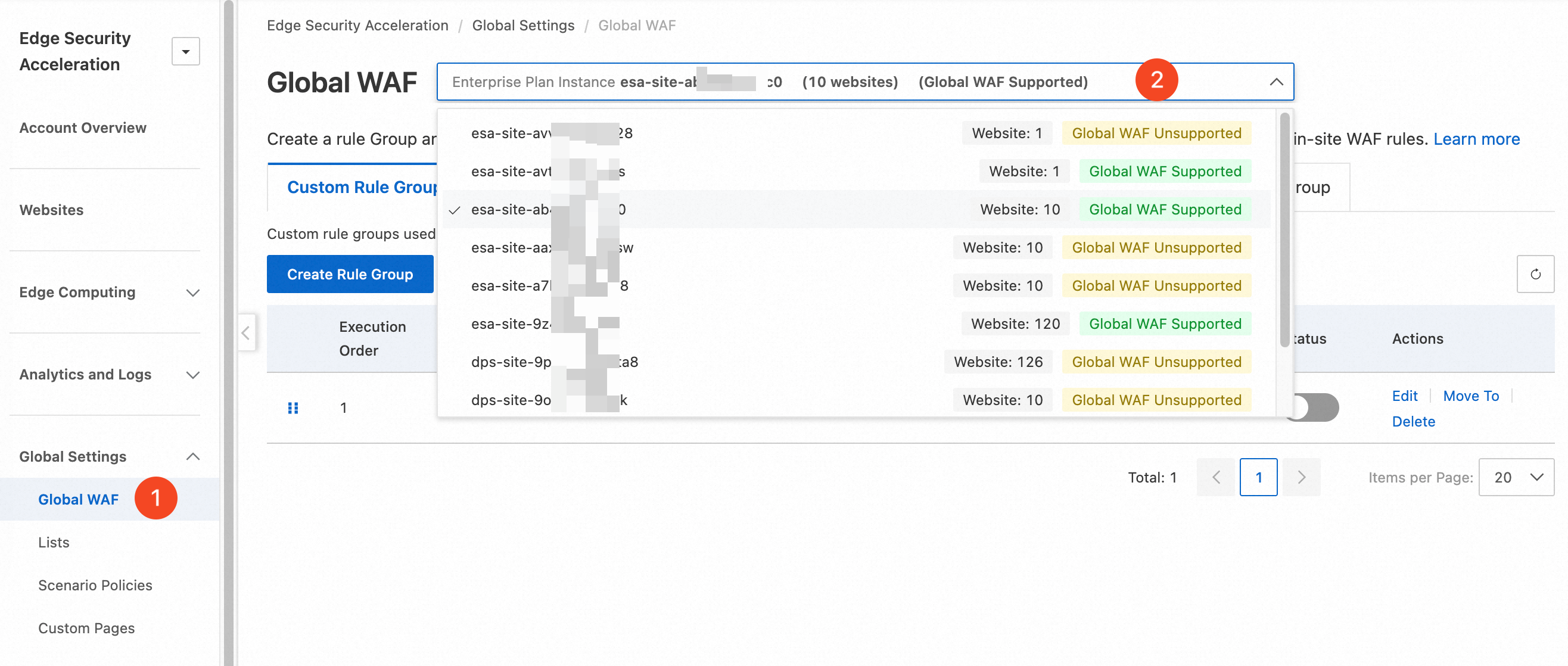
Log on to the ESA console. In the navigation pane on the left, choose .
The system automatically shows feature availability by plan type. Select an instance marked Global WAF Supported.
-
Select a rule group type:
-
Custom rule groups: Define custom access control policies.
-
Rate limiting rule groups: Suppress high-frequency requests sharing specific traits—for example, repeated access from the same client IP within a short time window.
-
Managed rule groups: Apply built-in ESA rules to defend against OWASP Top 10 threats and emerging origin server vulnerabilities.
-
Scanning protection rule groups: Block large-scale scanning attempts by detecting scanner behavior and signatures.
-
Whitelist rule groups: Let matching requests bypass all or specific modules (custom rules, rate limiting, managed rules, scanning protection, bot management).
-
-
Example:
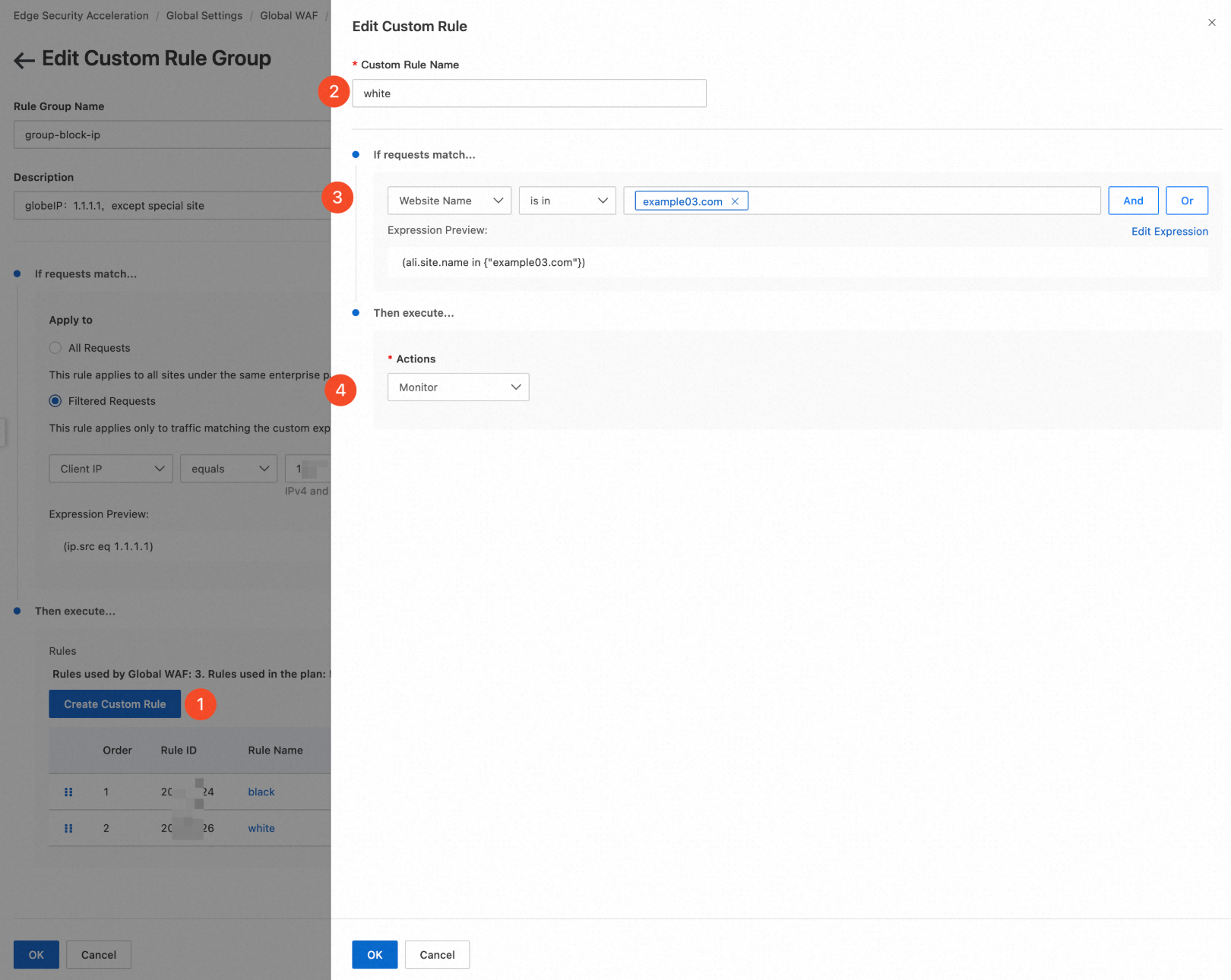
Create a rule group that blocks IP 192.168.0.1 for sites example01.com and example02.com, but allows it for example03.com. On the Global WAF page, select the Custom Rule Groups tab and click Create Rule Group.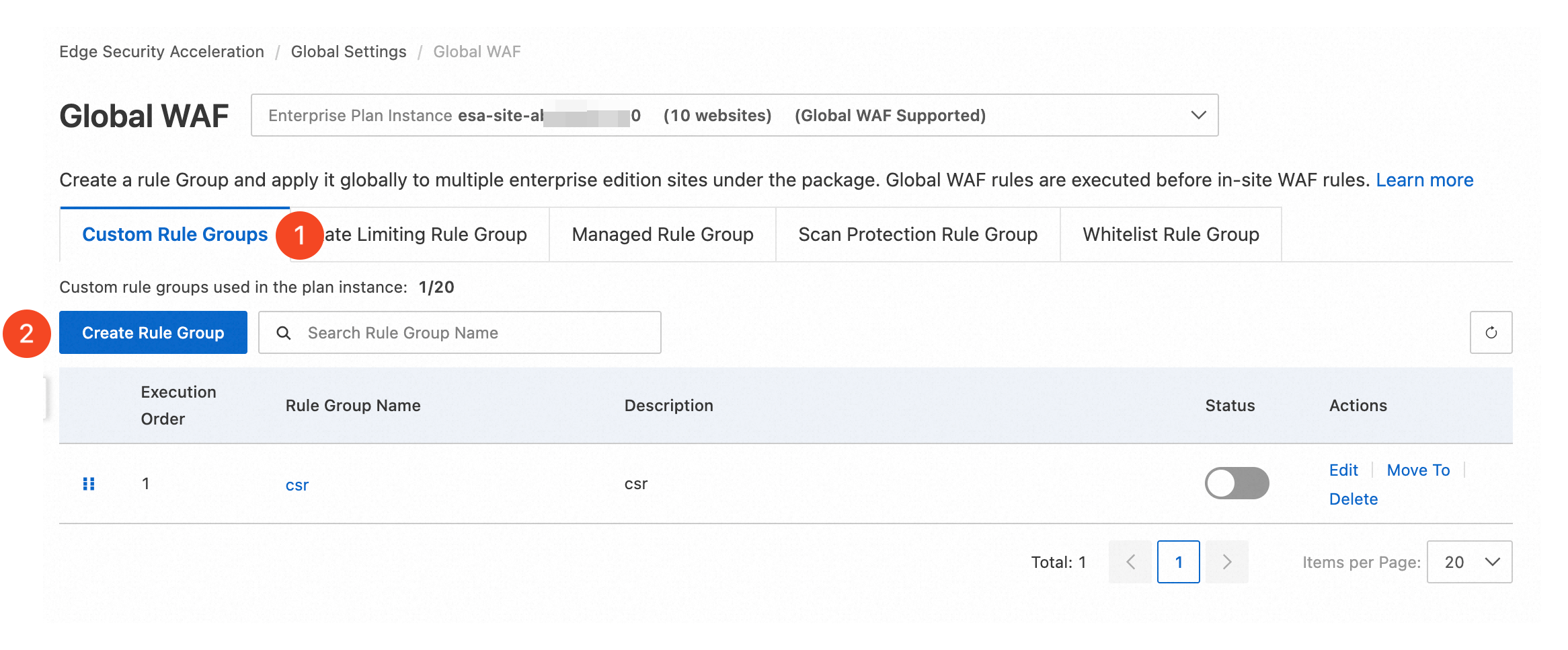
-
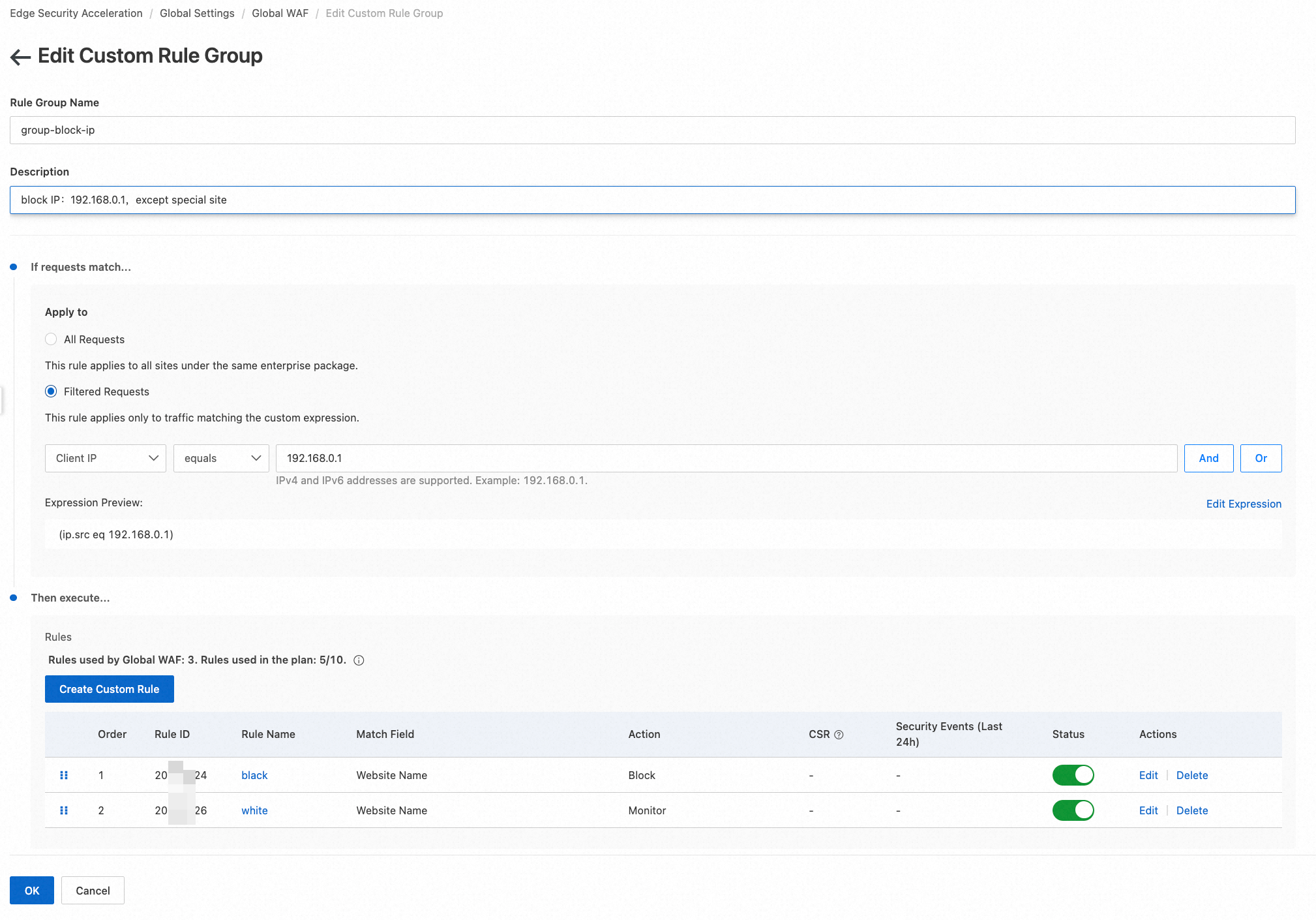
After configuring as described below, click OK:
-
Rule Group Name: Enter a descriptive name, such as
group-block-ip. -
Description: Add details like
Block IP: 192.168.0.1, allow special site. -
If requests match...: Define request traits to filter. Choose Filtered Requests and enter
Client IP equals 192.168.0.1. -
Then execute...: Specify actions for matching requests. Click Create Custom Rule to add two sub-rules:
Block rule: In the sub-rule, set If requests match... to Site name equals any of example01.com example02.com. Set Then execute... to the default Block.
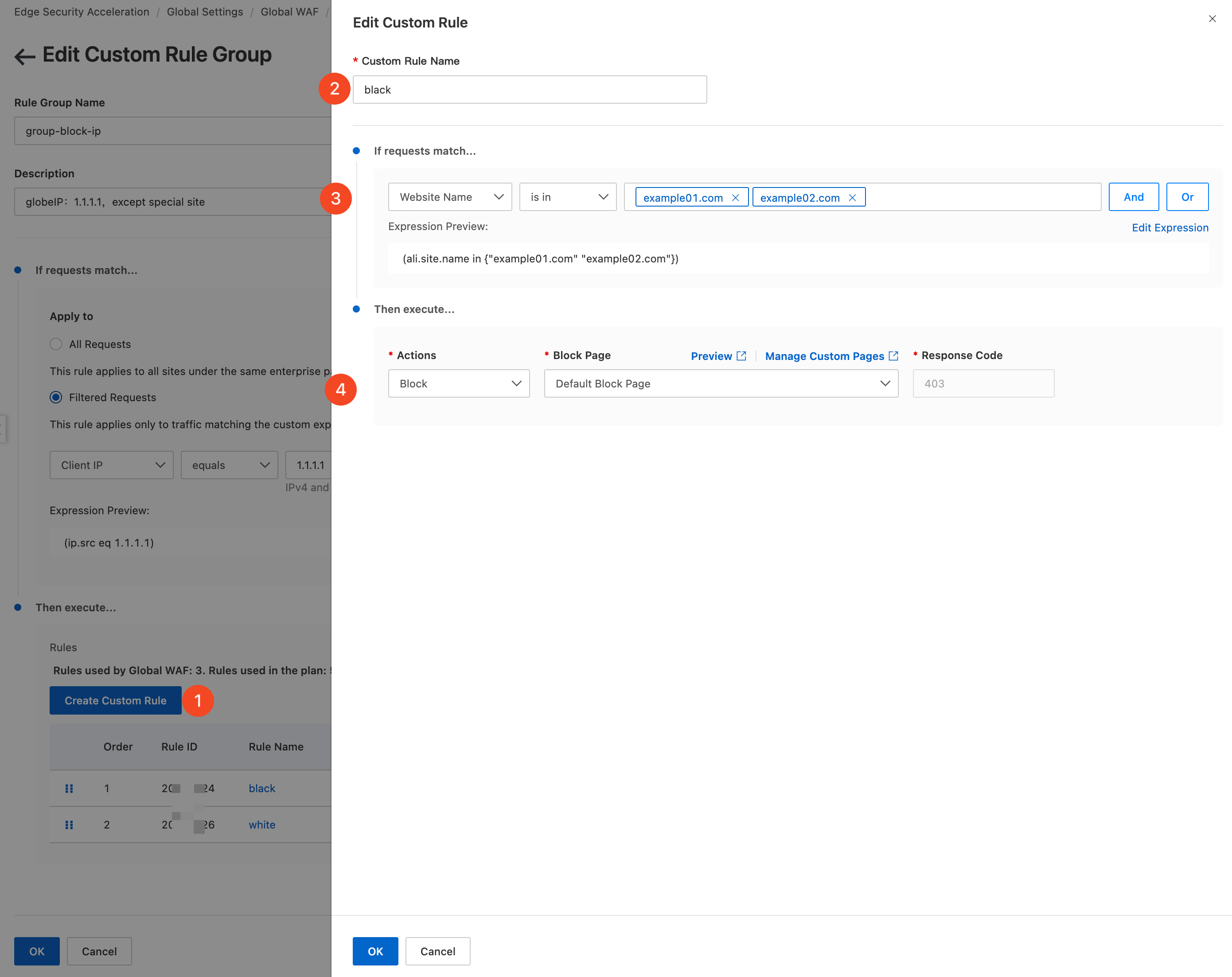
Allow rule: In the sub-rule, set If requests match... to
Site name equals example03.com. Set Then execute... to the default Monitor.
-
Plan support
|
Free Edition |
Basic Edition |
Standard Edition |
Premium Edition |
Enterprise Edition |
|
|
|
|
|
|
Global WAF is available only for the Enterprise plan. Contact your account manager to enable this feature.