Purge cache by tag
Tag-based cache purge lets you assign cache tags to origin resources so that Edge Security Acceleration (ESA) POPs can associate cached objects with those tags. When content changes, submit the relevant tags to batch-purge all associated cached resources across ESA POPs.
Benefits
Tag-based cache purge simplifies bulk purging of related cached resources:
-
Efficient batch operations: Assign the same tag to a group of related resources—such as a news page with its images, JS, and CSS files—and purge them all with one action.
-
Simplified O&M: Manage logical groups of resources by tag instead of tracking individual URLs.
-
Scenario isolation: Assign different tags to different scenarios within the same application. Purging by tag affects only the targeted scenario—such as a promotion page—without impacting others.
-
Consistent updates: Ensure tightly coupled resources—such as frontend pages and their static assets—update together, avoiding mismatches like new pages with old styles.
Use cases
Common use cases:
-
Updating e-commerce promotion pages and associated assets
-
Taking down special-topic content on news or media sites
-
Switching content for multilingual or multi-version websites
-
Purging sub-application resources in a micro-frontend architecture
How it works
ESA uses HTTP response headers as cache tags. A cache tag consists of a header name and a header value separated by a colon :, for example, Cache-Tag:tag1,tag2,tag3. When you submit a tag-based cache purge task:

-
ESA checks whether the cached file on the POP has a cache tag (default:
Cache-Tag). If no cache tag exists, ESA skips the file. Otherwise, ESA matches the tag value. -
ESA checks whether the tag value matches the Purge Content you submitted. If the value matches, ESA purges the cache (default behavior: Mark as Expired). If not, ESA skips the file.
ESA supports multiple cache tag values per resource, separated by commas. ESA POPs normalize the received tag values:
-
Remove extra spaces:
tag1, tag2andtag1,tag2are treated as identical. -
Remove duplicate commas:
tag1,,,tag2andtag1,tag2are treated as identical.
Prerequisites
ESA tag-based cache purge works by checking whether cached content on ESA POPs contains specific cache tags set by the origin. Before using this feature, configure your origin server to add the corresponding cache tag response headers:
Example: add the HTTP response header Cache-Tag to resources in the /images directory:
By default, tag-based purge matches the Cache-Tag header and is case-sensitive. To use a custom header, Configure a custom cache tag.
# /etc/nginx/nginx.conf

server {
    listen 80;
    server_name your-origin-domain.com;
    # Add tag to all resources under /images/
    location /images/ {
        add_header Cache-Tag "images";
        # ... other configuration
    }
    # ... other location blocks
}
If you cannot set response headers at the origin, use the ESA Modify Inbound Response Header feature instead:
-
In the ESA console, choose Site Management. In the Website column, click your target site.
-
In the navigation pane on the left, choose .
-
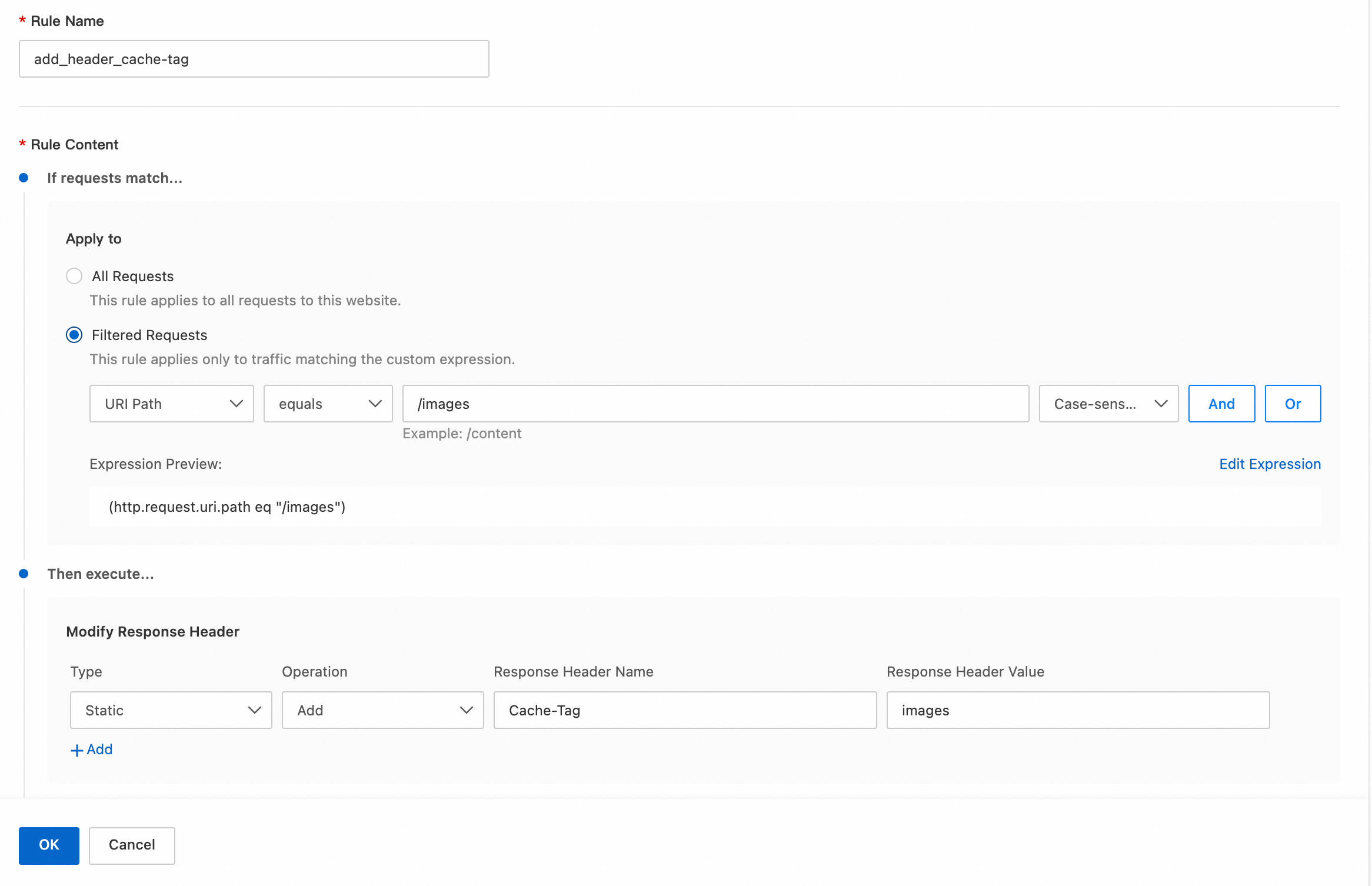
Choose the Modify Response Header tab. Under Origin to ESA, click Create Rule. Then configure the following parameters:
-
Rule Name: Enter a custom name, such as
add_header_cache-tag -
Filtered Requests: Enter
URI path equals /images -
Modify Response Header: Add
static header Cache-Tag: images
-
Procedure
-
In the ESA console, choose Site Management. In the Website column, click your target site.
-
In the navigation pane on the left, choose .
-
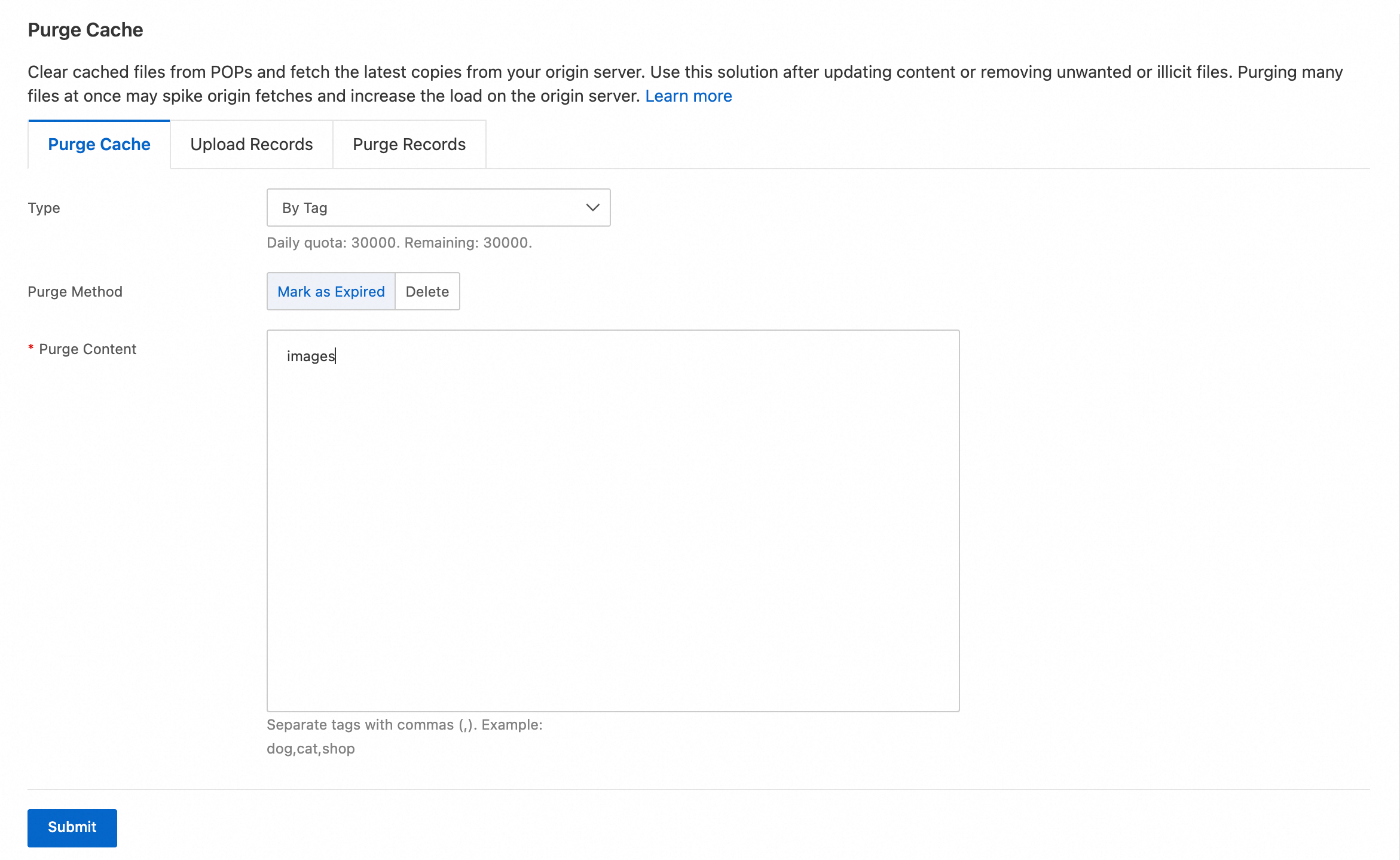
On the Purge Cache tab, configure the purge rule and click Submit:
-
Type: Select By Tag.
Purge Method: You can choose between two methods: Mark as Expired and Delete.
Refresh method
Description
Mark as Expired
Nodes are processed according to the following flow:
The ESA POP sends an origin request with the
If-Modified-SinceandIf-None-Matchrequest headers.The origin server compares the file modification time.
If the file is not modified, the origin server returns a 304 status code. The ESA POP can then use the existing cache file to respond to the client request.
If the file is modified, the origin server returns a 200 status code and the latest file. The ESA POP returns the latest file to the client and caches the resource.
Delete
If a user requests content that matches a resource to be refreshed, the ESA POP directly fetches the new resource from the origin, returns it to the user, and caches the new resource.
-
Purge Content: Enter the tag value to purge. Separate multiple values with
,, such asimages.
-
-
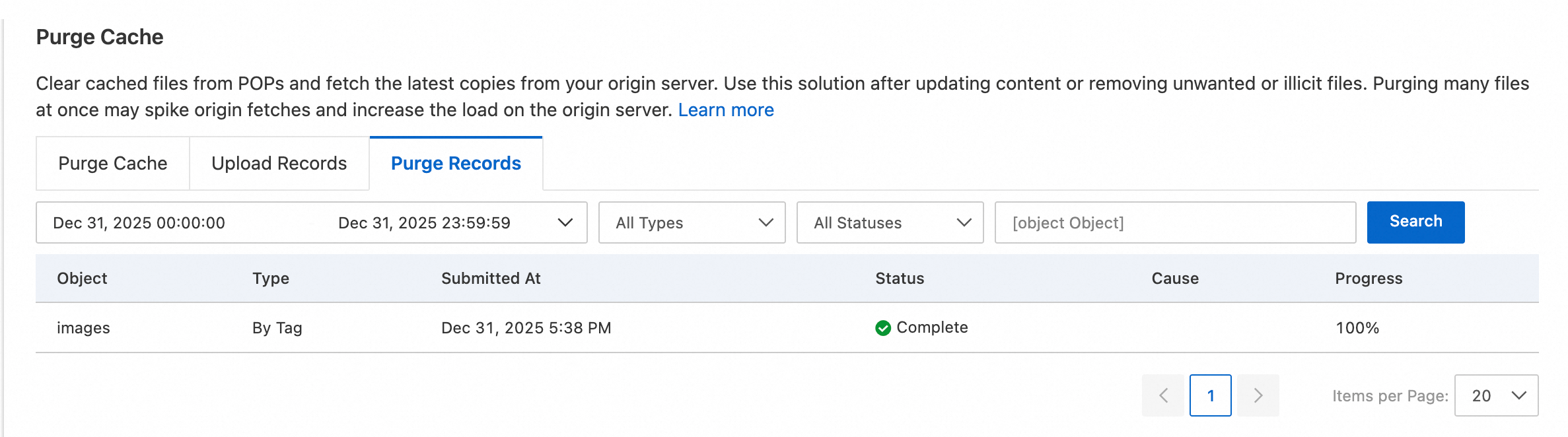
After you submit a purge task, track its progress on the Purge Records tab. 100% indicates completion. Large tasks may take longer.
Examples
When you update images or pages on an e-commerce website, you may need to purge the corresponding ESA cache. For images with multiple cropped versions, enumerating each variant is impractical—instead, batch-purge the ESA cache for all variants by image name. Similarly, when iterating on event pages, purge all related ESA cache by version tag:
Purge by image name
Scenario
The following three images are cropped versions of dog.jpg. The origin adds the tag ESA-Cache-Tag:dog.jpg to all three:
-
dog_100_200.jpg -
dog_200_200.jpg -
dog_300_200.jpg
The following three images are cropped versions of cat.jpg. The origin adds the tag ESA-Cache-Tag:cat.jpg to all three:
-
cat_100_200.jpg -
cat_200_200.jpg -
cat_300_200.jpg
Delete the original images to purge all cached variants at the same time.
Configuration example
-
In the ESA console, choose Site Management. In the Website column, click your target site.
-
In the navigation pane on the left, choose .
-
In the Cache Tag section, click the Configuration button on the right.
-
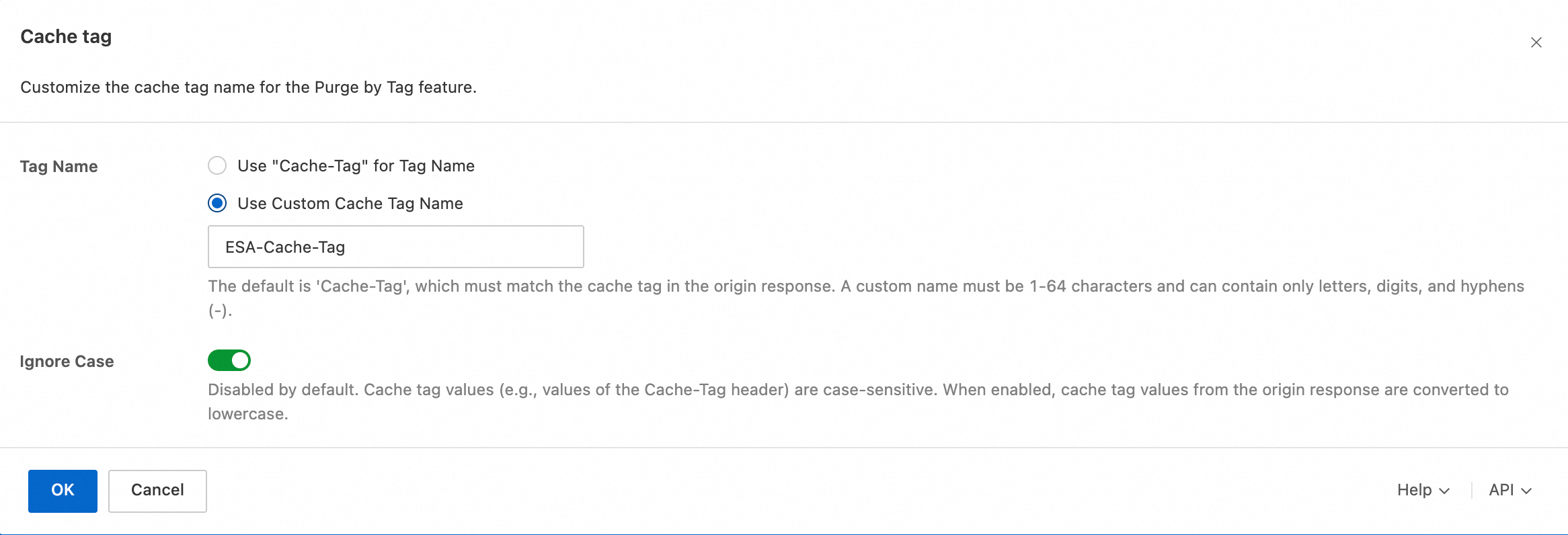
Configure the Tag Name and the tag value case-insensitive parameter:
-
Tag Name: Select Use Custom Cache Tag Name and enter the custom tag name
ESA-Cache-Tag. -
Ignore Case: Enable or disable this setting as needed.
-
-
In the navigation pane on the left, choose .
-
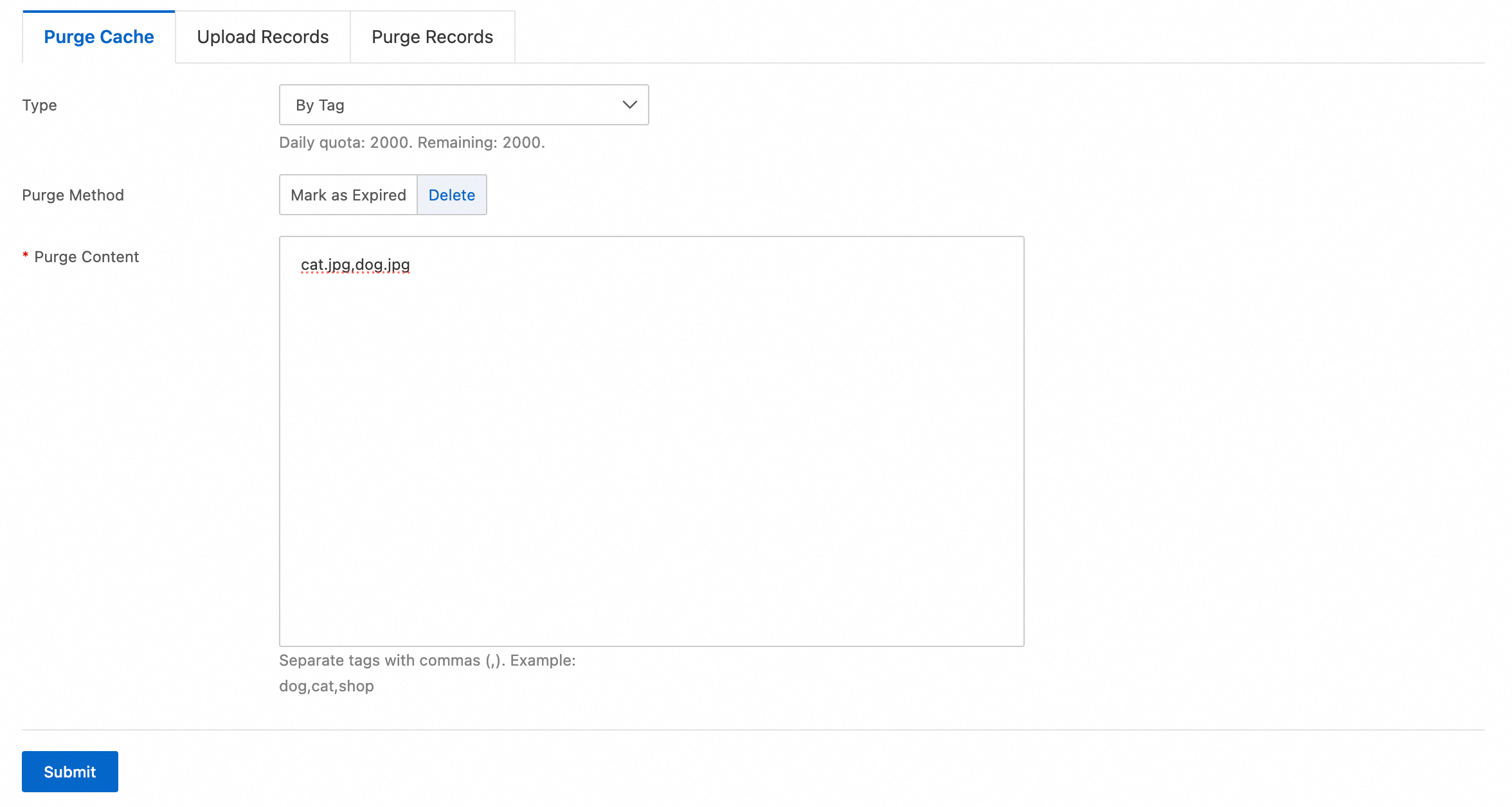
On the Purge Cache tab, configure the purge rule and click Submit:
-
Type: Select By Tag.
-
Purge Method: Select Delete.
-
Purge Content: Enter the tag values to purge:
cat.jpg,dog.jpg.

-
Purge by version number
Scenario
The following six images were generated for version v0820. The origin adds the tag ESA-Cache-Tag:v0820 to all six:
-
dog_100_200_v0820.jpg -
dog_200_200_v0820.jpg -
dog_300_200_v0820.jpg -
cat_100_200_v0820.jpg -
cat_200_200_v0820.jpg -
cat_300_200_v0820.jpg
Configuration example
-
In the ESA console, choose Site Management. In the Website column, click your target site.
-
In the navigation pane on the left, choose .
-
In the Cache Tag section, click the Configuration button on the right.
-
Configure the Tag Name and the tag value case-insensitive parameter:
-
Tag Name: Select Use Custom Cache Tag Name and enter the custom tag name
ESA-Cache-Tag. -
Ignore Case: Enable or disable this setting as needed.
-
-
In the navigation pane on the left, choose .
-
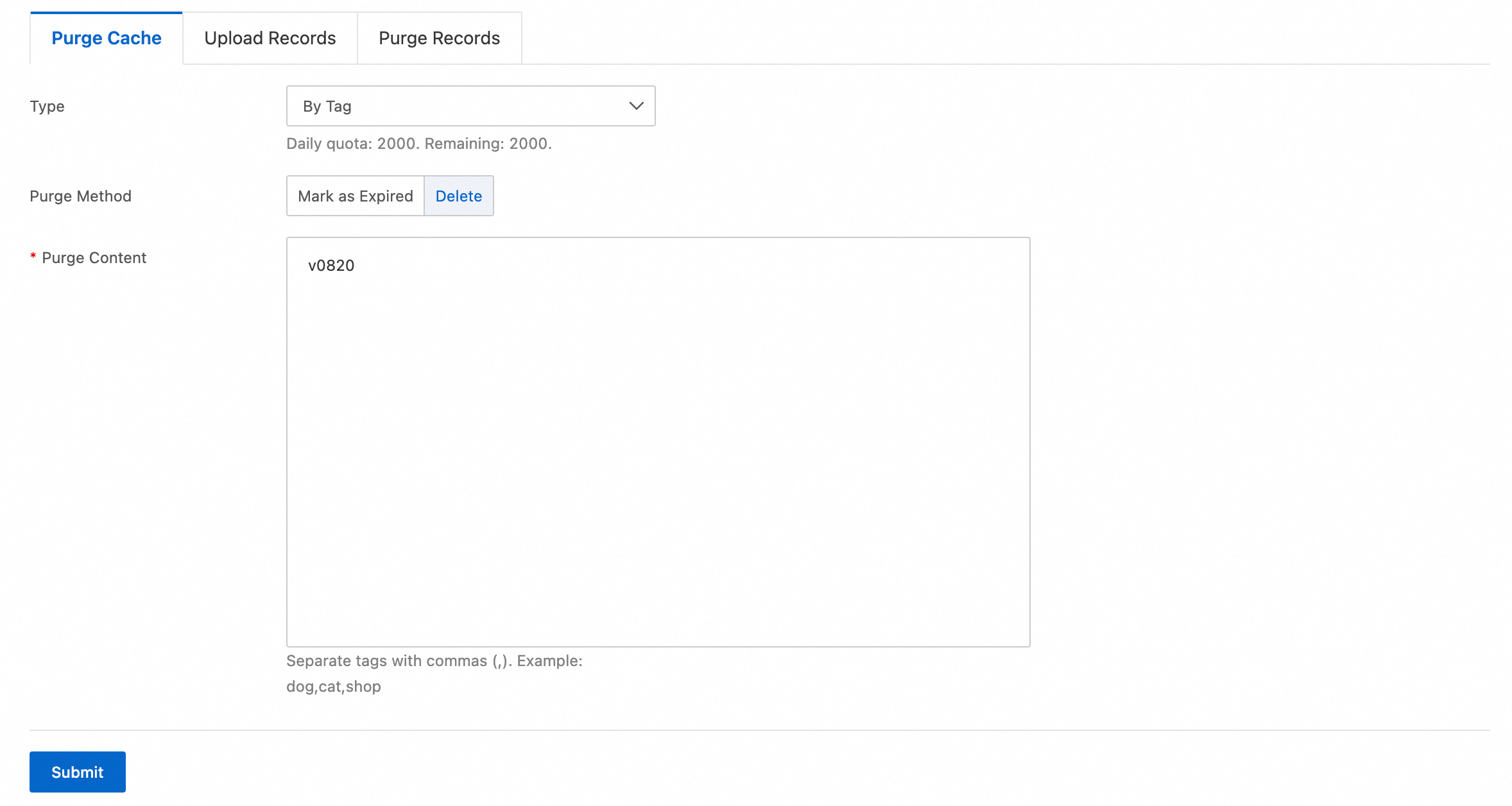
On the Purge Cache tab, configure the purge rule and click Submit:
-
Type: Select By Tag.
-
Purge Method: Select Delete.
-
Purge Content: Enter the tag value to purge:
v0820.
-
Cache tag description
Cache tag name
-
The default name is
Cache-Tag. -
A custom cache tag name must be 1 to 64 characters long.
-
A custom cache tag name can contain uppercase letters (
A–Z), lowercase letters (a–z), digits (0–9), and hyphens (-).
Cache tag values
-
Multiple values supported. Separate values with
,. -
Minimum length is 1 byte.
-
No maximum length limit per value.
-
Maximum 1,000 tag values per resource.
-
Values must contain only UTF-8 encoded characters.
-
Cache tag values are case-sensitive by default. You can configure case-insensitive matching in Configure Cache Tags.
Availability
|
Limit |
Free Edition |
Basic Edition |
Standard Edition |
Premium Edition |
Enterprise Edition |
|
Daily task quota |
|
|
|
|
2000 |