Get started
A load balancer distributes traffic across multiple origin pools for high availability. Create a load balancer, configure traffic steering, and set up health checks for your website.
Use cases
Websites: Accelerates websites that serve a mix of small files and dynamic API requests. Examples include personal blogs, small user-generated content (UGC) communities, and small independent e-commerce sites.
API interfaces: Accelerates purely dynamic API-driven services that typically do not require caching. Examples include account authentication, order placement and payment, log uploads, and real-time data synchronization.
Images and videos: Accelerates services that deliver purely static files. Examples include large-scale image downloads, on-demand video streaming, and game installers.
Procedure

Create a load balancer: Routes traffic across multiple origins for high availability.
Configure the load balancer: Create a DNS record for your website to direct traffic through the load balancer.
Create a load balancer
A load balancer uses traffic steering policies to distribute requests across origin pools.

Step 1: Define the load balancer and pools
Group your servers into origin pools for performance and high availability.
In the ESA console, select Websites. In the Website column, click the target website.
In the navigation pane on the left, choose .
On the Load Balancing page, click Create.
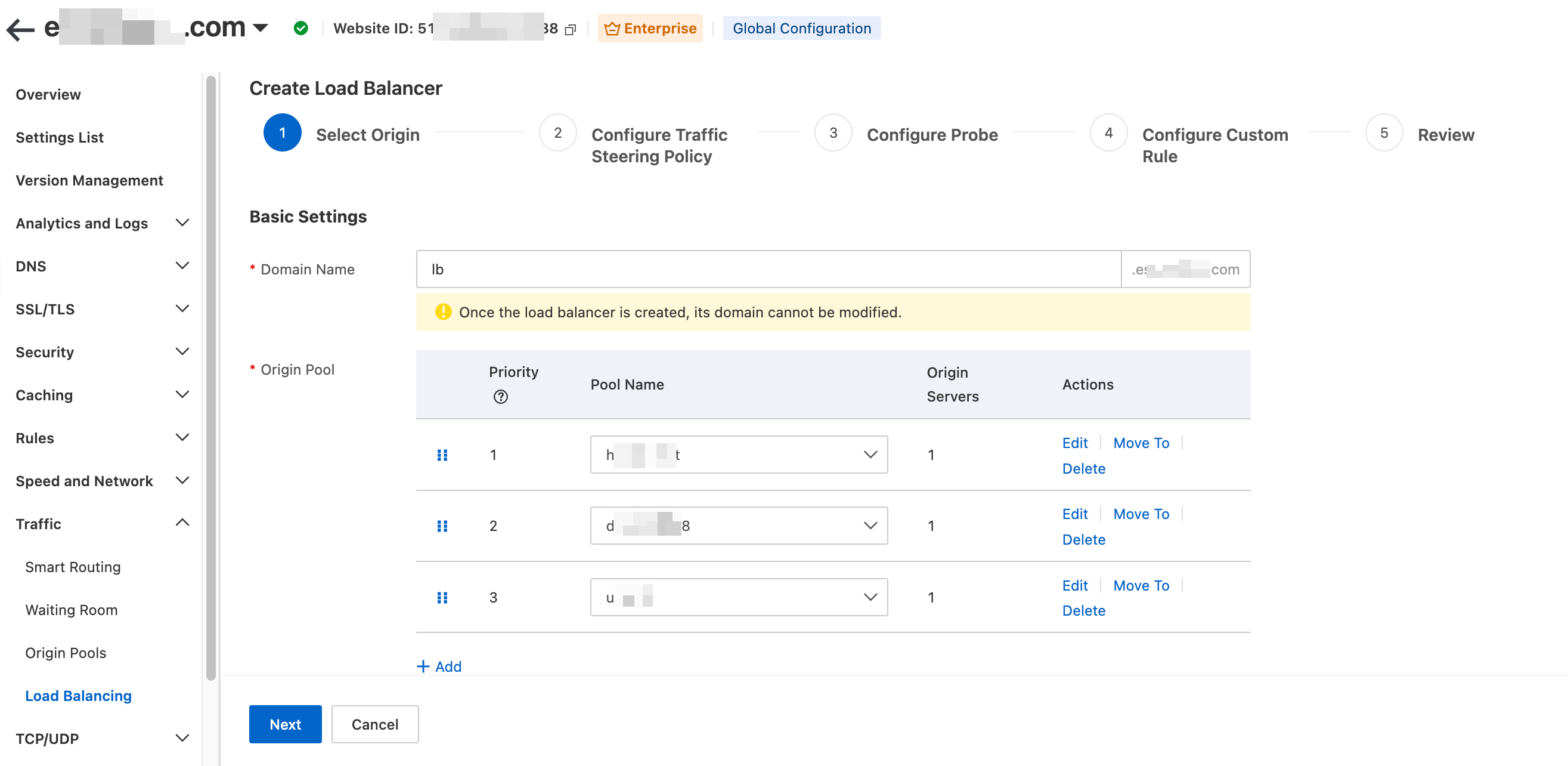
On the Create Load Balancer page, enter the information for the origin and click Next.
Domain Name: The domain name of the new load balancer. Enter a custom domain prefix. This domain can serve as the origin for an ESA domain or a TCP/UDP-proxied application.
ImportantAfter you enter the domain name, ESA automatically creates a DNS record that points to this load balancer. Ensure that this domain prefix is unique and does not conflict with other DNS records for the website, including existing load balancer domains, TCP/UDP proxy domains, ESA-accelerated domains, or edge function domains.
Origin Pool: Click Add to select an existing origin pool or create a new one. If you add multiple pools, adjust their order. ESA routes origin requests based on the Priority number; a smaller number indicates a higher priority.
A load balancer can contain up to 20 origin pools.
Fallback Pool: Select a fallback pool. When all other pools become unavailable, requests route to this pool. Fallback pool origins are always considered healthy and bypass health checks.
Step 2: Select a traffic steering policy
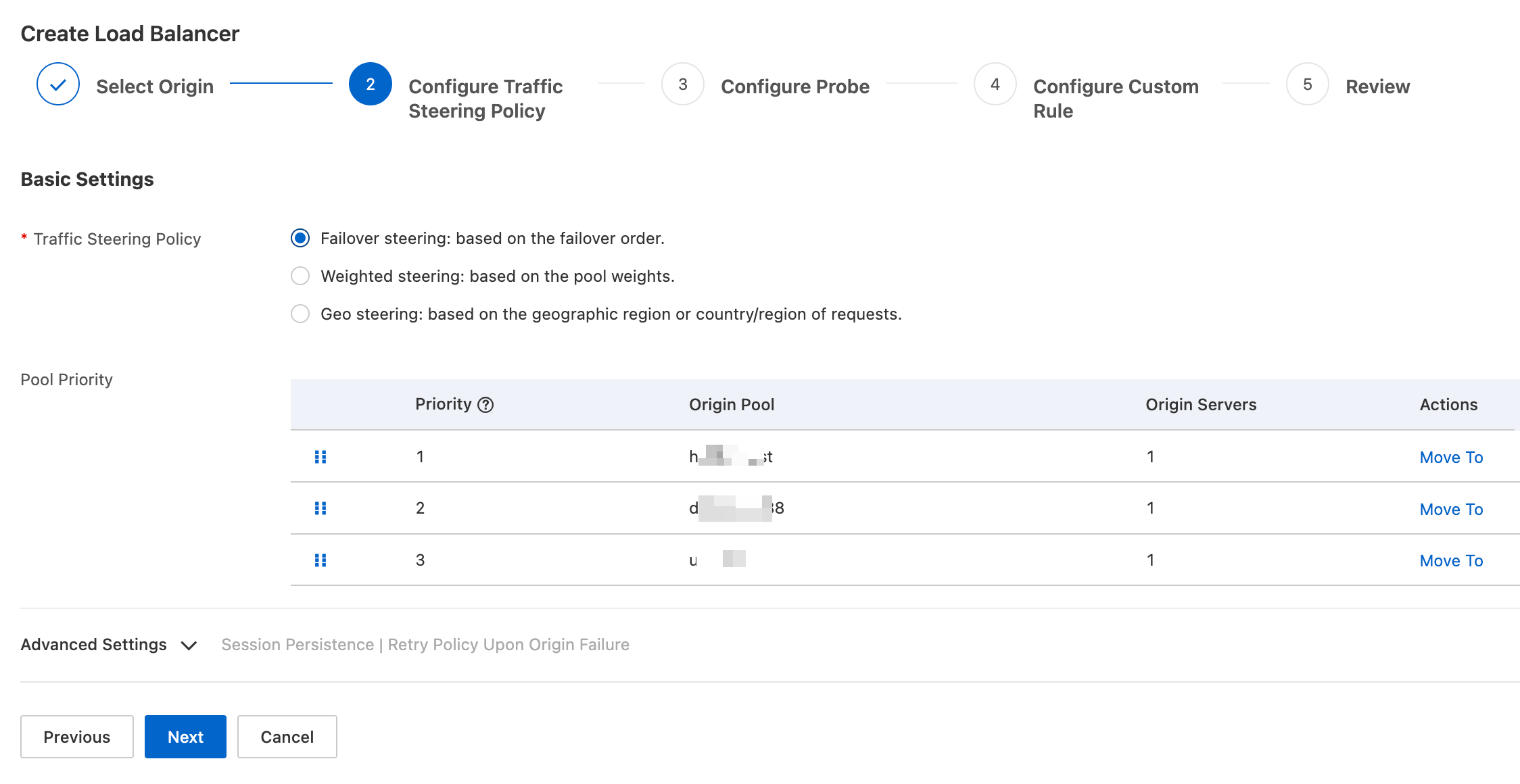
Traffic steering policies determine how traffic is distributed among origin pools: failover or weighted. This example uses failover steering, which routes traffic by pool priority. Traffic steering policies.
Select a Traffic Steering Policy.
Policy type
Use case
Description
Failover steering: based on the failover order.
High-reliability scenarios requiring data consistency.
All requests go to the highest-priority pool. If that pool becomes unhealthy or disabled, traffic fails over to the next pool in priority order.
Weighted Steering
High-concurrency scenarios requiring proportional load distribution.
Assign a weight (1–100) to each origin pool to set the percentage of requests it receives. ESA directs a proportional percentage of user requests to each origin pool based on its weight.
If you set the weight of an origin pool to 0, no requests will be directed to that pool.
Geo steering: based on the originating geographic region or country/region.
International or regional traffic steering.
Direct requests to different origin pools based on user region. Typically, origins in a pool belong to the same country or region. Global region mapping for load balancing.
A secondary region setting overrides the primary region.
Adjust Pool Priority: The pool priority determines the failover order. ESA routes origin requests based on the Priority number; a smaller number indicates a higher priority.
Optionally, configure the Advanced Settings, and then click Next.
Session Persistence: When enabled, choose from By Client IP, By Cookie, or Based on HTTP Header mode. All requests from the same client route to the same origin, preserving session state such as login status and shopping carts. When you select Based on HTTP Header mode, enter the HTTP header name to use for session affinity. The header name can be up to 128 characters in length.
Retry Policy Upon Origin Failure: Select a retry policy to apply when an origin request fails.
Within the same pool: The default policy. When an origin request fails, the request is retried with another origin server in the same origin pool.
In another pool: When an origin request fails, the request is retried with a healthy origin server in the next-highest priority origin pool.
Origin server retry: When an origin request fails, the request is retried with the same origin server.
Step 3: Configure health check rules
Health checks probe your origins using ICMP Ping, HTTP, HTTPS, TCP, or UDP ICMP. If a probe fails, ESA removes the unhealthy origin from rotation.
On the Configure Probe page, select Protocol.
Configure the parameters based on your business requirements.

ICMP ping
Tests whether an origin server is reachable.
Parameter
Description
Advanced Settings
Probe Interval (seconds)
Default: 60 seconds. Range: 10 to 3600 seconds.
Timeout (seconds)
Default: 5 seconds. Range: 1 to 10 seconds.
Health Judgment
Unhealthy threshold
The number of consecutive failures required to mark an origin server as unhealthy. Default: 1. Range: 1 to 5.
Healthy threshold
The number of consecutive successes required to mark an origin server as healthy. Default: 1. Range: 1 to 5.
HTTP/HTTPS
For web applications. Evaluates HTTP/HTTPS response status codes.
Monitor Host header (Highest priority): The Host header specified in the health check configuration is used, if present.
Origin server Host (Second priority): If no Host header is configured in the monitor, the Host header of the origin server is used.
Load balancer domain (Fallback): If neither of the above is available, the load balancer's domain name is used.
Parameter
Description
Probe URL Path
The path to probe. For example,
/health/test.txt. Default:/.Port
The default port is 80 for HTTP and 443 for HTTPS. Range: 1 to 65535.
Advanced Settings
Probe Interval (seconds)
Default: 60 seconds. Range: 10 to 3600 seconds.
Request Method
Supports GET and HEAD methods. Default: HEAD.
Timeout (seconds)
Maximum time for a probe to complete. Exceeding this timeout counts as a failure. Default: 5 seconds. Range: 1 to 10 seconds.
Follow 301/302 Redirects
Whether probes follow 301/302 redirects. Disabled by default. If enabled, follows up to 3 redirects.
Custom Request Header
Add up to 10 custom request headers. The User-Agent header cannot be set.
Health Judgment
Expected Status Code
Default: 2xx. A matching code marks the origin as healthy. Specify multiple codes or use 'x' as a wildcard (100–9999). Examples: 2xx, 200, 33xx, 222x, 8888.
Unhealthy threshold
The number of consecutive failures required to mark an origin server as unhealthy. Default: 1. Range: 1 to 5.
Healthy threshold
The number of consecutive successes required to mark an origin server as healthy. Default: 1. Range: 1 to 5.
TCP
For TCP-based applications. Health is determined by the TCP connection result.
Parameter
Description
Port
The port used for the TCP probe request.
Advanced Settings
Probe Interval (seconds)
Default: 60 seconds. Range: 10 to 3600 seconds.
Timeout (seconds)
Default: 5 seconds. Range: 1 to 10 seconds.
Unhealthy threshold
The number of consecutive failures required to mark an origin server as unhealthy. Default: 1. Range: 1 to 5.
Healthy threshold
The number of consecutive successes required to mark an origin server as healthy. Default: 1. Range: 1 to 5.
UDP ICMP
For UDP-based applications. The probe checks whether the port returns an ICMP Port Unreachable message (which indicates that the destination port is unreachable) within the timeout period. No response means healthy; receiving this message means unhealthy.
Parameter
Description
Port
The port used for the UDP probe request.
Advanced Settings
Probe Interval (seconds)
Default: 60 seconds. Range: 10 to 3600 seconds.
Timeout (seconds)
Default: 5 seconds. Range: 1 to 10 seconds.
Unhealthy threshold
The number of consecutive failures required to mark an origin server as unhealthy. Default: 1. Range: 1 to 5.
Healthy threshold
The number of consecutive successes required to mark an origin server as healthy. Default: 1. Range: 1 to 5.
NoteIf you do not want ESA nodes to send any health check requests to the origin servers, you can select None for the health check protocol type (this performs no health checks and is not recommended). Without health checks, ESA cannot detect or remove unhealthy origins, which may increase request failures.
Click Next.
Step 4: Create custom rules
Create custom rules to route specific traffic differently. Rules match requests by criteria such as client IP or HTTP headers, then apply custom load balancing settings.
Enter Rule Name.
Configure Rule Content: If requests match.... Custom rule configuration. Composition of rule expressions.

For Then execute..., select Respond with Specified Content or Override. After you complete the configuration, click OK.
Click Next.


Step 5: Review the configuration
Review section displays your configuration. Verify the settings and click OK.
Configure the load balancer
After you create the load balancer, add a DNS record to route traffic through it.
In the ESA console, select Websites. In the Website column, click the target website.
In the navigation pane on the left, choose .
On the Records page, click Add Record. For Record Value, select Load Balancing. For Load Balancer, select the load balancer that you created.
Click Next, select the scenario to accelerate, and then click OK.