Start an instance
GPU-accelerated instances are a type of Elastic Compute Service (ECS) instance and are managed the same way as standard ECS instances. This topic describes how to start a stopped instance using the ECS console.
Prerequisites
Before you start an instance, it must be in one of the following states:
Stopped — the instance was stopped normally.
Expired — the instance is a pay-as-you-go instance that entered the Expired state due to an overdue payment. The overdue payment has been settled, but the instance was not automatically reactivated.
Start an instance
Use the ECS console
Log on to the ECS console.
In the left-side navigation pane, choose Instances & Images > Instances.
In the top navigation bar, select a region.
Start the instance:
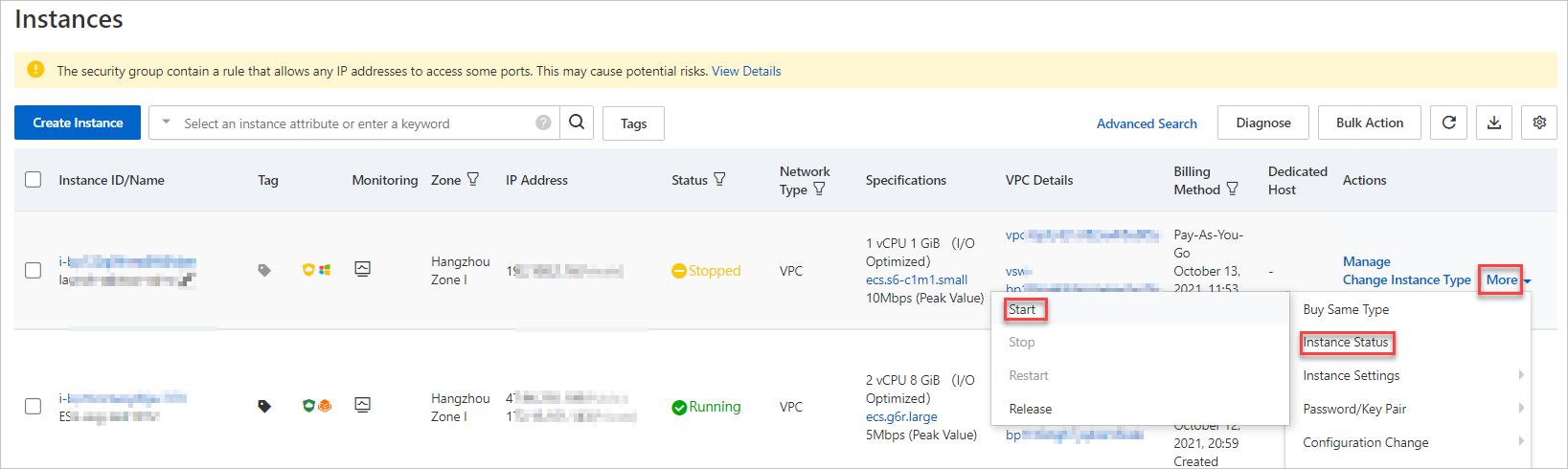
Single instance: Find the instance, then in the Actions column, choose More > Instance Status > Start.
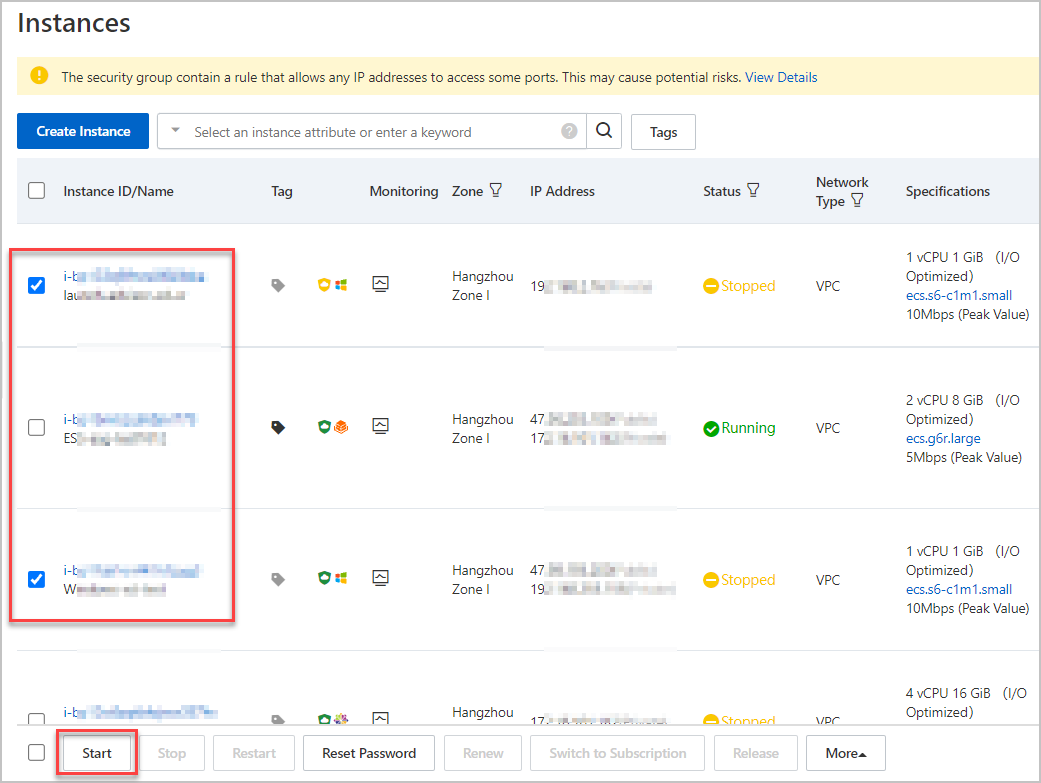
Multiple instances: Select the instances, then click Start at the bottom of the Instances page.
In the Start Instance dialog box, confirm the instance information and click OK.
After the instance starts, it enters the Running state.
Troubleshooting
Pay-as-you-go instances stopped due to overdue payment
After you settle an overdue payment, the system attempts to reactivate the instance automatically. If the instance is not reactivated within 10 minutes, check whether it has entered the Running state. If it remains stopped, manually start it using the steps above.
After a pay-as-you-go instance that was stopped due to an overdue payment is started, you can use the instance as normal and the instance continues to incur pay-as-you-go charges. Release instances that you no longer need at the earliest opportunity to avoid unnecessary costs.
Instance fails to start
If the instance fails to start due to insufficient resources for the instance type, change the instance type. For more information, see Change the instance type of a pay-as-you-go instance. If the problem persists, use the instance health diagnostics feature to troubleshoot.