Overview
The data source and storage configuration feature consists of two modules: source sync settings and storage settings.
Source sync settings: Automatically syncs document content from a specified OSS data source address.
Storage settings: Stores original files and processing results directly in your specified OSS address to ensure data security and isolation.
Data source sync configuration
You can configure data source sync tasks for each top-level folder. By default, the initial status is unconfigured.
During synchronization, the system automatically creates a folder structure in the knowledge base that mirrors the structure in the source OSS. A maximum of two subfolder levels are supported, which includes a top-level folder and a second-level subfolder. Deeper folder structures are automatically flattened.
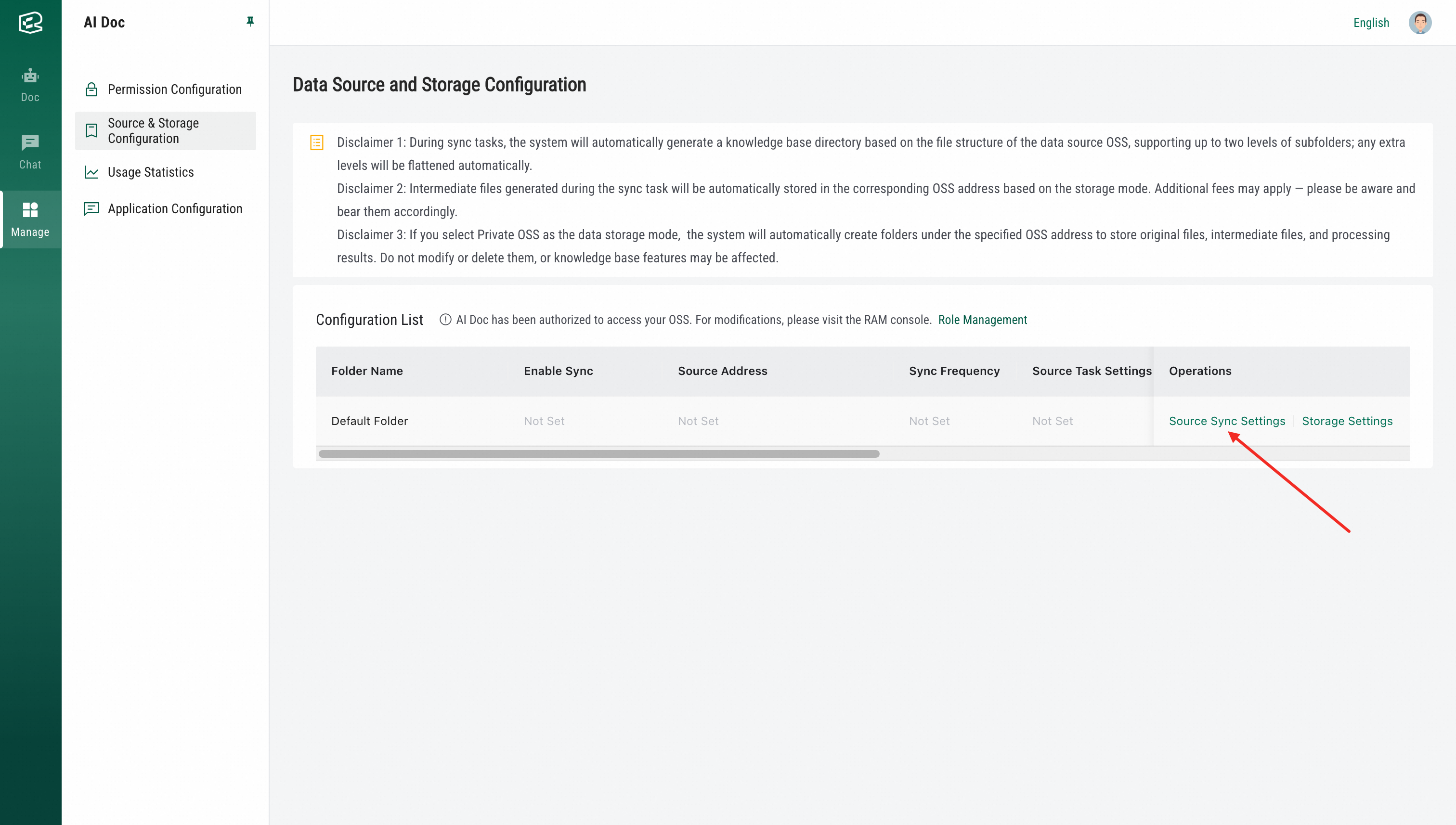
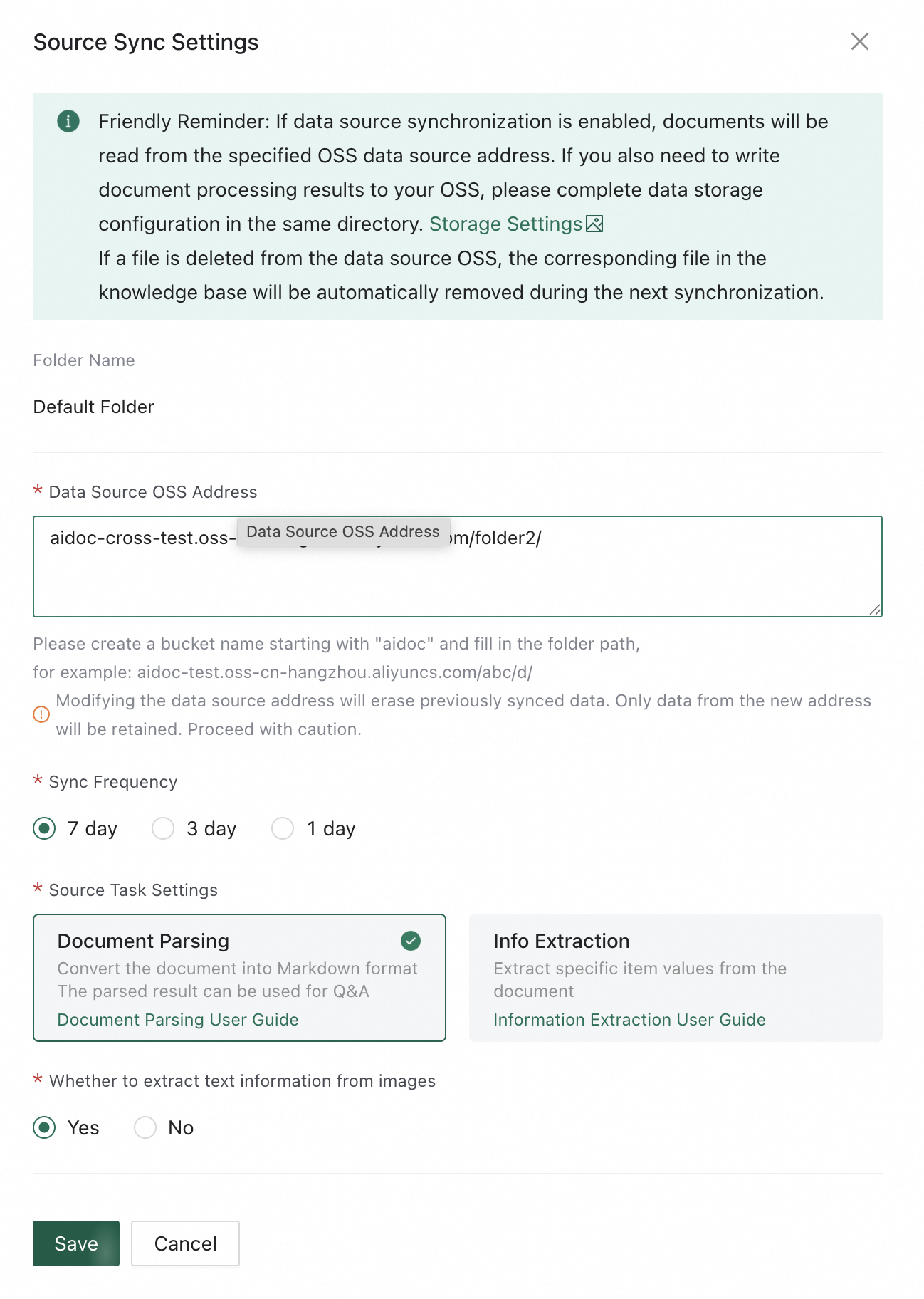
In the data source sync window, you can set the following:
Data source OSS address: Specify the OSS address from which to sync. You must create a bucket name that starts with aidoc and enter the folder path. For example: aidoc-test.oss-cn-hangzhou.aliyuncs.com/abc/d/
Sync frequency: Set the execution cycle for the sync task. The system automatically runs the data sync in the early morning of the scheduled day based on the selected frequency. If the task volume is large, the processing time may be longer.
Source task settings: Define how files are processed, such as parsing or extraction.
Enabled sync: Enable or pause the sync task.
After you complete the configuration, the system automatically syncs the data source content as scheduled.
Limitations
To ensure sync consistency, you cannot move a folder or its contents from the knowledge base interface if data source sync is configured for that folder.
Intermediate files generated during sync tasks are automatically stored at the corresponding OSS address according to the storage mode. Note that this may incur costs for which you are responsible.
Data storage settings
You can configure data storage for each top-level folder.
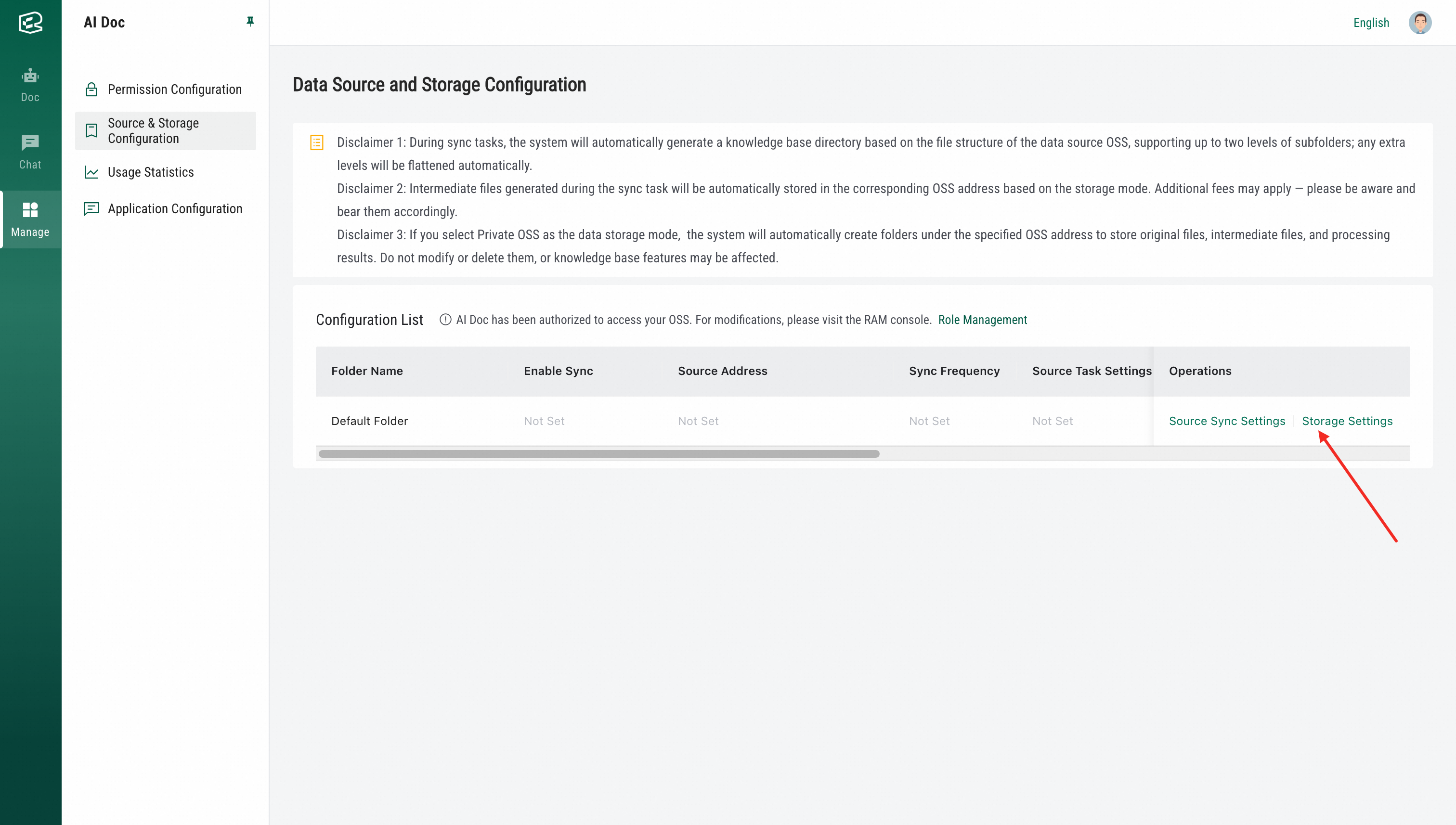
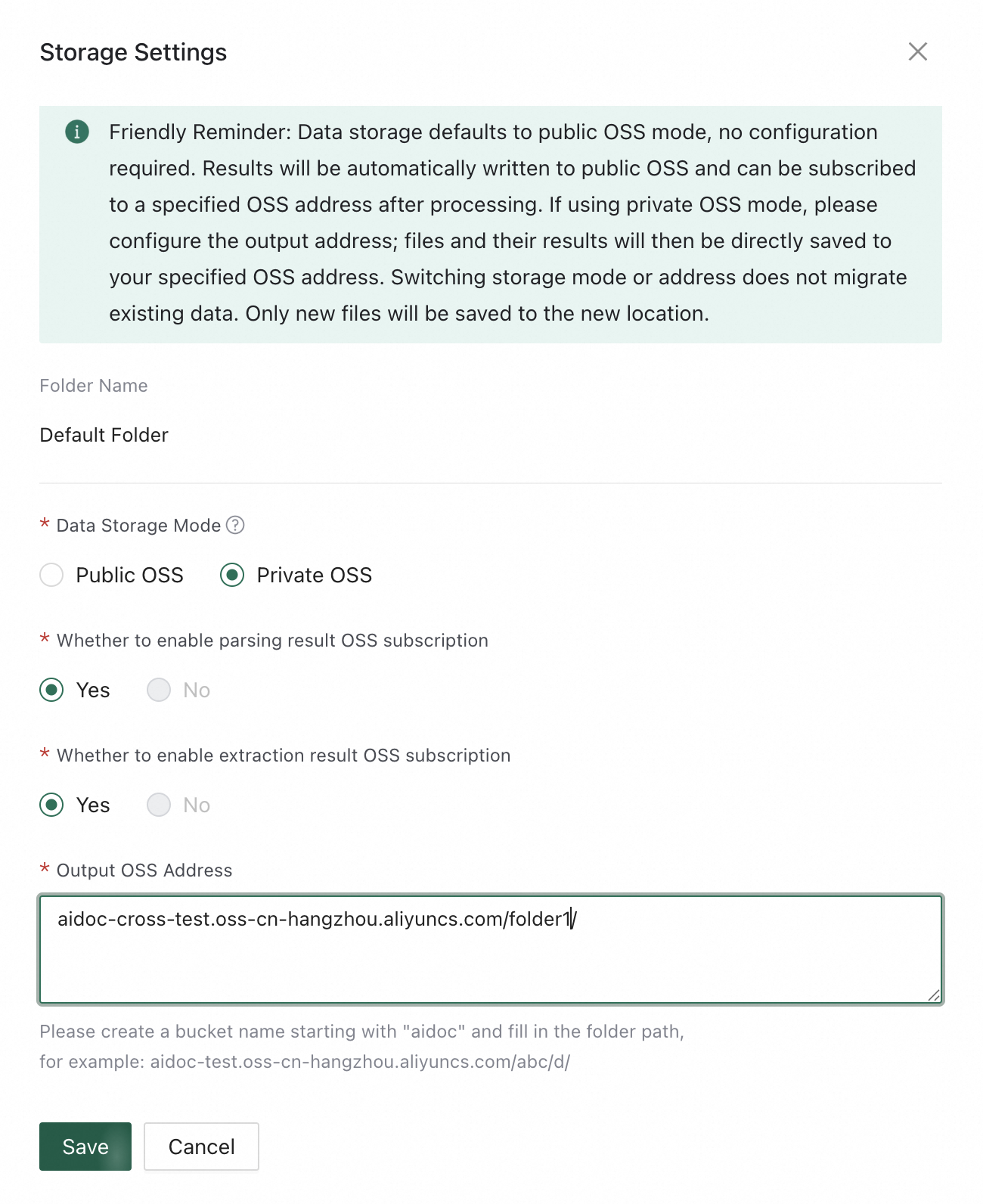
By default, data storage uses the public OSS mode. This mode requires no setup, and processing results are automatically written to a public OSS. You can also subscribe to a specified OSS address after the write operation. If you select the private OSS mode, all original files and processing results are written directly to your specified OSS address.
Configure your OSS
CORS configuration
To ensure the product page functions correctly, first configure Cross-Origin Resource Sharing (CORS) rules in the destination OSS bucket.
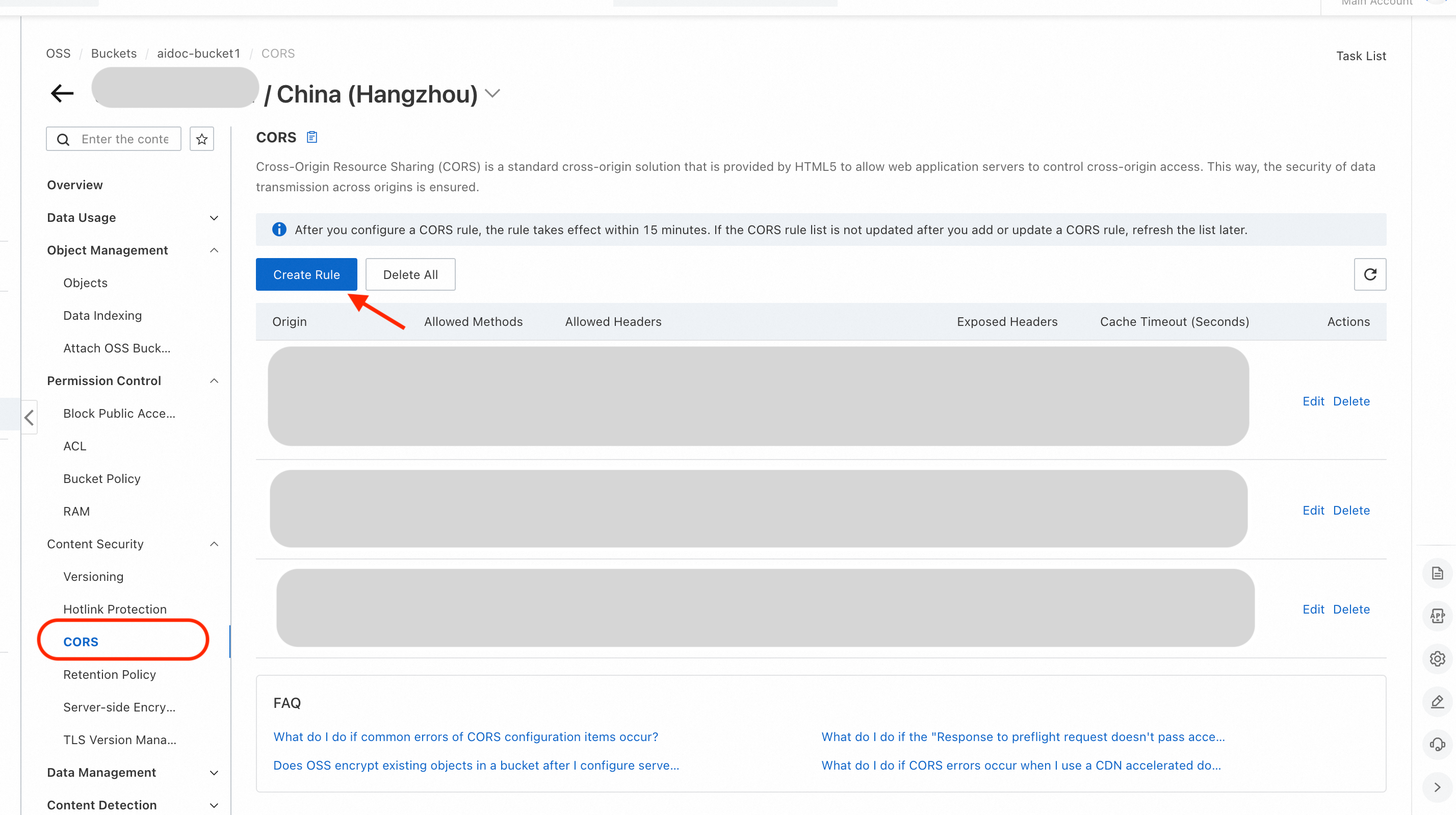
Configure the following two rules:
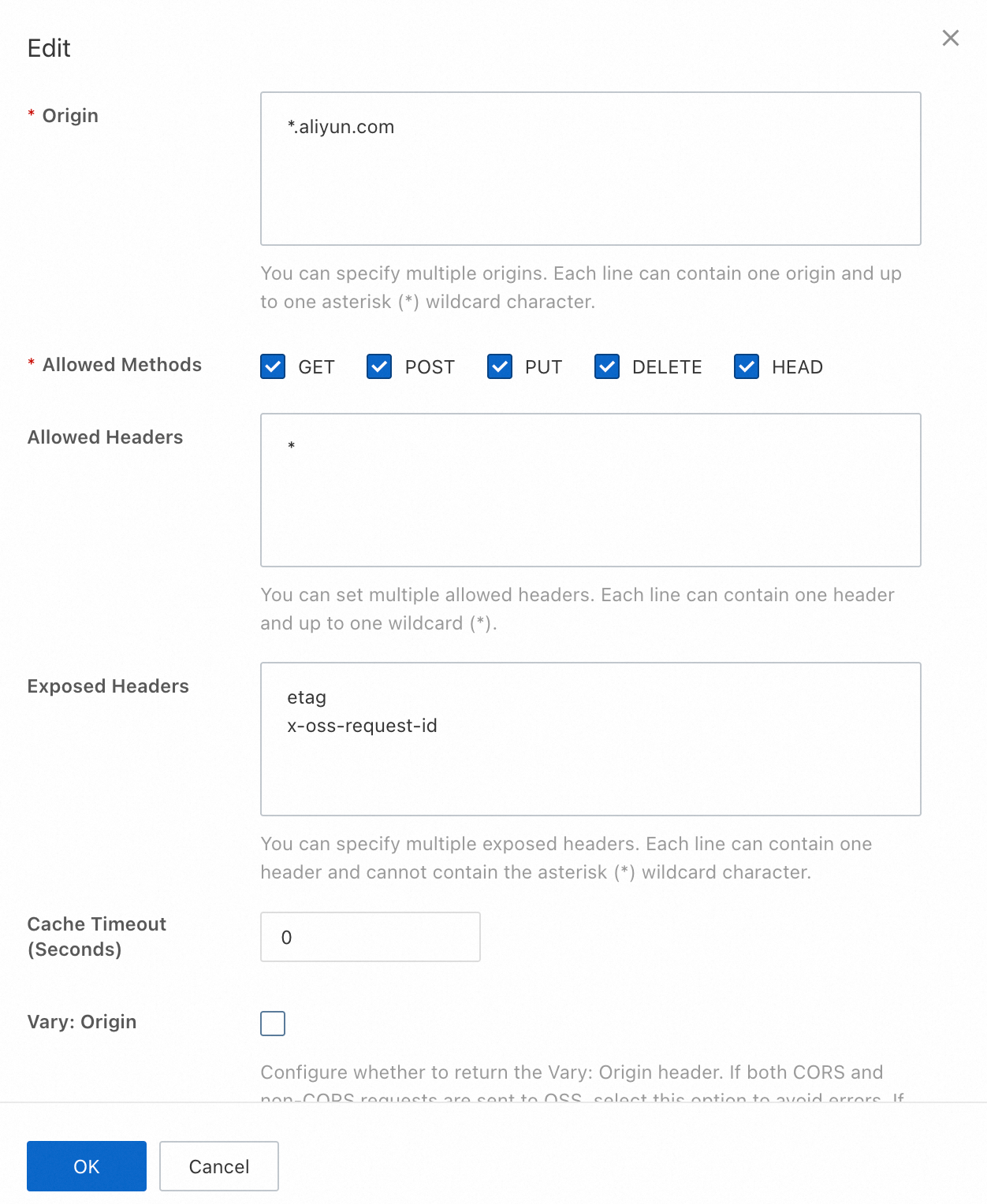
Origin:
*.aliyun.com
Exposed Headers:
etag
x-oss-request-id
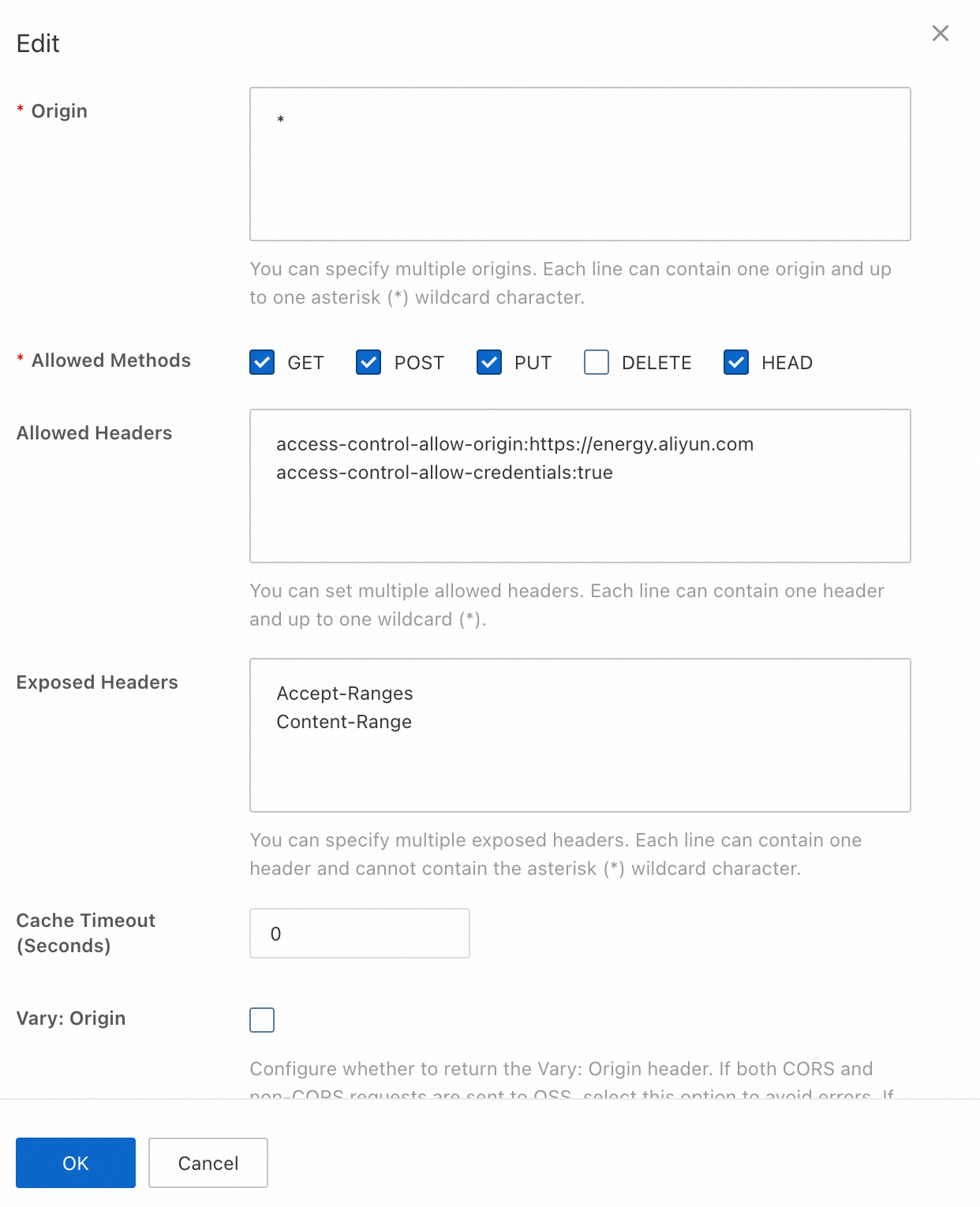
Allowed Headers:
access-control-allow-origin: https://energy.aliyun.com
access-control-allow-credentials: true
Exposed Headers:
Accept-Ranges
Content-Range
Data storage configuration
Open the data storage configuration window and select your OSS. Set the destination OSS address and save the configuration. You must create a bucket name that starts with aidoc and enter the folder path. For example: aidoc-test.oss-cn-hangzhou.aliyuncs.com/abc/d/. After you complete the configuration, the system automatically stores the relevant files at the specified address.
Limitations
If you select your own OSS for storage, the system automatically creates folders at the specified OSS address to store original files, intermediate files, and processing results. Do not modify or delete these folders manually. Modifying or deleting these folders may cause some knowledge base features to malfunction.