Upgrade or downgrade instances
You can upgrade or downgrade instance types and adjust bandwidth in the ENS console.
Upgrade or downgrade an instance type
-
Make sure that the instance is stopped before you change its instance type.
-
The new instance type takes effect immediately. Proceed with caution.
-
You can change the instance type only for subscription and pay-as-you-go instances.
-
You cannot change the instance type of ECS Bare Metal instances.
-
Log on to the ENS console.
-
In the navigation pane on the left, choose .
-
On the Instance Management page, click Change Specifications in the Actions column of the target instance. You can also select multiple target instances and choose at the bottom of the page.
Note-
For a subscription instance, select the new instance type, click OK, and then complete the payment.
-
For a pay-as-you-go instance, select the new instance type and click OK.

-
-
You can view the new instance type and status on the Instance Management page.
Upgrade or downgrade bandwidth
-
Changes to the bandwidth take effect immediately. Proceed with caution.
-
Only X86 compute instances are supported.
-
Changing the bandwidth adjusts the upper bandwidth limit of the NIC associated with the public IP address. You are billed based on the actual bandwidth that the instance uses.
-
Log on to the ENS console.
-
In the navigation pane on the left, choose .
-
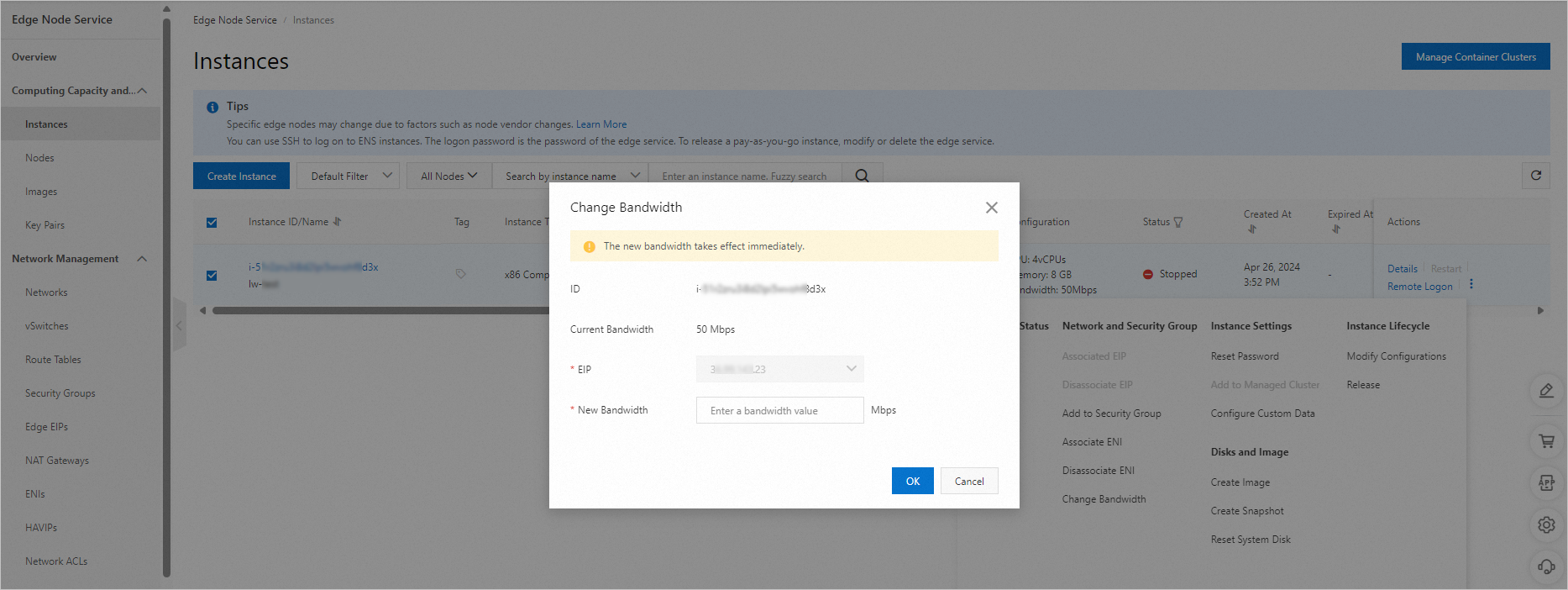
On the Instance Management page, click Change Bandwidth in the Actions column of the target instance.
-
In the dialog box, enter a value for New Bandwidth Limit and click OK.