Quick Start for Serverless
If you are new to Elasticsearch Serverless (ES Serverless), this topic helps you understand its basic workflow. This topic describes how to create an Alibaba Cloud ES Serverless application and shows you how to create an index, write data, and query data using Kibana. This topic uses a retrieval-augmented application as an example.
Step 1: Create an application
When you create an ES Serverless application for the first time, the service is automatically enabled. By enabling the service, you agree to the relevant Terms of Service. After the application is created, it is billed based on the billing standards. If the application fails to be created, no fees are incurred.
Create an application.
Go to the Serverless application creation page and select a region for the application.
On the Application Management page, click Create Application.
Configure the basic information for the application.
Enter an application name and select an application type. You can use the default values for the other parameters or customize them as required. The supported application types include Retrieval-Augmented Application (v8.17), Log Analysis Application, and General-purpose Retrieval Application. This topic uses Retrieval-Augmented Application as an example.
Configure the access information for the application.
In this example, Network Access Method is set to Public Access, and the IP address of your local device is added to the Public Access Whitelist. This lets you access the Kibana of the Serverless application from your local device. To configure network access for the application, see Configure public or internal-facing access for a Serverless application.
Enter a User Password to log on to Kibana.
Click Create Now.
On the Application Management page, you can view the applications that you have created. Wait until the status of an application changes to Running before you proceed to the next step.
Step 2: Use Kibana to create an index and read or write data
This topic uses a retrieval-augmented application as an example. For more information about how to create an index and read and write data in a log analysis application, see Create an index.
For the target application, click Access Kibana in the Actions column.
On the Kibana logon page, enter your username and password, and click Log in.
Username: On the Application Management page, click the application name. On the Application Details page, find and copy the Username from the Basic Information section. The username is composed of the
application name + a random three-character alphanumeric string.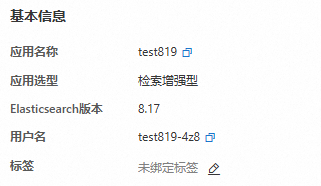
Password: The password that you set for the application. If you forget the password, you can reset it on the Application Details page. In the Basic Information section, click Modify next to User Password.
In the Kibana console, go to
 > Management > Dev Tools.
You can run the following command in the Console to create an index.
The following example creates an index named
product_infowith three fields:productName,annual_rate, anddescribe.PUT /product_info { "mappings": { "properties": { "productName": { "type": "text", "analyzer": "ik_smart" }, "annual_rate":{ "type":"keyword" }, "describe": { "type": "text", "analyzer": "ik_smart" } } } }A successful creation returns the following result.
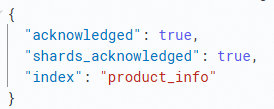
Run the following command to create documents and insert data into the index.
POST /product_info/_bulk
{"index":{}}
{"productName":"Wealth Management Product A","annual_rate":"3.2200%","describe":"180-day fixed-term wealth management, minimum investment of 20,000, stable returns, optional message push notifications"}
{"index":{}}
{"productName":"Wealth Management Product B","annual_rate":"3.1100%","describe":"90-day fixed investment product, minimum investment of 10,000, daily return arrival push notifications"}
{"index":{}}
{"productName":"Wealth Management Product C","annual_rate":"3.3500%","describe":"270-day fixed investment product, minimum investment of 40,000, immediate daily return arrival push notifications"}
{"index":{}}
{"productName":"Wealth Management Product D","annual_rate":"3.1200%","describe":"90-day fixed investment product, minimum investment of 12,000, daily return arrival push notifications"}
{"index":{}}
{"productName":"Wealth Management Product E","annual_rate":"3.0100%","describe":"Recommended 30-day fixed investment product, minimum investment of 8,000, daily return push notifications"}
{"index":{}}
{"productName":"Wealth Management Product F","annual_rate":"2.7500%","describe":"Popular short-term product, 3-day term, no service fees, minimum investment of 500, receive return notifications via text message"}
If the returned result contains
"errors" : false, the data is inserted successfully.Run the following commands to search for data in the index.
Full-text search: Search for all products whose description contains
daily return arrival push notifications.GET /product_info/_search { "query": { "match": { "describe": "daily return arrival push notifications" } } }The following result is returned:
{
  "took": 4,
  "timed_out": false,
  "_shards": {
    "total": 1,
    "successful": 1,
    "skipped": 0,
    "failed": 0
  },
  "hits": {
    "total": {
      "value": 6,
      "relation": "eq"
    },
    "max_score": 2.2842526,
    "hits": [
      {
        "_index": "product_info",
        "_id": "ei9VKJkBN4sqtrqx6JH9",
        "_score": 2.2842526,
        "_source": {
          "productName": "Wealth Management Product B",
          "annual_rate": "3.1100%",
          "describe": "90-day fixed investment product, minimum investment of 10,000, daily return arrival push notifications"
        }
      },
      {
        "_index": "product_info",
        "_id": "fC9VKJkBN4sqtrqx6JH9",
        "_score": 2.2842526,
        "_source": {
          "productName": "Wealth Management Product D",
          "annual_rate": "3.1200%",
          "describe": "90-day fixed investment product, minimum investment of 12,000, daily return arrival push notifications"
        }
      },
      {
        "_index": "product_info",
        "_id": "ey9VKJkBN4sqtrqx6JH9",
        "_score": 2.217505,
        "_source": {
          "productName": "Wealth Management Product C",
          "annual_rate": "3.3500%",
          "describe": "270-day fixed investment product, minimum investment of 40,000, immediate daily return arrival push notifications"
        }
      },
      {
        "_index": "product_info",
        "_id": "fS9VKJkBN4sqtrqx6JH9",
        "_score": 0.8562305,
        "_source": {
          "productName": "Wealth Management Product E",
          "annual_rate": "3.0100%",
          "describe": "Recommended 30-day fixed investment product, minimum investment of 8,000, daily return push notifications"
        }
      },
      {
        "_index": "product_info",
        "_id": "eS9VKJkBN4sqtrqx6JH9",
        "_score": 0.40109843,
        "_source": {
          "productName": "Wealth Management Product A",
          "annual_rate": "3.2200%",
          "describe": "180-day fixed-term wealth management, minimum investment of 20,000, stable returns, optional message push notifications"
        }
      },
      {
        "_index": "product_info",
        "_id": "fi9VKJkBN4sqtrqx6JH9",
        "_score": 0.13270499,
        "_source": {
          "productName": "Wealth Management Product F",
          "annual_rate": "2.7500%",
          "describe": "Popular short-term product, 3-day term, no service fees, minimum investment of 500, receive return notifications via text message"
        }
      }
    ]
  }
}
Search by condition to find products with an annual rate between 3.0000% and
3.1300%.GET /product_info/_search { "query": { "range": { "annual_rate": { "gte": "3.0000%", "lte": "3.1300%" } } } }The following result is returned:
{
  "took": 3,
  "timed_out": false,
  "_shards": {
    "total": 1,
    "successful": 1,
    "skipped": 0,
    "failed": 0
  },
  "hits": {
    "total": {
      "value": 3,
      "relation": "eq"
    },
    "max_score": 1,
    "hits": [
      {
        "_index": "product_info",
        "_id": "ei9VKJkBN4sqtrqx6JH9",
        "_score": 1,
        "_source": {
          "productName": "Wealth Management Product B",
          "annual_rate": "3.1100%",
          "describe": "90-day fixed investment product, minimum investment of 10,000, daily return arrival push notifications"
        }
      },
      {
        "_index": "product_info",
        "_id": "fC9VKJkBN4sqtrqx6JH9",
        "_score": 1,
        "_source": {
          "productName": "Wealth Management Product D",
          "annual_rate": "3.1200%",
          "describe": "90-day fixed investment product, minimum investment of 12,000, daily return arrival push notifications"
        }
      },
      {
        "_index": "product_info",
        "_id": "fS9VKJkBN4sqtrqx6JH9",
        "_score": 1,
        "_source": {
          "productName": "Wealth Management Product E",
          "annual_rate": "3.0100%",
          "describe": "Recommended 30-day fixed investment product, minimum investment of 8,000, daily return push notifications"
        }
      }
    ]
  }
}
For more information about how to use Kibana, see Use Serverless Applications with Kibana.
Step 3: (Optional) View application monitoring data
On the Application Management page, click the name of the target application.
In the left navigation pane, click Monitoring Center to view monitoring metrics for the application.
The monitoring data displayed in the console is delayed by about
5 minutes.The day-over-day comparison shows the change in data compared with the same time on the previous day.
NoteFor more information, see View the monitoring center.
Step 4: (Optional) Delete the application
After an application is deleted, its data cannot be recovered. Proceed with caution.
On the Application Management page, find the application you want to delete. In the Actions column, click
 > Delete.
Follow the on-screen instructions to delete the application.
FAQ
Q: I am unable to access Kibana and receive the following error message: The current IP address is not in the Kibana access whitelist. Go to the console to modify the Kibana access configuration.
A: This message appears because the IP address of your device is not in the public or private access whitelist for the Kibana console. For more information about how to add an IP address to the whitelist, see Configure public or private access for a Serverless application.