Index Management Center
The Index Management Center of Indexing Service and OpenStore instances provides end-to-end management capabilities from template definition to data writing, and covers four levels: content templates, index templates, data streams, and indexes. Combined with index lifecycle management (ILM), index data automatically flows between the hot phase, the cold phase, and the delete phase based on policies, which reduces storage costs.
How it works
Core concepts and dependencies
The Index Management Center involves four core concepts:
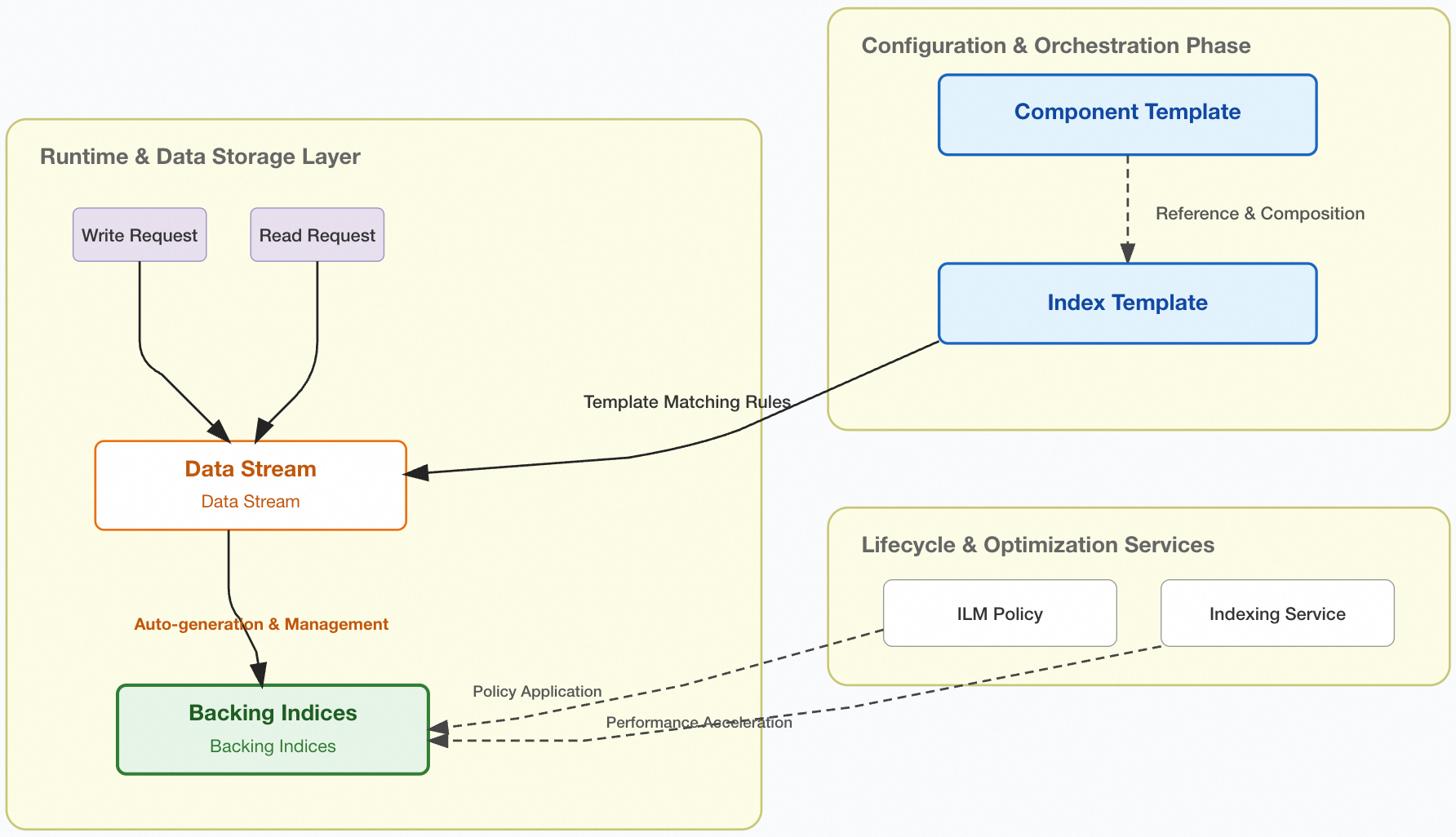
-
Content Template (Component Template)
A reusable configuration fragment that contains the Settings, Mappings, or Aliases configuration of an index. Multiple index templates can reference the same content template to form a composite template, which avoids repeatedly defining the same parameters. Typical scenario: common configurations of OpenStore storage, such as the codec and lifecycle policies, are defined in a content template in a unified manner.
-
Index Template
Defines the field mappings (Mappings), index settings (Settings), aliases (Aliases), and lifecycle policies of an index. It matches data stream or index names by using index patterns (index_patterns). When you create a data stream or an index, the system automatically applies the matching template to configure the backing indexes. An index template can define configurations directly, or it can be generated by referencing one or more content templates in combination.
-
Data Stream
An abstraction layer for time series data that provides a uniformly named resource for read and write operations. Internally, a data stream consists of one or more automatically generated backing indexes: write requests are always routed to the latest backing index (the write index), and read requests are routed to all backing indexes. A data stream supports append-only writes and is suitable for time series data scenarios such as logs, events, and metrics, which are continuously generated and rarely updated.
-
Index
The actual storage unit of data. In data stream scenarios, indexes are automatically created and managed in the form of backing indexes. After Indexing Service is enabled, the write part of an index is hosted in a cloud-based Elasticsearch cluster, and write performance is accelerated by cloud-based index building. The lifecycle of an index is automatically managed by ILM policies and goes through the hot phase and the cold phase until deletion.
Data write process
-
A client sends a write request to the data stream. Each document must contain the @timestamp field.
-
Based on the matching index template, the data stream routes the data to the current write index (the latest backing index).
-
Indexing Service completes index building in the cloud, which accelerates write performance.
-
When the write index meets the conditions of the ILM rollover policy (such as reaching a specified size or time), Rollover is automatically triggered to create a new backing index as the write index, and the cloud-based write hosting of the old backing index is automatically canceled.
-
The ILM policy automatically migrates the old backing indexes from the hot phase to the cold phase (OpenStore storage) until the delete conditions are met and the indexes are automatically cleaned up.
Indexing Service cloud-based hosting
Indexing Service hosts the write part of index building in a cloud-based Elasticsearch cluster and is suitable for scenarios that require fast writing of large amounts of time series log data. After Indexing Service is enabled, both data stream indexes and standalone indexes in the cluster are hosted in the cloud for writing by default (except for system indexes). A hosted index automatically has its write hosting canceled after 3 days by default, and the index becomes read-only after the write hosting is canceled.
Take note of the following items when you use Indexing Service:
-
Indexing Service uses the pay-as-you-go billing method based on the total size of write-hosted indexes and the write traffic. (Recommended) Optimize the cloud-based hosting space by using data streams and ILM rollover policies.
-
While an index is in the hosted state, it is incompatible with the shrink operation in ILM Action. Configure shrink only after the write hosting of the index is canceled. For more information, see ILM-shrink.
-
The data synchronization between the Indexing Service instance and the user cluster depends on the apack/cube/metadata/sync task (use the
GET _cat/tasks?vcommand to obtain the task information). Do not manually clean up this task. If the task is cleaned up, run thePOST /_cube/meta/synccommand as soon as possible to restore it. Otherwise, business writes are affected. -
Frequently performing Put Mapping consumes a large amount of compute resources and severely affects the stability of the hosting service. Define index templates in advance before writing data to reduce Put Mapping operations.
Access the Index Management Center
Only 7.10 instances that have the Indexing Service write hosting service or OpenStore storage enabled support the index management feature in the ES console.
For a General Commercial Edition instance, you can log on to Kibana and go to the Management page to use the index management feature of Kibana. The operation pages of different Kibana versions vary. For more information about the specific operations, see the corresponding version of the official Kibana documentation.
-
Log on to the Alibaba Cloud Elasticsearch console.
-
In the left-side navigation pane, click Elasticsearch Clusters.
-
Go to the target instance.
-
In the top menu bar, select a resource group and a region.
-
In Elasticsearch Clusters, click the target instance ID.
-
-
In the left-side navigation pane, choose
The Index Management Center contains the following tabs: Data Stream Management, Index Management, Index Template Management, and Content Template Management.
Manage content templates
When multiple index templates need to share the same Settings, Mappings, or Aliases configuration, first create a content template and then reference it in the index templates to avoid duplicate definitions. If you do not need to reuse configurations across templates, you can skip this step and define all configurations directly in the index template.
Create a content template in the console
-
Click the Content Template Management tab.
-
Click Create Content Template.
-
In the Create Content Template panel, enter Name and Note, and complete Configuration to configure the index Settings, Mappings, and Aliases. The configuration format must strictly follow the official Elastic specifications.
Settings code sample:
{ "index": { "lifecycle": { "name": "zlopenstore_default_ilm_policy" }, "apack": { "cube": { "following_index": "true" } }, "codec": "OpenIndex87", "refresh_interval": "1s" } } -
Click View Configuration to preview the content template configuration. If the configuration is correct, click OK.
Create a content template by using an API
-
Log on to the Kibana console of the target ES instance. For more information, see Connect to a cluster using Kibana.
-
On the Kibana homepage, click Dev Tools.
-
In Console, run the Put component template API command to create a content template.
The following example shows how to create an OpenStore content template:
PUT _component_template/zlcomponent-openstore-index-template
{
  "template" : {
    "settings" : {
      "index" : {
        "lifecycle" : {
          "name" : "openstore_default_ilm_policy"
        },
        "apack" : {
          "cube" : {
            "following_index" : "true"
          }
        },
        "codec" : "OpenIndex87",
        "refresh_interval" : "1s"
      }
    }
  }
}
View and modify content templates
-
On the Content Template Management page, view the content templates that you created.
Alibaba Cloud Elasticsearch creates several content templates by default. We recommend that you do not modify the configurations of these default templates.
-
Usage Count indicates the number of index templates that reference this template. Move the pointer over the usage count to view the names of the index templates that reference this content template.
-
A content template that is already referenced cannot be deleted. You must first unbind it by modifying the corresponding index template, and then you can delete it.
-
-
In the Actions column on the right side of the target content template, click Modify.
-
In the Modify Content Template panel, modify the template information and click OK.
Create an index template
Before you create a data stream, you must first create a matching index template to define the structure and lifecycle policy of the backing indexes. The creation process consists of two steps: configure the index lifecycle policy (optional) and configure the index template information.
-
Click the Index Template Management tab, and then click Create Index Template.
-
Optional: In the Create Index Template panel, configure the index lifecycle policy.
If you do not need to manage the lifecycle policies of the data stream backing indexes, click Skip. We recommend that you configure a lifecycle policy so that ILM automatically manages the rollover and data migration of the backing indexes, which optimizes the cloud-based hosting space and reduces storage costs.
Key parameters
Description
Index Lifecycle Policy
-
New Index Lifecycle Policy: Creates a new index lifecycle policy.
-
Existing Index Lifecycle Policy: Selects a lifecycle policy that already exists in the cluster.
Policy Name
-
When you select the option to create a new index lifecycle policy, you must enter custom values.
-
When you select an existing index lifecycle policy, select a lifecycle policy that already exists in the cluster from the drop-down list. The other configurations of the selected policy are automatically applied to the current index template, and you can modify them on that basis.
Hot Phase
Enabled by default and cannot be disabled.
Rolling Update
We recommend that you enable this feature. By default, ILM checks the indexes that meet the policy criteria every 10 minutes. After an index meets the Rollover conditions, rollover may not be triggered immediately. You can modify the indices.lifecycle.poll_interval parameter to change the check interval. If you do not configure a rollover policy, all index data is stored in Indexing Service, which increases the cloud hosting fees.
Duration After Which Hosting Is Canceled
The default value is 3 days. After the period expires, the index automatically exits Indexing Service write hosting, which reduces the billing overhead. If the configured duration is later than the start time of the cold phase or the delete phase, the write hosting of the index is automatically canceled after the index enters the corresponding phase. After the write hosting is canceled, the index becomes read-only.
ImportantLong-term data hosting incurs index hosting storage fees. Cancel the write hosting promptly after an index no longer receives writes. The cloud imposes limits on the write hosting duration and the number of hosted shards. For more information, see OpenStore storage engine.
Cold Phase
-
OpenStore Custom Hot-Cold Storage edition: supports enabling and configuring the cold phase.
-
OpenStore Intelligent Hybrid Storage edition: no cold phase.
OpenStore
This parameter can be configured only after Cold Phase is enabled. It is suitable for scenarios in which query complexity is high and the storage cost of massive data is high. For more information, see OpenStore storage engine (high-performance retrieval).
Notes:
-
Only 7.10 kernel-enhanced edition Indexing Service instances that had OpenStore Custom Hot-Cold Storage enabled at purchase support configuring OpenStore.
-
After the cold phase and OpenStore storage are enabled, the system automatically migrates data to cold data nodes and OpenStore storage when the index migration time is reached.
Delete Phase
Sets the deletion time of the index. For OpenStore Intelligent Hybrid Storage, Elasticsearch performs intelligent data storage tiering based on the read and write frequency of the index before the index is deleted.
-
-
Click Save and Next. In the Index Template Configuration wizard, configure the index template information.
Each document that is written to a data stream must contain the @timestamp field, and the mapping type of the field must be date or date_nanos. Otherwise, an error is reported during writing. If the source data does not contain the @timestamp field, you can use an ingest pipeline to specify _ingest.timestamp so that the metadata value is automatically obtained and the field is automatically introduced. Specify a mapping for the @timestamp field in the Mappings of the index template. If no mapping is specified, the field is automatically mapped to the date or date_nanos type.
NoteKernel-enhanced edition instances provide the low-priority
aliyun_default_index_templatetemplate by default for the index pattern [*] to match, which reduces the application cost in log scenarios. This template enables field pre-sorting (index.sort.field) to improve the search performance of time series data. Fields of thenestedtype do not support pre-sorting. Disable pre-sorting for these fields in the template.Parameter
Description
Index Template Name
Enter a custom index template name.
Index Pattern
Defines the index pattern. Wildcard (*) expressions are supported to match data stream and index names. Spaces and the following special characters are not allowed:
\,/,?,",<,>and `Create Data Stream
Enables data stream mode. If this mode is not enabled, the index pattern cannot generate a data stream. For more information, see Data stream.
Priority
Defines the template priority. A larger value indicates a higher priority.
Index Lifecycle Policy
If you created an index lifecycle policy in the previous step, the system directly references that policy and the policy cannot be changed. If you did not create a lifecycle policy in the previous step, you can leave this parameter empty or enter the name of an existing lifecycle policy in the cluster as needed (only one policy name can be entered). For more information about lifecycle policies, see ILM.
Configuration
Configure the index Settings, Mappings, and Aliases. The configuration format must strictly follow the official Elastic specifications. Code samples are as follows: * Settings
plaintext { "index.number_of_replicas": "1", "index.number_of_shards": "5" }* Mappingsplaintext { "properties": { "like": { "type": "keyword" }, "name": { "type": "text" }, "age": { "type": "integer" }, "email": { "type": "keyword" } } }* Aliasesplaintext { "aliases": { "demo": { } } }* Composite content templates: * component-openstore-index-template: the composite template of OpenStore Custom Hot-Cold Storage. * component-hybrid-openstore-index-template: the composite template of OpenStore Storage Engine (Log Analysis). -
Click OK.
After the creation is complete, the Created. dialog box appears on the page. You can click Go to Create a Data Stream Now to go to the data stream creation page, or close the dialog box to return to the index template list.
-
The index templates that you created are displayed in the index template list. The first time you go to the Index Template Management page, you can view the index templates that Alibaba Cloud Elasticsearch creates by default. We recommend that you do not modify the configurations of the default templates.
-
The Content Template of an index template indicates the content templates that the template references. Referencing content templates generates a composite template. Click the name of a content template to go to the Content Template Management page and manage the content template.
-
In the index template list, in the Actions column of the target index template, click Modify to modify the index template that you created. You can also directly click the corresponding Index Template Name or Index Lifecycle Policy to view and modify the index template.
-
Manage data streams
Before you create a data stream, you must first create an index template that matches the data stream and has data stream mode enabled.
Create a data stream
-
Click the Data Stream Management tab.
-
Click Create Data Stream.
-
In the Create Data Stream panel, click View Existing Index Templates and, based on the corresponding index template, enter a data stream name that can match the index template.
Important-
Before you create a data stream, a matching index template must exist. The template contains the information that is used to configure the mappings and settings of the backing indexes. The data stream name must conform to the matching pattern of the index template (for example, if the index_patterns of the index template is
logs-*-*, the data stream name must start withlogs-, such aslogs-myapp-prod). -
A data stream name can end with a hyphen (-) but does not support the wildcard asterisk (*).
-
-
Click OK. The system automatically generates the data stream and the backing indexes.
After each data stream is created, a backing index in a uniform format is automatically generated. The format is as follows.
.ds-<data-stream>-<yyyy.MM.dd>-<generation>Parameter
Description
.ds
The uniform identifier of hidden index names. The names of the backing indexes generated by a data stream start with .ds by default.
<data-stream>
The data stream name.
<yyyy.MM.dd>
The creation date of the backing index.
<generation>
Each data stream generates a six-digit cumulative integer value that starts from 000001 by default. A backing index with a larger generation value contains more recent data.
View data stream information
-
On the Data Stream Management page, click the name of the data stream to view the backing index names, index status, storage size, creation time, current lifecycle phase, and write hosting status of the data stream.
NoteClick the name of a backing index to go to the index monitoring page of the Kibana console and view the monitoring details of the index.
-
Click View Details on the right side of the data stream. On the Data Stream Details page, view the Data Stream Name, Data Stream Status, Indexes, Index Template,Index Lifecycle Policy and Storage Space.
Data stream status includes GREEN, YELLOW, and RED. The meanings are as follows:
-
GREEN: All shards of the indexes supported by the data stream are allocated.
-
YELLOW: All primary shards of the indexes supported by the data stream are allocated, but some replica shards are unallocated.
-
RED: Some primary shards of the indexes supported by the data stream are unallocated, which causes certain data to be unavailable.
-
View index hosting information
On the Data Stream Management page, you can view the information about index hosting.
|
Parameter |
Description |
|
Total Size of Hosted Indexes |
The total size of the indexes that are in cloud-based write hosting at the current time. Important
The total size of cloud-hosted indexes is a real-time changing value, not the historical total index size. |
|
Indexes |
The total number of indexes that are in cloud-based write hosting at the current time. This value is a real-time value in the current system. Important
The number of indexes is a real-time changing value, not the historical total number of indexes. |
|
Data Write Hosting |
Note
|
Perform a rolling update on a data stream
-
On the Data Stream Management page, click Perform Manual Rolling Update on the right side of the data stream.
-
In the dialog box that appears, click OK.
The new backing index generated by the rolling update is in write hosting in the cloud-based Indexing Service by default, and the write hosting of the old backing index is automatically disabled.
Delete a data stream
Deleting a data stream also deletes all of its backing indexes, and the deleted data cannot be recovered. Proceed with caution.
-
On the Data Stream Management page, click Delete on the right side of the data stream.
-
In the dialog box that appears, click OK.
Manage indexes
After a data stream is created, backing indexes are automatically generated and hosted in Indexing Service. You can use the index management feature to view and manage these cloud-hosted indexes, including filtering indexes, viewing lifecycle phases, and controlling the write hosting status.
Click the Index Management tab to view and manage the indexes in the cluster.
By default, the system displays all indexes. You can also filter or find indexes as needed:
-
For the OpenStore Custom Hot-Cold Storage edition, you can filter indexes by using Hosted Indexes and OpenStore Indexes.
-
For the OpenStore Storage Engine (Log Analysis) edition, you can filter indexes only by using Hosted Indexes, and the top of the Index Management page displays Total OpenStore Index Size and Indexes.
|
Key parameters |
Description |
|
Hosted Indexes Only the 7.10 kernel-enhanced edition Indexing Service series supports this parameter. |
When you select this filter condition, the page displays the following information:
|
|
OpenStore Indexes This parameter is supported only after the OpenStore Custom Hot-Cold Storage feature is enabled on 7.10 kernel-enhanced edition instances. |
When you select this filter condition, the page displays the following information:
|
|
Current Lifecycle Phase |
Displays the current lifecycle status of the index, including the phase that is currently being executed, the operations performed in the phase, the time when the index entered the phase, and fault information. For details, see Explain lifecycle API. Indexes that have the OpenStore Intelligent Hybrid Storage feature enabled support only the hot phase and the delete phase, and do not support the cold phase. |
|
Data Write Hosting Only the 7.10 kernel-enhanced edition Indexing Service series supports this parameter. |
The following two states are supported:
|
Related API operations
-
Cancels the write hosting of an index.
POST /<yourIndexName>/_cube/unfollowForcefully cancel the write hosting of an index: During the cancellation of the write hosting, the index must complete segment merging before the hosting ends. The time required for segment merging is related to factors such as the number of segments, the data writing conditions, and the data volume. If the process takes a long time, kernel-enhanced edition instances with kernel version 1.6 or later can use the following command to forcefully cancel the write hosting of an index.
POST /<yourIndexName>/_cube/unfollow?force=true<yourIndexName>: Replace it with the actual index name.
ImportantThe API operations for canceling and forcefully canceling the write hosting of an index do not support batch operations. Frequently canceling the write hosting of indexes affects the stability of the hosting service.
Only kernel-enhanced edition instances with kernel version 1.6 or later support forcefully canceling the write hosting of an index. Instances with a kernel version earlier than 1.6 must first upgrade the kernel version. For more information, see Upgrade version.
-
Obtains the hosting status information.
GET /<yourIndexName>/_cube/stats<yourIndexName>: Replace it with the actual index name.
-
Obtains the overall status of the cluster that is hosted to Indexing Service.
GET /_cube/stats -
Restores a snapshot to an Indexing Service instance.
For example, restore the data of the index_1 index in the snapshot_1 snapshot of the my_backup repository to an Indexing Service instance. The example is as follows. In actual use, you must replace the corresponding information with the actual values.
POST /_snapshot/my_backup/snapshot_1/_restore { "indices": "index_1", "ignore_index_settings": [ "index.apack.cube.following_index" ] } -
Manually triggers a data stream Rollover.
POST <yourDatastreamName>/_rollover<yourDatastreamName>: Replace it with the actual data stream name.