Alibaba Cloud Elasticsearch Serverless retrieval-augmented applications (Version 8.17) are billed based on Compute Units (CUs). One CU provides performance equivalent to one vCPU core and 4 GB of memory. Unlike self-managed servers, which may have low utilization due to inefficient resource allocation, CUs are designed for 100% utilization to prevent resource waste. This topic helps you estimate your CU usage and set a reasonable CU quota as needed.
Usage notes
Before you select CUs for a retrieval-augmented application (Version 8.17), you must understand the following CU types.
CU type (by purpose) |
Description |
Quota (Unit: CU/s) |
Fixed CU |
A pre-configured baseline of CU resources to handle regular workloads and ensure stable service traffic processing. |
You can select |
Elastic CU |
Used to handle traffic bursts, such as flash sales or log peaks. When CU usage exceeds the fixed CU quota, the system automatically schedules elastic resources.
Note
You can enable this feature as needed. If this feature is disabled and CU usage exceeds the fixed CU quota, the system rejects the excess requests and returns a |
The maximum total CU quota that you can scale to varies based on the fixed CU quota. For more information, see CU allocation rules and limits. By default, elastic read and write CU resources are also allocated at a |
Read CU |
The amount of CUs consumed by query operations, such as search, aggregation, and data retrieval. |
|
Write CU |
The amount of CUs consumed by write operations, such as data indexing, updates, and deletions. |
|
Total CU |
The total amount of CUs consumed by the system. This is the sum of read CUs and write CUs. |
|
CU allocation rules and limits
Retrieval-augmented applications (Version 8.17) use a read/write splitting architecture. By default, read and write CUs are allocated at a 1:1 ratio. The following tables show the relationships and limits among fixed CUs, total CUs, read CUs, and write CUs. You can use this information to estimate the required fixed CU quota and the minimum total CU specification based on the maximum usage of your read and write CUs.
Elastic computing disabled
NoteIf elastic computing is disabled and CU usage exceeds the fixed CU quota, the system rejects the excess requests and returns a
429error. To ensure service stability and uninterrupted access during traffic spikes, enable the elastic computing feature.Fixed CU quota (Unit: CU/s)
Total CU limit (Unit: CU/s)
Read CU limit (Unit: CU/s)
Write CU limit (Unit: CU/s)
2
2
1
1
4
4
2
2
6
6
3
3
8
8
4
4
16
16
8
8
24
24
12
12
Elastic computing enabled
NoteIn practice, the elastic CU limit may fluctuate slightly due to resource scheduling and load variations.
Fixed CU quota (Unit: CU/s)
Elastic CU limit (maximum CUs you can scale to, Unit: CU/s)
Read CU limit (Unit: CU/s)
Write CU limit (Unit: CU/s)
2
12
6
6
4
24
12
12
6
24
12
12
8
32
16
16
16
48
24
24
24
72
36
36
Prerequisites
You have created a retrieval-augmented application (Version 8.17).
Selection guide
Refer to CU allocation rules and limits and follow the steps in this section to estimate the required number of CUs. If the current CU configuration does not meet your needs, you can modify the CU quota.
Step 1: Estimate the minimum total CU specification based on read and write CU limits
In Elasticsearch, query and write operations are the main system workloads. These operations typically consume a large amount of compute resources.
Read CU (query compute resources): Processes query operations, including full-text search and aggregate queries. These operations require sufficient CPU and memory resources to handle concurrent queries.
Write CU (write compute resources): Processes write operations, including batch data writes, index creation, and updates. These operations have high requirements for I/O and compute resources (CPU and memory).
The peak usage of read CUs and write CUs directly reflects the system's demand for compute resources during normal and peak periods. Therefore, you can estimate the minimum CU specification required for stable operation under high load based on the historical peak usage of read and write CUs for your services.
Step 2: Estimate the fixed CU quota based on sub-peak and daily elastic CU usage
In retrieval-augmented applications (Version 8.17), fixed CUs are less expensive than elastic CUs. You are charged for elastic CUs only when your actual CU usage exceeds the fixed CU quota. To reduce costs, configure a reasonable fixed CU quota based on your service's sub-peak traffic, daily elastic CU usage, and the minimum CU specification estimated in Step 1.
Sub-peak traffic: Basing your quota on sub-peak traffic ensures stable system performance most of the time. This approach lets you use elastic resources to handle extreme but infrequent load conditions (absolute peaks), which reduces unnecessary resource waste.
Daily elastic CU usage: Analyzing daily elastic CU usage helps you understand temporary resource requirements during peak hours. Setting a reasonable fixed CU quota can reduce the reliance on elastic resources and lower costs.
Elastic resources are more expensive. It is more cost-effective to use them only when necessary and for short periods, such as 2 to 4 hours.
Step 3: Adjust the fixed CU quota based on actual CU usage
After you use a retrieval-augmented application (Version 8.17) for a period of time, you can view its CU usage. Then, you can adjust the Fixed CU quota based on the actual usage of read and write CUs.
Scenario 1: After you enable elastic computing, if the read CU or write CU usage consistently exceeds 1.5 times the fixed CU quota, this indicates that the current system load is greater than the capacity of the original configuration. To avoid performance issues, you must increase the fixed CU quota.
NoteIf an application's requests exceed the total CU limit, the system rejects the excess requests and returns a
429error. You can set up the monitoring and alerting feature based on the actual usage of read and write CUs to be notified of such events.Example 1: If the peak read CU usage reaches
12 CU/s, the fixed CU quota must be at least8 CU/sto ensure the application can handle your access traffic.Example 2: If the fixed CU quota is
2 CU/sand the peak read CU usage is6 CU/s(which is more than1.5times the fixed CU quota) during a specific period, you must increase the fixed CU quota to at least4 CU/s(`6 / 1.5`) to ensure that query operations can be executed normally.
Scenario 2: For scenarios that involve large data volumes, you may need to increase the fixed CU quota.
By default, for every
1 CU/sincrease in the fixed CU quota, the supported data storage capacity increases by40 GB. If your data volume is large, you can increase the fixed CU quota to increase your storage quota. You can also adjust the maximum storage ratio per CU as needed.
Selection example
This example features a self-managed search service that uses a retrieval-augmented application (Version 8.17). The service has a total of 20 cores of compute resources for operations such as index building and query processing. The following table shows the CPU utilization and the actual CUs required during different time periods.
Time period |
Duration (hours) |
CPU utilization (%) |
Actual CUs required (peak) |
Peak hours |
7 |
50% |
20 cores × 50% = 10 CUs |
Sub-peak hours |
8 |
30% |
20 cores × 30% = 6 CUs |
Off-peak hours |
9 |
<20% |
20 cores × 20% = 4 CUs |
Follow these steps to determine the optimal CU configuration:
Calculate the minimum fixed CU quota.
Minimum total CU specification: The compute resources required during peak hours are 20 cores × 50% = 10 CUs.
Minimum fixed CU quota: 10 / 3 ≈ 3.3. Round up to 4 CUs.
NoteTo handle traffic bursts, retrieval-augmented applications (Version 8.17) provide elastic CUs. The maximum number of elastic CUs is twice the number of fixed CUs, and the maximum total CUs is three times the number of fixed CUs.
Plan elastic resources based on sub-peak hours.
CUs required during peak hours: 20 cores × 50% = 10 CUs. CUs required during sub-peak hours: 20 cores × 30% = 6 CUs.
If the fixed CU quota is 4, you need
10 - 4 = 6elastic CUs during peak hours and6 - 4 = 2elastic CUs during sub-peak hours.If the fixed CU quota is 6, you need
10 - 6 = 4elastic CUs during peak hours and no elastic CUs during sub-peak hours.If the fixed CU quota is 8, you need
10 - 8 = 2elastic CUs during peak hours and no elastic CUs during sub-peak hours.
Compare costs.
When the fixed CU quota is greater than 2, the unit price of a fixed CU is
CNY 0.2600/CU/hour, and the unit price of an elastic CU isCNY 0.4450/CU/hour. The following tables show the costs for different fixed CU quotas.Plan 1: Fixed CU quota of 4 CUs
Time period
Fixed CU cost (CNY)
Elastic CU cost (CNY)
Total cost (CNY)
Peak hours
4 × 0.2600 × 7 = 7.28
6 × 0.4450 × 7 = 18.69
7.28 + 18.69 = 25.97
Sub-peak hours
4 × 0.2600 × 8 = 8.32
2 × 0.4450 × 8 = 7.12
8.32 + 7.12 = 15.44
At all other times
4 × 0.2600 × 9 = 9.36
No elastic resource cost
9.36
Total daily cost: 25.97 + 15.44 + 9.36 = CNY 50.77
Plan 2: Fixed CU quota of 6 CUs
Time period
Fixed CU cost (CNY)
Elastic CU cost (CNY)
Total cost (CNY)
Peak hours
6 × 0.2600 × 7 = 10.92
4 × 0.4450 × 7 = 12.46
10.92 + 12.46 = 23.38
Sub-peak hours
6 × 0.2600 × 8 = 12.48
No elastic resource cost
12.48
At other times
6 × 0.2600 × 9 = 14.04
No elastic resource cost
14.04
Total daily cost: 23.38 + 12.48 + 14.04 = CNY 49.9
Plan 3: Fixed CU quota of 8 CUs
Time period
Fixed CU cost (CNY)
Elastic CU cost (CNY)
Total cost (CNY)
Peak hours
8 × 0.2600 × 7 = 14.56
2 × 0.4450 × 7 = 6.23
14.56 + 6.23 = 20.79
Sub-peak hours
8 × 0.2600 × 8 = 16.64
No elastic resource cost
16.64
Other Times
8 × 0.2600 × 9 = 18.72
No elastic resource cost
18.72
Total daily cost: 20.79 + 16.64 + 18.72 = CNY 56.15
Conclusion:
Fixed CU quota |
Elastic resource usage duration |
Total cost (per day) |
Conclusion |
4 CUs |
15 hours |
CNY 50.77 |
A fixed CU quota of 6 CUs provides the lowest cost. |
6 CUs |
7 hours |
CNY 49.9 |
|
8 CU |
7 hours |
CNY 56.15 |
Go to the application details page
Go to the Application Management page and select the destination region.
Click the name of your application to go to its details page.
From the application details page, you can view the CU usage of the application and modify the CU quota as needed.
View CU usage
Follow these steps to view the CU usage of your application within a specified time period.
In the navigation pane on the left, click to go to the Monitoring Center page.
On this page, you can view the usage details of read CUs (query compute resources), write CUs (write compute resources), and total CUs (query compute resources + write compute resources). For more information about how to view monitoring metrics, see Application monitoring and log query.
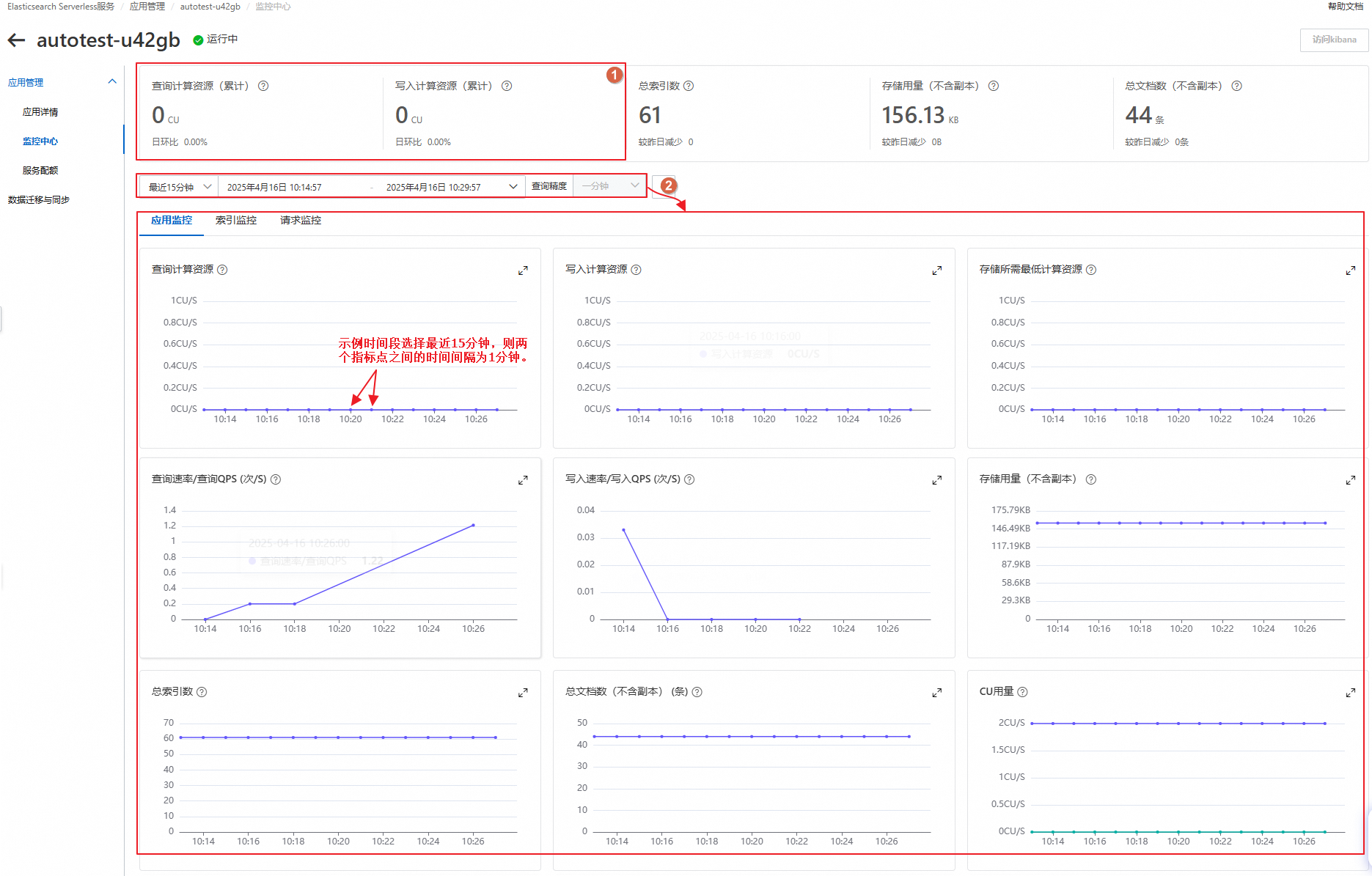
Item 1: You can view the total query compute resources and write compute resources used by all indexes in the application for the current day. You can also see the day-over-day percentage change, which is the increase or decrease compared to the previous day's data.
Item 2: You can view the usage details of CU-related metrics for a specified time period, which are described in the following table.
NoteThe default data granularity is
1minute, which means the time interval between two metric points in the graph is1minute.The time interval between data points varies based on the selected time range. The actual interval is displayed on the UI.
Metric
Description
Diagram
Query Compute Resource
Each metric point represents the average number of read CUs consumed per second within the current time interval.
Write Compute Resource
Each metric point represents the average number of write CUs consumed per second within the current time interval.
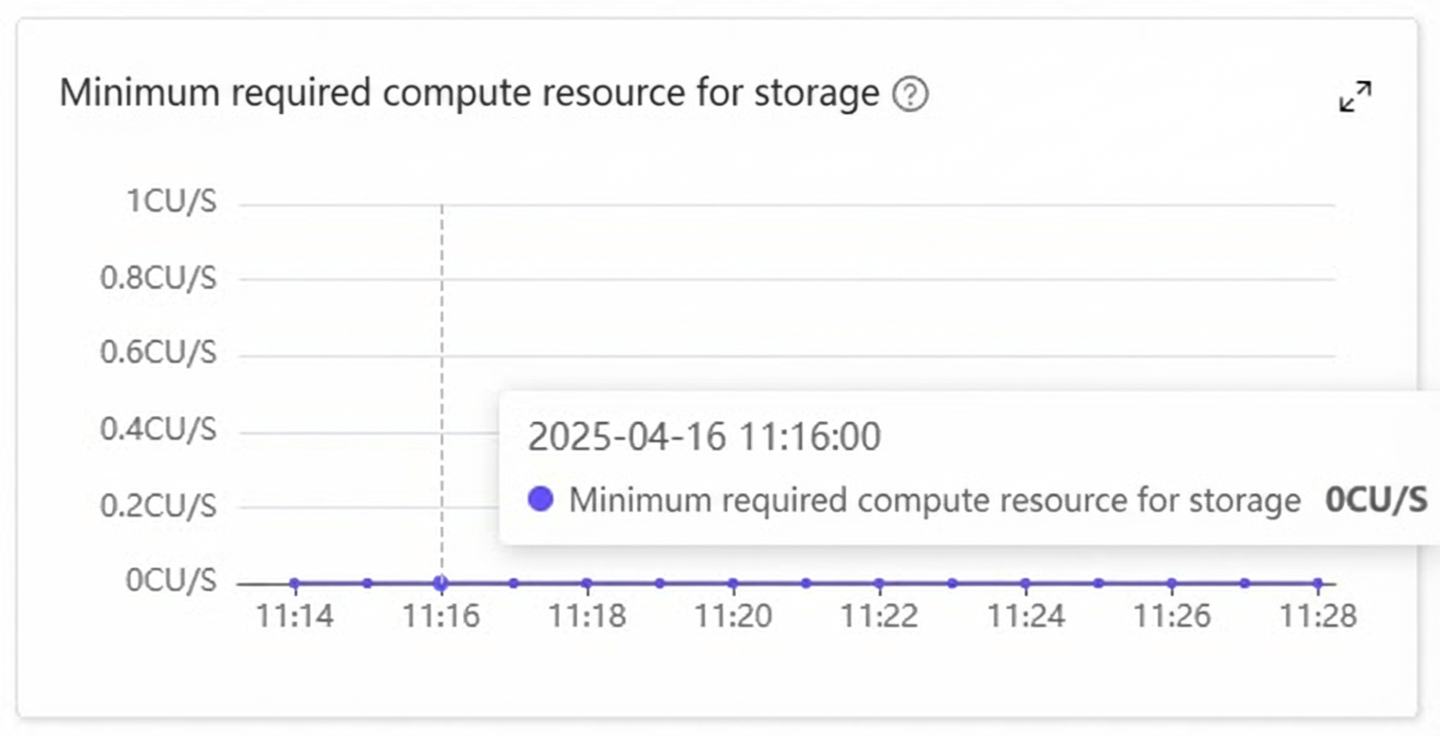
Minimum Compute Resource for Storage
The minimum number of CUs required to ensure data storage, access, and maintenance.
NoteTo ensure efficiency, the system dynamically adjusts the number of CUs required for storage based on current storage usage. By default, each CU can support a maximum of
40GB of data storage. You can also use themax_storage_per_cuconfiguration item to adjust the maximum storage capacity per CU.The value for the minimum compute resources required for storage cannot exceed the Fixed CU Quota.
CU Usage
The total consumption of read CUs and write CUs at a specific point in time.
NoteThe blue line represents the number of fixed CUs, and the green line represents the total number of CUs actually consumed.
Regardless of whether elastic computing is enabled, you are charged based on the billing standard for fixed CUs when the total CU usage does not exceed the fixed CU amount.
If elastic computing is enabled and the total CU usage exceeds the fixed CU amount, the portion within the limit is charged based on the fixed CU billing standard, and the excess portion is charged based on the elastic CU billing standard.
For more information about billing, see Billing details.
Modify the CU quota
If the current CU configuration does not meet your business requirements, you can adjust the relevant quotas.
Modify the fixed CU quota
Go to the application details page. In the Billing Quota section, click Modify to adjust the fixed CU quota.
Modify the storage limit per CU
You can modify the max_storage_per_cu quota to adjust the maximum storage capacity supported by each CU. For more information about how to modify quotas, see Adjust quotas.
In the navigation pane on the left, click to go to the Service Quotas page.
On the Quota Overview tab, search for
max_storage_per_cuand click Modify Quota. After you specify the new quota value, click Submit Modification and follow the on-screen instructions to submit a modification request.NoteThis quota can be modified only by submitting a request. Make sure to request resources based on your actual business requirements. After you submit the request, you can view its details on the tab.