Query bills
While using Function Compute, if you need to check your account spending on a regular basis, or need to review billing records and cost details, and delete unused instances after your account has an overdue payment, you can view Function Compute-related bills on the Expenses and Costs page.
How bills are generated
Bills are generated based on the billing method for your cloud products:
-
Subscription (pay before you use): You pay for resources such as subscriptions, savings plans, and resource plans at the time of purchase. The cost is added to that month's bill.
-
Pay-as-you-go (use before you pay): You use resources first, such as pay-as-you-go ECS instances. The system calculates fees based on usage over a billing cycle (hourly, daily, or monthly) and adds them to that month's bill.
Learn about billing methods.
Cloud products are billed based on actual usage, and metering granularity varies by product. Bills are generated for a fixed billing cycle. If you release a resource mid-cycle, the bill still spans the full cycle but only includes charges for actual usage. Pay-as-you-go bills are typically available after a delay of several minutes to a few hours. For specific rules, refer to the billing documentation for each product.
Bill types and generation times
The current month's bill is updated in real time but finalized only after the following month's bill is generated.
|
Type |
Description |
Generation time |
Link |
|
Monthly bill |
View the total amount payable for the month. You can export a PDF file stamped with the Alibaba Cloud Finance seal for reconciliation, settlement, or invoicing. |
12:00 on the 2nd of the following month |
|
|
Billing details |
View detailed charges for each resource for cost verification and analysis. You can export the details as a CSV file. |
12:00 on the 3rd of the following month |
|
|
Split bill |
Split bills by department or project for internal cost allocation and budget management. This information is for internal use only and cannot be used for settlement or invoicing. |
12:00 on the 4th of the following month |
View bills
Log on to the Alibaba Cloud console. In the upper-right corner, clickPrice > Billsto view your expenses.
-
The main account has access by default.
-
A RAM user must have the AliyunBSSReadOnlyAccess policy (read-only access to Billing Management). RAM authorization policies for Expenses and Costs.
The Bill Details page is available in two versions: legacy and new. You can identify the version by its page style.
The new Bill Details page is rolling out by invitation. You can view bill data only from the date it was enabled for your account. To query earlier bill details, switch back to the legacy version.
Key improvements in the new version include:
-
New features: Cost Details (resource-level cost analysis) and bill subscription (automatically pushes bills to OSS or MaxCompute).
-
Field information: Adds Discount Details, Coupon Deduction Details, Deduction Duration, Usage Details, List Price Usage Tiers, and Cumulative Usage Tier Rules. Some fields have been removed or adjusted, and all fields are now grouped.
The following table compares the new and legacy Bill Details pages.
|
New version:
|
Legacy version:
|
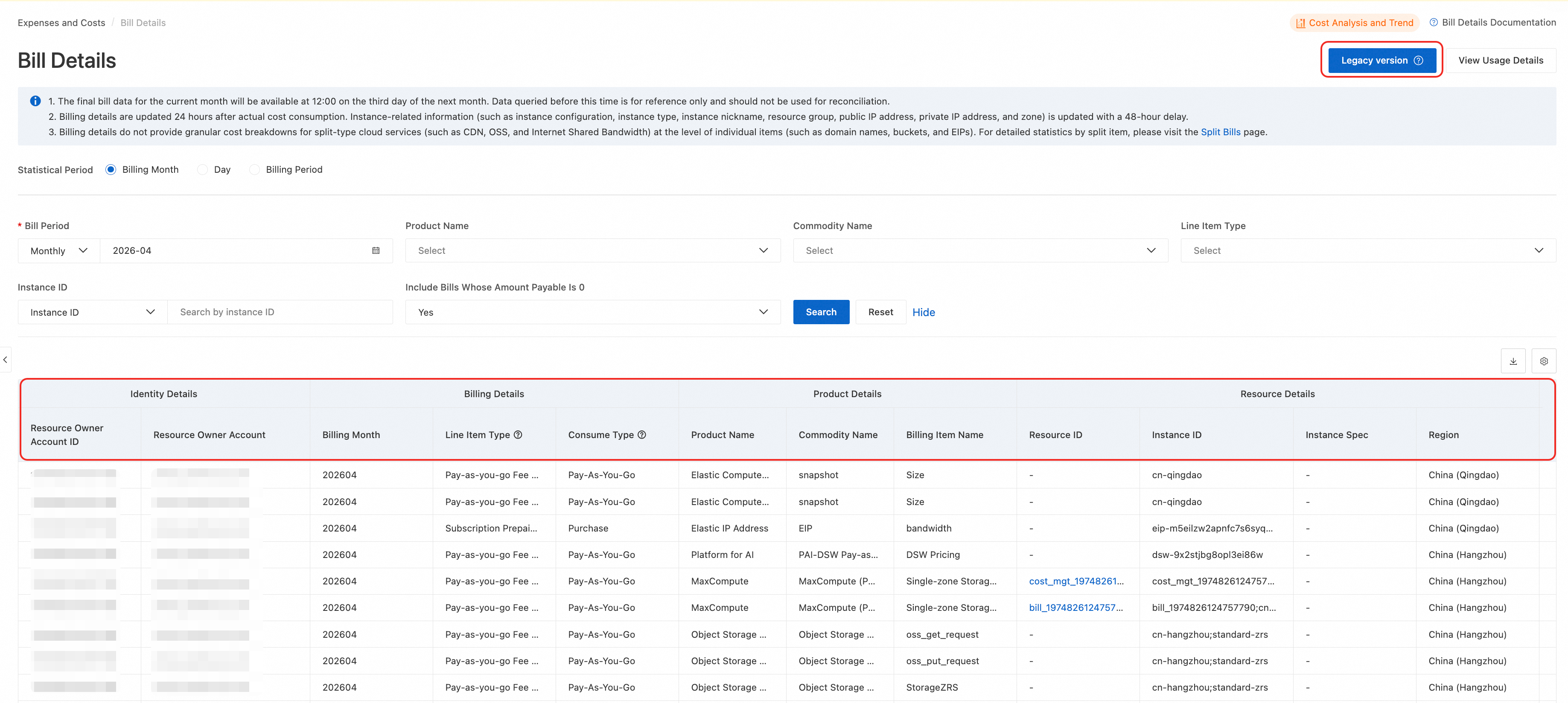
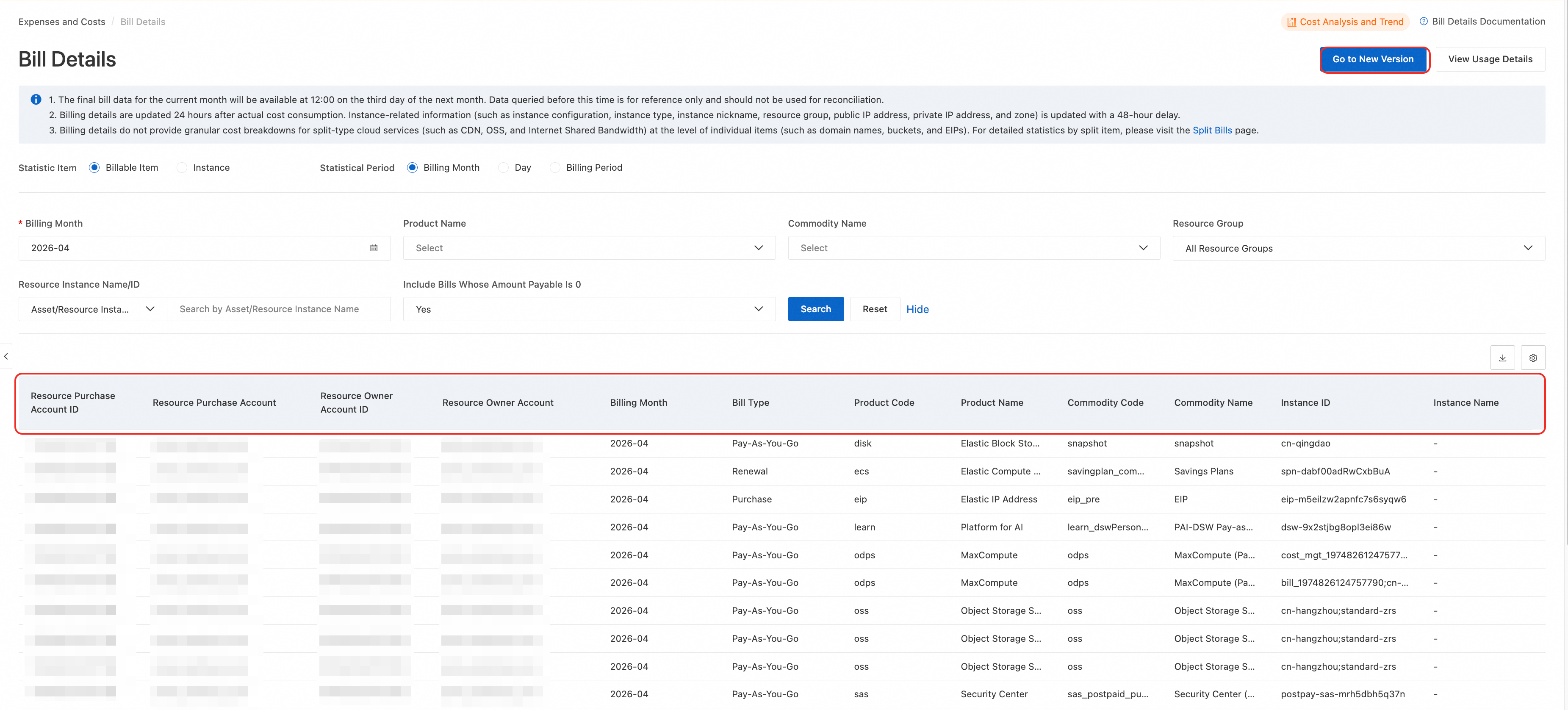
For information about the differences between versions, seeNew billing report fields.
View monthly bill summaries
On the Bill Overview page, you can view total expenses and bill summaries, verify discounts, make repayments, or export bills.
In the monthly summary area, note the following key information:
-
Tax-inclusive Payable Amount: The final amount that you must pay for cloud resources for the billing period. This amount is calculated after all discounts, subscription deductions such as for savings plans, and coupon deductions are applied. Formula:
Amount Payable = list price - Discount Amount - Coupon Deduction Amount - Rounding-off Amount. -
Paid Amount: The total amount that you have paid, including payments made with cash and prepaid cards.
-
OutStanding Amount: The outstanding amount that you have not paid. Formula: OutStanding Amount = Tax-inclusive Payable AmountPaid Amount.
On the Overview of Monthly Bill page, you can view bill summary data by different dimensions. Select a dimension tab and filter the summary data by Billing Month:
|
Dimension |
Use case |
|
By Resource Purchase Account |
View the amount payable and payment status per account to identify high-spending accounts in multi-account scenarios. |
|
By Product |
Compare amounts payable across products to identify which cloud products drive the most cost. |
|
By Organization (enterprise accounts only) |
View the amount payable per organization in multi-account enterprise scenarios. |
|
By Service Entity |
View the amount payable per service entity for separate reconciliation. |
|
By The Status Of Hit Discounts |
Compare list price vs. amount payable to evaluate discount effectiveness. Pay attention to bills not eligible for discounts. |
View daily bill details
On the Bill Details page, filter by date to view your daily spending.
Legacy bills
-
On the Bill Details page, set Statistic Item to Billing Item or Instance.
-
Set Statistic Period to Day to view daily summaries or Billing Period to view hourly details, then select a Billing Month.
-
Click Search. In the bill details, check Product Name and Amount Payable to understand your daily spending.
New bills
-
On the Bill Details page, click the Bill Generation Date filter, select statistics by day, then set the From and To to the same day, such as 2025-10-15.
-
Click Search. In the bill details, view Product Information, Usage Information, and Payable Information to understand the usage and costs of each cloud product for the day.
Click the  icon on the right to customize the displayed columns.
View cloud product bill details
On the Bill Details page, filter by Product Name to view all spending details for a product.
Legacy bills
-
On the Bill Details page, set Statistic Item to Billing Item or Instance.
-
Set Statistical Period to Day or Details, select a Product Name and Billing Month, then click Search.
New bills
-
On the Bill Details page, enter or select a product name such as ECS or OSS in the Product Name filter box.
-
Select a Billing Month and click Search.
Click the icon on the right to customize the displayed columns.
The Resource Group field has been removed from Bill Details and cannot be added back by customizing columns. To view resource group information, go to the Split Bills page (Expenses and Costs > Cost Allocation > Split Bills). On this page, you can use the Resource Group column to view the resource group of each record, or use the Resource Group filter to filter bills by resource group.
Aggregate costs by instance
To calculate monthly expenses by instance, perform the following steps:
-
On the Bill Details page, click the export icon in the upper-right corner to export the bill as a CSV file. You can filter the data by fields such as Asset/Resource Instance ID, Bill Generation Date, and Cost Type. You can export up to six months of data at a time. To query data across years, export the data in batches.
-
Download the CSV file and use Microsoft Excel or a similar tool to filter and aggregate data by the instance ID column. You can then calculate the total monthly cost of a specified instance.
View discount details
On the Bill Details page, use the Discount Amount and Discount Details fields to view the discounts applied to each item and the sources of the discounts.
To analyze discount data in batches, export the bill as an Excel file on the Bill Details page. Then, filter and sort the data by the Discount Amount column to quickly locate discounted items.
View charges after a free trial ends
During a free trial, no charges are incurred and no bills are generated, provided you stay within the trial quota and period. After the trial ends or the quota is exceeded, resources are billed on a pay-as-you-go basis. View deduction details on the Bill Details page.
You can also go to Benefits > My Trials page to view information about claimed free trial resources, such as Trial progress in current cycle, Total amount in current cycle, Trial end time, and Trial status.
Bills for enterprise accounts
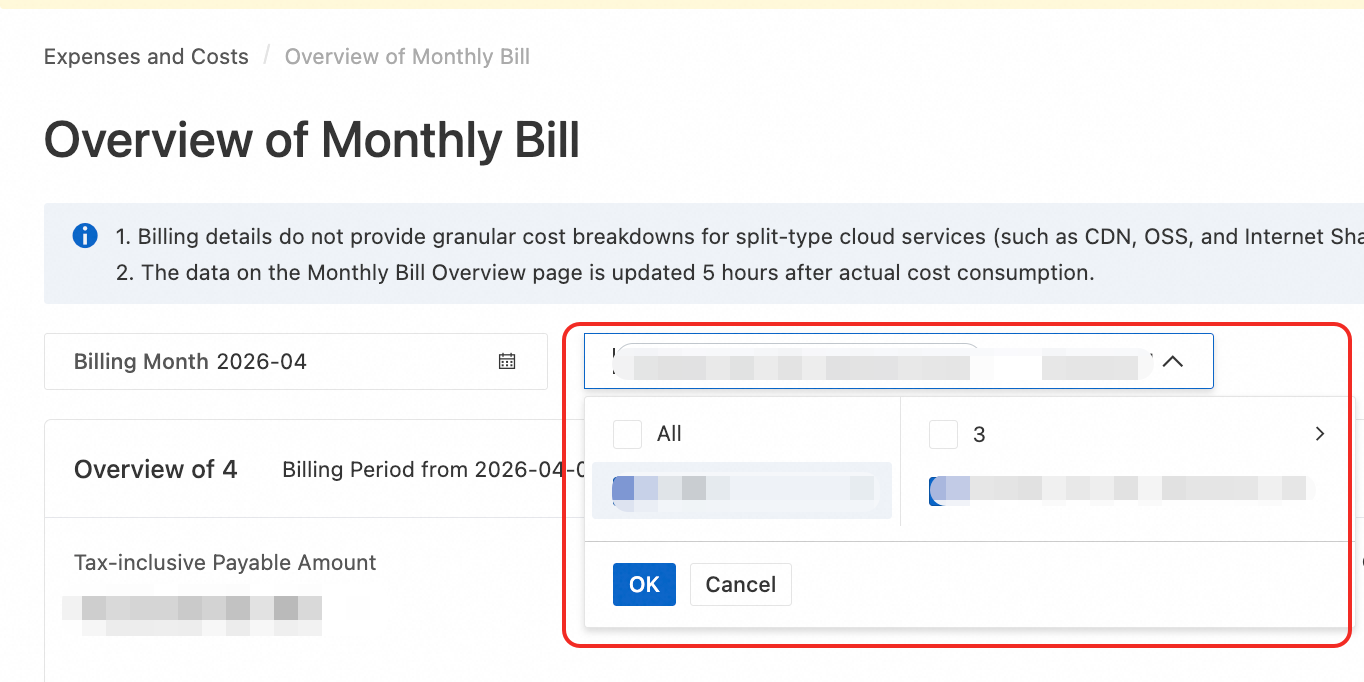
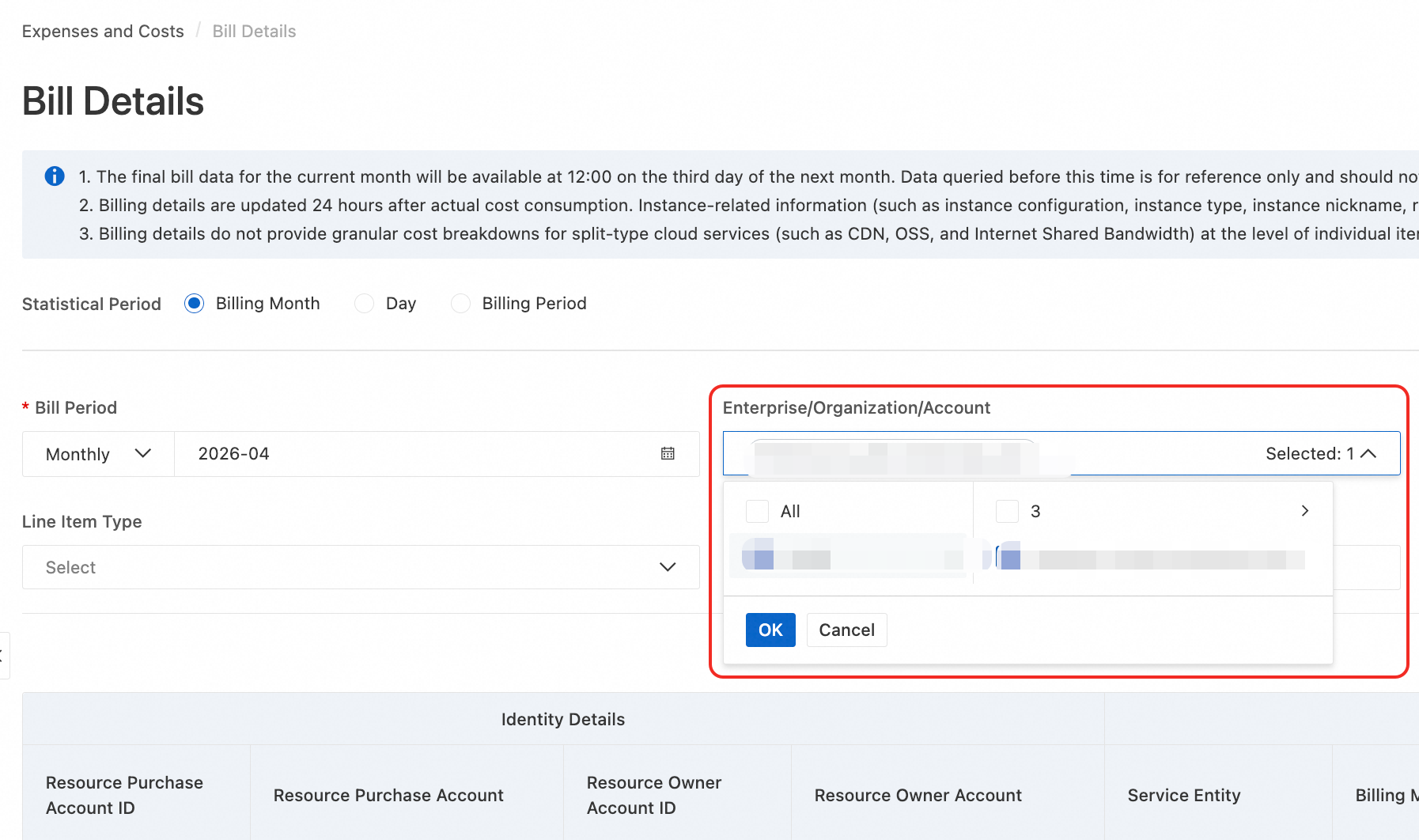
In a multi-account enterprise, an enterprise administrator (MA) can go to the Bill Overview and Bill Details pages and filter by Enterprise/Organization/Account to view the bills of member accounts.
Verify bill costs
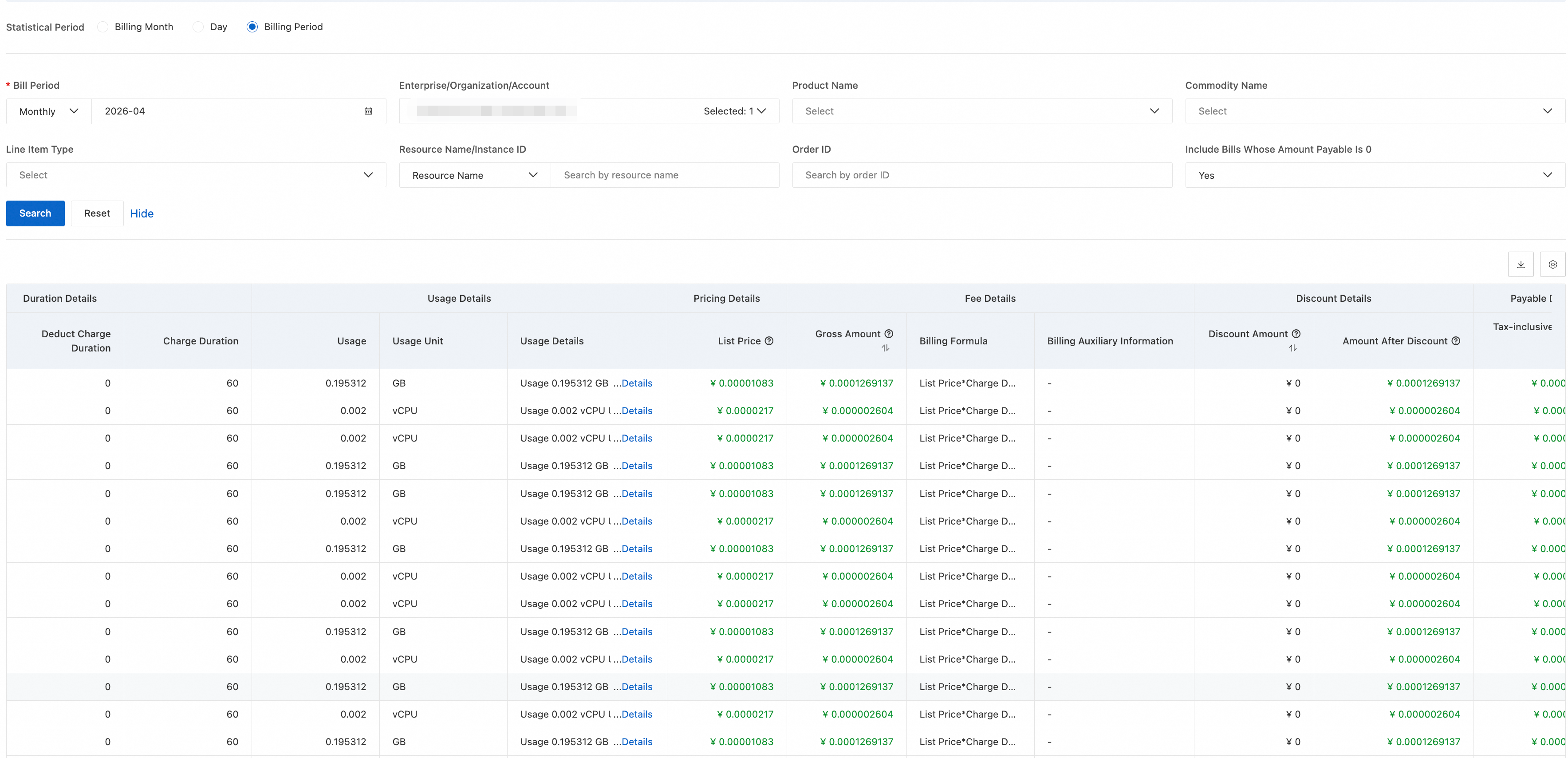
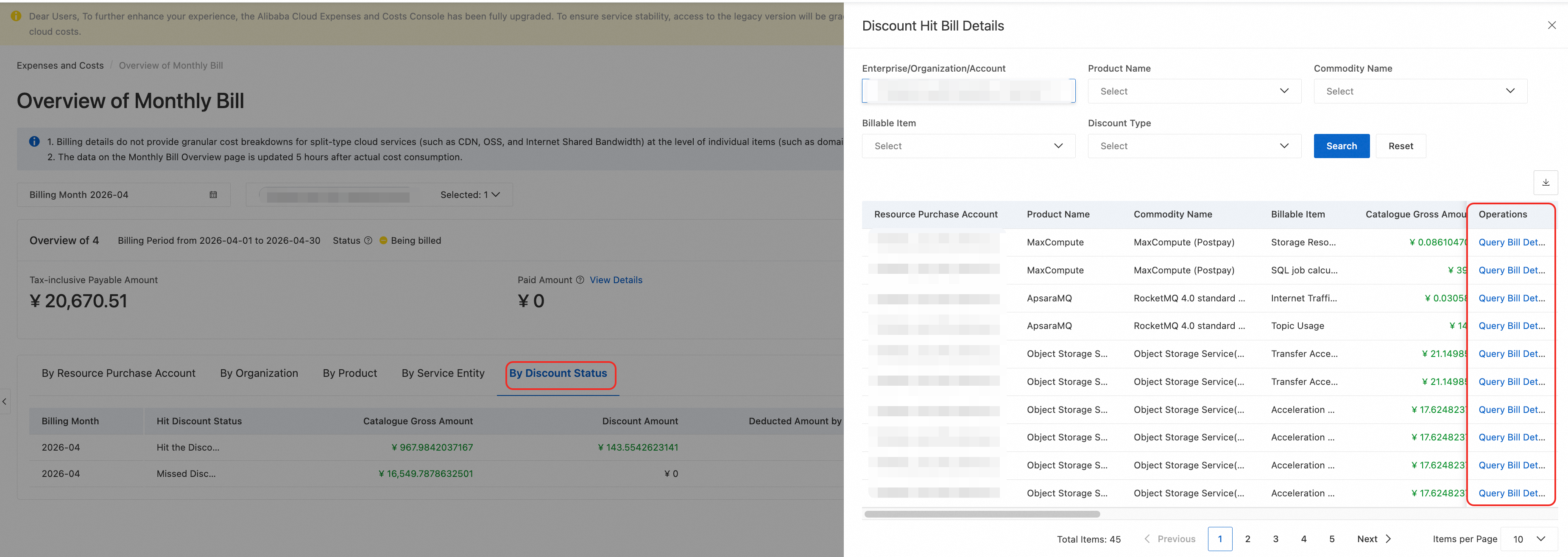
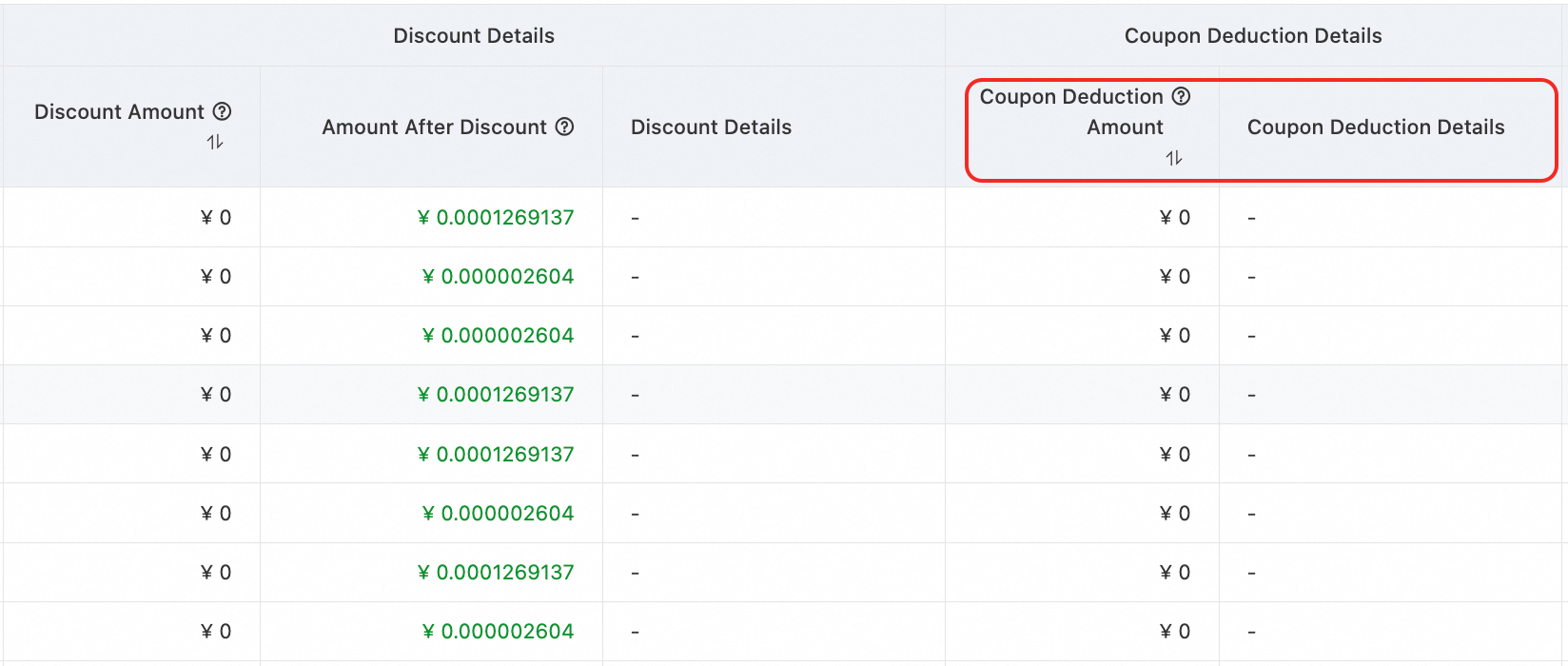
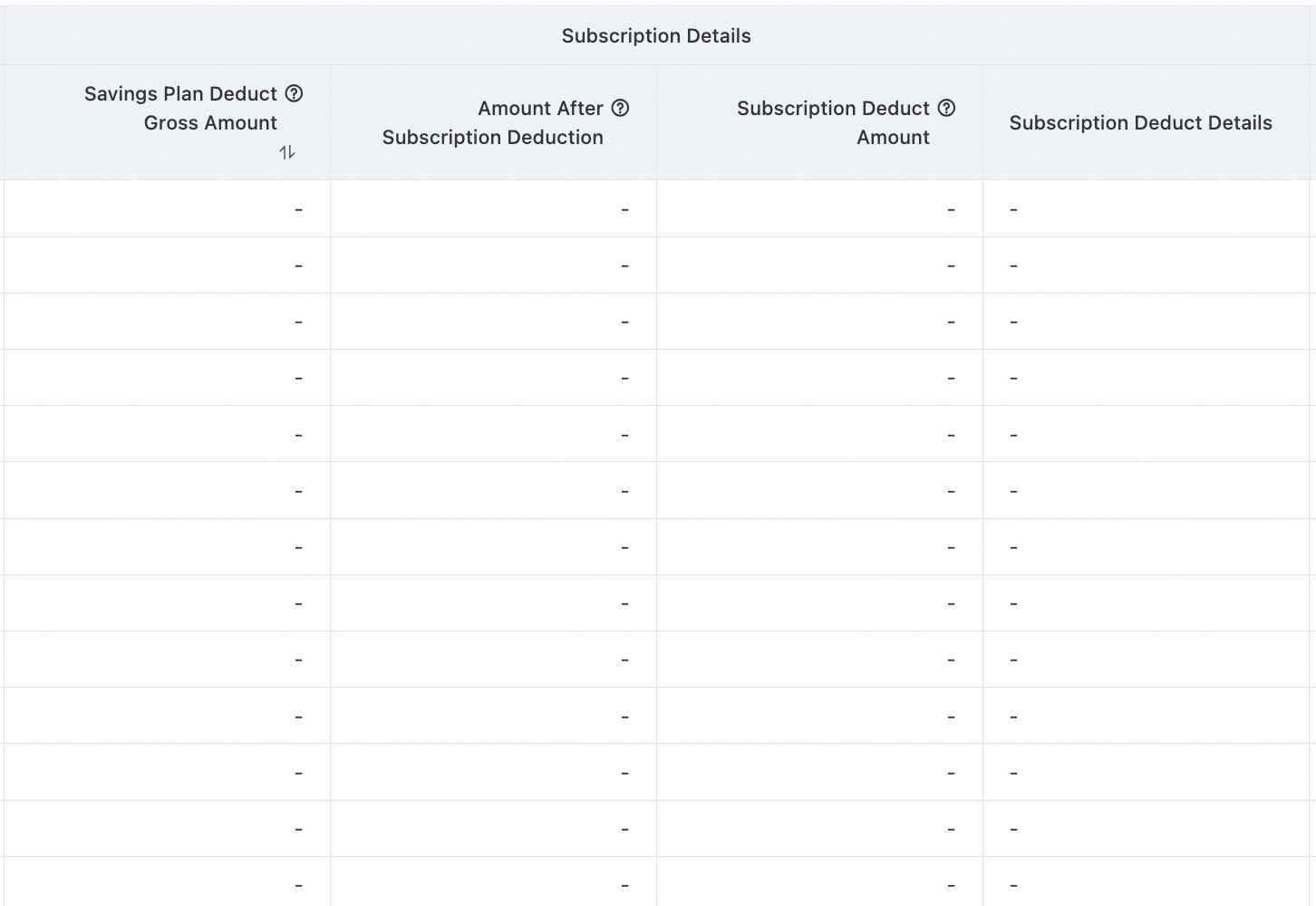
To verify bill costs, check the Catalogue Gross Amount , Catalogue Gross Amount Deducted by Savings Plan, Discount Amount, and Deducted Amount by Coupons fields and use this formula to verify the Tax-inclusive Payable Amount:
Amount Payable = List Price - Savings Plan Deduction (List Price) - discount amount - coupon deduction amount
|
Reconciliation process |
Console display |
|
Verify the Catalogue Gross Amount The List Price is the total undiscounted price for the selected resource configurations.
|
|
|
Verify Invoice Discount application
|
|
|
Verify coupon usage
|
|
|
Verify Savings Plan deductions
|
|
|
Verify resource plan deductions
|
|
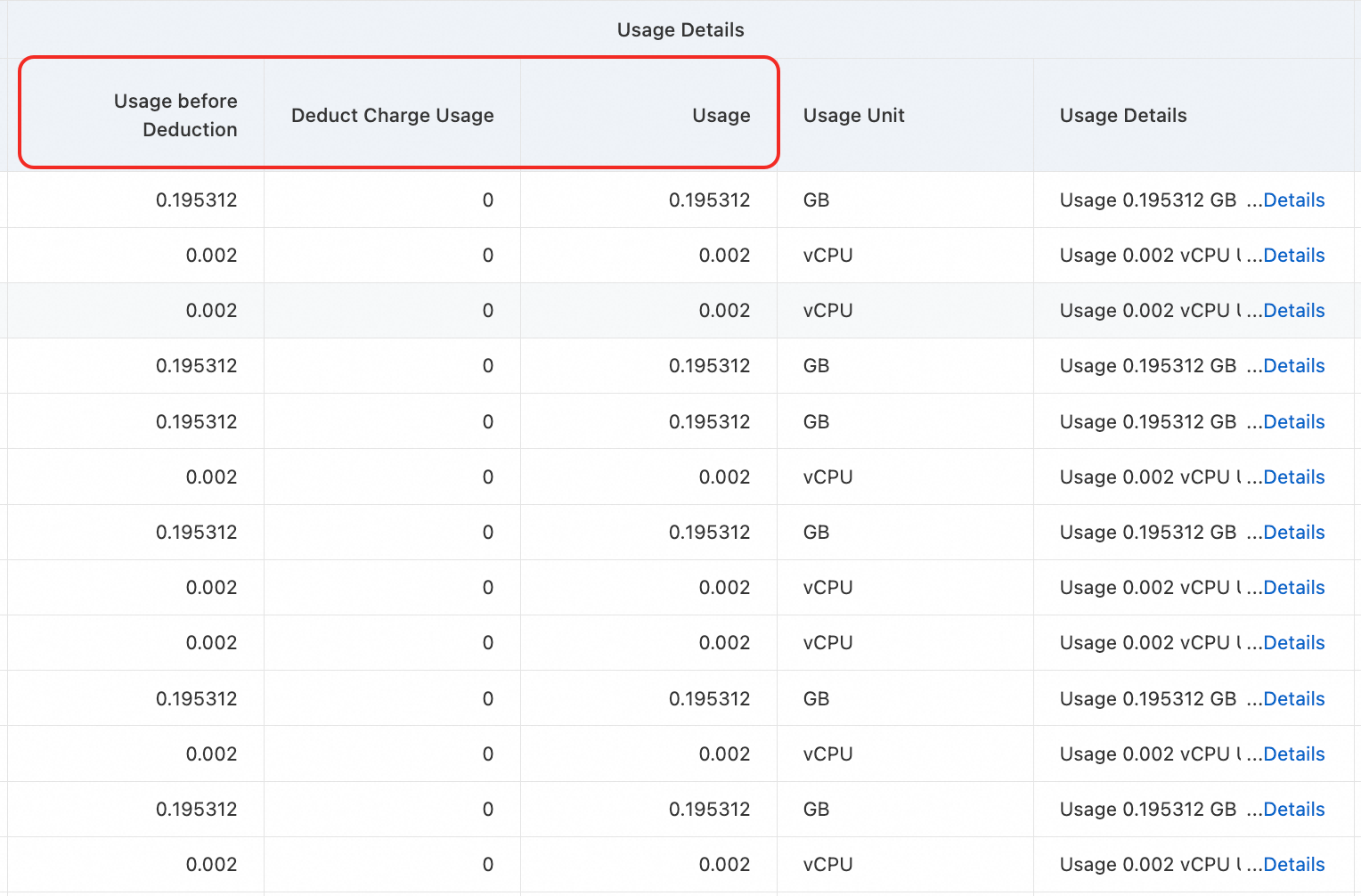
After verifying these values, substitute the Catalogue Gross Amount , Amount Offset, discount amount, and Deducted Amount by Coupons into the formula to verify the Tax-inclusive Payable Amount.