Preparations
This topic describes the preparations that you must complete before you begin this Quick Start.
Prerequisites
You have an active Alibaba Cloud account. Register an account (PC)
Account authorization
If you use a Resource Access Management (RAM) user to create, manage, and view instances, the Alibaba Cloud account must grant permissions to the RAM user. The required permission types are as follows:
Access policy names:
AliyunGraphcomputeFullAccess: Grants full permissions to manage Graph Compute.
AliyunGraphcomputeReadOnlyAccess: Grants read-only permissions to access Graph Compute.
For more information:
Step 1: Add an authorization
https://ram.console.aliyun.com/permissions/new

Step 2: View permissions
https://ram.console.aliyun.com/policies
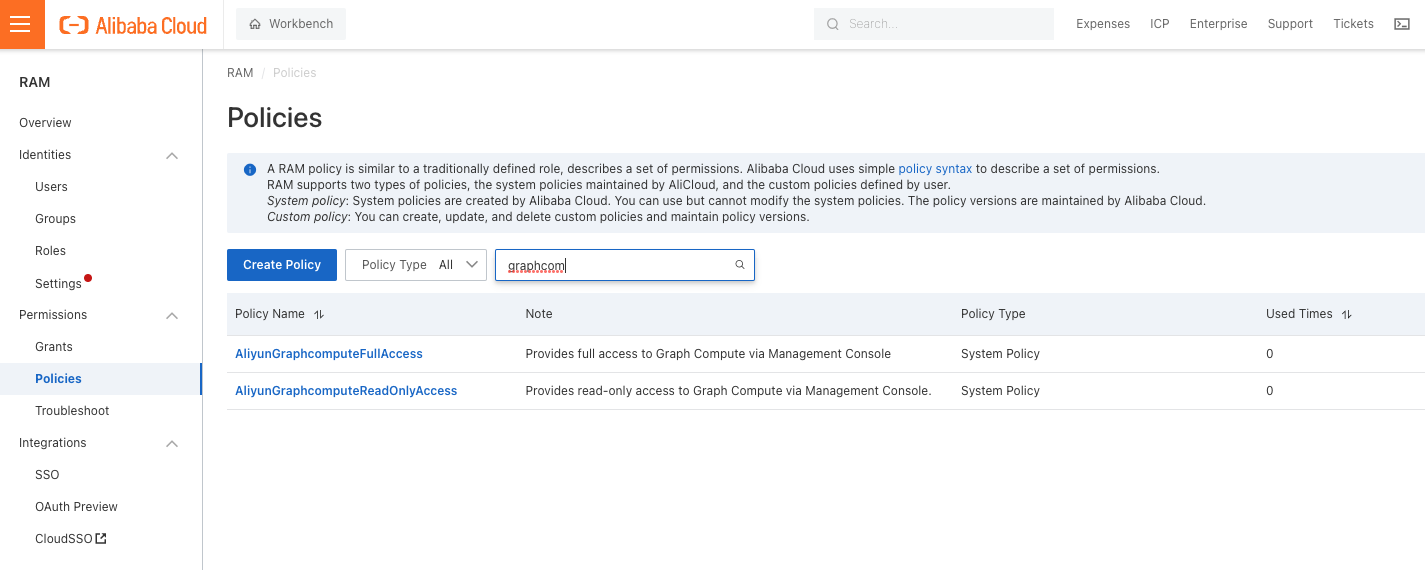
Step 3: VPC permissions
To create a virtual private cloud (VPC), you also need the AliyunVPCReadOnlyAccess permission. This permission grants read-only access to VPCs.
Data authorization
If you select MaxCompute (formerly known as ODPS) as the data source, you must grant the required permissions. For more information, see Offline storage authorization.
Grant permissions to the `ALIYUN$openias` account.
Tip: `ALIYUN$openias` is the MaxCompute account for the iGraph engine system. This account is used to build indexes for MaxCompute data.
Note the following field restrictions:
The field types in the data source must be basic data types that are supported by MaxCompute 1.0 and 2.0.
MaxCompute data version
MaxCompute data type
iGraph support
Corresponding iGraph field type
BIGINT
✓
INT64
DOUBLE
✓
DOUBLE
DECIMAL
✓
STRING or DOUBLE is recommended.
Note: If you select a numeric type, it must be implicitly convertible within the precision range. Otherwise, the conversion fails or precision is lost.
STRING
✓
STRING
DATETIME
✓
STRING
BOOLEAN
✓
STRING
Data Type V2.0: Basic types
TINYINT
✓
INT8
SMALLINT
✓
INT16
INT
✓
INT32
BIGINT
✓
INT64
BINARY
✕
Not recommended.
Note: The length is limited to 2 MB.
FLOAT
✓
FLOAT is recommended.
DOUBLE
✓
DOUBLE is recommended.
DECIMAL(precision,scale)
✓
STRING or DOUBLE is recommended.
Note: If you select a numeric type, it must be implicitly convertible within the precision range. Otherwise, the conversion fails or precision is lost.
VARCHAR(n)
✓
STRING is recommended.
Note: If you select a numeric type, the field must be implicitly convertible.
CHAR(n)
✓
STRING
STRING
✓
STRING
DATE
✓
STRING is recommended.
Note: An iGraph query returns the number of days offset from 1970-01-01 00:00:00 UTC.
DATETIME
✓
STRING or INT64 is recommended.
Note: An iGraph query returns a Unix timestamp. By default, the result is a string in milliseconds.
TIMESTAMP
✓
STRING or INT64 is recommended.
Note: An iGraph query returns a Unix timestamp. By default, the result is a string in seconds.
BOOLEAN
✓
STRING
Complex types for versions 1.0 and 2.0
ARRAY
✕
Not supported
MAP
✕
Not supported
STRUCT
✕
Not supported
Tips:
Data source type `MaxCompute + incremental table`: iGraph transforms the full data from MaxCompute but does not transform the incremental data. You must transform the incremental data before you write it to the table to ensure data consistency.
MaxCompute tables cannot contain fields of complex data types, such as `ARRAY`, `MAP`, or `STRUCT`. Otherwise, indexes cannot be built.
Create a data source
If you want to use GraphCompute to perform scheduled full data processing, you must create a MaxCompute project and a corresponding data source table.
Follow these steps:
Create a MaxCompute project. The project must be in the same region as GraphCompute.
The Alibaba Cloud account or RAM user has activated DataWorks and MaxCompute in the same region as the GraphCompute instance.
If you use a RAM user to create a MaxCompute project, you must ensure that the RAM user has the `AliyunDataWorksFullAccess` permission.
For more information, see Create a MaxCompute project.
Add workspace members:
If you are using a RAM user, the Alibaba Cloud account or project owner must grant the Workspace Admin role to the RAM user. This allows the RAM user to grant permissions to the public GraphCompute account.
For more information, see Grant permissions to other users.
Create a table:
Log on to the MaxCompute client. For more information, see Quick Start: Use the MaxCompute client for data analytics.
Create a partitioned table:
Note:
The partition field of the partitioned table must be `ds` or `dt`.
Fields of basic data types that are supported by MaxCompute 1.0 and 2.0 are allowed. Fields of complex data types are not allowed.
Example:
create table if not exists bank_data_pt
(
 age             BIGINT comment 'age',
 job             STRING comment 'job type',
 campaign        BIGINT comment 'number of contacts performed during this campaign',
 pdays           DOUBLE comment 'time interval since the last contact',
 previous        DOUBLE comment 'number of contacts performed before this campaign',
 poutcome        STRING comment 'outcome of the previous marketing campaign',
 emp_var_rate    DOUBLE comment 'employment variation rate',
 cons_price_idx  DOUBLE comment 'consumer price index',
 fixed_deposit   BIGINT comment 'has time deposits'
)partitioned by (ds STRING comment 'partition identifier');
Grant read permissions to the GraphCompute system account `ALIYUN$openias`. Note: For regions outside China, such as the Singapore region, additional account permissions are required. Contact technical support for more information.
1) Add a role
// Add permissions for the openias account.
add user `ALIYUN$openias`;
// Run list users; to confirm that the user was added.
list users;
2) Grant read permissions
// Grant permissions.
// Replace [project] with your project name.
// Replace [table] with your table name.
grant Read ON PROJECT [project] to user `ALIYUN$openias`;
grant List ON PROJECT [project] to user `ALIYUN$openias`;
grant Describe ON TABLE [table] to user `ALIYUN$openias`;
grant Select ON TABLE [table] to user `ALIYUN$openias`;
3) Grant permissions on sensitive fields
# Grant permissions to access data with a sensitivity level of 2 or less in table t1.
$ GRANT LABEL 2 ON TABLE t1 TO USER `ALIYUN$openias`;

# Grant permissions to access data with a sensitivity level of 3 or less in columns col1 and col2 of table t1.
$ GRANT LABEL 3 ON TABLE t1(col1, col2) TO USER `ALIYUN$openias`;

# Grant permissions on sensitive fields for the entire project.
$ set label 4 to user `ALIYUN$openias`;
Data import
For more information, see the MaxCompute topic Use DataWorks (offline and real-time).