Log in with legacy LDAP authentication
Use an LDAP authentication source to let users in your Active Directory (AD) domain log in to IDaaS or log in directly to an application.
Use cases
If you do not want to store AD user passwords in Alibaba Cloud, use the IDaaS LDAP authentication service. Users can then log in to the Alibaba Cloud console or to other applications with their AD account and password.
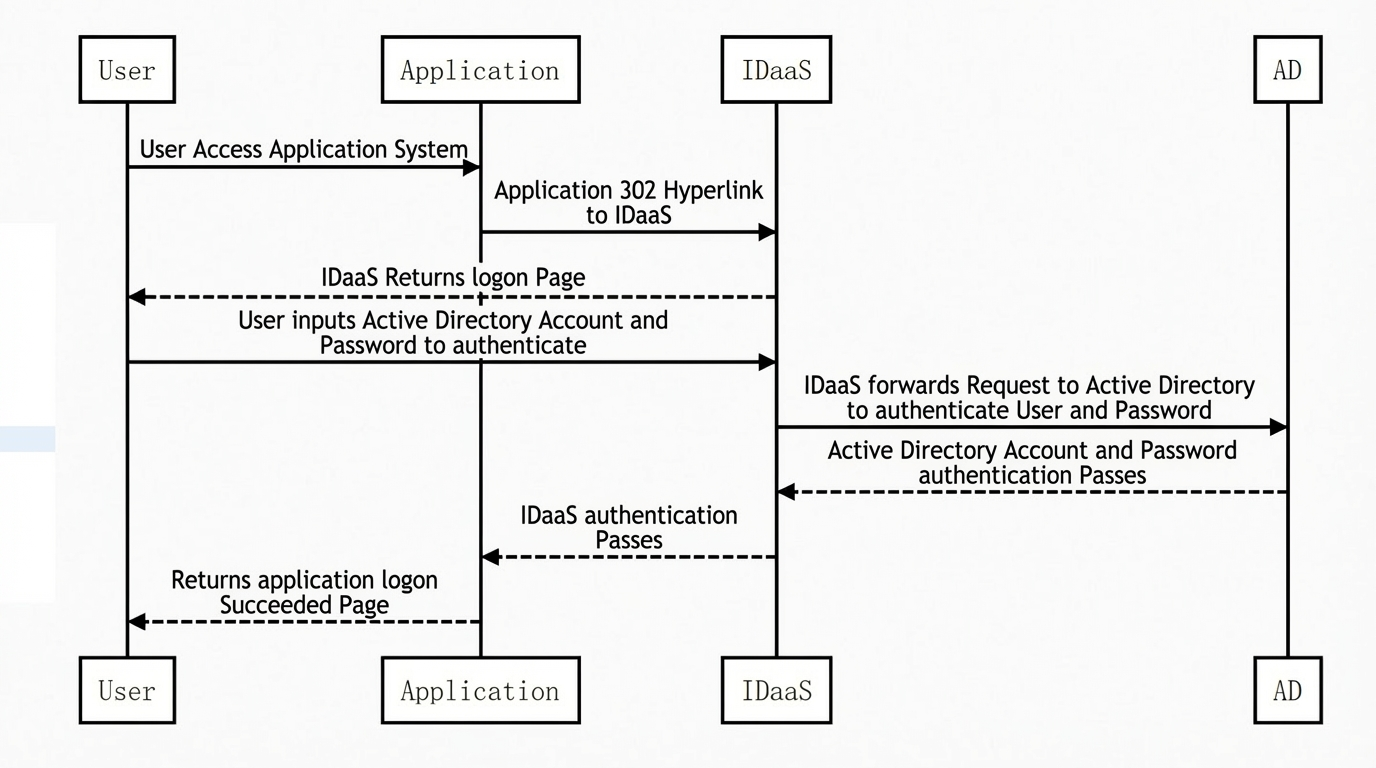
Demonstration
The animation shows the Alibaba Cloud IDaaS login page. The current login method is AD authentication source. The login form contains three fields — Email/Mobile Number/Account Name, Password, and Verification Code — and a Login button. At the bottom of the page, third-party account login options include DingTalk and LDAP.
Procedure
1. Log on to the Alibaba Cloud IDaaS management platform as an IT administrator.
After you log on, find the target IDaaS instance in the instance list and click Manage in the Actions column to open the instance management page.
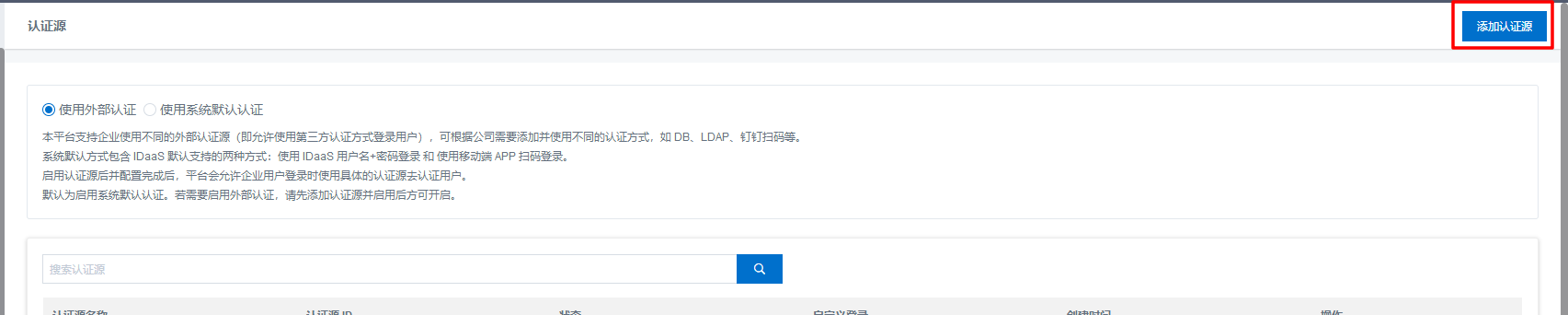
2. In the left-side navigation pane, choose Authentication > Authentication sources to go to the authentication sources page.
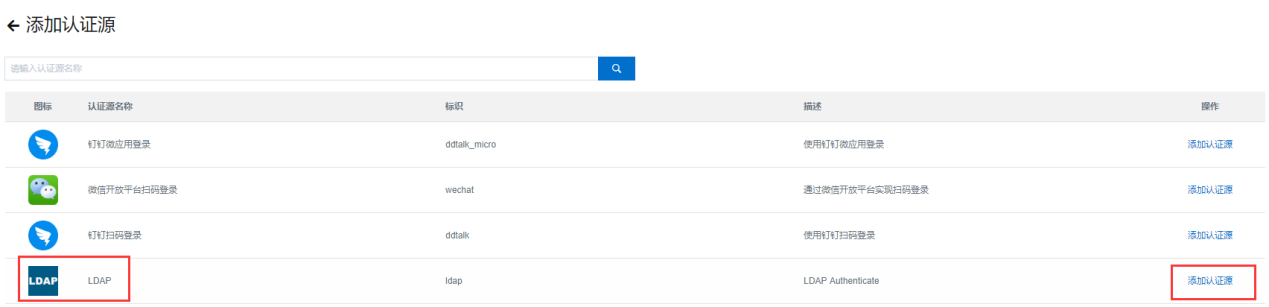
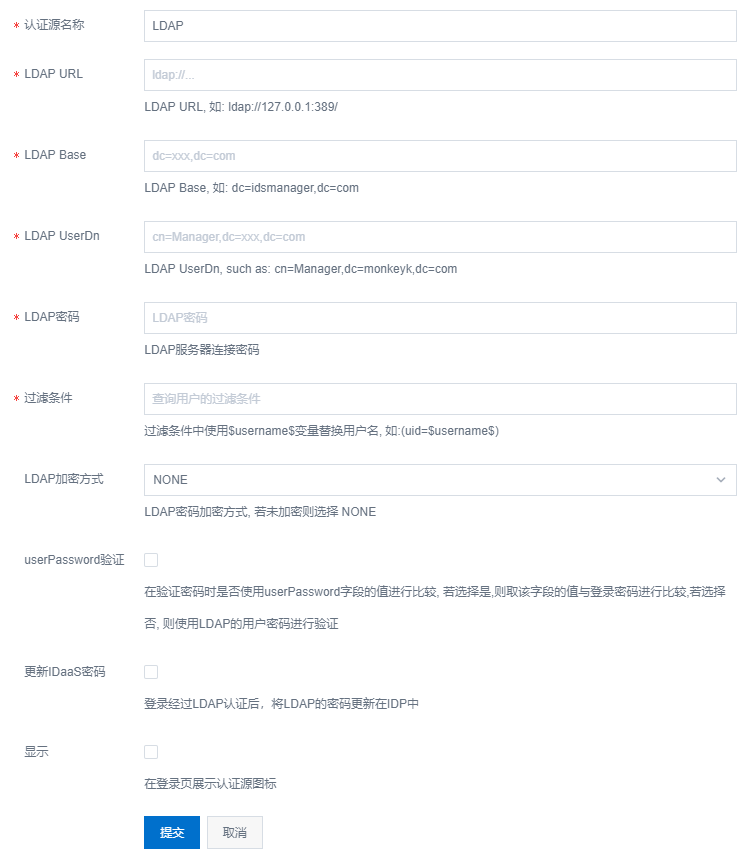
3. In the upper-right corner, click Add authentication source and select LDAP authentication source. Click Add authentication source to configure the LDAP authentication source in the pane that appears.
LDAP URL: the IP address and port number of your AD domain.
LDAP Base, LDAP UserDn, and LDAP Password: the values from your AD domain.
Filter Condition: enter a value such as (UID=$username$).
IDaaS supports public network access only. Your AD server must provide a public IP address and open port 389. You can configure a security group policy so that only IDaaS egress IP addresses can access AD. To get these IP addresses, submit a ticket.
4. Create accounts in AD.
If your AD already contains account data, skip this step. AD accounts must be synchronized to IDaaS before authentication can succeed.
5. In the right-side navigation pane, click Departments and groups. On the Departments and groups page, create an LDAP configuration. After the configuration is complete, the account data in AD is pulled into IDaaS.
6. AD accounts must be synchronized to IDaaS before users can authenticate with the LDAP authentication source. When a user enters an AD account and password, IDaaS first checks whether the account exists in IDaaS. If the account exists, IDaaS passes it to LDAP for authentication. If the account does not exist in IDaaS, no further action is taken.
If an LDAP configuration for the LDAP authentication source already exists under Departments and groups, you do not need to create one.
7. At the bottom of the user login page, click the LDAP authentication source in the third-party authentication login area. On the LDAP account login page, log in with an account and password from your AD domain. In the IDaaS console, click the Legacy tab. In the instance list, find the User login page URL column for the target instance. This URL is the entry point for end users to log in to IDaaS with their AD accounts.
When you log in with the LDAP authentication source, use the password from your AD domain. You cannot log in with your IDaaS password.

 After you complete these steps, the LDAP authentication source is added and configured. Users can then log in to IDaaS directly with their AD accounts and passwords.
FAQ
1. Must I synchronize LDAP accounts to IDaaS to use an LDAP authentication source?
Yes. Only accounts are synchronized. Passwords in LDAP are not synchronized to IDaaS.
2. I added an LDAP authentication source, but the LDAP icon does not appear on the login page.
Check whether the login page display option is selected in the authentication source configuration.
3. Can I update passwords from LDAP to IDaaS?
Yes. Follow these instructions to synchronize LDAP passwords to IDaaS. After a user logs in once with an LDAP account and password, the password in IDaaS is updated automatically.
On the Add LDAP authentication source page, select the Update IDaaS password check box.
4. When I log in with the LDAP authentication source, an error indicates that the account name or password is incorrect.
Check whether the following parameters and formats are correct.
Check these parameters and formats: LDAP URL must be in the format ldap://IP:port/ (for example, ldap://127.0.0.1:389/). LDAP Account must have management permissions on the Base that you entered, in a format such as cn=Manager,dc=userName,dc=com. LDAP Account Password must be entered correctly. Filter Condition must be in a format such as (sAMAccountName=$username$).
5. Can I set the LDAP authentication source as the default login method?
Yes. To set the LDAP authentication source as the default login method, follow these steps:
In the left-side navigation pane, choose Settings > Security settings. Click the Login/Registration tab at the top and select the Login sub-tab. From the Login authentication method drop-down list, select LDAP.