Set up an environment on Windows
This topic describes how to set up a Docker runtime environment for Link IoT Edge Pro Edition (LE Pro) on a Windows 10 system and connect a gateway to the cloud.
For more information about the specifications of the Professional Edition (LE Pro), see Product specifications.
Preparations
Link IoT Edge Pro Edition requires a Docker environment. For Windows 10 systems, see Install Docker for Windows. The Docker version must be 17.03 or later.
Install the latest version of Git Bash on your Windows 10 machine. For the installation package and instructions, see the official documentation.
Constraints
The runtime environment for Link IoT Edge Pro Edition can be set up only on Windows 10 systems.
You must install Git Bash because Link IoT Edge Pro Edition requires a Bash runtime environment to run the IoT Edge script tool.
Create an edge instance and a gateway
- Log on to the Link IoT Edge console.
- In the left-side navigation pane, click Edge Instances.
- Create an edge instance.
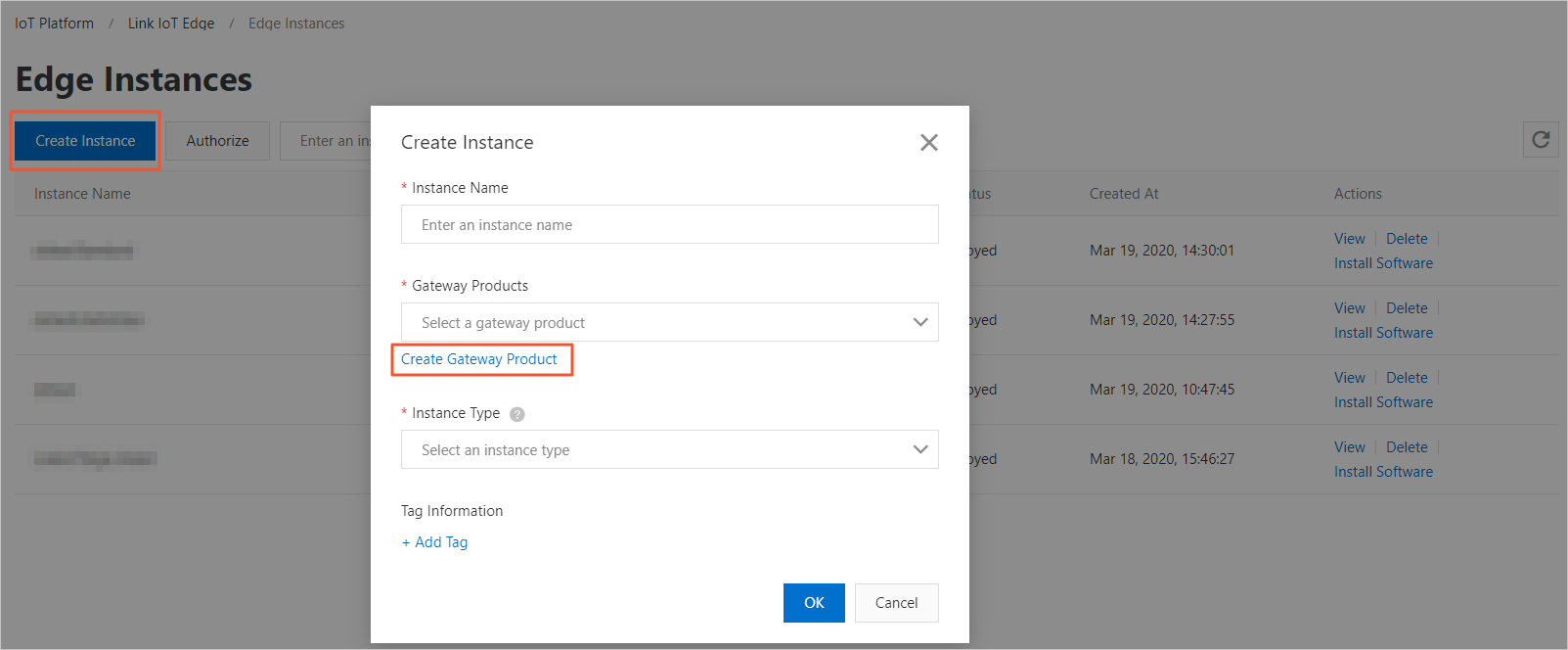
- Click Create Instance. In the Create Instance dialog box, enter an instance name.
Note The instance name must be 1 to 20 characters in length, and can contain letters, digits, underscores (_), and hyphens (-).
- Select the required specifications for the Link IoT Edge product based on the environment that you build. For more information, see Product specifications.
Link IoT Edge supports automatic gateway allocation to edge instances. You can skip setting other parameters for the new instance and proceed directly to Step 4. Link IoT Edge automatically creates a gateway product named LEGatewayAuto for your edge instance, and adds a randomly named gateway device under this product.Note
- When Link IoT Edge automatically creates the LEGatewayAuto product for you, if a product with this name already exists, a random suffix will be added to the name as the automatically created gateway product.
- After Link IoT Edge has automatically created the LEGatewayAuto product for you once, when you create new edge instances with automatic gateway allocation, a new gateway device will be added under the LEGatewayAuto product and allocated to your new edge instance.
- Optional. In the Tag Information section, click Add Tag to add tags to the instance. Tags provide an efficient method to identify and group instances. This parameter is optional.
To set an instance tag, you must enter a tag key and tag value.
Table 3. Parameters Parameter Description Tag Key You must specify a tag key for each tag. The tag key must be 1 to 20 characters in length, and can contain letters. The key of each tag is unique for an instance. Tag Value You must specify a tag value for each tag. The tag value must be 1 to 20 characters in length, and can contain letters, digits, underscores (_), and hyphens (-).
- Click Create Instance. In the Create Instance dialog box, enter an instance name.
- (Optional) If you want to manually create a gateway product and device and allocate them to an edge instance, perform the following steps.
- In the Create Instance dialog box, click Advanced Options.
- In the Gateway Products section, click Create Gateway Product to create a gateway for the instance.
Gateways in Link IoT Edge provide edge computing capabilities. Each instance must be associated with a gateway device. A gateway device can be associated with only one edge instance at a time.
- In the Create Product dialog box, set the gateway product parameters, and then click OK.
Create Gateway Product in Link IoT Edge inherits the features of in the IoT Platform console. The procedure to create a product is simplified. You can create gateway products that are applicable to Link IoT Edge in a quick manner.
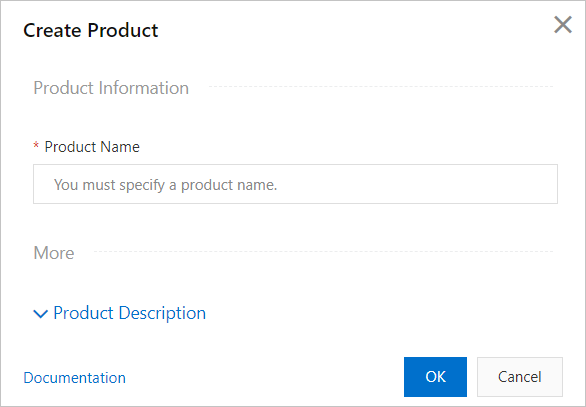
Table 4. Parameters Parameter Description Product Name Set a name for the gateway product. The name is used for subsequent query and identification of gateway products. The name can contain letters, digits, underscores (_), and Chinese characters. The name must be 4 to 30 characters in length. A Chinese character counts as 2 characters. Category Select a category to define the Thing Specification Language (TSL) model for the product.
Valid values:
- Standard Category: Select a category predefined by IoT Platform to quickly complete the feature definition of the product. After you select a product template, you can edit, modify, or add features based on the template.
- Custom Category: You need to define product features based on actual requirements.
If the gateway you need does not have special feature definitions, we recommend that you select Custom Category.
Product Description Enter a description for the product. The description can be up to 100 characters in length. This parameter is optional. After the product is created, you are automatically redirected to the Create Instance dialog box. The created gateway product is automatically assigned in the Gateway Products parameter.
- In the Create Instance dialog box, click Create Gateway Device under Gateway Devices to add a device to the gateway product.
The Create Gateway Device feature in Link IoT Edge inherits the features of in the IoT Platform console.
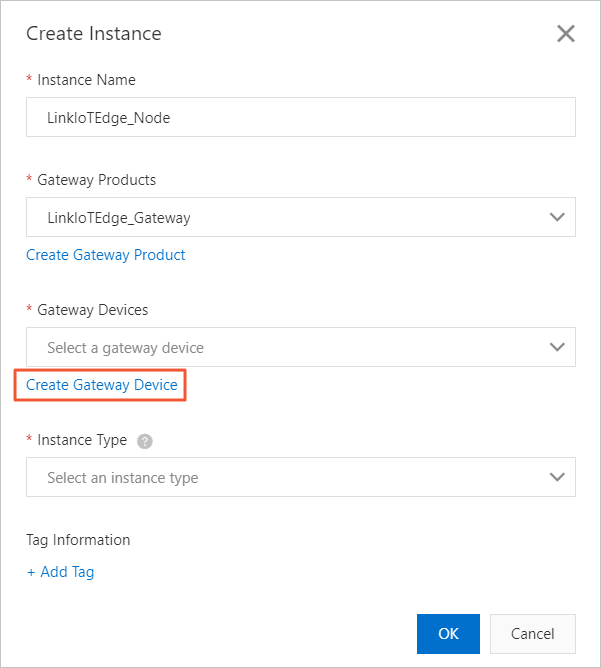
- Set the required parameters as prompted and click OK.
Table 5. Parameters Parameter Description Product The system automatically associates the gateway product created in the previous step. Device Name Set a name for the gateway device. The device name must be unique within the product. If you do not specify this parameter, the system automatically generates a name. Note The device name must be 4 to 32 characters in length. It can contain letters, digits, and special characters, including hyphens (-), underscores (_), at signs (@), periods (.), and colons (:).
- After you configure the required parameters, click OK.
Install and start IoT Edge
After you create an edge instance and a gateway, you must install and start Link IoT Edge on the gateway.
- On the Edge Instances page, click Install Software in the Actions column of the required edge instance.

Set the software installation parameters based on your environment and click Generate Command.
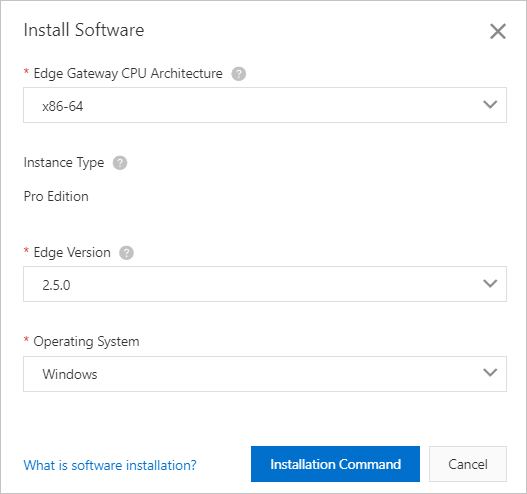
Table 1. Parameter description
Parameter
Description
Edge Gateway CPU ArchitectureThe CPU architecture of your device system. Select x86-64.
Product SpecificationsThe IoT Edge version for the instance was selected when you created the instance. This parameter is read-only.
Edge VersionSelect a published version of IoT Edge.
Operating SystemThe operating system of your device. Select Windows.
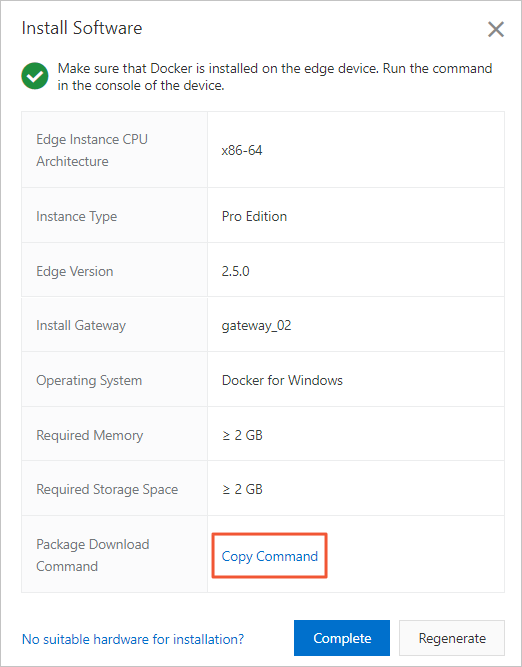
Copy the command to download the software package.

Log on to your Windows 10 machine.
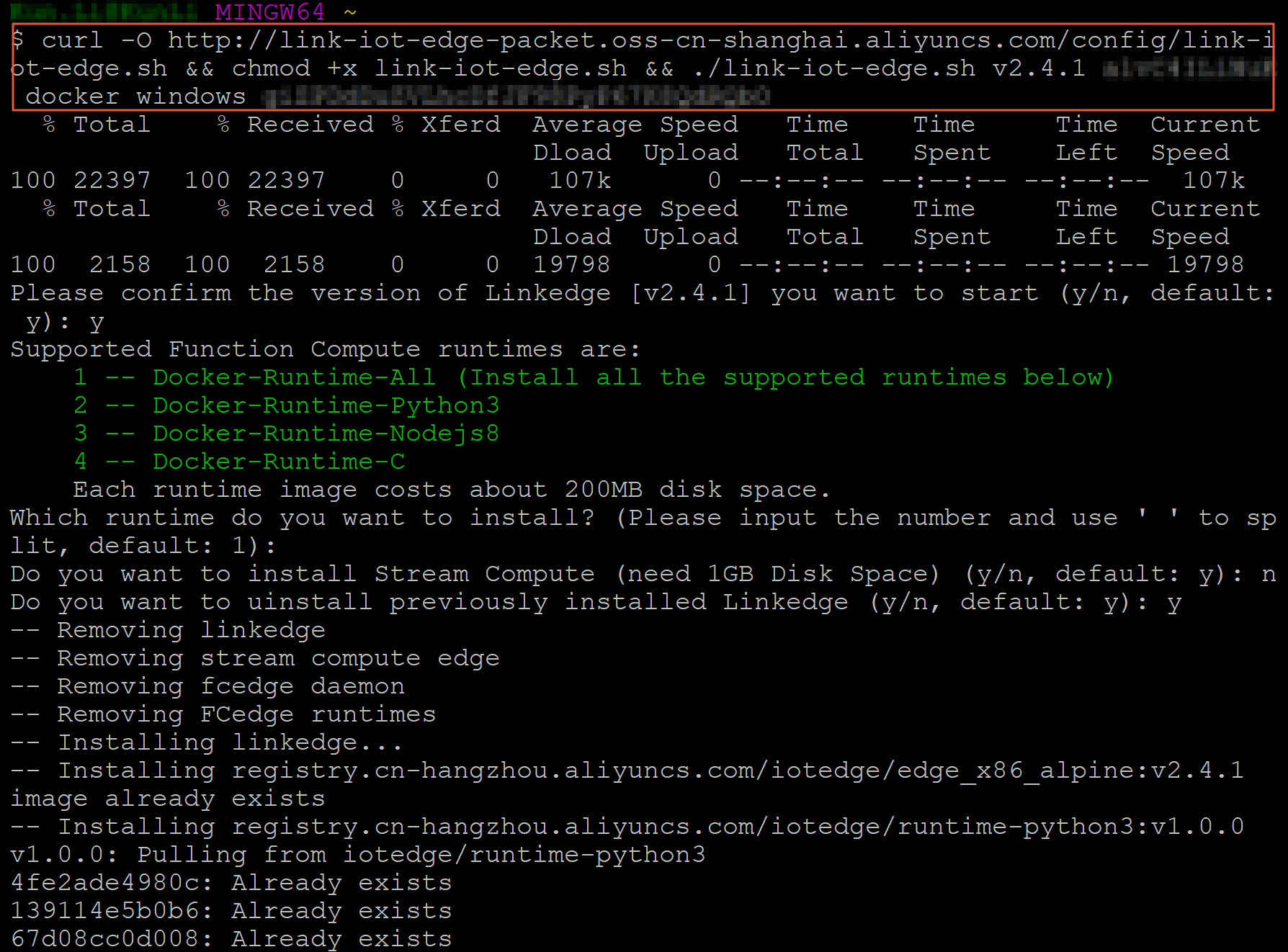
In any directory of the Git Bash runtime environment, run the command that you copied in Step 3.
This one-click command downloads, configures, and starts IoT Edge. After you run the command, the link-iot-edge.sh script is downloaded to the current directory.
When you start the gateway for the first time, you must complete an interactive configuration. You can press the Enter key to use the default configurations.
- Confirm the startup version.
- Confirm the runtime for Function Compute. By default, functions run in separate processes.
- Confirm whether to start stream processing. By default, stream processing is enabled.
- Confirm whether to uninstall previously installed versions. By default, previous versions are uninstalled.
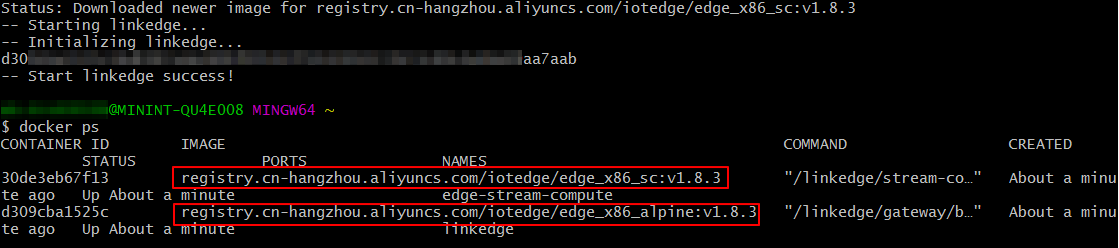
Pulling and starting the Docker image may take 5 to 10 minutes. After startup, run the docker ps command to verify that the container is running. If the output is similar to the following figure, the startup was successful.
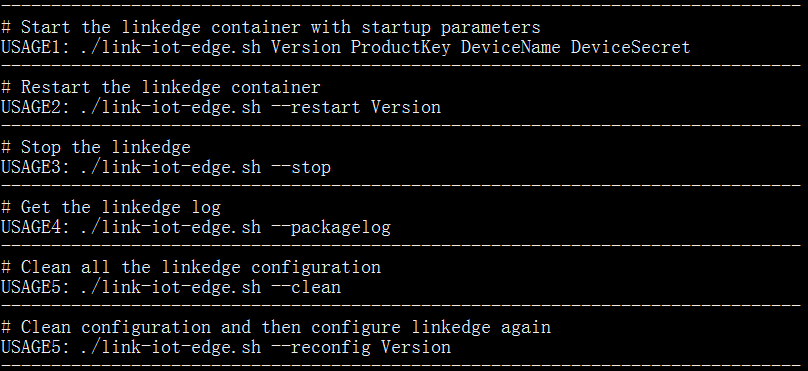
- If this is not the first time you install and start IoT Edge, you can use the downloaded link-iot-edge.sh script to restart, stop, check the status of, or modify the configuration parameters of IoT Edge. For more information about the commands, see the following figure.
- Return to the IoT Edge console. In the navigation pane on the left, select Edge Instances. Find the edge instance that you created and click View in the Actions column. On the Instance Details page, select the Gateway tab to view the gateway status.
Turn on the Remote Access switch to remotely manage the gateway. For more information, see Remote service access.
- Optional. On the Instance Details page, check the CPU utilization, memory usage, and storage usage, and authorize instance processes to access CloudMonitor.
- Add a role or attach an existing role. Make sure that the role has the required permissions to manage CloudMonitor. For more information, see Cloud Resource Access.
- Click the Monitoring tab and turn on the CloudMonitor Status switch, as shown in the following figure.
- Optional. On the Instance Details page, click the Gateways tab. Turn on the Remote Access switch of the gateway to remotely manage the gateway. For more information, see Remote service access.
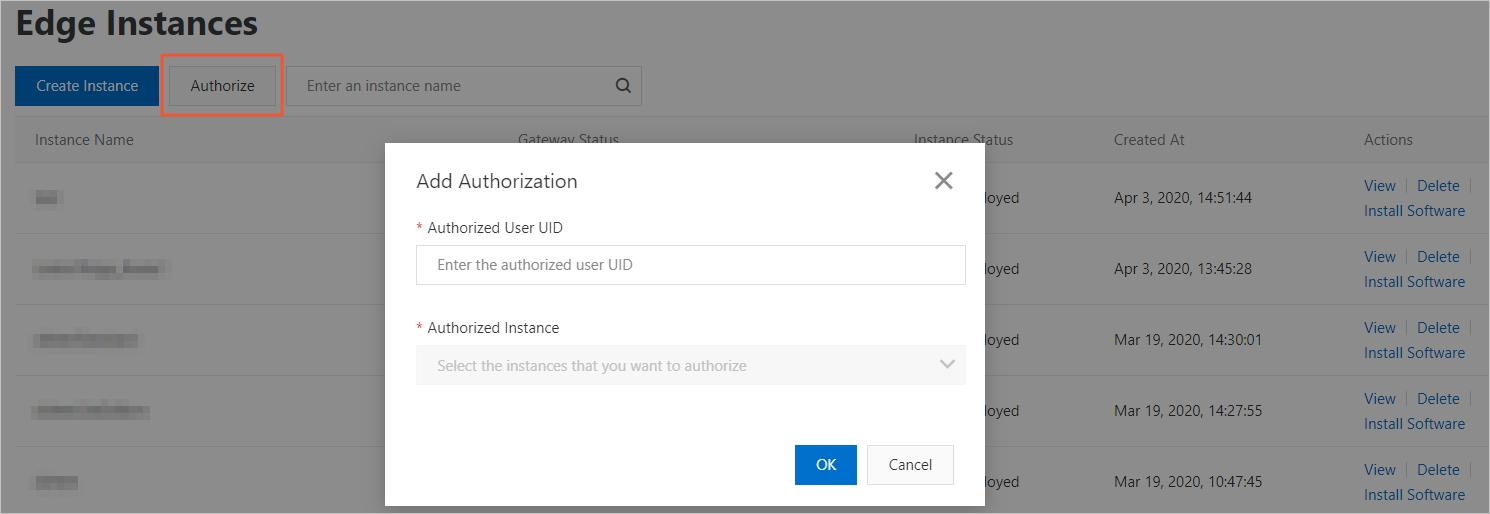
- Optional. Authorize other Alibaba Cloud users to perform the required operations on the instance.
On the Edge Instances page, click Authorize in the upper-left corner of the page. In the dialog box that appears, click Add Authorization. In the dialog box that appears, set the required parameters as prompted.
Table 6. Parameters Parameter Description Authorized User UID The Alibaba Cloud account ID of the user that you want to authorize. Authorized Instance The edge instance on which you want to authorize the Alibaba Cloud account to perform remote O&M.

Additional operations on Link IoT Edge
- Reconfigure Link IoT Edge.
Run the following command to modify the configurations of Link IoT Edge of a specific version:
./link-iot-edge.sh --reconfig {Version}Replace {Version} with the version of Link IoT Edge that you want to modify the configurations. For example, if the version is V1.8.2, run the
./link-iot-edge.sh --reconfig V1.8.2command. - Stop Link IoT Edge.
Run the following command to stop all containers running Link IoT Edge. However, the containers are not deleted.
./link-iot-edge.sh --stop - Restart Link IoT Edge.
If a container is available but is not running, run the following command to restart Link IoT Edge:
./link-iot-edge.sh --restart {Version}Replace {Version} with the version of Link IoT Edge that you want to restart. For example, if the version is V1.8.2, run the
./link-iot-edge.sh --restart V1.8.2command. - Clean Link IoT Edge.
Run the following command to clean containers running Link IoT Edge and delete all installed images, volumes, and startup configuration files.
./link-iot-edge.sh --clean - Extract Link IoT Edge logs.
Run the following command to package all Link IoT Edge logs and copy the package to the current directory:
./link-iot-edge.sh --packagelog
What to do next
After the environment is built, you can connect your devices to Link IoT Edge. For more information, see Device access. You can also allocate additional resources to edge instances to manage your devices. These resources include Function Compute resources and message routes.
After you connect a device to Link IoT Edge or allocate additional resources to an edge instance, perform the following steps to deploy the edge instance:
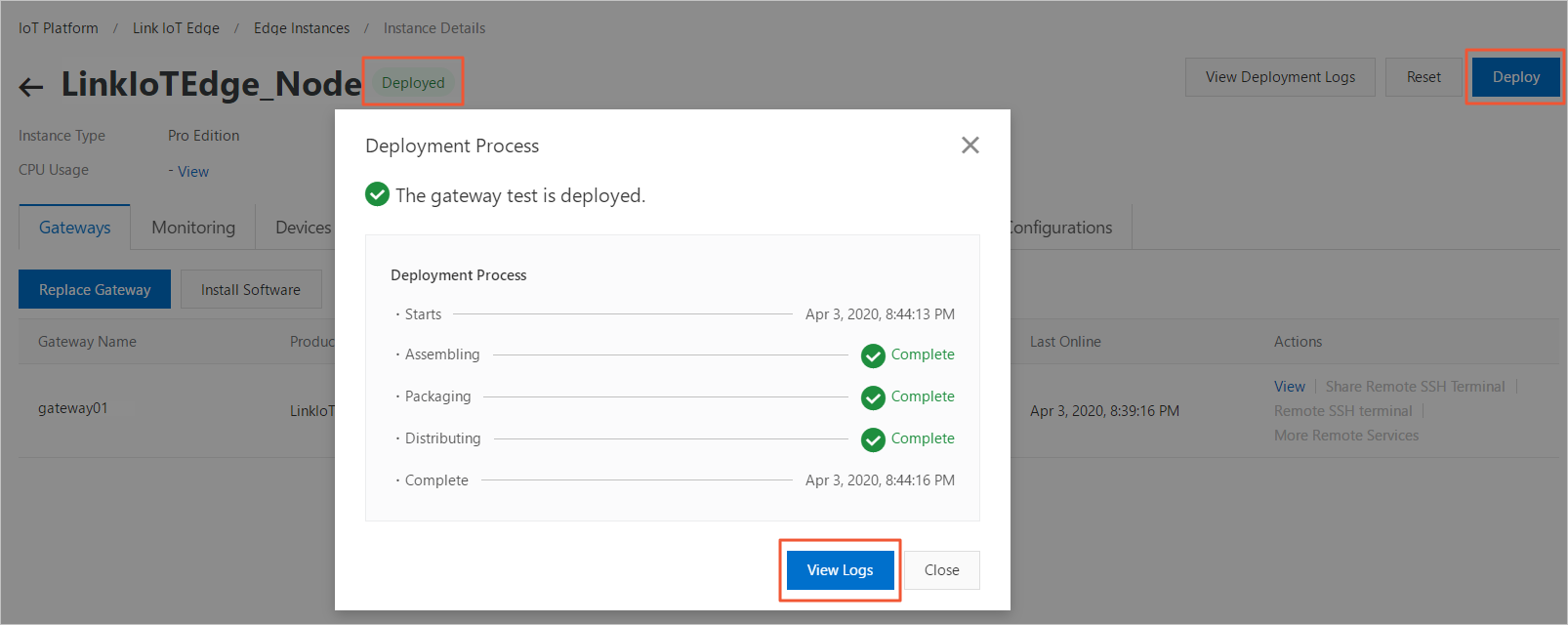
- In the upper-right corner of the Instance Details page, click Deploy. In the message that appears, click OK to deploy the edge instance.
- If the status of the edge instance is Deployed, it indicates that the edge instance has been deployed. You can click View Logs to view deployment details. You can also click View Deployment Logs in the upper-right corner of the Instance Details page to view the deployment history.