The lectl O&M tool
The lectl operations and maintenance (O&M) tool (lectl) is a command line interface (CLI) provided by IoT Edge. You can use it to manage IoT Edge and its resources.
Get help
lectl or any subcommand. The following example shows the top-level help information. $ lectl --help
Usage: lectl [OPTIONS] COMMAND
Manage IoT Edge services and facilitate troubleshooting.
Options:
-v, --version Print version information and quit
Commands:
completion Output shell completion code
config Manage configs
console Manage console backend
dbus Manage D-Bus message bus
deployment Manage deployments
device Manage devices
diagnose Check if requirements meet
driver Manage drivers
fc Manage function compute
logger Manage log service and logs
mqtt Manage MQTT service
ota Manage OTA service
rom Manage remote maintenance
router Manage message routing
sc Manage stream compute
scene Manage scenes
Run 'lectl COMMAND --help' for more information on a command.Autocomplete
lectl supports autocomplete for bash and zsh to improve input efficiency.
- bash
Run the lectl completion bash command on the gateway to generate the bash autocomplete script for lectl. You can then import the script into the shell to enable the feature.
The bash autocomplete script depends on bash-completion. Different package managers provide different versions of bash-completion. Therefore, follow these steps to enable the feature.
- On the gateway, run the type _init_completion command to check if bash-completion is installed.
- If installed, proceed to step iv.
- If it is not installed, proceed to step 2.
- Use the system's package manager to install bash-completion.
- For RedHat-based operating systems: yum install bash-completion
- For Debian-based operating systems: apt-get install bash-completion
For more information about bash-completion provided by other package managers, see the open source library.
- Add the generated /usr/share/bash-completion/bash_completion file to the .bashrc file.
source /usr/share/bash-completion/bash_completion - Enable the autocomplete feature. You can enable the feature in one of two ways:
- Import the bash autocomplete script directly into the current shell. (Recommended)
source <(lectl completion bash)Note This method is only effective for the current shell session. To make the feature permanent, runecho 'source <(lectl completion bash)' >> ~/.bashrcto add the command to the .bashrc file. - Add the bash autocomplete script to the bash_completion.d directory.
lectl completion bash > /etc/bash_completion.d/lectl
- Import the bash autocomplete script directly into the current shell. (Recommended)
- On the gateway, run the type _init_completion command to check if bash-completion is installed.
- zsh
Run the lectl completion zsh command to generate the zsh autocomplete script for lectl. You can then import the script into the shell to enable the feature.
On the gateway, run the following command to generate the script and enable the feature in one step.source <(lectl completion zsh)Note If thecomplete:13: command not found: compdeferror occurs, copy and paste the following commands into the .zshrc file.autoload -Uz compinit compinit
Connection diagnosis
lectl diagnose$ lectl diagnose
....................................................
Get Gateway Triple ***************************[ OK ]
Get IoT Region *******************************[ OK ]
Check Network ********************************[ OK ]
Check DNS Service ****************************[ OK ]
Check MQTT Port ******************************[ OK ]
Check MQTT Cert ******************************[ OK ]
Warning: Inspection of MQTT connection will offline edge-gateway(y or n)y
Gateway Product Key : a17p****0p0
Gateway Device Name : TASN_******_LinkEdge_Core
Gateway Device Secret : 9ygH*************vZqfv
MQTT Service Host : a17p****0p0.iot-as-mqtt.cn-shanghai.aliyuncs.com
MQTT Service Port : 1883
Check MQTT Connection ************************[ OK ]| Field | Description |
| Get Gateway Triple | Gets the device certificate of the gateway device. |
| Get IoT Region | Gets the region configuration. |
| Check Network | Checks the network connectivity status. |
| Check DNS Service | Checks the DNS service status. |
| Check MQTT Port | Checks the Message Queuing Telemetry Transport (MQTT) protocol port. |
| Check MQTT Cert | Checks the MQTT protocol certificate. |
| Check MQTT Connection | Checks the MQTT connection. |
Manage logs
You can use the lectl tool to package logs or temporarily change the behavior of the log service. This can help you upload logs or troubleshoot issues.
- Package logs Run the following command to package logs.
lectl logger packNote By default, the log file is packaged into the current directory and named logs.zip. You can also use the -n or --name option to specify the output file name, and the -o or --output option to specify the output path. - Manage the log service
lectl lets you retrieve the log service configuration and temporarily change its behavior. For example, if an issue occurs in IoT Edge, you can change the global log level to debug to display more details.
Use the following command to retrieve the log service configuration and change its behavior.lectl logger config [OPTIONS]Note lectl logger config command supports configuring multiple log options at once.Table 2. [OPTIONS] descriptions Option Name Description -d, --disable Disables the log system, log level, module log, module log level, output target, display format, and more. You cannot disable multiple items at once. -e, --enable Enables the log system, log level, module log, module log level, output target, display format, and more. You cannot enable multiple items at once. --show Displays all configurations or a specified configuration. This option can only be specified in the --show=format.The configuration items include the following:
- dir: The path of the log file
- level: The global log level
- module: The module log configuration
- format: The log display format
- target: The log output target
- size: The size of the log file
-g, --single-file-mb Sets the size of a single log file in MB. -t, --total-files-mb Sets the total size of all log files in MB. The following are common examples of the lectl logger config command.
$ lectl logger config --show
$ lectl logger config --show=level
$ lectl logger config -g 10
$ lectl logger config -t 1024
$ lectl logger config -e system
$ lectl logger config -e warn
$ lectl logger config -e credential
$ lectl logger config -e credential:info
$ lectl logger config -e stdout
$ lectl logger config -e full
$ lectl logger config -d warn
Manage configurations
You can use the config subcommand for configuration management.
- Retrieve configurations Use the following command to retrieve a configuration.
lectl config get [OPTIONS] KEY[OPTIONS] provides shortcuts for common and complex use cases. These shortcuts usually have their own parameters.
Table 3. [OPTIONS] descriptions Option Name Description -d, --d3 Gets the device certificate information for all devices. This option has no separate parameters. -v, --driver Gets the configuration of a given driver. This option requires one parameter, which is the driver name. -g, --g3 Gets the device certificate information for the gateway device. This option has no separate parameters. -s, --tsl Gets the Thing Specification Language (TSL) model of a given product. This option requires one parameter, which is the ProductKey of the product. The following are common examples of the retrieve configuration command.$ lectl config get foo $ lectl config get -g $ lectl config get -d $ lectl config get -s foo $ lectl config get -v foo - Set configurations Use the following command to set a device configuration.
lectl config set [OPTIONS] KEY VALUE[OPTIONS] provides shortcuts for common and complex use cases. These shortcuts usually have their own parameters.
Table 4. [OPTIONS] descriptions Option Name Description -d, --d3 Sets the device certificate information. This option requires three parameters: ProductKey, DeviceName, and DeviceSecret. -p, --d3f Reads and sets the device certificate information from a given file. This option requires one parameter, which is the file path. -v, --driver Sets the driver configuration. This option requires two parameters: the driver name and the driver configuration. -f, --file Reads and sets a key-value pair from a given file. This option requires two parameters: the key and the file path. -g, --g3 Sets the device certificate information for the gateway. This option requires three parameters: ProductKey, DeviceName, and DeviceSecret. -s, --tsl Sets the TSL of a product. This option requires two parameters: the ProductKey of the product and the path to the TSL file. The following are common examples of the set device configuration command.$ lectl config set foo bar $ lectl config set -f foo /path/to/bar $ lectl config set -g foo bar baz $ lectl config set -d foo bar baz $ lectl config set -p /path/to/foo $ lectl config set -s foo /path/to/bar $ lectl config set -v foo /path/to/bar - Remove a configuration Use the following command to remove a configuration.
lectl config unset KEY - Force write To ensure that the configuration operation is successful, you can force the configuration and save the data to the disk. The command is as follows.
lectl config flush
Manage D-Bus
Internal components of IoT Edge use D-Bus for communication. You can use the dbus subcommand to manage the D-Bus message bus within IoT Edge.
Use the following command to listen for messages on the D-Bus bus.
lectl dbus monitorManage deployments
You can use the deployment subcommand to manage the deployment service of an edge instance.
You can use the lectl deployment show command to display the deployment information of the edge instance.
Manage drivers
You can use the driver subcommand to manage IoT Edge drivers.
Use the following command to view driver details.
lectl driver show [OPTIONS] DRIVER| Option | Description |
| [OPTIONS] | For more information, see the "[OPTIONS] descriptions" table below. |
| DRIVER | The ID of the driver to operate on. |
| Option Name | Description |
| -c, --connections | Displays only the driver connection information. By default, all driver information is displayed. |
| --devices | Displays only device information. By default, all driver information is displayed. You can specify the ProductKey and DeviceName of a device to filter devices. |
The following are common examples of the manage drivers command.
$ lectl driver show 44c0****78204641a4b9bcf1024176c2
$ lectl driver show -c 44c0****78204641a4b9bcf1024176c2
$ lectl driver show --devices 44c0****78204641a4b9bcf1024176c2
$ lectl driver show --devices=a1t8****n42K/GjCb****gcKYaluGJLN 44c0****78204641a4b9bcf1024176c2
Manage devices
You can use the device subcommand to manage device-related information in IoT Edge.
- Display information
You can use the lectl device show subcommand to view the status information of the current device.
The following is a snippet of the displayed information.lectl device show { "DeviceStats": [ { "ProductKey": "a1t9****42K", "DeviceName": "GjCb****gcKXeluGJLNp", "LocalId": "GjCb9****cKXeluGJLNp", "IsLocal": false, "DriverId": "e0bb****964e4519b4a52f9b719e1dd3", "Activation": "activated", "LocalState": "online", "CloudState": "online", "LastSeenTime": "2020-02-27T14:16:52+08:00", "LastRequestOnlineTime": "2020-02-27T14:16:52+08:00", "LastLocalOnlineTime": "2020-02-27T14:16:52+08:00", "LastCloudOnlineTime": "2020-02-27T14:16:52+08:00", "LastCloudOnlineFinishTime": "2020-02-27T14:16:52+08:00", "LastRequestOfflineTime": "2020-02-26T12:04:45+08:00", "LastLocalOfflineTime": "2020-02-26T12:04:45+08:00", "LastCloudOfflineTime": "2020-02-26T12:04:45+08:00", "LastCloudOfflineFinishTime": "2020-02-26T12:04:45+08:00", "RequestOnlineTimes": 17, "LocalOnlineTimes": 17, "CloudOnlineTimes": 252, "RequestOfflineTimes": 1, "LocalOfflineTimes": 1, "CloudOfflineTimes": 1 } ] }Table 7. Field descriptions Option Name Description ProductKey The unique identifier of the product. DeviceName The name of the device. DriverId The ID of the driver associated with the device. Activation Indicates whether the device is activated. LocalState The connection status between the device and the gateway. CloudState The connection status between the device and the cloud. - Retrieve device properties
Use the getproperties subcommand to retrieve the property values of a specified device.
lectl device getproperties [OPTIONS]Table 8. [OPTIONS] descriptions Option Name Required Description -i, --identifier Yes Identifies the device whose properties you want to get. The format is ProductKey/DeviceName.--key Yes Identifies the keys of the properties to get. The format is a JSON string array. The following is a common example of the retrieve device properties command.
lectl device getproperties --identifier=a1t8****42K/GjCb****gcKYaluGJLNp --keys='["foo"]' - Set device properties
You can use the setproperties subcommand to set the properties for a specified device.
lectl device setproperties [OPTIONS]Table 9. Descriptions of [OPTIONS] Option Required Description -i, --identifier Yes Identifies the device whose properties you want to set. The format is ProductKey/DeviceName.--properties Yes Identifies the keys of the properties to set. The format is a JSON string object. The following is a common example of the command to set device properties.
$ lectl device setproperties --identifier=a1t8****42K/GjCb****gcKYaluGJLNp --properties='["foo": "bar"]' - Invoke device services
You can use the callservice subcommand to invoke a service on a specified device.
lectl device callservice [OPTIONS]Table 10. [OPTIONS] descriptions Option Name Required Description -i, --identifier Yes Identifies the device where the service to be invoked resides. The format is ProductKey/DeviceName.--name Yes Identifies the name of the service to be invoked. --args No Identifies the input parameters for the service to be invoked. The format is defined by the service. The following are common examples of the invoke device service command.
$ lectl device callservice --identifier=a1t8****42K/GjCb****gcKYaluGJLNp --name=foo
$ lectl device callservice --identifier=a1t8****42K/GjCb****gcKYaluGJLNp --name=foo --args=bar
$ lectl device callservice --identifier=a1t8****42K/GjCb****gcKYaluGJLNp --name=foo --args='["bar"]'
Management Console
You can use the console subcommand to manage the edge gateway console provided by IoT Edge. This includes setting certificates and logon passwords.
- Set a certificate
Use the following command to set the edge gateway console certificate:
lectl console certificate <SUBJECT>In this command, <SUBJECT> must be in the format
/type0=value0/type1=value1....Notetypecan be C (Country), ST (State), L (Locality), O (Organization), OU (Organization Unit), or CN (Common Name). For more information, see the OpenSSL documentation.The <SUBJECT> field of the default certificate is
/C=CN/ST=Zhejiang/L=Hangzhou/O=Link IoT Edge/OU=Link IoT Edge/CN=Link IoT Edge. - Set a password
Use the following command to set or update the password for a user of the edge gateway console:
lectl console password [OPTIONS]Table 11. [OPTIONS] descriptions Option Name Required Description -u, --username Yes The username for which to update the password. -p, --password Yes The new password.
Manage scene orchestration
You can use lectl to manage scene orchestration that runs on IoT Edge. This includes displaying scene information, and enabling, disabling, and triggering scene orchestration.
- Display information
You can use the lectl scene show command to view basic information, execution information, statistics, and deployment information for a scene.
The following is an example of the output after you run the command.
lectl scene show { "Scenes": [ { "Times": 8, "FailureTimes": 0, "LastState": { "State": "success", "Cause": "", "Time": "2020-02-27T14:25:00+08:00", "Duration": 3 }, "Id": "d141****2aaf4d1d8e3259637e489528", "Name": "scene_test_types", "Running": true, "Time": "2020-02-27T14:17:53+08:00", "Uptime": 466184, "Actions": { "Times": 8, "FailureTimes": 0, "LastState": { "State": "success", "Cause": "", "Time": "2020-02-27T14:25:00+08:00", "Duration": 2 } }, "Conditions": { "Times": 8, "FailureTimes": 0, "LastState": { "State": "success", "Cause": "", "Time": "2020-02-27T14:25:00+08:00", "Duration": 0 } } } ], "Deployment": null } - Start scene orchestration
Run the following command to start one or more scene orchestrations.
lectl scene enable SCENE [SCENE...]In the command, SCENE is the ID of the scene orchestration. You can separate multiple IDs with spaces.
- Stop scene orchestration
Run the following command to stop one or more scene orchestrations.
lectl scene disable SCENE [SCENE...]In the command, SCENE is the ID of the scene orchestration. You can separate multiple IDs with spaces.
- Trigger scene orchestration
Run the following command to trigger one or more scene orchestrations.
lectl scene invoke SCENE [SCENE...]In the command, SCENE is the ID of the scene orchestration. You can separate multiple IDs with spaces.
- Reset scene orchestration
Run the following command to remove all scene orchestrations from the current gateway.
lectl scene reset
Manage Function Compute
You can use lectl to manage Function Compute on IoT Edge. This includes displaying information, deploying functions, removing functions, resetting deployments, invoking functions, and restarting functions.
- Display information
If a function runs abnormally, you can use the lectl fc show command to view its running status and statistics.
The following is the output after you run the command.
$ lectl fc show { "Functions": [ { "FunctionId": "90fe****d2a5466993117e58c1ae3f7f", "ServiceName": "helloworld", "FunctionName": "helloworld", "Runtime": "nodejs8", "MemorySize": 1073741824, "Timeout": 5, "RunMode": "OnDemand", "Status": "Running", "InvocationTimes": 157, "ProcessStats": { "Pid": 254, "MemoryUsage": 32988, "StartTime": "2020-02-27 14:17:14.412906 ", "LastStopTime": "1970-01-01 08:00:00.000000 ", "LastInvokeTime": "2020-02-27 14:22:26.547315 ", "ExitTimes": 0 }, "TaskStats": { "HandledTimes": 157, "HandledErrorTimes": 0, "UnhandledTimes": 0, "HandledAverageDuration": 3025, "WaitingAverageDuration": 0, "LastHandledDuration": 2006 }, "RuntimeStats": { "RequestUnhandledTimes": 0, "RequestHandledTimes": 0, "RequestHandledErrorTimes": 0, "RequestHandledAverageDuration": 0 }, "DeploymentStats": { "State": "Success" } } ] } - Invoke a function
Use the following command to invoke a function.
lectl fc invoke [OPTIONS] FUNCTIONTable 12. Parameter descriptions Option Description [OPTIONS] The OPTIONS, which include the following option. -p, --payload: The Base64-encoded parameter content. This content is passed to the function as is.
FUNCTION The function ID or the Aliyun Resource Name (ARN) of the function. The function ARN format is acs:fc:<Region>:<AccountId>:service:<ServiceName>:function:<FunctionName>. - Restart a function Use the following command to restart one or more functions.
lectl fc restart FUNCTION [FUNCTION...]In the command, FUNCTION is the function ID. You can separate multiple function IDs with spaces.
- Remove a function Use the following command to remove one or more functions.
lectl fc remove FUNCTION [FUNCTION...]In the command, FUNCTION is the function ID. You can separate multiple function IDs with spaces.
- Reset a deployment Use the following command to reset a deployment.
lectl fc reset
Manage stream data analytics
You can use the lectl tool to manage stream data analytics in Link IoT Edge Pro Edition (LE Pro).
- Display information You can use the lectl sc show command to view the status of the stream data tasks on the current system.
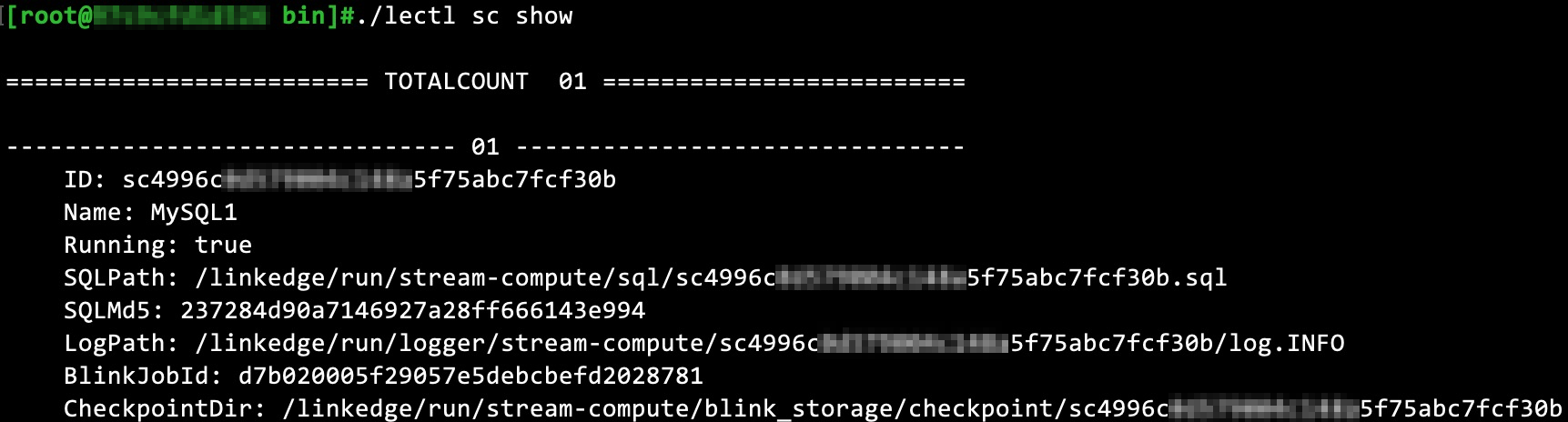
Table 13. Field descriptions Option Description ID The ID of the stream data task. Name The name of the stream data task. Running Indicates whether the stream data task is running. SQLPath The path to the SQL statement file. SQLMd5 The MD5 hash of the SQL statement file. LogPath The path to the stream data task log. BlinkJobId The ID of the corresponding task in Blink for the stream data task. - Start a stream data task Use the following command to start one or more stream data tasks.
lectl sc start STREAM [STREAM...]In the command, STREAM is the stream data task ID. You can separate multiple stream data task IDs with spaces.
- Stop a stream data task Use the following command to stop one or more stream data tasks.
lectl sc stop STREAM [STREAM...]In the command, STREAM is the stream data task ID. You can separate multiple stream data task IDs with spaces.
- Validate SQL Save the SQL statement to a specified file and run the following command to validate the SQL statement of the stream data task.
lectl sc checksql FILE
Manage remote services
You can use the rom subcommand to manage information related to remote services in IoT Edge.
Run the following command to display the current status of remote services.
lectl rom show| Option Name | Description |
| ChannelState | The channel connection status of the remote service. |
| ThreadState | The thread state of the remote service. |
| Services | The list of remote services and their statuses. |
Manage MQTT
You can use the mqtt subcommand to manage MQTT message subscriptions for IoT Edge components.
Run the following command to display the message subscriptions of IoT Edge components.
lectl mqtt show| Option | Description |
| Topic | The topic of the message subscription. |
| QoS | Quality of Service, corresponding to the MQTT protocol QoS. |
| Subscriber | The subscriber of the message. |
| State | The subscription status of the message. |
| Time | The time of the subscription. |