Algorithm applications
This topic describes how to configure algorithm applications for V-series all-in-one edge devices.
Prerequisites
You have connected video devices to the all-in-one edge device. For more information, see Add video devices.
Before you configure a facial recognition application, make sure that you have configured the base library service. For more information, see Algorithm services.
For LE-V-B012 and LE-V-B015 all-in-one edge devices, you must configure preloaded algorithms the first time you use the algorithm application feature. For more information, see Preload algorithms.
Procedure
Log on to the Edge Computing console.
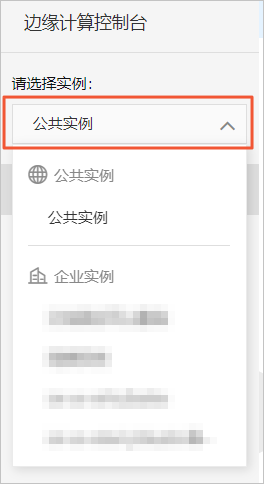
From the drop-down list in the navigation pane on the left, select your instance.
In the navigation pane on the left, choose Node Management > Algorithm Task Management.
On the Algorithm Task Management page, select your V-series all-in-one edge device. A list of the algorithm tasks supported by the device is displayed.
On the Algorithm Task Management page, you can select a host from the drop-down list to manage its algorithm applications.
NoteIf no algorithm applications are listed on the Algorithm Task Management page, contact the business representative who assisted with your purchase of the all-in-one edge device.
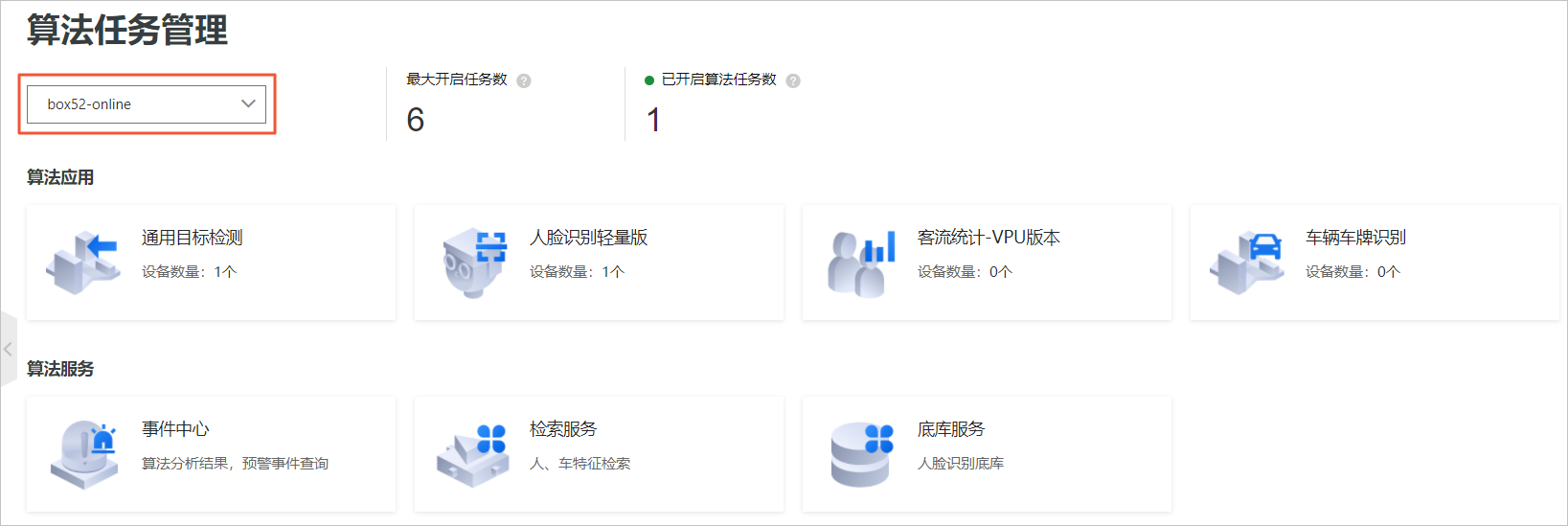
On the Algorithm Task Management page, click the application that you want to configure.
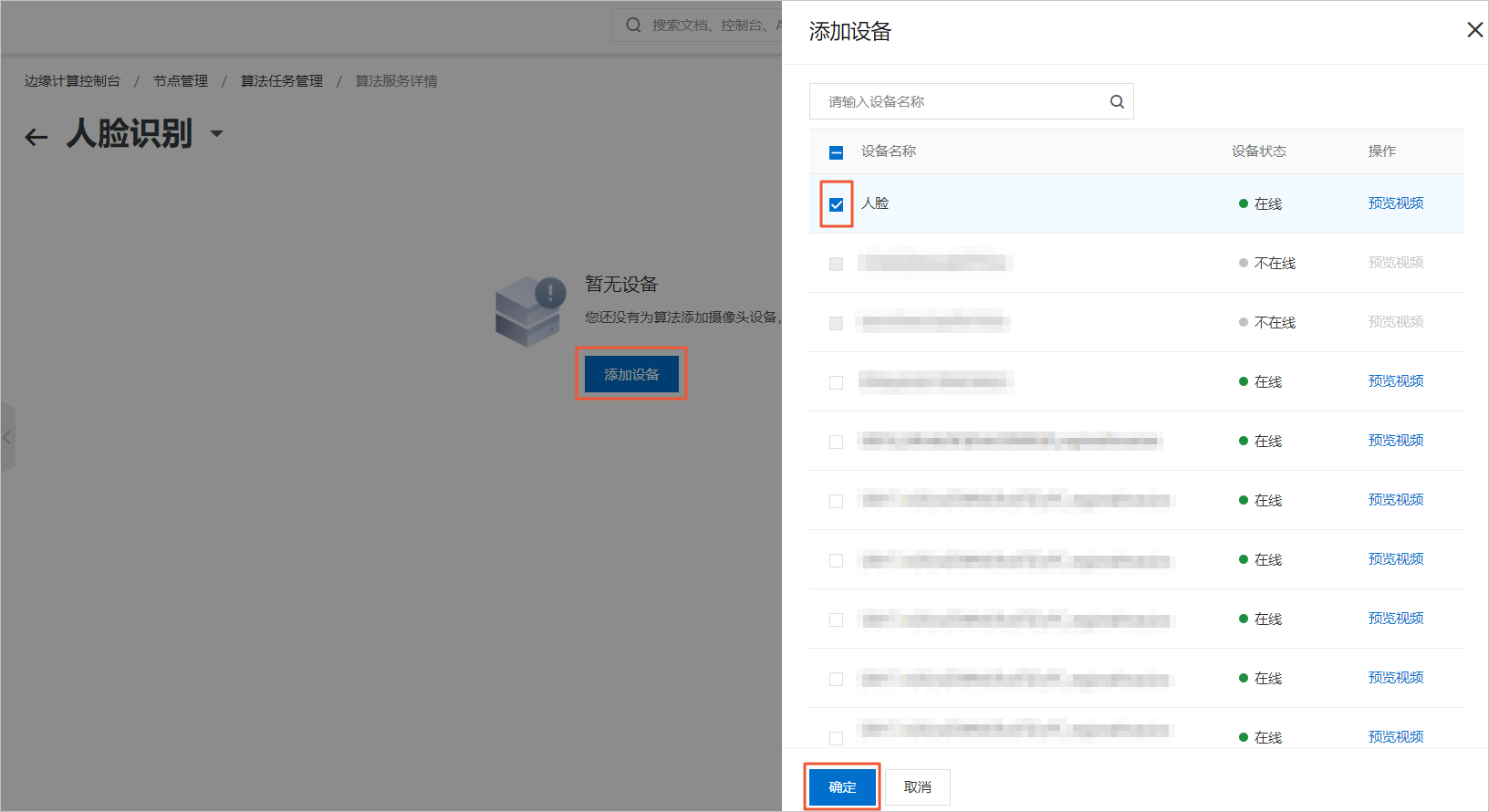
On the Algorithm Service Details page, click Add Device.
In the Add Device panel, select the check box for the target device and click OK to add the device to the algorithm application.
If your algorithm application already has associated devices, you can add more by clicking the
 icon to the right of the Device List.Note
In the Add Device panel, click Preview Video next to a device name to view its real-time video feed.
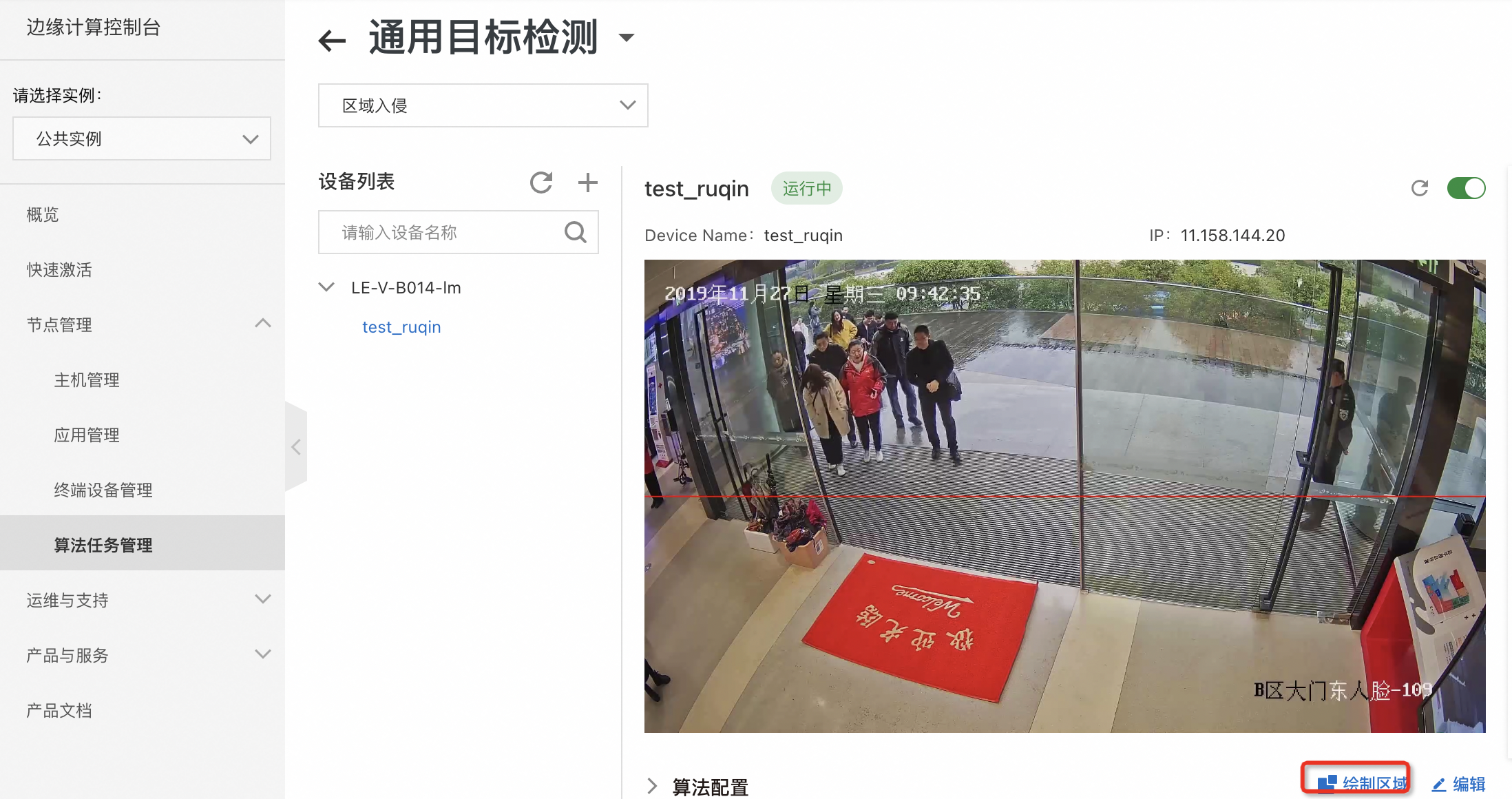
After adding a device, you can use algorithm tasks to manage your video devices.
Serial number
Operation
Description
①
Start an algorithm task
Turn on the Device Status switch to start the algorithm task for the device.
NoteAfter you start the algorithm task, it begins to initialize. If the device status does not update within 30 seconds, refresh the browser page.
②
View algorithm configuration
Click the
 icon before Algorithm Configuration to view the algorithm configuration for the device.
③
Draw a tripwire
This button appears for people counting algorithm models.
A tripwire is a boundary line for counting people. Draw the tripwire as follows:
Click Draw Tripwire. In the dialog box that appears, click Draw Tripwire and use your mouse to draw a line.
Click Draw Direction and use your mouse to draw a line with an arrow. The arrow indicates the direction of entry. People who cross the tripwire from this direction are included in the people count.
NoteWhen you draw the tripwire and the direction line, make the two lines perpendicular for more accurate people counting.
Click the
 icon to save your drawing.
On the Algorithm Service Details page, turn the Device Status switch off and on again to apply the tripwire.
Draw an area
This button appears for area detection algorithm models, such as area intrusion, crowd gathering, and unattended post detection.
Click Draw Area. In the dialog box that appears, click Draw Rectangle or Draw Polygon. Draw a rectangle or polygon as needed to set the detection area.

Click the
icon to save your drawing.On the Algorithm Service Details page, turn the Device Status switch off and on again to apply the area.
④
Edit algorithm configuration
The algorithm configuration is optimized. Do not change it unless necessary. To make changes, first consult the business representative from whom you purchased the all-in-one edge device.
⑤
View algorithm version
Hover over Algorithm Version to view the version number of the algorithm.
⑥
View events
In the Event List area, you can view recent events. The events vary for different types of algorithm applications:
Facial recognition: Displays information about detected faces.
General object detection: Displays the detection results for each algorithm module.
People counting: Displays the total count, a curve graph, and entry events.
NoteThe total count and the curve are calculated daily and reset to zero at 00:00 every day.
Vehicle and license plate recognition: Displays images of detected vehicles and license plates.
You can click Details for a specific algorithm to view detailed information about the event. You can also click More Events to view events for all algorithm tasks. For more information, see Event Center.
⑦
Remove a terminal device
Hover over the name of the terminal device under the target host and click the
icon on the right to remove the device from the algorithm application.
 icon on the right to remove the device from the algorithm application.
What to do next
After you run the algorithm task, you can use Algorithm services to manage your algorithm tasks.