2.5D
The 2.5D component provides various 2.5D models that you can use as containers for other models, allowing you to build 2.5D scenes for water treatment, automation, and other industrial applications. This topic describes how to configure the 2.5D component.
Example
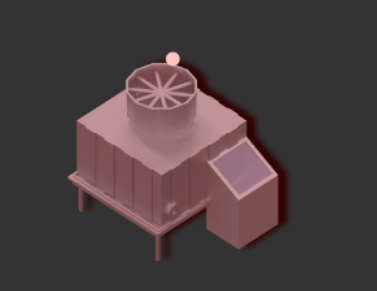
The following figure shows a 2.5D component displaying a device alert.
Step 1: Add the component
-
Create a web application. For more information, see Create a web application.
-
In the web application editor, click the component icon
 on the far left.
 Above the component list on the left side of the canvas, enter 2.5D in the search box to find the component. Then, drag the component to the canvas.
For more information about adding components, see Add a component.
In the component panel's search box on the left, enter
2.5D. From the Basic Components category, drag the 2.5D component onto the canvas. After you add the component, the Style panel on the right displays its initial properties: coordinates X=12 and Y=0, size W=800 and H=600, and a default name such as2.5D-zfhe. By default, Component Visibility is selected, opacity is 100%, and you can click Edit Component at the bottom to open the component editor.
Step 2: Configure the component style
In the Style panel on the right side of the web application editor, adjust the component's size and position.
For more information, see Configure styles.
In the Style panel on the right side of the web application editor, click Edit Component.
You can also double-click the 2.5D component on the canvas.
In the component editor, use the Style panel on the right to configure the display style of the 2.5D component.
Parameter
Description
Background
Sets the component's background color.
Grid
Shows or hides the grid and sets its density.
Shadow Settings
Shows or hides model shadows and sets their direction and opacity.
Model Event
Shows or hides model events.
Global Model Label
Shows or hides all model labels and lets you associate them with a status.
NoteSelect the Associate Status checkbox to have the label style reflect the model's status.
Step 3: Configure models in the 2.5D component
In the component editor, drag the models you need from the Component and Assets tabs on the left into the 2.5D component, and configure the style for each model. For example, in the Component tab, expand the Space category in the Basic Components drop-down list to find available models such as 2.5D Pipe, and drag it onto the isometric grid canvas on the right.
This section uses the 2.5D Pipe and cooling tower models as examples.
2.5D Pipe model
In the component editor, drag a 2.5D Pipe model from the Component tab into the 2.5D component. Add anchor points to draw the pipe.
Optional: Hover over an anchor point and press Backspace or Delete to remove it.
After you finish drawing, click Finish Editing in the Style panel on the right or press Esc.
To edit the pipe model again, click Start Editing in the Style panel or double-click the pipe model on the canvas.
In the Style panel on the right, set the 2.5D Pipe model's color, width, Flow Speed, and Flow Direction, and adjust its final position.
Cooling tower model
In the component editor, drag the cooling tower model from the Assets tab on the left into the 2.5D component.
Official 2.5D models: From the Official section, drag a model into the 2.5D component.
Local 2.5D models: Click Upload Asset. In the Asset Library dialog box, click Upload Image to upload a local 2.5D model to the My library. Then, drag the model from the Personal section into the 2.5D component.
ImportantYou can upload image files in
.pngformat.The My library has a maximum capacity of 5 GB.
You cannot delete 2.5D models from the Official library. For models in the My library, click the delete icon to remove them.
In the Style panel on the right, set the cooling tower model's size, Label Name, and Associate Status, and adjust its final position.
NoteSelect the Associate Status checkbox to have the label style reflect the model's status.
Step 4: Configure the model data source
Click a model, such as the cooling tower, in the 2.5D component. In the Style panel on the right, click Configure Data Source next to Status.
ImportantThe 2.5D Pipe model does not support data source configuration.
In the Data Source Settings panel, select a data source type and click OK.
Available data source types include Device, API, Static Data, and Application Push.
The data source must return one of the following strings:
String
Description
Status indicator
"NORMAL"The default status for a device without a configured data source.
"RUN"The device is running.
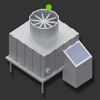
"IDLE"The device is idle.
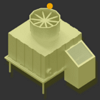
"ALERT"The device has an active alert.

"DOWN"The device is down due to a critical alert.
Click Save in the upper-right corner of the page.
Click Return to Page in the upper-left corner of the component editor. In the web application editor, click Preview in the upper-right corner to check the component's data and visual effects.