Third-party components
IoT Studio allows you to use third-party components. Third-party developers can create personal components, upload them to IoT Studio as a component package, and make them available to all developers. This topic explains how to publish, enable, and use third-party components.
Background
IoT Studio provides the following third-party components: Power Distribution, Wastewater Treatment, Smart Water Supply, HVAC, and Smart Greenhouses.
Editions
Support for third-party components varies by IoT Studio edition. For more information about each edition, see product specifications and limits.
|
Edition |
Supported features |
|
Ultimate Edition |
|
|
|
|
Public Beta |
Third-party components are not enabled by default. |
Publication workflow
To publish and use a third-party component in IoT Studio, follow this workflow:
-
Upload the component package: A third-party developer uploads a personal component to IoT Studio as a component package.
For more information about developing personal components and publishing component packages, see Develop components.
-
Review the component package: An IoT Studio administrator reviews and tests the features, source code, and security of each component in the package.
-
Approve the package: The administrator approves the component package for publication on the IoT Studio platform.
-
Publish and use: The third-party component appears in the IoT Studio component list for all developers to use. For instructions, see Enable and use below.
-
The developer is responsible for maintaining and upgrading their third-party components.
-
When a developer updates or upgrades a component, it must undergo the same review process. Only after approval will the new version be available to developers in IoT Studio.
Enable and use
This section uses the Power Distribution component to demonstrate how to use a third-party component.
-
Log on to the IoT Platform console. In the navigation pane on the left, choose .
-
On the Application Development page, in the Recently Developed section, find your target web visualization application and click Edit in the Actions column.
-
On the far left of the web visualization application editor, click the component button. In the component type drop-down list, click the name of the target third-party component, such as Power Distribution.
-
(Optional) Above the component list for the Power Distribution component, click Enable Trial.
Note-
This step is required only for the Public Beta.
-
Before you enable the trial for the Power Distribution component, the component list displays the Developer, Version, and Description. All components are grayed out (unavailable). You can hover over a component to view its description.
-
After you enable the trial, you can drag and drop Power Distribution components onto the canvas to configure and use them.
-
After you enable the trial for the Power Distribution component, the component list displays only the Developer information.
-
At the bottom of a component's configuration panel on the right, click its help link to learn how to configure it.
Power Distribution components
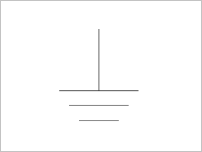
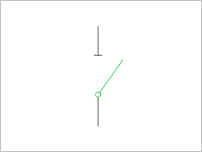
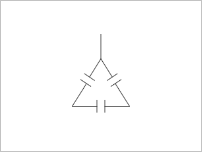
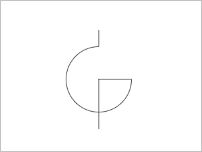
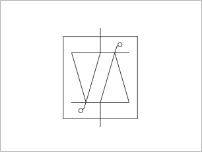
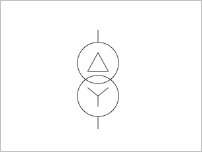
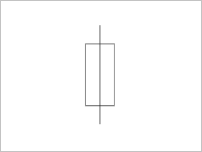
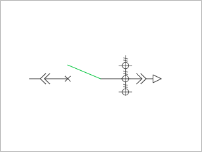
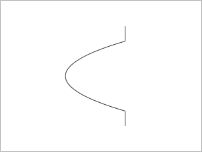
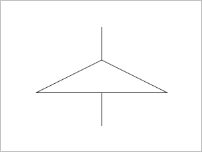
Power Distribution components are electrical symbols used to build circuit diagrams. This set includes 18 components, such as the switch, fuse, and drawer-type cabinet.
|
Name |
Icon |
Name |
Icon |
Name |
Icon |
|
Grounding |
|
Switch |
|
Capacitor |
|
|
Capacitor bank |
|
Reactor |
|
Voltmeter |
|
|
Ammeter |
|
Multifunction meter |
|
TRIAC |
|
|
Two-winding transformer |
|
Fuse |
|
Bus duct |
|
|
Surge protector |
|
Voltage transformer |
|
Current transformer |
|
|
Drawer-type cabinet |
|
Bent wire |
|
Outgoing line |
|




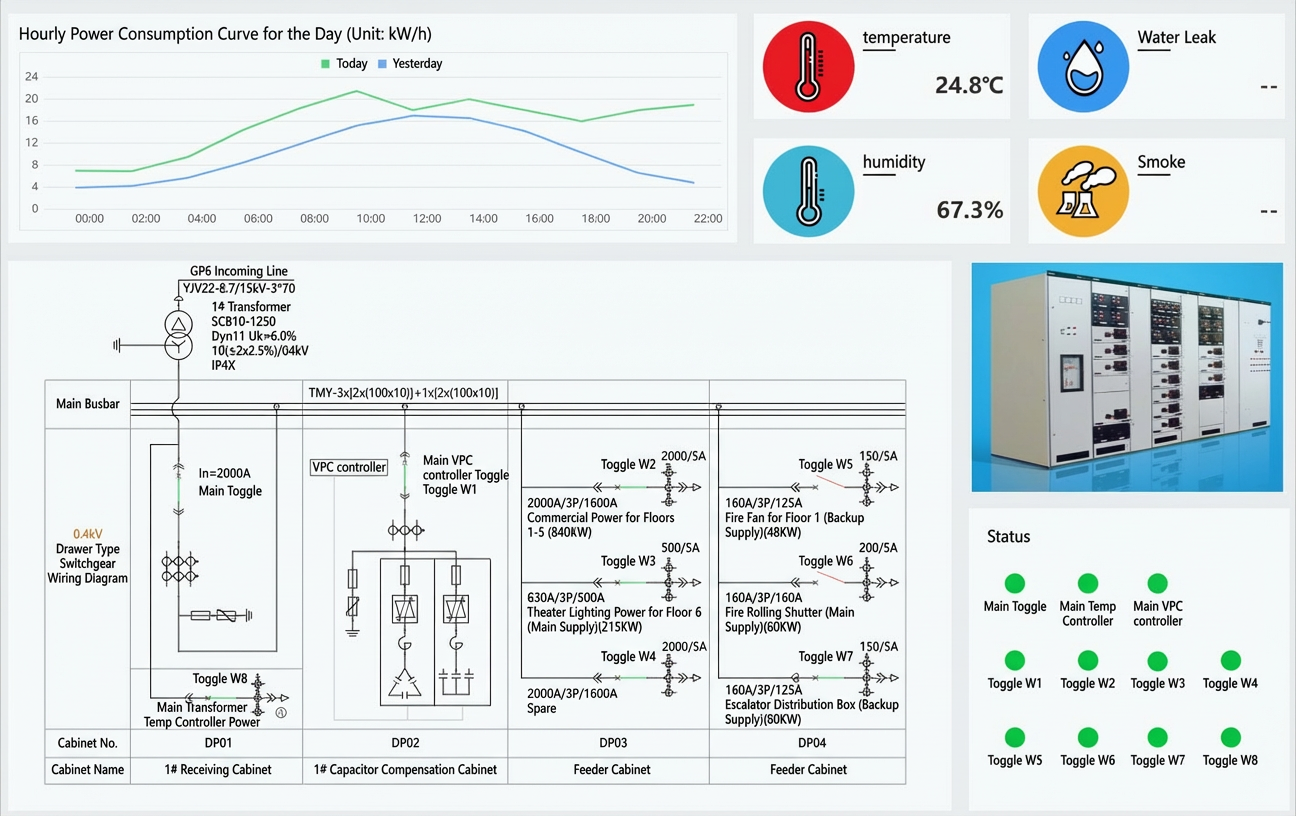
Power Distribution components help you quickly build monitoring systems for power distribution facilities. The following figure shows an example: