Porting guide for code extraction
This topic describes how to port the software development kit (SDK) on a Windows developer host, using the `MQTT cloud connectivity` and `OTA update` features as an example.
Background information
If you use KEIL or IAR for device development, you cannot use Make to compile the SDK. Instead, you must configure the required SDK features, use the SDK extraction tool to extract the code, and then add the source files to your project in the development tool to compile them.
If you use Linux as your development environment, you can also use this method to extract code for cross compilation.
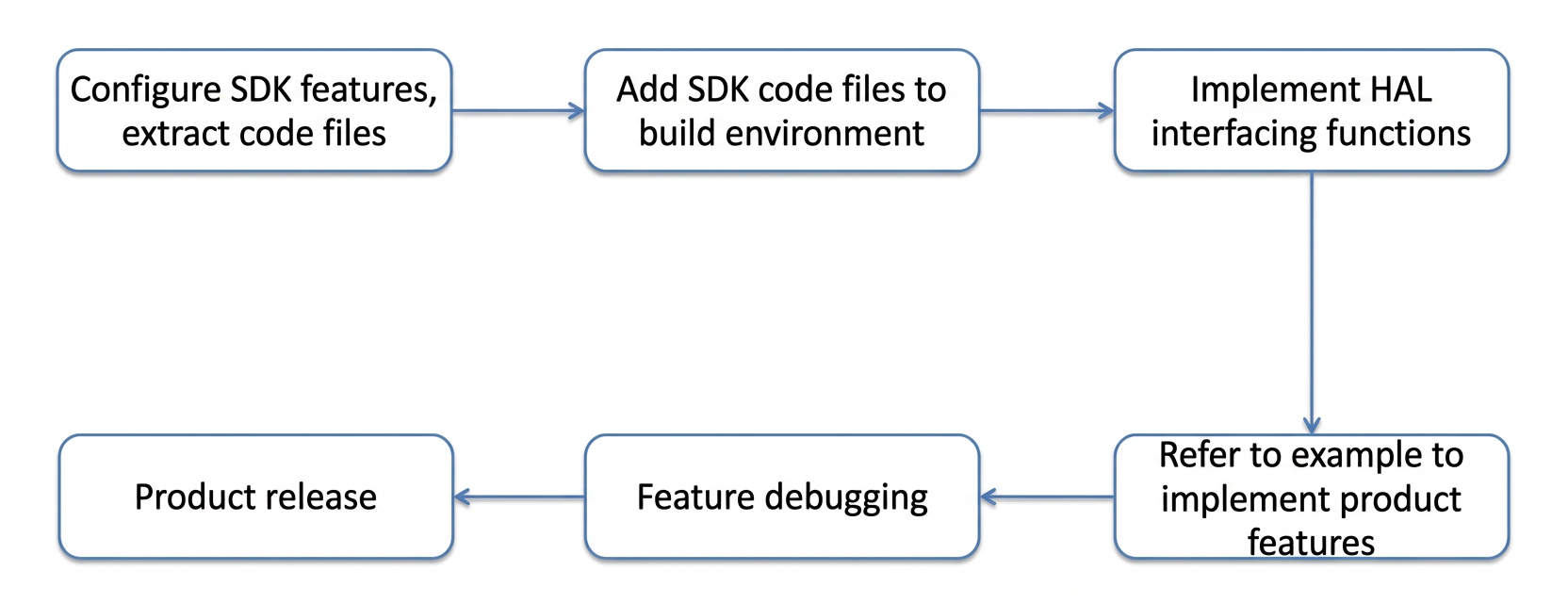
The overall device development procedure is shown in the following figure.
Configure SDK features
This example focuses on the MQTT cloud connectivity and OTA firmware download features.
In the SDK root directory, double-click the `config.bat` script to open the feature selection interface. This action is equivalent to running the `make menuconfig` command on a 64-bit Ubuntu 16.04 host.

Press the space bar to select or deselect features. Use the Up and Down arrow keys to navigate between features.
Use the arrow keys to move the highlight bar to an option and press the `h` key to view a detailed description of the option.
For example:
If your compilation environment includes the standard header file `<stdint.h>`, enable the `PLATFORM_HAS_STDINT` option.
If an embedded operating system runs on the target system, enable the `PLATFORM_HAS_OS` option.
If the target system supports dynamic memory management with `malloc` and `free`, enable the `PLATFORM_HAS_DYNMEM` option.
In this example, you need the MQTT cloud connectivity and OTA firmware download features. Select the following options:
`FEATURE_MQTT_COMM_ENABLED`: Enables the MQTT cloud connectivity feature.
`FEATURE_OTA_ENABLED`: Enables the OTA firmware download feature.

Move the cursor to `<Exit>` at the bottom of the window. In the dialog box that appears, select `<Yes>` to save the configuration and exit.
Extract the SDK code
After you complete these steps, the `make.settings` configuration file in the SDK root directory is updated to reflect your selected features:
FEATURE_MQTT_COMM_ENABLED=y
FEATURE_MQTT_DEFAULT_IMPL=y
# FEATURE_MQTT_PRE_AUTH is not set
FEATURE_MQTT_DIRECT=y
...
FEATURE_OTA_ENABLED=y
The flags for the selected features, `FEATURE_MQTT_COMM_ENABLED` and `FEATURE_OTA_ENABLED`, are set to `y`, which indicates that they are enabled.
Run the `extract.bat` code extraction tool. The following interface appears after the script runs:

Description of the extracted code
The config.bat script generates the make.settings file, which the extract.bat script then uses as input to generate the output file.

Click the `output` folder to view its contents. The structure of the `output` folder is as follows:
output/
+-- eng
|   +-- certs
|   +-- dev_model
|   +-- dev_sign
|   +-- infra
|   +-- mqtt
|   +-- ota
|   +-- wrappers
|       +-- external_libs
+-- examples
The `output/eng` folder contains the extracted code for the SDK features. The `output/example` folder contains sample programs that use the API operations in the SDK.
File or folder | Description |
`output/eng` | Contains the SDK and the supporting Hardware Abstraction Layer (HAL) interfaces. |
`output/eng/infra` | The content changes based on the selected features. |
`output/eng/certs` | Stores the root certificate to authenticate the Alibaba Cloud IoT server-side. This folder appears when you enable Transport Layer Security (TLS) transmission. |
`output/eng/xxx` | Contains the source code for the selected feature `xxx`. The `output/eng/xxx/xxx_api.h` file lists the API operations for this feature. |
`output/example/xxx` | Contains the sample program for the selected feature `xxx`. It shows how to write business logic using the API operations for this feature. |
In this example, the folders in the `eng` directory are as follows:

The sample programs for these features are in the `output/examples` folder.

Connect to HAL or wrapper interfaces
All runtime dependencies for the SDK are defined as `HAL_XXX` or `wrapper_xxx` in the `output\eng\wrappers\wrapper.c` file. You must implement the functions in this file.

Each `HAL_XXX` interface includes detailed comments and documentation. For reference, you can see the wrapper implementation in the `wrappers` subdirectory of the SDK root directory.
Compile the extracted code with Make
You can also use GNU Make to compile the extracted code. A sample `makefile` is provided in the extracted folder. Running `make` generates the following content:
Binary file | Description | Generation method |
`libiot_sdk.a` | The primary SDK library file. It provides all user API operations in the `IOT_XXX` format. | Generated from all folders under `output/eng` except for `output/wrapper/*`. |
`libiot_hal.a` | The HAL library that supports the SDK. It provides underlying interfaces in the `HAL_XXX` format. | Generated from the source files under `output/eng/wrappers`. You must complete the `output/eng/wrappers/wrapper.c` file. |
`xxx-example` | A sample program for the feature. | Generated from the source files under `output/examples/xxx`. To compile, run the `make prog` command in the `output` folder. |
Handle errors when compiling with a C++ compiler
The C++ compiler is stricter than gcc during compilation. If compilation errors occur, you can recompile after making the following changes.
Add -fpermissive -w, and remove -ansi -Wdeclaration-after-statement
Summary
In the diagram, red text indicates user actions and green text indicates the resulting outputs. The procedure is shown in the following figure.

The top-left of the diagram shows the start of the porting procedure, and the bottom-right shows the end. The procedure is complete when you obtain the `libiot_sdk.a` and `libiot_hal.a` binary libraries for the target device architecture.
After the SDK extraction is complete, add all folders in the `output/eng` directory to your project for compilation and integration. You can refer to the examples in `output/examples` to start calling the API operations that the SDK provides.