Connect a device and report data
After you obtain the device certificate (ProductKey, DeviceName, and DeviceSecret), use the Message Queuing Telemetry Transport (MQTT) protocol to connect the device to an Enterprise instance. This topic describes how to use the C Link software development kit (SDK) from IoT Platform to simulate device development and report data.
Prerequisites
A product and a device have been created. For more information, see Create a product and a device.
Before you begin
The steps in this topic are demonstrated using a regular user. If an operation requires administrative permissions, run the command with sudo.
Prepare the development environment
This topic uses the C SDK for devices that run Linux. The recommended compilation environment for the SDK is 64-bit Ubuntu 20.04.
This example uses an Elastic Compute Service (ECS) instance to simulate a device that connects to IoT Platform and reports data. For information about how to purchase an ECS instance, see Create an instance.
The SDK development and compilation environment requires the following software:
make (version 4.1 or later) and gcc (version 5.4.0 or later).
Run the following command to install them:
sudo apt-get install -y build-essential make gcc
Obtain the C Link SDK for devices
Log on to the IoT Platform console.
In the top-left corner of the console, select the region where your IoT Platform device is deployed.
On the Instance Overview tab, click the target Enterprise instance.
In the navigation pane on the left, click Documents & Tools.
In the Device SDKs section, under Link SDK, click Customize SDK.
On the Customize SDK page, under Advanced Features, click TSL Model. Use the default configurations for other parameters.
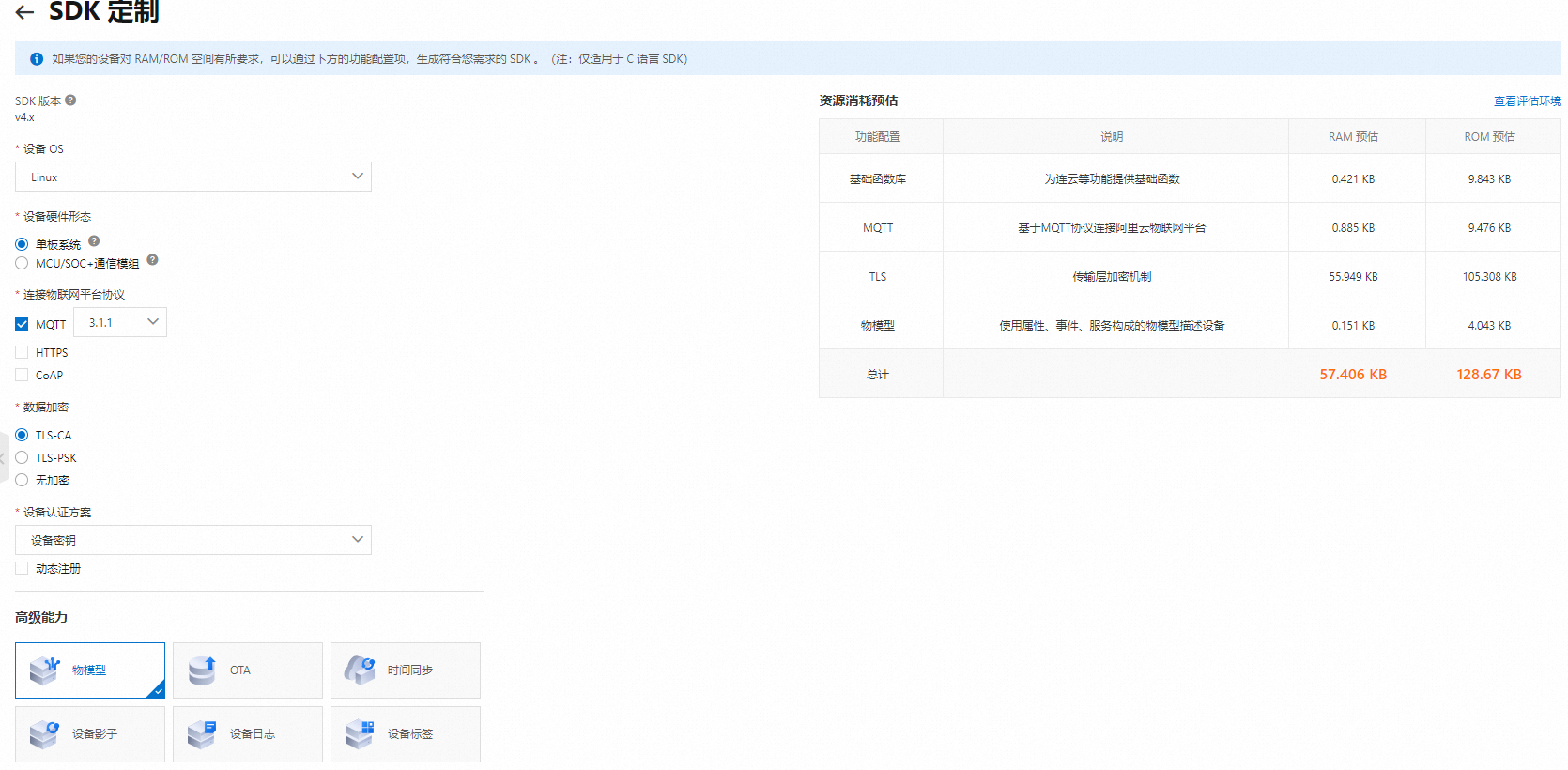
Click Generate.
A ZIP file of the C SDK is downloaded to your computer. Rename the file to
LinkSDK.zip.
Develop a sample device program
This example demonstrates how to report data using a topic that is defined in the Thing Specification Language (TSL) model. You can also use a custom topic to send data to the device. For more information, see Use custom topics for communication.
Log on to the ECS instance. For information about logon methods, see Select a method to connect to an ECS instance.
Run the following command to install GCC and Make.
sudo apt-get install -y build-essential make gccUpload the
LinkSDK.zipfile and decompress it.Upload the file to the ECS instance. For more information, see Upload files to an ECS instance using Cloud Assistant.
Run the following command to install unzip.
apt update
apt install unzip
Go to the directory where the
LinkSDK.zipfile is located and run the following command to decompress the file.unzip LinkSDK.zip
Open the
data_model_basic_demo.cfile in the/LinkSDK/demospath and configure the parameters for device authentication./* TODO: Replace the following values with your device certificate information. */ char *product_key = "a2******"; char *device_name = "Device1"; char *device_secret = "8c684ef*************"; ...... char *mqtt_host = "iot-cn-******.mqtt.iothub.aliyuncs.com";Parameter
Example
Description
product_key
a2******The device authentication information. This is the device certificate that you saved locally after you added the device.
The device authentication information is also available on the Device Details page in the IoT Platform console.
device_name
Device1device_secret
8c684ef*************mqtt_host
iot-cn-******.mqtt.iothub.aliyuncs.comThe MQTT domain name for the device to connect. On the Instance Details page, click View Development Configurations in the upper-right corner. In the Development Configurations panel, view the domain name for connection.
For more information about instances, see View and configure instance endpoints.
Modify the following code to report temperature and humidity data.
    /* The main loop enters hibernation. */
    while (1) {
        /* TODO: The following code provides a demo of simple property and event reporting. Uncomment the code to view the demo. */
        demo_send_property_post(dm_handle, "{\"temperature\": 30,\"humidity\": 42}");
        ......

        sleep(5);
    }
Modify the following code to subscribe to a custom topic to receive instructions from the cloud.
aiot_mqtt_sub(mqtt_handle, "/a2******/Device1/user/get", NULL, 1, NULL);In the SDK root directory
/LinkSDK, run the following commands to compile the sample device program.make clean makeThe generated sample program
data-model-basic-demois stored in the./outputdirectory.Run the following command to run the sample program.
./output/data-model-basic-demoUpon successful execution, the following log is returned:
[1695199326.066][LK-0313] MQTT user calls aiot_mqtt_connect api, connect
[1695199326.066][LK-032A] mqtt host: iot-cn-******.mqtt.iothub.aliyuncs.com
[1695199326.066][LK-0317] user name: Device1&a2******
establish tcp connection with server(host='iot-cn-******.mqtt.iothub.aliyuncs.com', port=[443])
success to establish tcp, fd=3
local port: 36030
[1695199326.077][LK-1000] establish mbedtls connection with server(host='iot-cn-******.mqtt.iothub.aliyuncs.com', port=[443])
[1695199326.122][LK-1000] success to establish mbedtls connection, (cost 45382 bytes in total, max used 48350 bytes)
[1695199326.166][LK-0313] MQTT connect success in 92 ms
AIOT_MQTTEVT_CONNECT
[1695199326.166][LK-0309] sub: /a2******/Device1/user/get
[1695199326.166][LK-0309] pub: /sys/a2******/Device1/thing/event/property/post

[LK-030A] > 7B 22 69 64 22 3A 22 31  22 2C 22 76 65 72 73 69 | {"id":"1","versi
[LK-030A] > 6F 6E 22 3A 22 31 2E 30  22 2C 22 70 61 72 61 6D | on":"1.0","param
[LK-030A] > 73 22 3A 7B 22 74 65 6D  70 65 72 61 74 75 72 65 | s":{"temperature
[LK-030A] > 22 3A 20 33 30 2C 22 68  75 6D 69 64 69 74 79 22 | ": 30,"humidity"
[LK-030A] > 3A 20 34 32 7D 2C 22 73  79 73 22 3A 7B 22 61 63 | : 42},"sys":{"ac
[LK-030A] > 6B 22 3A 31 7D 7D                                | k":1}}

[1695199326.244][LK-0309] pub: /sys/a2******/Device1/thing/event/property/post_reply

[LK-030A] < 7B 22 63 6F 64 65 22 3A  32 30 30 2C 22 64 61 74 | {"code":200,"dat
[LK-030A] < 61 22 3A 7B 7D 2C 22 69  64 22 3A 22 31 22 2C 22 | a":{},"id":"1","
[LK-030A] < 6D 65 73 73 61 67 65 22  3A 22 73 75 63 63 65 73 | message":"succes
[LK-030A] < 73 22 2C 22 6D 65 74 68  6F 64 22 3A 22 74 68 69 | s","method":"thi
[LK-030A] < 6E 67 2E 65 76 65 6E 74  2E 70 72 6F 70 65 72 74 | ng.event.propert
[LK-030A] < 79 2E 70 6F 73 74 22 2C  22 76 65 72 73 69 6F 6E | y.post","version
[LK-030A] < 22 3A 22 31 2E 30 22 7D                          | ":"1.0"}

[1695199326.244][LK-0A08] DM recv generic reply
demo_dm_recv_handler, type = 0
demo_dm_recv_generic_reply msg_id = 1, code = 200, data = {}, message = success
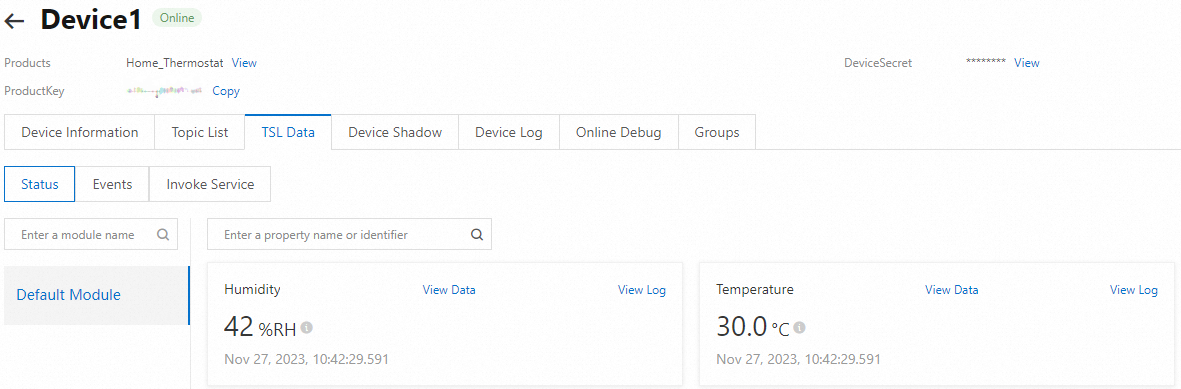
Log on to the IoT Platform console, click the target Enterprise instance, and then view the device status and running status.
In the navigation pane on the left, choose . Find the target device Device1 and view its status. If the device status is Online, the device is connected to IoT Platform.

In the Actions column of the device, click View. On the device details page, click the TSL Data tab, and then click the Running Status tab to view the running status of the device.
The code example in the
data_model_basic_demo.cfile reports the values of Temperature and Humidity.