Consume device messages using an ApsaraMQ for RocketMQ client
In IoT scenarios, you may need to forward data reported by devices to an application on your business server for processing, such as filtering, analysis, or storage. You can use the data forwarding service of IoT Platform to forward device data to ApsaraMQ for RocketMQ for consumption. ApsaraMQ for RocketMQ provides client software development kits (SDKs) in multiple languages to send and receive messages. This topic describes how to use the ApsaraMQ for RocketMQ SDK for Java to receive device messages from IoT Platform.
Scenario description
Assume that a device reports its geographic location (RID) and a message (CusMsg) to a custom topic in IoT Platform. You need to forward the device message CusMsg to a business server for processing if the RID is cn-shanghai. If the message rate between devices and IoT Platform exceeds 1,000 QPS, we recommend that you use the tag filtering feature of ApsaraMQ for RocketMQ to retrieve the filtered device messages.
The data forwarding and consumption flow is as follows:

On the business server, you can use the ApsaraMQ for RocketMQ SDK to register a consumer that receives messages forwarded from IoT Platform.
First, you must configure data forwarding from IoT Platform to ApsaraMQ for RocketMQ and set properties and tags for device messages. These properties and tags are used as filter conditions for message consumption. Then, you can connect the device to IoT Platform to report data. The data is then forwarded to ApsaraMQ for RocketMQ.
When the consumer that is registered using the ApsaraMQ for RocketMQ SDK retrieves messages, it triggers dynamic server-side filtering. ApsaraMQ for RocketMQ matches messages against the filter expression that is reported by the consumer and delivers only the matching messages. This allows the business server to receive the messages that devices report to IoT Platform.
Prerequisites
You have registered an Alibaba Cloud account.
IoT Platform is activated.
NoteAfter you activate the service, you can try IoT Platform for free. For more information about the free trial, see Alibaba Cloud IoT Platform products for free trial. For more information about billing, see Billing overview.
An Enterprise instance is purchased. This example uses a medium Enterprise instance in the China (Shanghai) region.
You have activated the ApsaraMQ for RocketMQ service.
If you have not activated ApsaraMQ for RocketMQ, go to the ApsaraMQ for RocketMQ product page to activate the service.
The development environment is now ready.
This example uses the Java SDK to demonstrate how to use ApsaraMQ for RocketMQ for message consumption.
Operating system: Windows 10 64-bit
IntelliJ IDEA is installed. For more information, see IntelliJ IDEA.
You can use IntelliJ IDEA or Eclipse. In the examples of this topic, IntelliJ IDEA Ultimate is used.
JDK 1.8 or later is installed. For more information, see Java Downloads.
Maven 2.5 or later is installed. For more information, see Downloading Apache Maven.
In this example, an ECS instance that runs Alibaba Cloud Linux is used to compile and run the C Link SDK demo. The demo simulates a device that connects to IoT Platform and reports data. For more information about how to purchase an ECS instance, see Create an instance.
Background information
IoT Platform provides server-side subscription and data forwarding services that you can use to forward device data. You can compare the forwarding solutions and application scenarios that are supported by IoT Platform to select the solution that best suits your business needs. For more information, see Comparison of data forwarding solutions.
Benefits of this solution:
When devices connect to IoT Platform over Message Queuing Telemetry Transport (MQTT), the data transmission links are encrypted using Transport Layer Security (TLS) to prevent data tampering. For more information about MQTT, see MQTT Protocol Specification.
ApsaraMQ for RocketMQ uses peak-load shifting and message buffering to reduce the concurrent pressure on servers that is caused by receiving many device messages. For more information about the benefits and common scenarios of ApsaraMQ for RocketMQ, see ApsaraMQ for RocketMQ Product Introduction.
Before you begin
The steps in this topic are demonstrated using a regular user. If an operation requires administrative permissions, run the command with sudo.
Step 1: Consume messages using the ApsaraMQ for RocketMQ SDK
The ApsaraMQ for RocketMQ instance must be in the same region as the IoT Platform instance. This topic uses the China (Shanghai) region as an example.
IoT Platform supports forwarding device data to topics of ApsaraMQ for RocketMQ 4.x and 5.x instances. This topic uses an ApsaraMQ for RocketMQ 5.x instance as an example.
Log on to the ApsaraMQ for RocketMQ console. In the left-side navigation pane, click Instances.
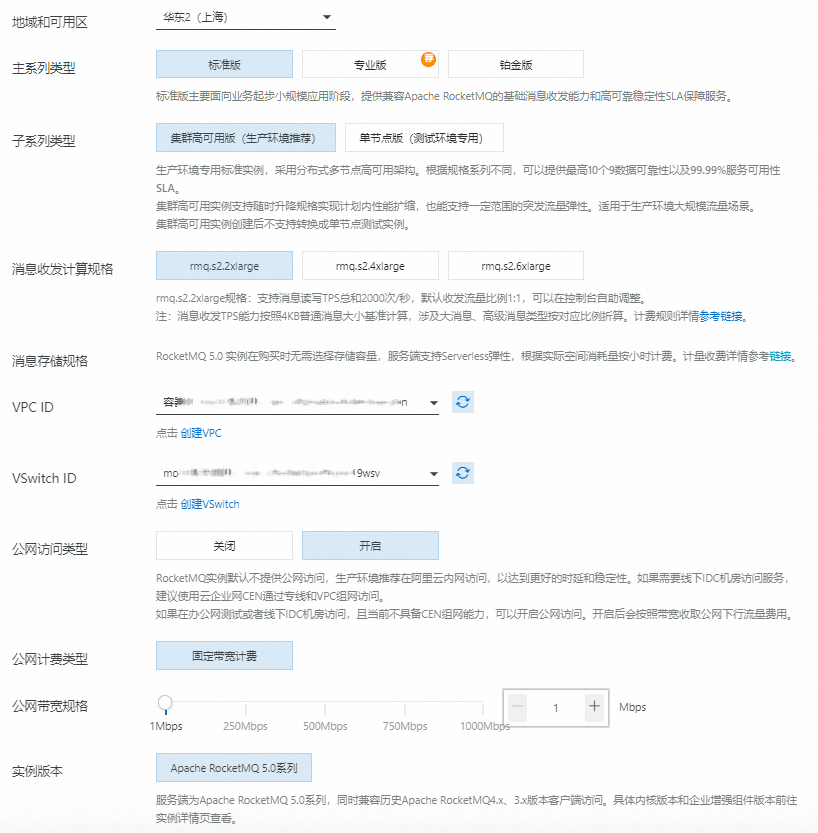
Create an instance: Set the region to China (Shanghai) and the Instance Version to 5.0 Series. For more information about specifications, see Product Selection.

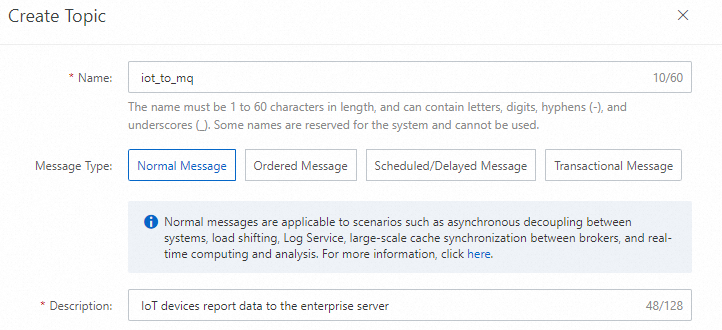
Create a topic. Add a topic named iot_to_mq. The configuration is shown in the following figure.
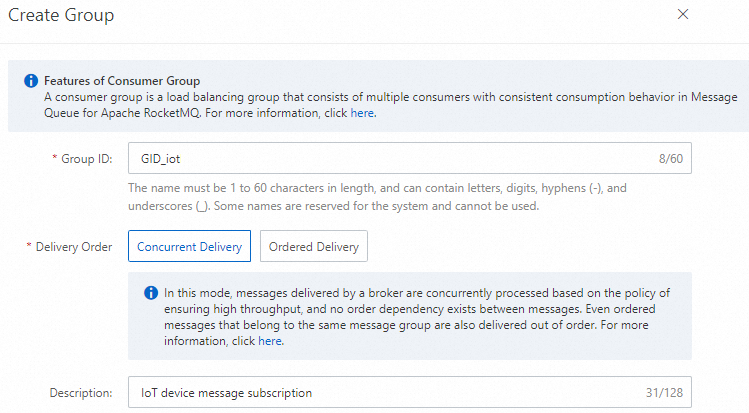
Create a consumer group. Add a consumer group named GID_iot. The configuration is shown in the following figure.
Call the SDK to consume messages. Use the RocketMQ Java SDK to register a consumer to consume messages from the topic.
This example uses the PushConsumer consumer type. For message consumption, you only need to use a consumption listener to process business logic and return a consumption result. The RocketMQ SDK handles message retrieval, consumption status submission, and consumption retries.
The following code provides an example:
In IntelliJ IDEA, create a Java project.
In the
pom.xmlfile, add the following dependency to import the Java dependency library.<dependency> <groupId>org.apache.rocketmq</groupId> <artifactId>rocketmq-client-java</artifactId> <version>5.0.4</version> </dependency>In the Java project, create and run a program for the server to subscribe to normal messages.
NoteIn a real-world development scenario, replace the values of
endpoints,topic, andconsumerGroupin the code with the actual values that you obtained and configured in the previous steps.import org.apache.rocketmq.client.apis.*; import org.apache.rocketmq.client.apis.consumer.ConsumeResult; import org.apache.rocketmq.client.apis.consumer.FilterExpression; import org.apache.rocketmq.client.apis.consumer.FilterExpressionType; import org.apache.rocketmq.client.apis.consumer.PushConsumer; import org.apache.rocketmq.shaded.org.slf4j.Logger; import org.apache.rocketmq.shaded.org.slf4j.LoggerFactory; import java.io.IOException; import java.util.Collections; public class PushConsumerExample { private static final Logger LOGGER = LoggerFactory.getLogger(PushConsumerExample.class); private PushConsumerExample() { } public static void main(String[] args) throws ClientException, IOException, InterruptedException { /** * The endpoint of the instance. You can obtain the endpoint from the Endpoints tab on the instance details page in the console. * If you access the instance from an ECS instance over the internal network, we recommend that you use the VPC endpoint. * If you access the instance from a local computer or an on-premises data center over the internet, you can use the public endpoint. To use the public endpoint, you must enable public network access for the instance. */ String endpoints = "rmq-cn-xxx.{regionId}.rmq.aliyuncs.com:8080"; // Specify the topic that you want to subscribe to. You must create the topic in the console in advance. Otherwise, an error is returned. String topic = "iot_to_mq"; // Specify the consumer group for the consumer. You must create the group in the console in advance. Otherwise, an error is returned. String consumerGroup = "GID_iot"; final ClientServiceProvider provider = ClientServiceProvider.loadService(); ClientConfigurationBuilder builder = ClientConfiguration.newBuilder().setEndpoints(endpoints); /** * If you use the public endpoint, you must also set the username and password of the instance for the configuration. You can obtain the username and password from the instance details page in the console. * If you access the instance from an Alibaba Cloud ECS instance over the internal network, you do not need to configure these parameters. The server-side intelligently obtains the information based on the VPC. */ //builder.setCredentialProvider(new StaticSessionCredentialsProvider("Instance UserName", "Instance Password")); ClientConfiguration clientConfiguration = builder.build(); // The filtering rule for message subscription. This indicates that all messages with the specified tag are subscribed. String tag = "cn-shanghai"; FilterExpression filterExpression = new FilterExpression(tag, FilterExpressionType.TAG); // Initialize PushConsumer. You must bind the consumer group, communication parameters, and subscription relationship. PushConsumer pushConsumer = provider.newPushConsumerBuilder() .setClientConfiguration(clientConfiguration) // Set the consumer group. .setConsumerGroup(consumerGroup) // Set the pre-bound subscription relationship. .setSubscriptionExpressions(Collections.singletonMap(topic, filterExpression)) // Set the message listener. .setMessageListener(messageView -> { // Process the message and return the consumption result. //LOGGER.info("Consume message={}", messageView); System.out.println("Consume Message: " + messageView); return ConsumeResult.SUCCESS; }) .build(); Thread.sleep(Long.MAX_VALUE); // If you no longer need to use PushConsumer, you can close the process. //pushConsumer.close(); } }
Step 2: Connect a device to IoT Platform and configure message forwarding
Create a product and a device.
Log on to the IoT Platform console.
In the top menu bar, select the China (Shanghai) region.
On the Instance Overview tab, under All Environments, find the instance and click the instance card.
In the navigation pane on the left, choose . Click Create Product, configure the parameters, and then click Confirm. For more information, see Create a product.
In this example, set Product Name to MQ_test, Category to Custom Category, and Node Type to Directly Connected Device. Use the default values for other parameters.
Click View Product Details. On the product details page, click , and then click Create Custom Topic to create a topic category with the Publish permission so that devices can report data. For more information, see Add a custom topic category.
In this example, the topic category is defined as
/${YourProductKey}/${YourDeviceName}/user/data.In the navigation pane on the left, select and click Add Device to create a device for the MQ_test product. For more information, see Create a single device.
In this example, a device named MQdevice is created. After the device is created, copy and save the device certificate.
Configure data forwarding to ApsaraMQ for RocketMQ.
In the navigation pane on the left, choose .
On the Data Forwarding page, click Try New Version in the upper-right corner to open the new feature page.
NoteIf you have already performed this operation, you will be taken directly to the new feature page the next time you access the Data Forwarding page.
Add the custom topic of the MQdevice device as the data source.
Click the Data Source tab, and then click Create Data Source. Enter a name (for example, MQdata) and a description for the data source, and then click OK.
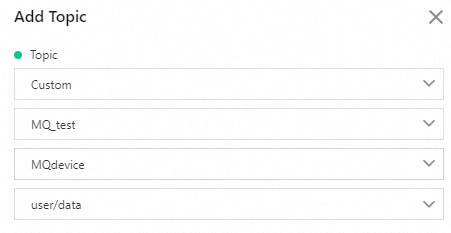
On the Data Source Details page, click Add Topic. In the dialog box that appears, select the topic for the messages to be processed,
/${YourProductKey}/${YourDeviceName}/user/data, and then click OK.

Configure the data destination for data forwarding.
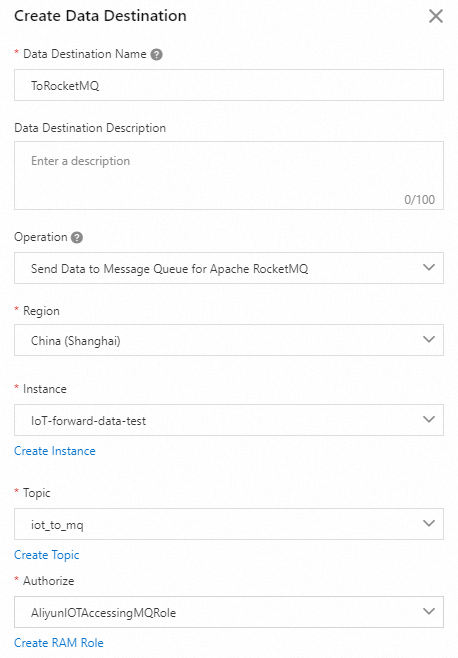
Click the Data Destination tab, and then click Create Data Destination.
In the Create Data Destination dialog box, set the data destination to the iot_to_mq topic of the ApsaraMQ for RocketMQ instance that you created, and then click OK. For more information, see Forward data to ApsaraMQ for RocketMQ.
Create a parser. Create a parser named DataParser.
On the parser details page, associate the data source and data destination.
In the configuration wizard, go to the Data Source step and click Associate Data Source.
In the dialog box that appears, select the MQdata data source that you created from the drop-down list and click OK.
In the configuration wizard, go to the Data Destination step and click Associate Data Destination in the upper-right corner of the Data Destination list.
In the dialog box that appears, select the ToRocketMQ data destination that you created from the Data Destination drop-down list and click OK.
In the data destination list, view and save the data destination ID, for example, 1000.
Configure the parser script.
In the configuration wizard, go to the Parsing Script step and click Edit Draft.
In the script editor, enter the parsing script.
This example uses the
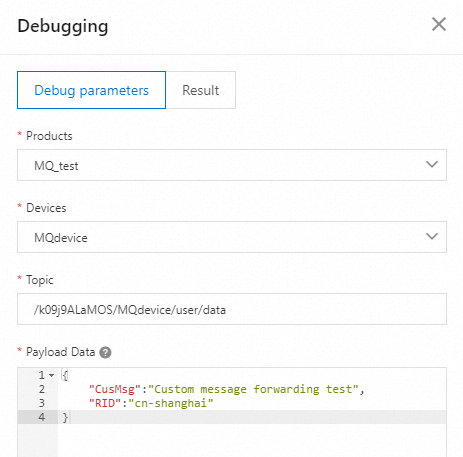
writeMq(destinationId, payload, tag)function to forward data. For more information about the function parameters, see Function List. The script code is as follows:// The data reported by the device, in JSON format var data = payload("json"); var tag= data.RID; var msg= data.CusMsg; // Forward to MQ writeMq(1000, msg, tag);Click Debug. Follow the on-screen instructions to select a product and device, enter the topic and payload data, and verify that the script can be executed.
The following example shows the parameters:
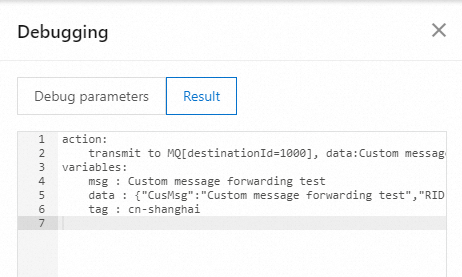
The following result indicates that the script is executed successfully.
Click Publish.
Return to the Parser tab on the Data Forwarding page. In the Actions column for the DataParser parser, click Start.
Connect the device to IoT Platform and report data.
Obtain the C Link SDK for the device.
Obtain the C Link SDK and rename it to
LinkSDK.zip.This example forwards custom topic messages that are reported by a device. When you customize the SDK, you do not need to select Advanced Features.
Log on to the ECS instance. For information about logon methods, see Select a method to connect to an ECS instance.
Run the following command to install unzip.
yum update
yum install zip
Go to the directory where the
LinkSDK.zipfile is located and run the following command to decompress the file.unzip LinkSDK.zip
For a description of the files in the LinkSDK folder, see the File Description Table. This example uses the demo file for connecting devices that are not gateway devices:
./mqtt_basic_demo.c.Configure and run the sample device program.
This example shows only the modified code. For more information about how to develop a device program, see Connect to IoT Platform over MQTT.
Open the
/LinkSDK/demos/mqtt_basic_demo.cfile and configure the parameters for device connection authentication./* TODO: Replace with your device certificate information */ char *product_key = "k0******"; char *device_name = "MQdevice"; char *device_secret = "8c684ef*************"; ...... char *mqtt_host = "iot-cn-******.mqtt.iothub.aliyuncs.com";Parameter
Example
Description
product_key
k0******The device authentication information. This is the device certificate you saved locally after adding the device.
You can also view this information on the Device Details page of IoT Platform.
device_name
MQdevicedevice_secret
8c684ef*************mqtt_host
iot-cn-******.mqtt.iothub.aliyuncs.comThe MQTT domain name for device access. On the Instance Details page, click View Developer Configuration in the upper-right corner. The access domain name is displayed on the Developer Configuration panel.
For more information about the instance, see View and configure instance endpoint information (Endpoint).
Uncomment the following code to call aiot_mqtt_pub and publish a message to the specified topic:
/k0******/MQdevice/user/data./* Example of publishing an MQTT message. Use this code as needed. */ { char *pub_topic = "/k0******/MQdevice/user/data"; char *pub_payload = "{\"CusMsg\": \"Custom message forwarding test\",\"RID\": \"cn-shanghai\"}"; res = aiot_mqtt_pub(mqtt_handle, pub_topic, (uint8_t *)pub_payload, (uint32_t)strlen(pub_payload), 0); if (res < 0) { printf("aiot_mqtt_sub failed, res: -0x%04X\n", -res); return -1; } }After saving the
mqtt_basic_demo.cfile, execute the following command in the SDK root directory/LinkSDKto compile the sample device program.make clean makeThe generated sample program
data-basic-demois stored in the./outputdirectory.Run the following command to start the sample program.
./output/data-basic-demoThe following log indicates that the device is connected and the message is published:
[1698060995.066][LK-0313] MQTT user calls aiot_mqtt_connect api, connect
[1698060995.066][LK-032A] mqtt host: iot-******.mqtt.iothub.aliyuncs.com
[1698060995.066][LK-0317] user name: MQdevice&k09******
establish tcp connection with server(host='iot-0******.mqtt.iothub.aliyuncs.com', port=[443])
success to establish tcp, fd=3
local port: 33626
[1698060995.066][LK-1000] establish mbedtls connection with server(host='iot-0******.mqtt.iothub.aliyuncs.com', port=[443])
[1698060995.122][LK-1000] success to establish mbedtls connection, (cost 45376 bytes in total, max used 48344 bytes)
[1698060995.155][LK-0313] MQTT connect success in 93 ms
AIOT_MQTTEVT_CONNECT
[1698060995.155][LK-0309] pub: /k09j9******/MQdevice/user/data

[LK-030A] > 7B 22 43 75 73 4D 73 67  22 3A 20 22 43 75 73 74 | {"CusMsg": "Cust
[LK-030A] > 6F 6D 20 6D 65 73 73 61  67 65 20 66 6F 72 77 61 | om message forwa
[LK-030A] > 72 64 69 6E 67 20 74 65  73 74 22 2C 22 52 49 44 | rding test","RID
[LK-030A] > 22 3A 20 22 63 6E 2D 73  68 61 6E 67 68 61 69 22 | ": "cn-shanghai"
[LK-030A] > 7D                                               | }

heartbeat response
Step 3: View operational logs for device message forwarding
Return to the IoT Platform console, click the target Enterprise instance, and view the device status and data forwarding logs.
In the navigation pane on the left, choose . Find the MQdevice device and check its status. The Online status indicates that the device is connected to IoT Platform.
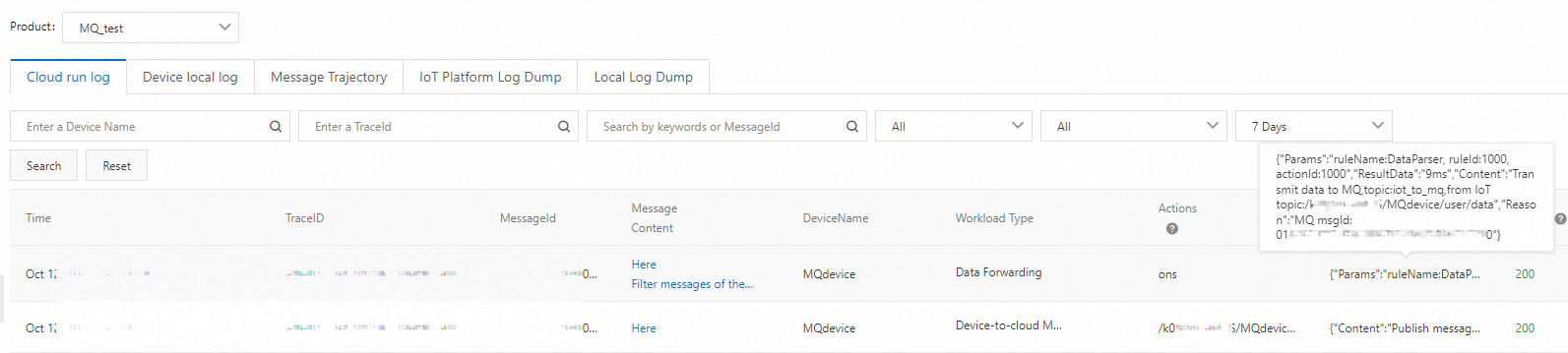
In the navigation pane on the left, choose . Select the MQ_test product and view the data forwarding logs.
Copy the MQ msgId from the message content. In the next step, you can use this ID to view the device message that was forwarded to ApsaraMQ for RocketMQ and its consumption status.
Return to the terminal where the ApsaraMQ for RocketMQ resource subscription is running and view the logs for message subscription and consumption.
Return to the ApsaraMQ for RocketMQ console. On the Instance Details page, view the content of the message that is received by the consumer and the message trace.
Click Message Query. In the Message ID field, enter the MQ msgId value that you copied, and then click Query.
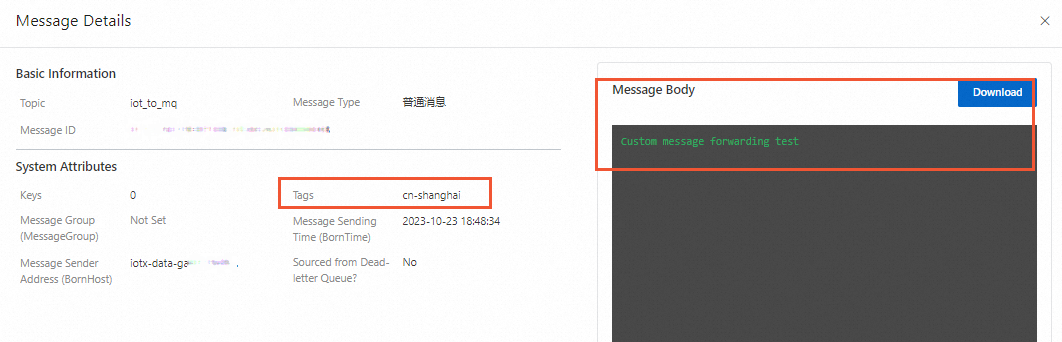
In the Actions column for the message, click Details. In the Message Details panel that appears on the right, view the Message Body.
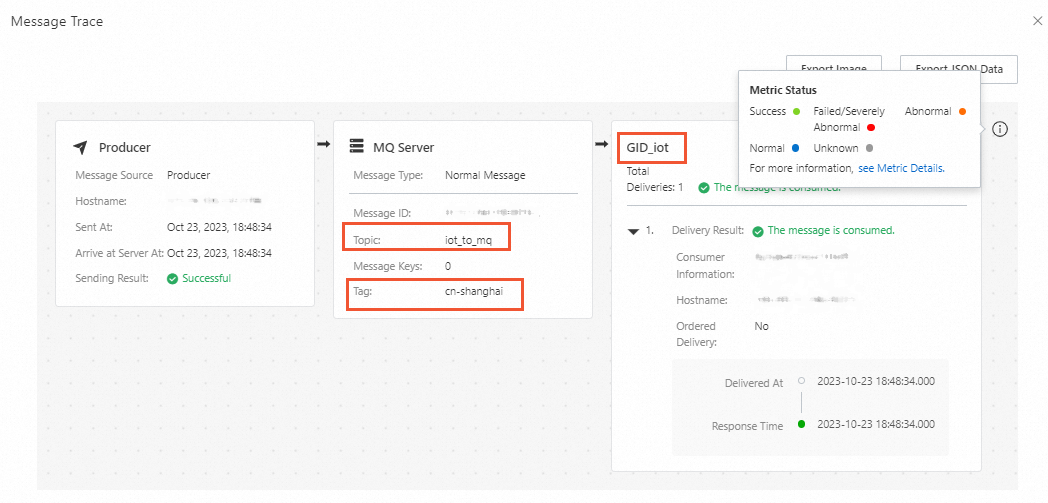
Click Close in the Message Details panel to return to the message list. In the Actions column, click Message Trace to view the consumption status of the device message.