Connect an Android Things device to IoT Platform
This document describes how to connect a Google Android Things hardware device to Alibaba Cloud IoT Platform, using an indoor air quality monitoring project as an example.
Hardware
Device list for the project
This project requires the following hardware devices.
Device
Image
Remarks
NXP Pico i.MX7D
development board
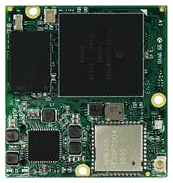
Based on Android Things 1.0.
For more information, see the Developer Guide for NXP Pico i.MX7D I/O.
NoteYou can use a Raspberry Pi as an alternative. For more information, see Remotely control a Raspberry Pi server.
DHT12
temperature and humidity sensor
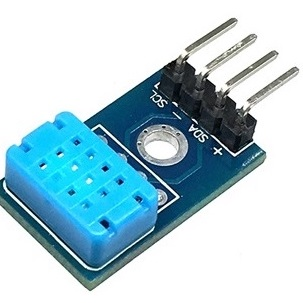
Uses the I2C protocol for data communication.
ZE08-CH2O
formaldehyde detection sensor
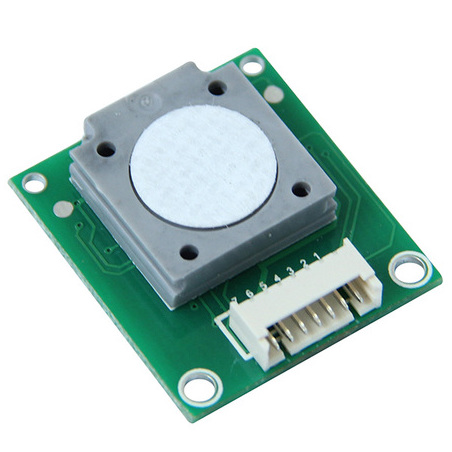
Uses the UART protocol for data communication.
Wiring diagram
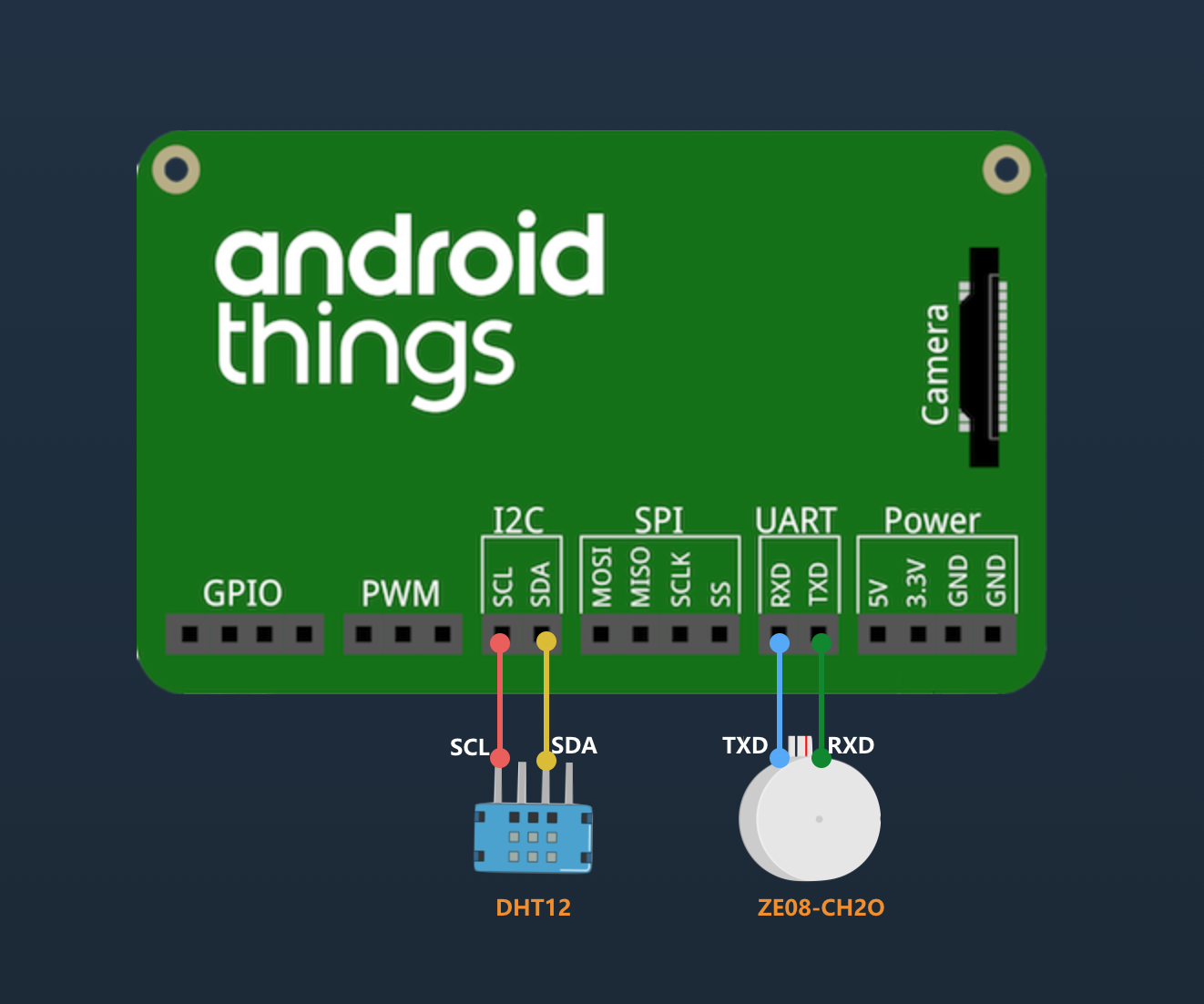
Connect the SCL (clock signal) pin and SDA (data) pin of the DHT12 sensor to the corresponding SCL and SDA pins of the I2C bus on the development board.
Connect the TXD (transmit data) pin of the ZE08-CH2O sensor to the RXD (receive data) pin of the development board, and the sensor's RXD pin to the board's TXD pin.
Create a product and device
If you have not yet activated the IoT Platform service, see IoT Platform to learn about and activate it.
Log on to the IoT Platform console.
Create a product.
On the Instance Overview page, find the target instance and click the instance name to go to the Instance Details page.
ImportantEnterprise Edition instances are available only in the China (Shanghai), China (Beijing), and China (Shenzhen) regions. If your instance is in a different region, skip this step.
Log on to the IoT Platform console. In the left-side navigation pane, click Instance Overview to view the Enterprise Edition instances in the current region and their status.
In the left-side navigation pane, choose Device Management > Products.
On the Products page, click Create Product. For more information, see Create a product.
Define a TSL model.
After the product is created, click Define TSL Model.
On the Product Details page, on the Define Feature tab, click .
Add the following properties.
Property
Identifier
Type
Value
Description
Temperature
temperature
float
-50–100
The temperature data collected by the DHT12 temperature and humidity sensor.
Humidity
humidity
float
0–100
The humidity data collected by the DHT12 temperature and humidity sensor.
Formaldehyde Concentration
ch2o
double
0–3
The formaldehyde concentration collected by the ZE08-CH2O sensor.
Click Publish to publish the TSL model.
Create a device.
On the Device page, click Add Device to create a device under a product. For more information, see Create a single device.
Develop the Android Things device
Use Android Studio to create an Android Things project and add the internet permission to the manifest file.
<uses-permission android:name="android.permission.INTERNET" />In the Gradle file, add the
eclipse.paho.mqttdependency.implementation 'org.eclipse.paho:org.eclipse.paho.client.mqttv3:1.2.0'Configure the device to read data from the DHT12 temperature and humidity sensor over I2C.
private void readDataFromI2C() {
        try {
            byte[] data = new byte[5];
            i2cDevice.readRegBuffer(0x00, data, data.length);
            // check data
            if ((data[0] + data[1] + data[2] + data[3]) % 256 != data[4]) {
                humidity = temperature = 0;
                return;
            }
            // humidity data
            humidity = Double.valueOf(String.valueOf(data[0]) + "." + String.valueOf(data[1]));
            Log.d(TAG, "humidity: " + humidity);
            // temperature data
            if (data[3] < 128) {
                temperature = Double.valueOf(String.valueOf(data[2]) + "." + String.valueOf(data[3]));
            } else {
                temperature = Double.valueOf("-" + String.valueOf(data[2]) + "." + String.valueOf(data[3] - 128));
            }
            Log.d(TAG, "temperature: " + temperature);
        } catch (IOException e) {
            Log.e(TAG, "readDataFromI2C error " + e.getMessage(), e);
        }
    }
Configure the device to read data from the Ze08-CH2O formaldehyde detection sensor over UART.
try {
                // data buffer
                byte[] buffer = new byte[9];
                while (uartDevice.read(buffer, buffer.length) > 0) {
                    if (checkSum(buffer)) {
                        ppbCh2o = buffer[4] * 256 + buffer[5];
                        ch2o = ppbCh2o / 66.64 * 0.08;
                    } else {
                        ch2o = ppbCh2o = 0;
                    }
                    Log.d(TAG, "ch2o: " + ch2o);
                }
            } catch (IOException e) {
                Log.e(TAG, "Ze08CH2O read data error " + e.getMessage(), e);
            }
Connect the device to IoT Platform and report data.
/*
Payload format
{
  "id": 123243,
  "params": {
    "temperature": 25.6,
    "humidity": 60.3,
    "ch2o": 0.048
  },
  "method": "thing.event.property.post"
}
*/
MqttMessage message = new MqttMessage(payload.getBytes("utf-8"));
message.setQos(1);
String pubTopic = "/sys/${YourProductKey}/${YourDeviceName}/thing/event/property/post";
mqttClient.publish(pubTopic, message);
For the complete sample code, download the project from Alibaba Cloud IoT on GitHub.
View real-time data
After the device starts, log on to the IoT Platform console. In the target instance, go to the Device Details page. On the Status tab, view the real-time property data of the device.