IoT Platform supports device connections over the HTTPS protocol in the China (Shanghai), China (Beijing), and China (Shenzhen) regions. An HTTPS connection between a device and IoT Platform is suitable only for scenarios in which the device reports data. Only the POST request method is supported. The data reported by the device cannot exceed 128 KB.
Background information
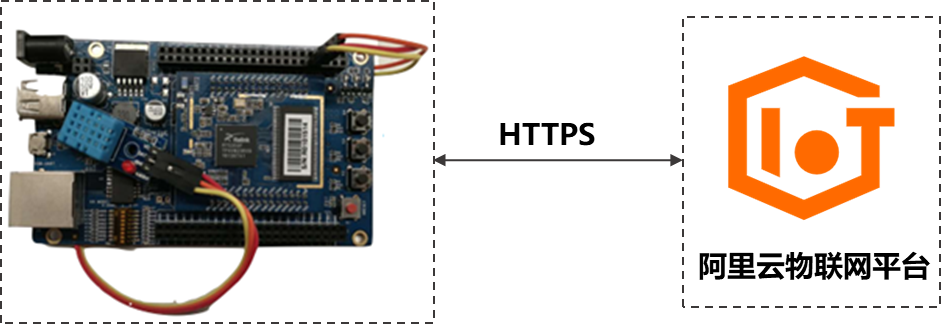
This tutorial uses a temperature and humidity collector as an example. It explains how to configure and develop a device to connect to IoT Platform and report data over HTTPS.
Create a product and a device
Create a product and a device in the IoT Platform console. Obtain the device credentials (ProductKey, DeviceName, and DeviceSecret). Then, define a Thing Specification Language (TSL) model.
- Log on to the IoT Platform console.
On the Overview page, find the instance that you want to manage and click the instance ID or instance name.
- In the navigation pane on the left, choose . Then, click Create Product to create a product.
Parameter Description Product Name You can specify a custom product name. Category Select Custom Category. Node Type Select Directly Connected Device. Network Connection Method Select Wi-Fi. Data Format Select ICA Standard Data Format (Alink JSON). Authentication Method Select Device Secret. - After the product is created, click Go to Define TSL Model.
- On the Product Details page, on the Feature Definition tab, choose and add the following properties.In this example, the temperature and humidity collector reports temperature and humidity. Define two corresponding properties for the product.
Feature Type Feature Name Identifier Data Type Value Range Step Size Read/Write Type Property Temperature temperature int32 -10~50 1 Read-only Property Humidity humidity int32 1~100 1 Read-only - After you finish editing the TSL model, click Publish to publish the TSL model.
- In the navigation pane on the left, choose Devices. Click Add Device to add a device under the product you just created.After the device is created, obtain the device credentials (ProductKey, DeviceName, and DeviceSecret).
Develop the device client
Develop the device client to connect to IoT Platform over HTTPS and report temperature and humidity data.
- Configure device identity authentication.
When a device requests a connection to IoT Platform, the platform authenticates the device identity. After successful authentication, IoT Platform issues a device token. The device uses this token to report data.
The following table describes the request parameters for device identity authentication.
Parameter Description method The request method. Must be POST. uri Set to https://iot-as-http.cn-shanghai.aliyuncs.com/auth. productKey The ProductKey of the product to which the device belongs. Obtain it from the Device Details page for the instance in the IoT Platform console deviceName The name of the device. Obtain it from the Device Details page for the instance in the IoT Platform console clientId The client ID. The ID can be up to 64 characters long. You can use the device's MAC address or serial number (SN). This example uses the random() function to generate a random number. timestamp The timestamp. This example uses the now() function to get the current timestamp. signmethod The algorithm type. `hmacmd5` and `hmacsha1` are supported. sign The signature, which is the calculated password. The following example shows how to calculate the password. password = signHmacSha1(params, deviceConfig.deviceSecret)The following code provides an example of device identity authentication.
var rp = require('request-promise');
const crypto = require('crypto');

const deviceConfig = {
    productKey: "<yourProductKey>",
    deviceName: "<yourDeviceName>",
    deviceSecret: "<yourDeviceSecret>"
}

// Obtain the identity token.
rp(getAuthOptions(deviceConfig))
    .then(function(parsedBody) {
        console.log('Auth Info :',parsedBody)
    })
    .catch(function(err) {
        console.log('Auth err :'+JSON.stringify(err))
    });

// Generate parameters for authentication.
function getAuthOptions(deviceConfig) {

    const params = {
        productKey: deviceConfig.productKey,
        deviceName: deviceConfig.deviceName,
        timestamp: Date.now(),
        clientId: Math.random().toString(36).substr(2),
    }

    // Generate the clientId, username, and password.
    var password = signHmacSha1(params, deviceConfig.deviceSecret);

    var options = {
        method: 'POST',
        uri: 'https://iot-as-http.cn-shanghai.aliyuncs.com/auth',
        body: {
            "version": "default",
            "clientId": params.clientId,
            "signmethod": "hmacsha1",
            "sign": password,
            "productKey": deviceConfig.productKey,
            "deviceName": deviceConfig.deviceName,
            "timestamp": params.timestamp
        },
        json: true
    };

    return options;
}

// HmacSha1 sign
function signHmacSha1(params, deviceSecret) {

    let keys = Object.keys(params).sort();
    // Sort the keys in lexicographical order.
    keys = keys.sort();
    const list = [];
    keys.map((key) => {
        list.push(`${key}${params[key]}`);
    });
    const contentStr = list.join('');
    return crypto.createHmac('sha1', deviceSecret).update(contentStr).digest('hex');
}
After the configuration is complete, run the code to test device authentication. If authentication is successful, a token is returned. Important The token returned from device authentication has a validity period of 7 days. Make sure to handle the logic for an expired token.
 - Configure the device to report data.
After the device is authenticated and obtains a token, the device can use the token as the password to report data.
The following table describes the request parameters for reporting data.
Parameter Description method The request method. Must be POST. uri The URI is composed of the endpoint address and the topic: https://iot-as-http.cn-shanghai.aliyuncs.com/topic + topic.The second topic must be the topic for reporting device properties:/sys/${deviceConfig.productKey}/${deviceConfig.deviceName}/thing/event/property/postbody The message content reported by the device. password Set to the token returned from device authentication. Content-Type The encoding format of the data reported by the device. Currently, only application/octet-stream is supported. The following code provides an example of reporting data.
const topic = `/sys/${deviceConfig.productKey}/${deviceConfig.deviceName}/thing/event/property/post`;
// Report data.
pubData(topic, token, getPostData())

function pubData(topic, token, data) {

    const options = {
        method: 'POST',
        uri: 'https://iot-as-http.cn-shanghai.aliyuncs.com/topic' + topic,
        body: data,
        headers: {
            password: token,
            'Content-Type': 'application/octet-stream'
        }
    }

    rp(options)
        .then(function(parsedBody) {
            console.log('publish success :' + parsedBody)
        })
        .catch(function(err) {
            console.log('publish err ' + JSON.stringify(err))
        });

}
// Simulate TSL model data.
function getPostData() {
    var payloadJson = {
        id: Date.now(),
        params: {
            humidity: Math.floor((Math.random() * 20) + 60),
            temperature: Math.floor((Math.random() * 20) + 10)
        },
        method: "thing.event.property.post"
    }

    console.log("===postData\n topic=" + topic)
    console.log(payloadJson)

    return JSON.stringify(payloadJson);
}
After the configuration is complete, run the code to test data reporting. After the program runs, you can view the results in the local log.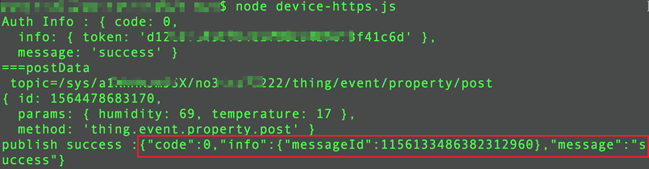
In the IoT Platform console, navigate to the Device Details page for the device in your instance. On the Running Status tab, you can view the reported temperature and humidity data. This confirms that the device client has successfully connected to IoT Platform over HTTPS and reported data.
For more information about HTTPS connections, see HTTPS connection and communication.