Add devices to a GB-T 32960 gateway product
For a gateway product whose Authentication Type is set to One-party Verification, you must import device verification information so that IoT Platform can authenticate devices when they connect.
Prerequisites
A gateway whose Authentication Type parameter is set to One-party Verification is created as a product in the IoT Platform console. For more information, see Create a GB/T 32960 gateway.
Background information
-
If you create a cloud gateway that uses Third-party authentication, IoT Platform automatically creates and authenticates a device when the device establishes a connection for the first time. IoT Platform uses the value of the vin request parameter from the FC authentication function as the device name.
-
After you create a gateway whose Authentication Type parameter is set to One-party Verification, you must import the verification information of devices to add the devices to the gateway product. To add devices, see the following section.
Add multiple devices
-
Log on to the IoT Platform console.
-
On the Instance Overview page, click the target Enterprise instance of the Exclusive Edition.
-
In the left-side navigation pane, choose . Find the gateway product that you created and click Manage Devices in the Actions column.
-
On the Devices page, click Batch Add.
-
In the Batch Add Devices dialog box, click Download .csv Template to download the template file of device verification information.
-
In the template file, enter the vehicle identification numbers (VINs) of the devices that you want to add, and save the file.
ImportantA VIN must be 4 to 17 characters in length and can contain letters and digits.
-
Go to the Batch Add Devices dialog box and click Upload File. In the dialog box that appears, select the template file and click Open. Then, click OK to upload the template file to IoT Platform.
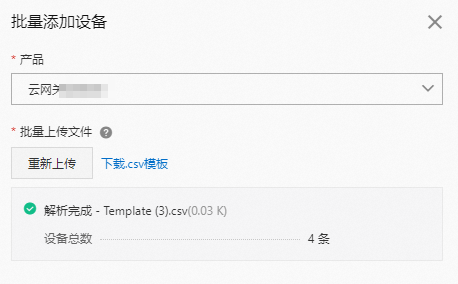
If a template file contains invalid information, an error occurs. Click Download Invalid Device Name List, view and change the invalid information, and then re-upload the template file.

Result
After the verification information is imported, IoT Platform creates devices and uses the uploaded VINs as DeviceNames. The created devices appear on the Devices page.
What to do next
After the devices are added to the gateway product, you must update the endpoint of each device.
-
If a device has a configured endpoint, create a CNAME record that maps its hostname to the cloud gateway URL. For more information, see Alibaba Cloud DNS.
-
If a device has no configured endpoint, set the cloud gateway URL as its endpoint.
To obtain a gateway URL, see View the gateway information.
For more information about connecting a device to IoT Platform through a gateway, see Message communication.