Advanced STS usage
Security Token Service (STS) is a permission management system that provides stricter controls than Resource Access Management (RAM). To control resource access with STS, you must follow a complex authorization flow to grant temporary access permissions to a RAM user.
Background information
The permissions that are granted to RAM users are long-term. You must manually delete RAM users or revoke their permissions to remove their access. If the credentials of a RAM user are compromised, your Alibaba Cloud resources and data are at risk unless you take immediate action. You can use STS to grant temporary permissions for critical operations or for access that a RAM user does not require long-term.
Figure 1. Workflow for obtaining temporary access permissions
Step 1: Create a role
A RAM role is a virtual identity that can be granted a set of permissions.
Procedure
-
Log on to the RAM console as a RAM administrator.
-
In the left-side navigation pane, choose .
-
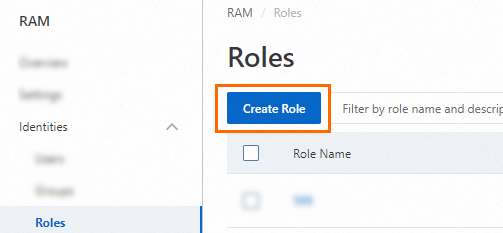
On the Roles page, click Create Role.
-
On the Create Role page, set Principal Type to Cloud Account. Configure the trusted account and click OK.
 For Principal Name, choose one of the following:
-
Current Account: Allows all RAM users and roles within the current account to assume this role.
-
Other Account: Allows RAM users and roles from a different Alibaba Cloud account to assume this role. Enter the ID of the trusted account. You can find an account ID on the Security Settings page. For more information about cross-account access, see Access resources across Alibaba Cloud accounts.
-
-
(Optional) To refine the trust policy and allow only specific principals to assume the role, click Switch to Policy Editor.
The following JSON example modifies the trust policy to allow only the RAM user
Alicefrom account100******0719to assume the role.-
Visual Editor
In the Principal section, specify the RAM user.


-
JASON Editor
In the
RAMfield of thePrincipalelement, specify the RAM user.{ "Version": "1", "Statement": [ { "Effect": "Allow", "Principal": { "RAM": "acs:ram::100******0719:user/Alice" }, "Action": "sts:AssumeRole" } ] }
-
-
In the Create Role dialog box, enter a Role Name and click OK.
Step 2: Create an access policy for the role
An access policy defines the resource access permissions that you want to grant to the role.
Log on to the RAM console with an Alibaba Cloud account.
In the left-side navigation pane, choose .
On the Policies page, click Create Policy.
On the Create Policy page, click the JSON tab.
Enter a policy document.For more information about the syntax and structure of policies, see Policy structure and syntax.
The following sample policy document grants read-only permissions on IoT resources:
{
    "Version":"1",
    "Statement":[
        {
            "Action":[
                "rds:DescribeDBInstances",
                "rds:DescribeDatabases",
                "rds:DescribeAccounts",
                "rds:DescribeDBInstanceNetInfo"
            ],
            "Resource":"*",
            "Effect":"Allow"
        },
        {
            "Action":"ram:ListRoles",
            "Effect":"Allow",
            "Resource":"*"
        },
        {
            "Action":[
                "mns:ListTopic"
            ],
            "Resource":"*",
            "Effect":"Allow"
        },
        {
            "Action":[
                "dhs:ListProject",
                "dhs:ListTopic",
                "dhs:GetTopic"
            ],
            "Resource":"*",
            "Effect":"Allow"
        },
        {
            "Action":[
                "ots:ListInstance",
                "ots:ListTable",
                "ots:DescribeTable"
            ],
            "Resource":"*",
            "Effect":"Allow"
        },
        {
            "Action":[
                "log:ListShards",
                "log:ListLogStores",
                "log:ListProject"
            ],
            "Resource":"*",
            "Effect":"Allow"
        },
        {
            "Effect":"Allow",
            "Action":[
                "iot:Query*",
                "iot:List*",
                "iot:Get*",
                "iot:BatchGet*"
            ],
            "Resource":"*"
        },
        {
            "Action": [
                "linkwan:GetInstancePacketStat",
                "linkwan:CountGateways"
            ],
            "Resource": "*",
            "Effect": "Allow"
        }
    ]
}
The following sample policy document grants read and write permissions on IoT resources:
{
    "Version":"1",
    "Statement":[
        {
            "Action":[
                "rds:DescribeDBInstances",
                "rds:DescribeDatabases",
                "rds:DescribeAccounts",
                "rds:DescribeDBInstanceNetInfo"
            ],
            "Resource":"*",
            "Effect":"Allow"
        },
        {
            "Action":"ram:ListRoles",
            "Effect":"Allow",
            "Resource":"*"
        },
        {
            "Action":[
                "mns:ListTopic"
            ],
            "Resource":"*",
            "Effect":"Allow"
        },
        {
            "Action":[
                "dhs:ListProject",
                "dhs:ListTopic",
                "dhs:GetTopic"
            ],
            "Resource":"*",
            "Effect":"Allow"
        },
        {
            "Action":[
                "ots:ListInstance",
                "ots:ListTable",
                "ots:DescribeTable"
            ],
            "Resource":"*",
            "Effect":"Allow"
        },
        {
            "Action":[
                "log:ListShards",
                "log:ListLogStores",
                "log:ListProject"
            ],
            "Resource":"*",
            "Effect":"Allow"
        },
        {
            "Effect":"Allow",
            "Action":"iot:*",
            "Resource":"*"
        }
    ]
}
Specify the Name and Description fields.
Click OK.
After you create the access policy, you can attach the policy to the role.
Step 3: Grant permissions to the role
Only authorized RAM roles can access resources. To authorize a single RAM role, you can click Add Permissions in the Actions column of the RAM role on the Roles page in the RAM console. For more information, see Manage a RAM role's permissions. To authorize multiple RAM roles at a time, perform the following steps:
Log on to the RAM console by using your Alibaba Cloud account.
In the left-side navigation pane, choose .
On the Grants page, click Grant Permission.
In the Grant Permissions panel, grant permissions to the RAM role.
Set the authorization scope.
Alibaba Cloud Account: The permissions take effect on the current Alibaba Cloud account.
Specific Resource Group: The permissions take effect in a specific resource group.
Note
If you select Specific Resource Group for Authorized Scope, make sure that the required cloud service supports resource groups. For more information, see Services that work with Resource Group.
Specify the principal.
The principal is the RAM role to which permissions are granted.
Select policies.
Note
You can attach a maximum of five policies to a RAM role at a time. If you need to attach more than five policies to a RAM role, perform the operation multiple times.
Click OK.
Click Complete.
Step 4: a RAM user permissions to assume the role
The role now has the permissions that are defined in its access policy. However, a role is a virtual identity. A RAM user must assume the role to perform the operations that are permitted by the policy. To prevent security risks, only RAM users who are granted the required permissions can assume the role.
To grant a RAM user permission to assume a role, you must create a custom access policy and attach it to the RAM user. In this policy, set the Resource parameter to the Alibaba Cloud Resource Name (ARN) of the role.
Log on to the RAM console with an Alibaba Cloud account.
In the left-side navigation pane, choose .
On the Policies page, click Create Policy.
On the Create Policy page, click the JSON tab.
Enter the policy document and click Next to edit policy information.
Noten the policy document, the value of the Resource parameter must be the Alibaba Cloud Resource Name (ARN) of the role. On the Roles page, click the role name to go to the role details page and view the ARN on the Basic Information tab.
{
    "Version":"1",
    "Statement":[
        {
            "Effect":"Allow",
            "Action":"iot:QueryProduct",
            "Resource":"ARN of a RAM role"
        }
    ]
}
Specify the Name and Description fields.
Click OK.
After the policy is created, return to the RAM console homepage.
In the left-side navigation pane, choose .
In the list of RAM users, select the RAM user that you want to authorize and click Add Permissions below the list of RAM users.
In the Add Permissions panel, select the created policy and click OK.
After authorization is complete, the RAM user obtains the permissions to assume a specific RAM role. Then, you can use STS to obtain the temporary identity credentials that are required to access resources.
Step 5: The RAM user obtains temporary identity credentials
A RAM user who is authorized to assume a role can obtain temporary identity credentials by calling an API operation or using a software development kit (SDK). The credentials consist of an AccessKey ID, an AccessKey secret, and a security token. For more information, see STS API and STS SDKs.
You must pass the following parameters when you call an API operation or use an SDK to obtain temporary identity credentials:
RoleArn: The ARN of the role to assume.
RoleSessionName: A custom name for the temporary session.
Policy: An access policy that further restricts the permissions of the role. This parameter limits the permissions of the temporary credentials. If you do not specify this parameter, the temporary credentials have all the permissions of the role.
DurationSeconds: The validity period of the temporary credentials, in seconds. The value must be between 900 and 3600. The default value is 3600.
AccessKeyId and AccessKeySecret: The AccessKey ID and AccessKey secret of the RAM user that assumes the role.
Examples of obtaining temporary identity credentials
API example: A RAM user calls the STS AssumeRole operation to obtain temporary identity credentials.
https://sts.aliyuncs.com?Action=AssumeRole
&RoleArn=acs:ram::1234567890123456:role/iotstsrole
&RoleSessionName=iotreadonlyrole
&DurationSeconds=3600
&Policy=<url_encoded_policy>
&<Common request parameters>
SDK example: A RAM user uses the STS command line interface (CLI) for Python to obtain temporary identity credentials.
$python ./sts.py AssumeRole RoleArn=acs:ram::1234567890123456:role/iotstsrole RoleSessionName=iotreadonlyrole Policy='{"Version":"1","Statement":[{"Effect":"Allow","Action":"iot:*","Resource":"*"}]}' DurationSeconds=3600 --id=id --secret=secretIf the request is successful, the temporary identity credentials are returned. The credentials consist of an AccessKey ID, an AccessKey secret, and a security token.
Step 6: The RAM user temporarily accesses resources
After obtaining the temporary identity credentials, the RAM user can use the credentials in SDK requests to access the authorized resources.
Java SDK example: The RAM user uses the AccessKey ID, AccessKey secret, and security token from the temporary credentials to create an IAcsClient object for making requests.
IClientProfile  profile = DefaultProfile.getProfile("cn-hangzhou", AccessKeyId,AccessKeySecret);
RpcAcsRequest request.putQueryParameter("SecurityToken", Token);
IAcsClient client = new DefaultAcsClient(profile);
AcsResponse response = client.getAcsResponse(request);