Configure a directional service
If you purchase a directional traffic plan, such as a single-card plan, you must configure the access addresses for the card in the console.
Usage notes
General-purpose traffic plans do not require directional service configuration. The card works immediately after activation. For directional traffic plans, you must configure access addresses for the card in the console. The card will not work until you configure a whitelist of these addresses.
Configure access addresses for a directional card
The following figure shows the directional service menu:
Log on to the IoT SIM Service console.
In the navigation pane on the left, choose Directional Service > Group Management.
Click Add Group. In the Add Group dialog box, enter a Group Name and click OK to create the group.
NoteThe group name can contain Chinese characters, letters, digits, and underscores (_). It must be no more than 30 characters long.
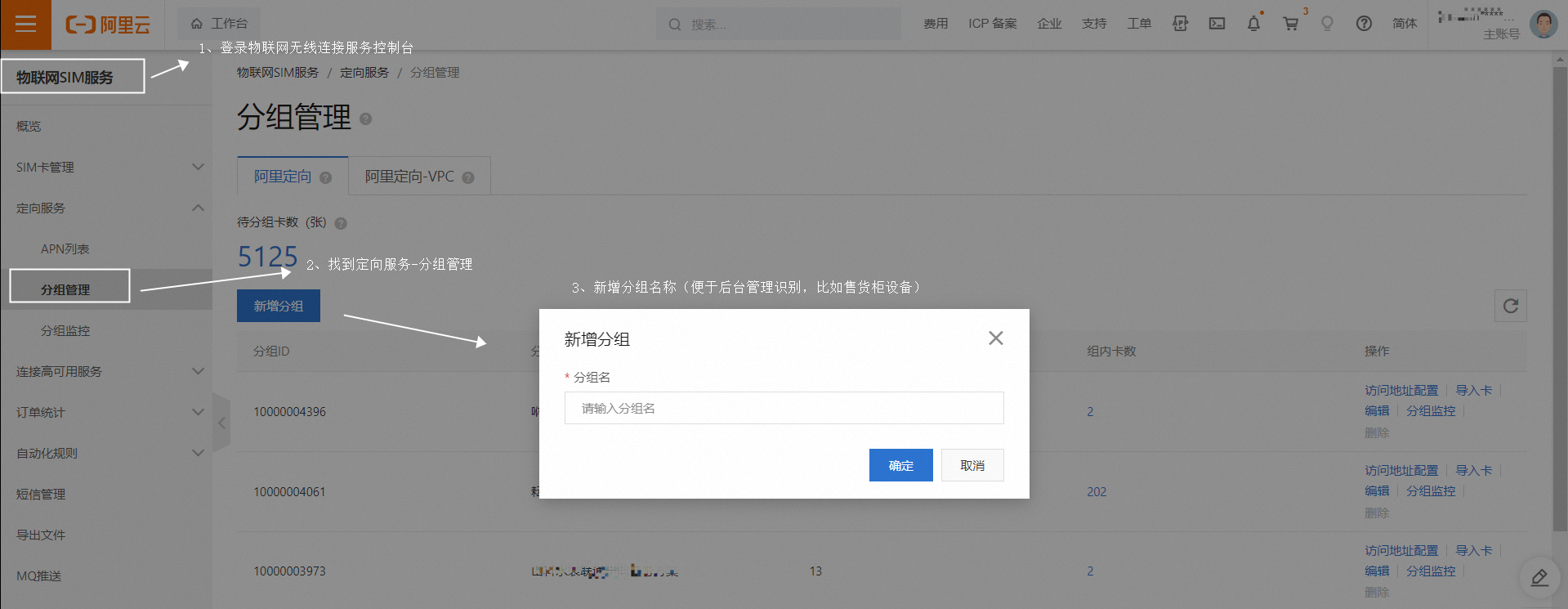
In the Actions column of the new group, click Configure Access Address.
On the Configure Access Address page, click Add Destination Address.
In the Add Destination Address dialog box, configure the parameters.
NoteA group can have a maximum of 10 custom addresses. Add one address at a time.
Alibaba Cloud pre-configured addresses do not count against the 10-address quota for custom addresses.
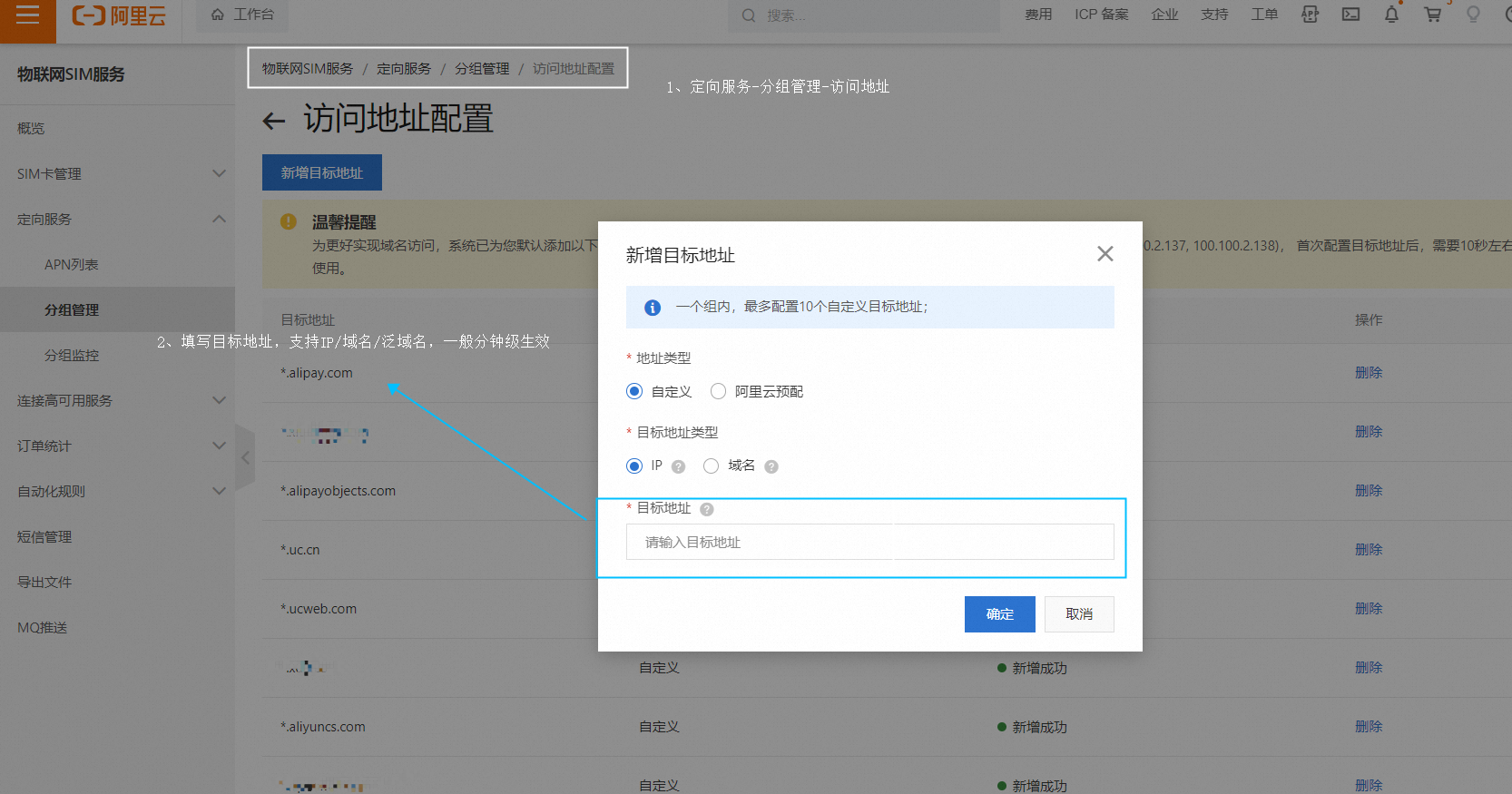
Parameter
Description
Address Type
Custom: A custom access address for the directional card.
Alibaba Cloud Pre-configured: Select one or more pre-configured addresses from the drop-down list.
NoteFor better domain name access, the system adds the following default DNS parsing addresses: 114.114.114.114, 8.8.8.8, 223.5.5.5, 223.6.6.6, 100.100.2.136, 100.100.2.137, and 100.100.2.138. You can delete these addresses. However, deleting them may make your configured domain names inaccessible.
Destination Address Type
IP: The type of IP address.
Domain Name: A domain name.
Destination Address
If you set Address Type to Custom, enter a Destination Address.
Examples of destination addresses:
IP: 192.168.1.1
CIDR block: 192.168.1.0/24. The CIDR mask value must be 24 or greater.
Domain name: iot.aliyun.com
Wildcard domain name: *.aliyun.com. The non-wildcard part of the domain name must have at least two levels. The asterisk (*) can match multiple levels. For example, *.iot.aliyun.com does not include iot.aliyun.com.
If you set Address Type to Alibaba Cloud Pre-configured, select a pre-configured address from the drop-down list.
In the Actions column of the new group, click Import Cards.
In the Import Cards dialog box, set the parameters and click OK.
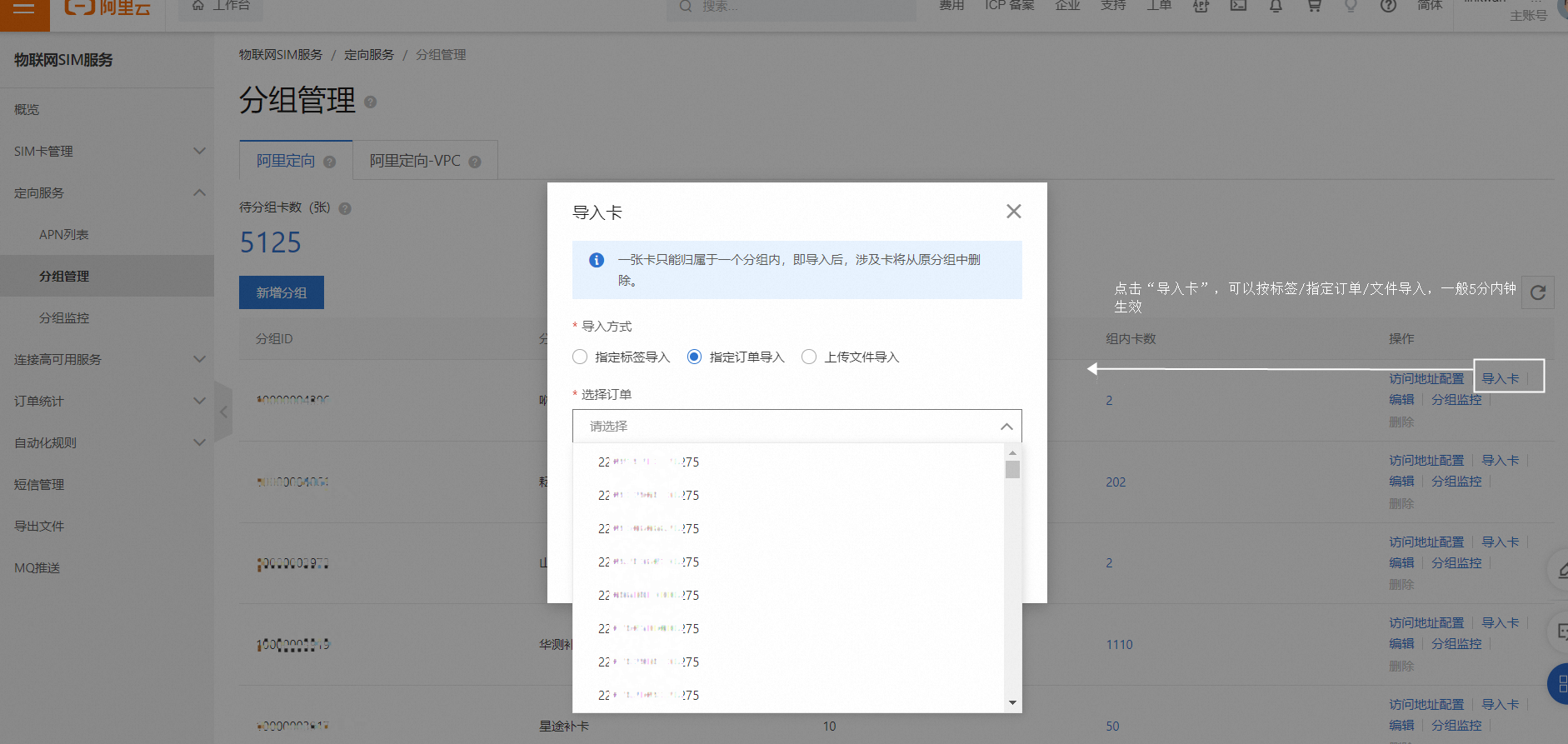
Parameter
Description
Import Type
Import only ungrouped cards: Imports only directional cards that are not yet in a group. The operation fails for cards that are already in a group.
Full import (remove cards from original group): Imports all specified directional cards into the current group, regardless of whether they were previously in another group.
Import Method
Import by specified tag: Imports directional cards that have a specific tag.
Import by specified order: Imports directional cards from a specific order.
Import by uploading a file: Imports directional cards from a file that you upload.
Select Tag
This parameter is available when you set Import Method to Import by specified tag.
Select a tag from the drop-down list to import all directional cards associated with that tag.
Select Order
This parameter is available when you set Import Method to Import by specified order.
Select one or more order numbers from the drop-down list to import all directional cards from those orders.
Upload File
This parameter is available when you set Import Method to Import by uploading a file.
Click Download Template.
Open the downloaded file, enter the ICCID information for the directional cards to import, and save the file.
Click Select File. In the dialog box that appears, select the saved file and click Open.
On your device, configure the APN access settings.
Use your Internet of Things (IoT) device to access one of the configured addresses. If you can connect, the directional service is configured correctly. Then, try to access an address that is not on your whitelist. If the connection fails, this confirms the directional service is working as expected.