You can use Terraform to create and manage secrets. This topic shows how to create secrets.
Overview
Key Management Service (KMS) protects secrets by encrypting them with a specified key. Therefore, you must create a key before you create a secret. For more information about secrets, see Secrets management overview.
You can run the sample code in this topic with a single click. Run code
Prerequisites
Using an Alibaba Cloud account, which has full permissions on all resources, poses a high security risk if its credentials are leaked. As a security best practice, use a RAM user and create an AccessKey pair for the RAM user. For more information, see Create a RAM user and Create an AccessKey.
Grant the RAM user the AliyunKMSFullAccess permission to manage KMS and the AliyunRAMFullAccess permission to manage Resource Access Management (RAM). For more information, see Grant permissions to a RAM user.
{
    "Version": "1",
    "Statement": [
        {
            "Action": "kms:*",
            "Resource": "*",
            "Effect": "Allow"
        },
        {
            "Action": "ram:CreateServiceLinkedRole",
            "Condition": {
                "StringEquals": {
                    "ram:ServiceName": [
                        "secretsmanager-rds.kms.aliyuncs.com",
                        "keystore.kms.aliyuncs.com"
                    ]
                }
            },
            "Resource": "*",
            "Effect": "Allow"
        }
    ]
}
Prepare a Terraform runtime environment. You can use Terraform in one of the following ways:
Use Terraform in Terraform Explorer: Alibaba Cloud provides an online Terraform environment that you can use after you log on. No installation is required. This method is ideal for quickly testing and debugging Terraform at no cost.
Use Terraform to quickly create resources: Terraform is pre-installed in Alibaba Cloud Shell and credentials are automatically configured. You can run Terraform commands directly in Cloud Shell. This method is fast, convenient, and low-cost for accessing and using Terraform.
Install and configure Terraform locally: This method is suitable if you have poor network connectivity or require a custom development environment.
Make sure that your Terraform version is v0.12.28 or later. To check the version, run the terraform --version command.
Resources used
alicloud_kms_secret: Creates and manages a secret.
alicloud_vpc: Creates a Virtual Private Cloud (VPC).
alicloud_vswitch: Creates a vSwitch to divide a VPC into one or more subnets.
alicloud_kms_instance: Purchases and enables a KMS software key management instance.
alicloud_kms_key: Creates and manages a key.
alicloud_kms_alias: Creates and manages an alias.
Create secrets by using Terraform
We recommend that you set sensitive = true for the secret_data argument to prevent the sensitive secret value from being displayed in logs or the console. For more information, see Protect Sensitive Input Variables.
This example shows how to create a generic secret.
Create a working directory and create a configuration file named
main.tfin the directory.Add the following content to
main.tf. Ensure that you have already created a KMS instance and a key.ImportantThe key used to encrypt the secret value must be a symmetric key.
Create a KMS instance:
variable "region" {
  default = "cn-heyuan"
}
provider "alicloud" {
  region = var.region
}
variable "instance_name" {
  default = "tf-kms-vpc-172-16"
}
# Create a VPC.
resource "alicloud_vpc" "vpc" {
  vpc_name   = var.instance_name
  cidr_block = "192.168.0.0/16"
}
# Create a vSwitch with the CIDR block 192.168.10.0/24.
resource "alicloud_vswitch" "vsw" {
  vpc_id     = alicloud_vpc.vpc.id
  cidr_block = "192.168.10.0/24"
  zone_id    = "cn-heyuan-a"
  vswitch_name = "terraform-example-1"
}
# Create another vSwitch with the CIDR block 192.168.20.0/24.
resource "alicloud_vswitch" "vsw1" {
  vpc_id     = alicloud_vpc.vpc.id
  cidr_block = "192.168.20.0/24"
  zone_id    = "cn-heyuan-b"
  vswitch_name = "terraform-example-2"
}
# Create a KMS software key management instance and start it with network parameters.
resource "alicloud_kms_instance" "default" {
  # Software key management instance.
  product_version = "3"
  vpc_id          = alicloud_vpc.vpc.id
  # The zones in which the KMS instance is deployed. Use the obtained zone IDs.
  zone_ids = [
    "cn-heyuan-a",
    "cn-heyuan-b",
  ]
  # The vSwitch IDs.
  vswitch_ids = [
    alicloud_vswitch.vsw.id,alicloud_vswitch.vsw1.id
  ]
  # The limits for computing performance, and the numbers of keys, secrets, and access management operations.
  vpc_num    = "1"
  key_num    = "1000"
  secret_num = "100"
  spec       = "1000"
  # Optional. Associate other VPCs with the KMS instance.
  # If the VPC and the KMS instance belong to different Alibaba Cloud accounts, you must first share the vSwitch.
  #bind_vpcs {
  #vpc_id = "vpc-j6cy0l32yz9ttxfy6****"
  #vswitch_id = "vsw-j6cv7rd1nz8x13ram****"
  #region_id = "cn-shanghai"
  #vpc_owner_id = "119285303511****"
  #}
  #bind_vpcs {
  #vpc_id = "vpc-j6cy0l32yz9ttd7g3****"
  #vswitch_id = "vsw-3h4yrd1nz8x13ram****"
  #region_id = "cn-shanghai"
  #vpc_owner_id = "119285303511****"
  #}
}
# Save the CA certificate of the KMS instance to a local file.
 resource "local_file" "ca_certificate_chain_pem" {
 content  = alicloud_kms_instance.default.ca_certificate_chain_pem
 filename = "ca.pem"
}
Create a key in the KMS instance:
# The key specification is Aliyun_AES_256, and the key is used for encryption and decryption (ENCRYPT/DECRYPT).
resource "alicloud_kms_key" "kms_software_key_encrypt_decrypt" {
  description = "default_key_encrypt_decrypt description"
  # The usage of the key. Default value: ENCRYPT/DECRYPT. Valid value: ENCRYPT/DECRYPT, which specifies that the key is used to encrypt or decrypt data.
  key_usage = "ENCRYPT/DECRYPT"
  # The specification of the key. Default value: Aliyun_AES_256.
  key_spec = "Aliyun_AES_256"
  # The ID of the KMS instance.
  dkms_instance_id       = alicloud_kms_instance.default.id
  pending_window_in_days = 7
  # Optional. The map of tags to assign to the resource.
  # tags = {
    # "Environment" = "Production"
    # "Name"        = "KMS-01"
    # "SupportTeam" = "PlatformEngineering"
    # "Contact"     = "ali***@test.com"
  # }
}
# The key alias is alias/kms_software_key_encrypt_decrypt, which must be unique within an Alibaba Cloud account.
resource "alicloud_kms_alias" "kms_software_key_encrypt_decrypt_alias" {
  # Alias.
  alias_name = "alias/kms_software_key_encrypt_decrypt"
  # Key ID.
  key_id = alicloud_kms_key.kms_software_key_encrypt_decrypt.id
}
Add the following content to
main.tfto create secrets.Generic secret
# Create a generic secret named kms_secret_general1 with the value secret_data_kms_secret_general1.
resource "alicloud_kms_secret" "kms_secret_general" {
  # Name.
  secret_name = "kms_secret_general1"
  # Description.
  description = "secret_data_kms_secret_general"
  # Type.
  secret_type = "Generic"
  # Specifies whether to forcefully delete the secret. Default value: false. Valid values: true, false.
  force_delete_without_recovery = true
  # The ID of the KMS instance.
  dkms_instance_id = alicloud_kms_instance.default.id
  # The ID of the KMS key.
  encryption_key_id = alicloud_kms_key.kms_software_key_encrypt_decrypt.id
  # Version ID.
  version_id = "v1"
  # The type of the secret value. Default value: text. Valid values: text, binary.
  secret_data_type = "text"
  # Data.
  secret_data = "secret_data_kms_secret_general1"
}
RAM secret
# This example shows how to create a RAM secret.
# Before you start, create a RAM user and an AccessKey pair for which you want to create a managed RAM secret.
# This process consists of two steps.

# Step 1: Grant KMS the permissions to manage the AccessKey pair of the RAM user.
# 1.1 Create a custom policy named AliyunKMSManagedRAMCrendentialsRolePolicy.
resource "alicloud_ram_policy" "AliyunKMSManagedRAMCrendentialsRolePolicy" {
  policy_name     = "AliyunKMSManagedRAMCrendentialsRolePolicy"
  policy_document = <<EOF
  {
      "Version": "1",
      "Statement": [
          {
              "Effect": "Allow",
              "Action": [
                  "ram:ListAccessKeys",
                  "ram:CreateAccessKey",
                  "ram:DeleteAccessKey",
                  "ram:UpdateAccessKey"
              ],
              "Resource": "*"
          }
      ]
  }
  EOF
  description     = "AliyunKMSManagedRAMCrendentialsRolePolicy"
  force           = true
}

# 1.2 Create a RAM role named AliyunKMSManagedRAMCrendentialsRole.
resource "alicloud_ram_role" "AliyunKMSManagedRAMCrendentialsRole" {
  name        = "AliyunKMSManagedRAMCrendentialsRole"
  description = "AliyunKMSManagedRAMCrendentialsRole"
  document    = <<EOF
  {
    "Statement": [
      {
        "Action": "sts:AssumeRole",
        "Effect": "Allow",
        "Principal": {
          "Service": [
            "kms.aliyuncs.com"
          ]
        }
      }
    ],
    "Version": "1"
  }
  EOF
  force       = true
}

# 1.3 Attach the AliyunKMSManagedRAMCrendentialsRolePolicy policy to the AliyunKMSManagedRAMCrendentialsRole role.
resource "alicloud_ram_role_policy_attachment" "attach" {
  policy_name = alicloud_ram_policy.AliyunKMSManagedRAMCrendentialsRolePolicy.policy_name
  policy_type = alicloud_ram_policy.AliyunKMSManagedRAMCrendentialsRolePolicy.type
  role_name   = alicloud_ram_role.AliyunKMSManagedRAMCrendentialsRole.name
}

# Step 2: Create the RAM secret.
resource "alicloud_kms_secret" "kms_secret_RAMCredentials" {
  # The name of the secret.
  secret_name = "my_secret"
  # The description.
  description = "secret_kms_secret_RAMCredentials"
  # The type of the secret.
  secret_type = "RAMCredentials"
  # The ID of the KMS instance.
  dkms_instance_id = alicloud_kms_instance.default.id
  # The ID of the key used to encrypt the secret value.
  encryption_key_id = alicloud_kms_key.kms_software_key_encrypt_decrypt.id
  # Specifies whether to forcefully delete the secret. Default value: false. Valid values: true, false.
  force_delete_without_recovery = true
  # Specifies whether to enable automatic rotation. Default value: false. Valid values: true, false.
  enable_automatic_rotation = true
  # The interval for automatic rotation.
  rotation_interval = "7d"
  # Extended configuration. Replace the value of UserName with your RAM user's name.
  extended_config = "{\"SecretSubType\":\"RamUserAccessKey\", \"UserName\":\"testuser\"}"
  # Version.
  version_id = "V1"
  # The type of the secret value. Default value: text. Valid values: text, binary.
  secret_data_type ="text"
  # The secret value.
  secret_data = "{\"AccessKeys\":[{\"AccessKeyId\":\"LTAI****************\",\"AccessKeySecret\":\"yourAccessKeySecret\"}]}"
}
RDS secret
This example shows how to create an RDS secret in dual-account hosting mode.
variable "region" {
  default = "cn-hangzhou"
}

provider "alicloud" {
  region = var.region
}

variable "zone_id" {
  default = "cn-hangzhou-b"
}

variable "instance_type" {
  default = "pg.n2.2c.2m"
}

# Create a VPC.
resource "alicloud_vpc" "main" {
  vpc_name   = "alicloud"
  cidr_block = "172.16.0.0/16"
}

# Create a vSwitch.
resource "alicloud_vswitch" "main" {
  vpc_id     = alicloud_vpc.main.id
  cidr_block = "172.16.192.0/20"
  zone_id    = var.zone_id
  depends_on = [alicloud_vpc.main]
}

# Create an ApsaraDB RDS for PostgreSQL instance.
resource "alicloud_db_instance" "instance" {
  engine               = "PostgreSQL"
  engine_version       = "13.0"
  instance_type        = var.instance_type
  instance_storage     = "30"
  instance_charge_type = "Postpaid"
  vswitch_id           = alicloud_vswitch.main.id

}
# Create an RDS secret.
resource "alicloud_kms_secret" "kms_secret_RDS_MYSQL" {
  # The name of the secret.
  secret_name = "rds_secret/${alicloud_db_instance.id}"
  # The type of the secret.
  secret_type = "Rds"
  # The ID of the KMS instance.
  dkms_instance_id = alicloud_kms_instance.default.id
  # The ID of the key used to encrypt the secret value.
  encryption_key_id = alicloud_kms_key.kms_software_key_encrypt_decrypt.id
  # Specifies whether to enable automatic rotation. Default value: false. Valid values: true, false.
  enable_automatic_rotation = true
  # The interval for automatic rotation.
  rotation_interval = "7d"
  # Specifies whether to forcefully delete the secret. Default value: false. Valid values: true, false.
  force_delete_without_recovery = true
  # Configuration.
  extended_config = "{\"SecretSubType\":\"DoubleUsers\", \"DBInstanceId\":\"rm-7xv1450tq4pj4****\" ,\"CustomData\": {}}"
  # Version.
  version_id = "V1"
  # The type of the secret value. Default value: text. Valid values: text, binary.
  secret_data_type = "text"
  # The secret value.
  secret_data = "{\"Accounts\":[{\"AccountName\":\"rdsuser1\",\"AccountPassword\":\"Admin****\"},{\"AccountName\":\"rdsuser2\",\"AccountPassword\":\"Admin****\"}]}"
}
Run the following command to initialize the
Terraformruntime environment.terraform initTerraform has created a lock file .terraform.lock.hcl to record the provider selections it made above. Include this file in your version control repository so that Terraform can guarantee to make the same selections by default when you run "terraform init" in the future. Terraform has been successfully initialized! You may now begin working with Terraform. Try running "terraform plan" to see any changes that are required for your infrastructure. All Terraform commands should now work. If you ever set or change modules or backend configuration for Terraform, rerun this command to reinitialize your working directory. If you forget, other commands will detect it and remind you to do so if necessary.Create an execution plan and preview the changes.
terraform planRun the following command to create the generic secret:
terraform applyAt the prompt, enter
yesand press Enter. Wait for the command to complete. Output similar to the following indicates that the generic secret is created.Do you want to perform these actions? Terraform will perform the actions described above. Only 'yes' will be accepted to approve. Enter a value: yes ... alicloud_kms_key.kms_software_key_encrypt_decrypt: Creation complete after 0s [id=key-shh6715c21812y8i7z***] alicloud_kms_alias.kms_software_key_encrypt_decrypt_alias: Creating... alicloud_kms_secret.kms_secret_general: Creating... alicloud_kms_alias.kms_software_key_encrypt_decrypt_alias: Creation complete after 0s [id=alias/kms_secret] alicloud_kms_secret.kms_secret_general: Creation complete after 1s [id=kms_secret_general1] ... Apply complete! Resources: 2 added, 0 changed, 0 destroyed.Verify the results
Terraform show
You can run the following command to view the details of the resources you created with Terraform:
terraform show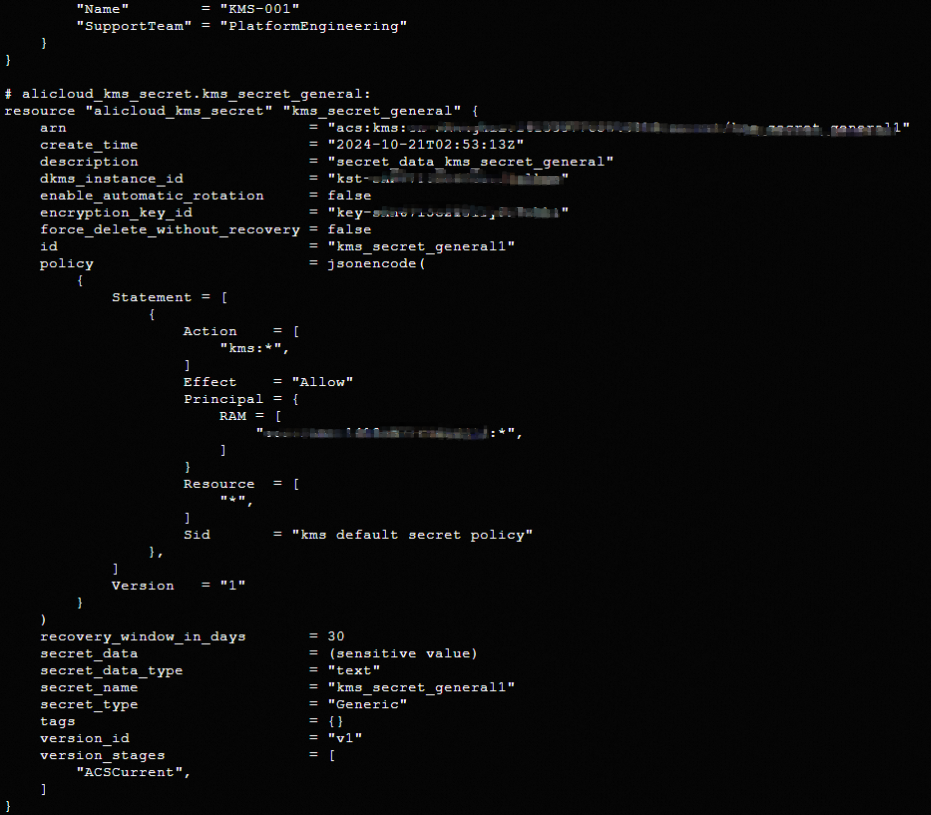
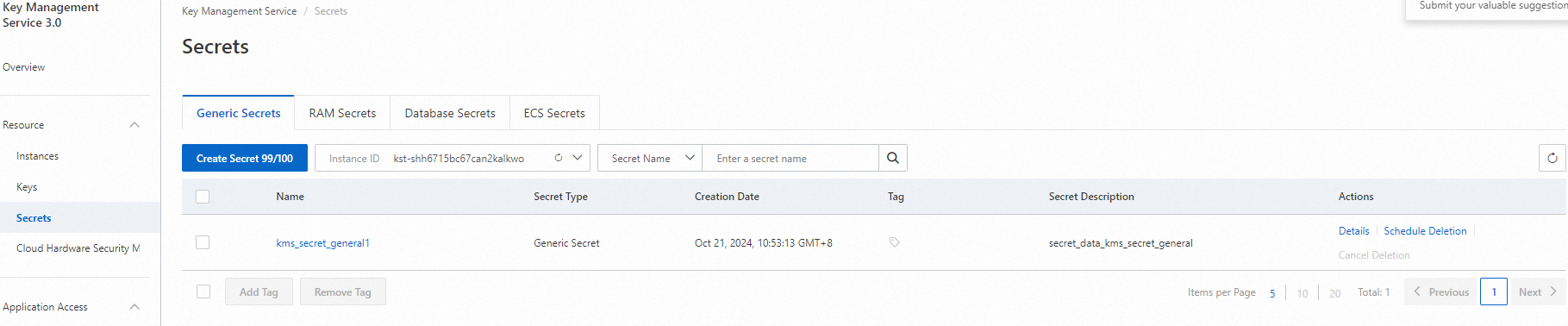
Log on to the KMS console
Log on to the Key Management Service console to view the created secret.
Clean up resources
When you no longer need the resources managed by Terraform, run the following command to release them. For more information about the terraform destroy command, see common commands.
terraform destroyComplete example
You can run the sample code in this topic with a single click. Run code