Best practices for using AccessKeys in applications
Applications can use AccessKeys or Security Token Service (STS) as access credentials to access Alibaba Cloud. However, a leaked key poses serious security risks and requires a high level of protection. This document describes the best practices for using AccessKeys in applications.
Solution overview
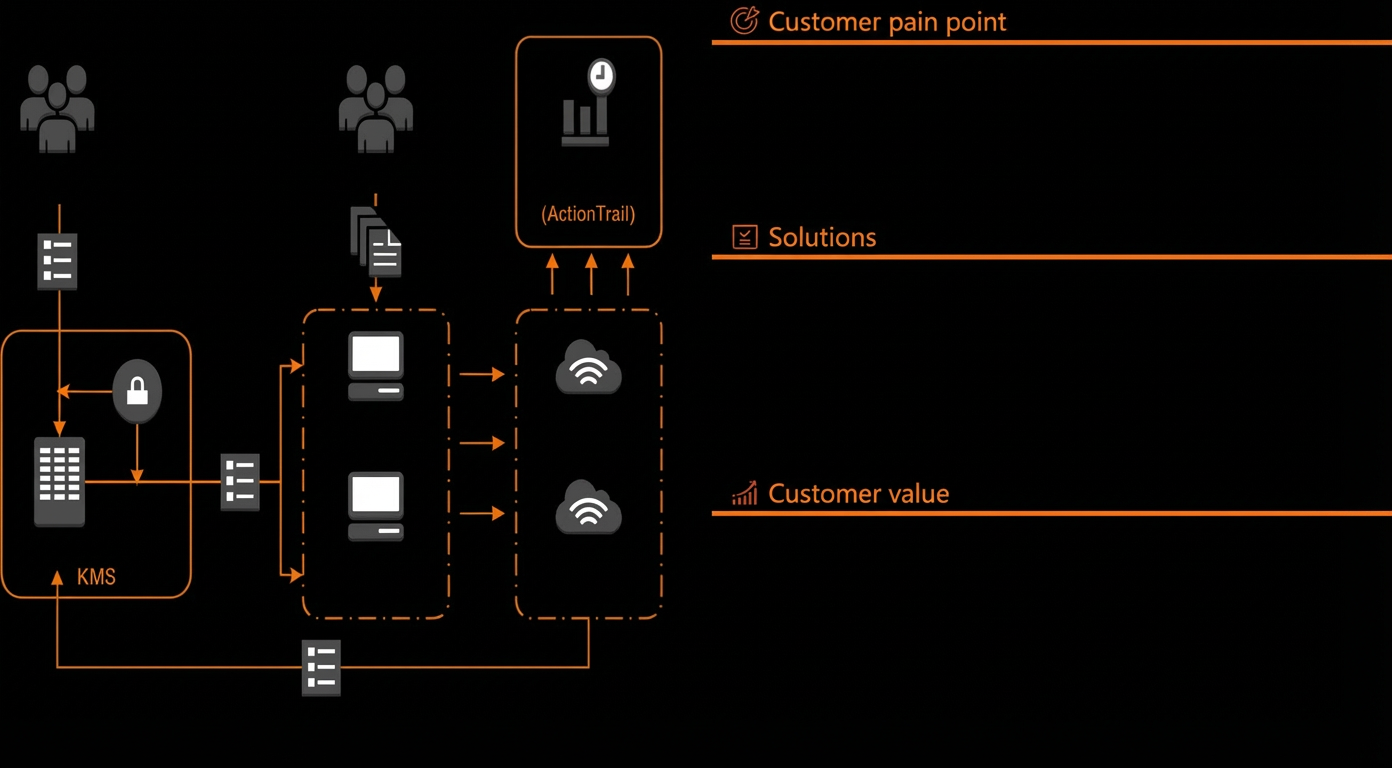
Customer scenarios
Preventing AccessKey leaks in single-account applications
Description
Applications can use AccessKeys or Security Token Service (STS) as access credentials to access Alibaba Cloud. However, a leaked key poses serious security risks and requires a high level of protection.
Target customers
- This scenario is for all customers who use applications to access Alibaba Cloud resources.
Pain points
Pain points include the following:
- AccessKey/SecretKey configuration is scattered across multiple applications and cannot be managed centrally.
- AccessKeys/SecretKeys are hard-coded, which makes them difficult to update promptly.
- AccessKeys/SecretKeys are stored in plaintext, which makes them vulnerable to leaks and creates security risks.
- AccessKey/SecretKey usage cannot be tracked.
Benefits include the following:
- Improve AccessKey usage and reduce the risk of leaks using multiple methods.
- Minimize losses in the event of an AccessKey leak.
- Enhance AccessKey auditing capabilities to better respond to leak incidents.
- Reduce AccessKey management costs while ensuring security.
Architecture design
Overview of AccessKey leak prevention and control
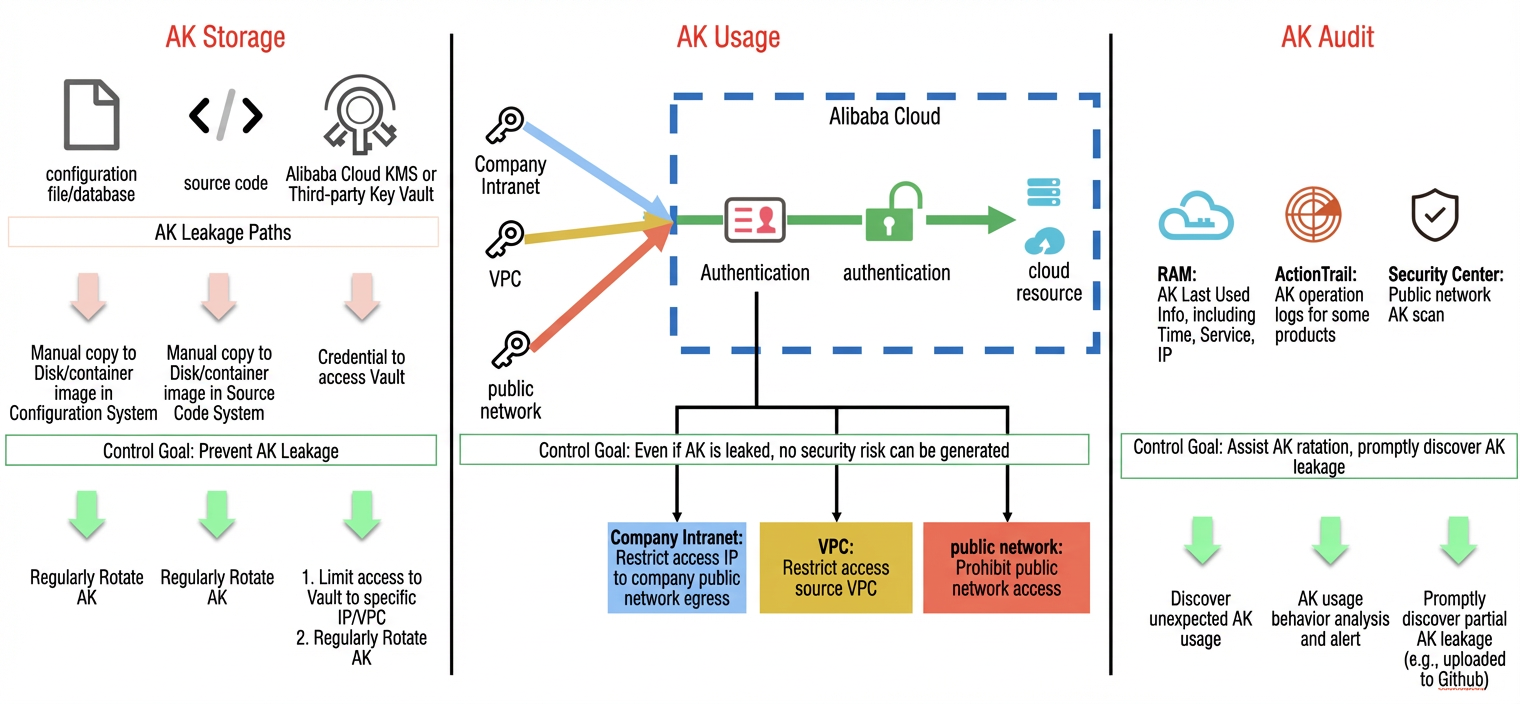
Best practices and recommended approaches for using AccessKeys
Recommended approach: Use an AccessKey-free solution to prevent applications from directly handling AccessKeys.
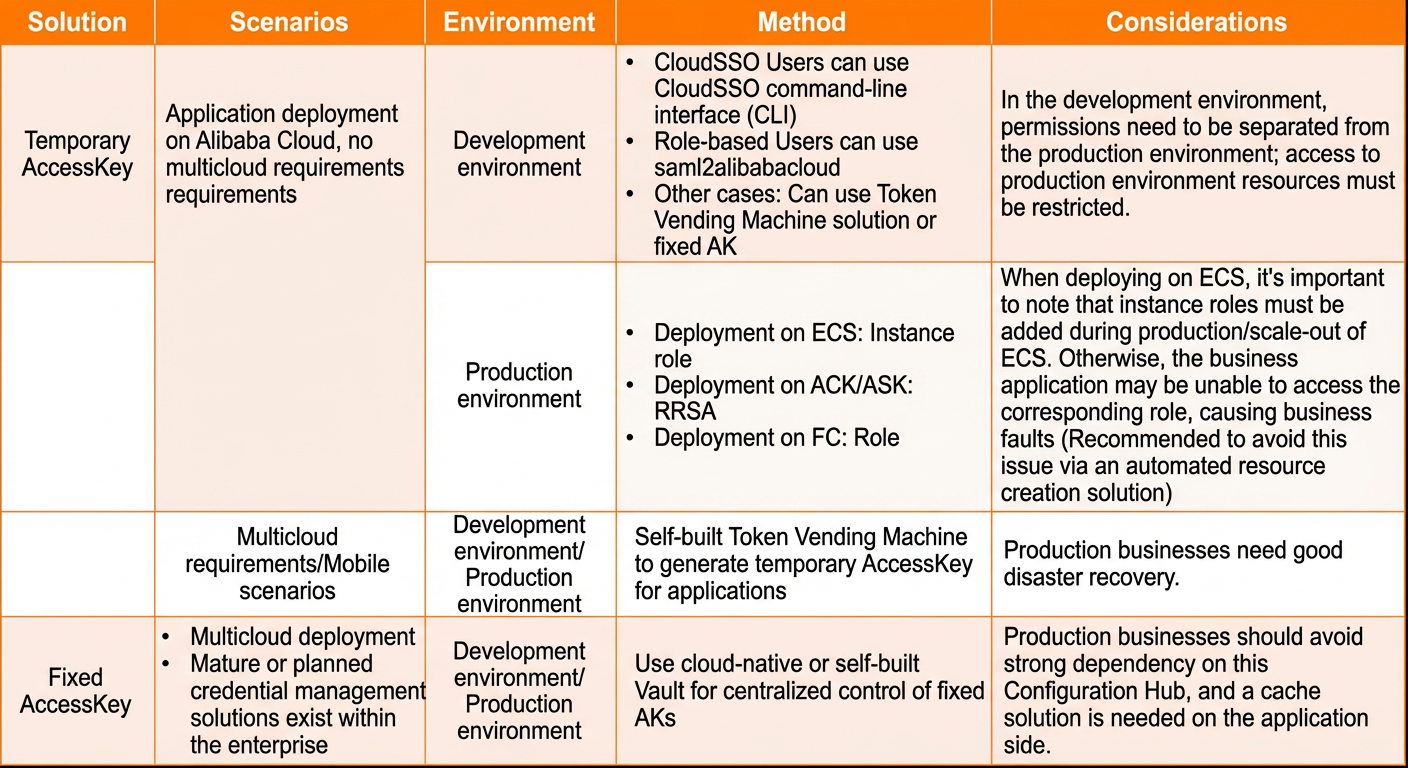
If you must use a fixed AccessKey, refer to the following solutions.
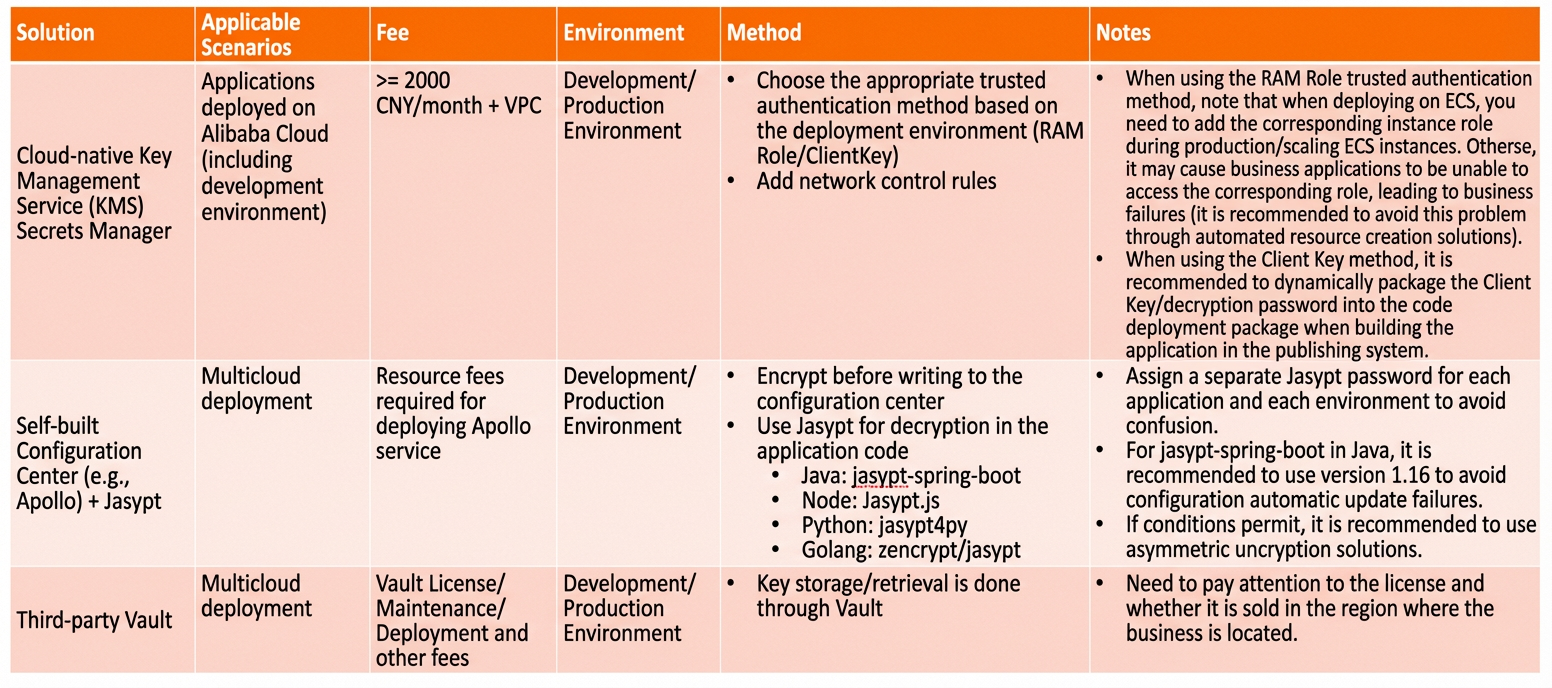
The first two solutions are:
- Use KMS Secrets Manager with managed RAM secrets as the AccessKey configuration center.
- Use Apollo as the AccessKey configuration center.
The following sections describe the detailed steps for these solutions.
Implementation steps
Implementation time
After you complete the preparations, the estimated implementation time for this solution is 2 hours.
Use KMS Secrets Manager with managed RAM secrets as the AccessKey configuration center
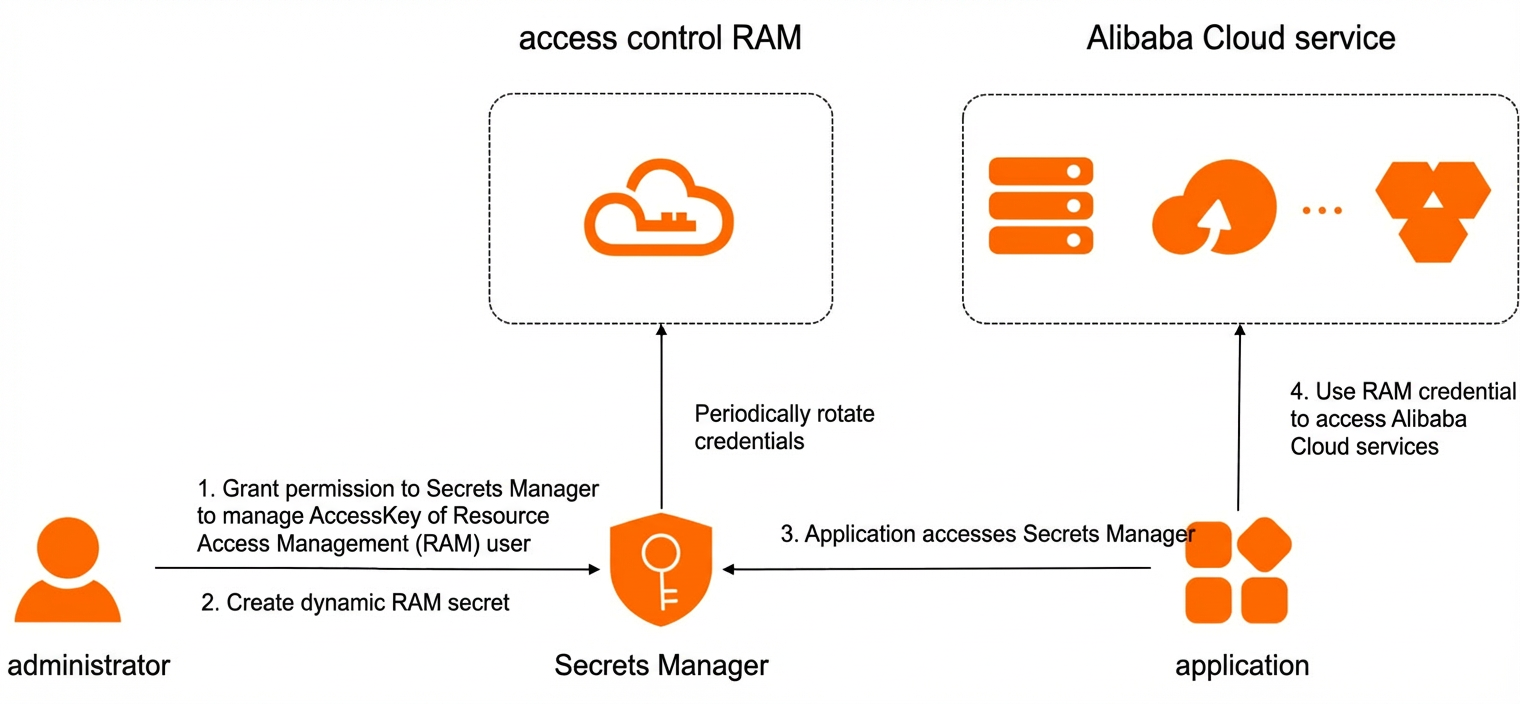
Solution overview
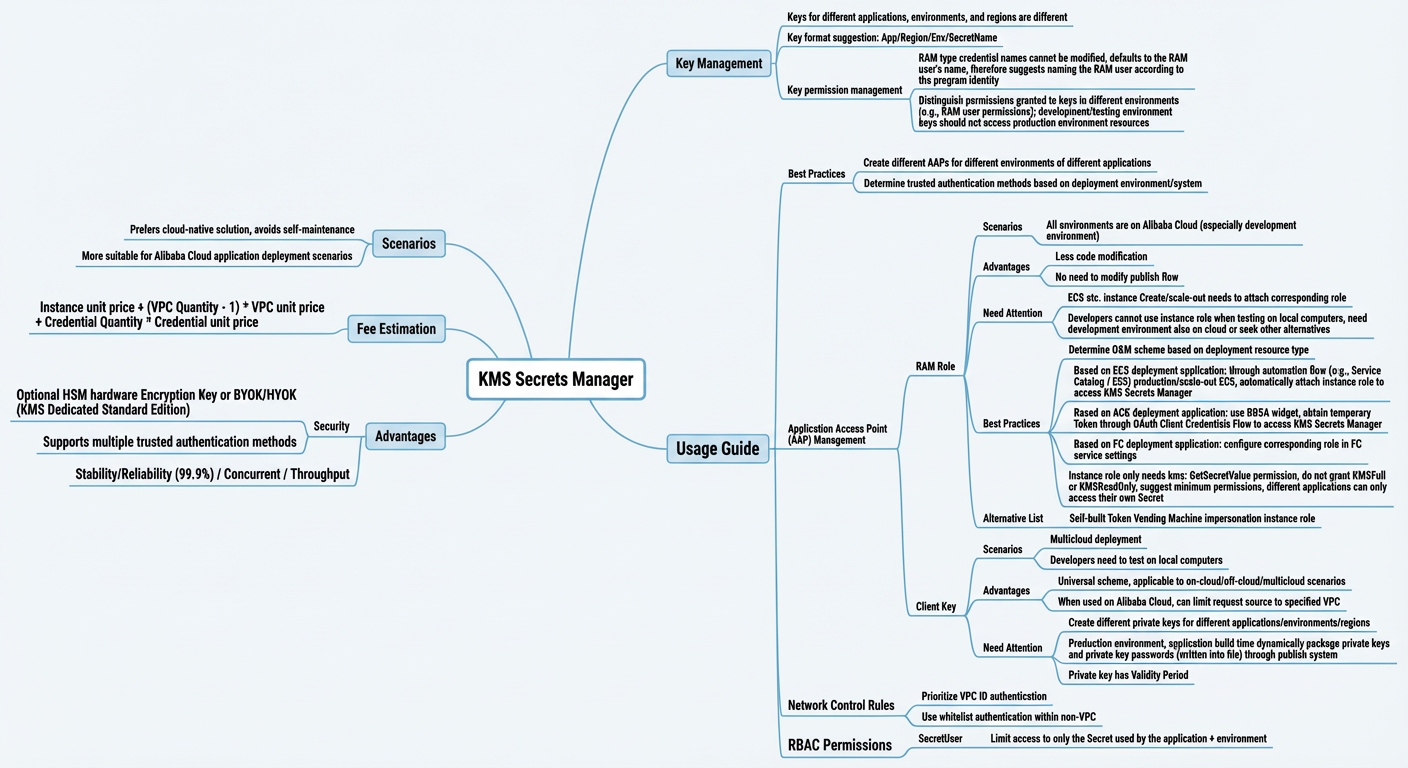
Scenarios
- You prefer a cloud-native solution to avoid the operations and maintenance (O&M) costs of a self-managed Vault.
- Your services are mainly deployed on Alibaba Cloud. This solution also applies to services deployed in other environments, but you cannot use RAM role-based trusted authentication or VPC-based source verification.
Advantages
- This is a cloud-native solution that does not require you to separately deploy and maintain Vault.
- It provides excellent security. The Standard Edition of dedicated KMS supports dedicated hardware security module (HSM) resource pools and multiple trusted authentication methods. For applications deployed on Alibaba Cloud, you can restrict request sources to a specific VPC, a feature not available with a self-managed Vault.
- The solution offers 99.9% reliability. The KMS Secrets Manager client supports high concurrency and high throughput through features such as client-side caching.
Preparations
- Activate the Alibaba Cloud KMS service.Activation link
- Before managing dynamic RAM secrets, grant Secrets Manager the permissions to manage the AccessKeys of RAM users using a RAM service role. For more information, see Grant Secrets Manager the permissions to manage the AccessKeys of RAM users.
- Create an AccessKey for the RAM user whose secret you want to manage. A RAM user must have an AccessKey before you can manage it. For more information, see Create an AccessKey pair for a RAM user.
Billing
Currently, new customers can only purchase the dedicated edition of KMS. Choose the edition that best suits your business needs. For more information about billing, see the document. Note that in addition to instance fees, the number of VPCs can significantly affect the final cost. You cannot add more secrets to a KMS instance if you did not specify the number of secrets during the initial purchase. Therefore, ensure you specify the number of secrets when you use this solution.
For customers with compliance or high-security requirements, purchase the Standard Edition. In the Standard Edition, keys are securely stored in a user-dedicated HSM resource pool.
Procedure
1. On the Secrets page of the KMS console, create a new secret. Based on your service needs, you can use managed RDS, RAM, or ECS secrets. These three secret types connect to Alibaba Cloud services. For enhanced security, use RAM secrets. This lets you use the automatic AccessKey rotation feature, which eliminates the need for administrators to manually rotate secrets on a schedule.
Note: For the secret value, enter a valid AccessKey for the RAM user. KMS uses this AccessKey to determine whether to perform rotation.
For more information about the configuration, see the official documentation.
2. After you confirm the information, the new secret appears on the Secrets page.
3. After the administrator completes the configuration, configure an application access point (AAP) for the application to control how it uses the secret.
Best practices for AAPs:
- Create different AAPs for different environments of different applications.
- Determine whether to use a RAM role or a client key for trusted authentication based on your business deployment environment and system refactoring costs. The RAM role solution usually requires you to refactor the application resource request or scale-out process or system. The client key solution usually requires you to refactor the code release system. The differences and applicable scenarios are described in the following table.
Trusted authentication methods for AAPs:
| Trusted authentication method |
RAM Role |
Client Key |
| Scenarios |
All environments are on Alibaba Cloud, especially development environments. |
|
| Advantages |
|
|
| Notes |
|
|
| Best practices |
Applications deployed on ECS: Use an automated process, such as Service Catalog or ESS, to create or scale out ECS instances and automatically attach an instance role to access KMS Secrets Manager. Applications deployed on ACK: Use the RRSA component to obtain a temporary token through OIDC to access KMS Secrets Manager. Applications deployed on FC: Configure the corresponding role in the FC service settings.
|
|
4. Create an application access point.
- Log on to the KMS console.
- In the upper-left corner of the page, select the region where the application access point is located.
- In the navigation pane on the left, click Application Management.
- Click Create Application Access Point.
- In the Create Application Access Point dialog box, set the basic information.
- Enter a Name and Description.
- In the Authentication Method section, select an authentication method.
- Click Next.
- Set an access policy.
- Click Optional Policies, and then click the
 icon.
icon. - In the Create Access Policy dialog box, set the following parameters and click Create.
| Parameter |
Description |
| Access Policy Name |
The name of the access policy. |
| Scope |
The scope of the access policy. Value: SharedKMS. |
| RBAC Permissions |
The permission management template, which specifies the operations that the access policy allows on specific resources. Value: SecretUser, which indicates that the only operation allowed is GetSecretValue. |
| Granting Access to Resources |
The specific objects to which the access policy grants permissions. You can set this parameter in one of the following two ways:
|
| Network Control Rules |
This control is very important. It can intercept traffic directly at the network layer. The network type and IP addresses from which the access policy allows access. In the Optional Rules section, you can select an existing rule or create and add a new rule as follows:
|


c. Select an existing policy and click the  icon.
icon.
d. Click Next.
- Check the application access point information and click Create.
5. If you set the trusted authentication method for the AAP to Client Key, you must bind a client key to the AAP:
- Click the name of the application access point.
- In the Client Key section, click Create Client Key.
- In the Create Client Key dialog box, set the following parameters.
- Client Key Encryption Password: When you use the client key to access KMS, you must use this password to decrypt the client key file. Store the password securely.
- Validity Period: Access attempts that use the client key will fail outside this validity period.
- Click OK.
- In the Client Key dialog box, click Download to save the client key private key file.
For more information, see the official documentation.
6. After you configure the AAP, you can implement it in your code. You must refactor your code to retrieve the secret using the SecretsManager Client or another method. The supported clients and software development kits (SDKs) are as follows:
| Connection type |
Mechanism description |
Notes |
| General Kubernetes Secrets plugin
|
|
Although the Kubernetes plugin or client refreshes the cached local secret, in scenarios with dynamic rotation of AccessKeys and DB credentials, developers may still need to refactor the code to ensure that the AccessKey is read each time it is used. |
| General client SDK SecretsManager Client |
|
|
| SDK optimized for dynamic AccessKeys |
Adds a remote credential provider on top of the standard Alibaba Cloud SDK. This provides the same developer experience as using a standard Alibaba Cloud SDK. |
Developers are almost unaware of whether AccessKeys and credentials are automatically rotated.
|
| SDK optimized for dynamic DB credentials |
Adds a remote credential provider on top of the Java Database Connectivity (JDBC) driver. JDBC Driver developer experience |
For Java, we recommend using the SDK optimized for dynamic AccessKeys. With this SDK, developers are almost unaware of whether AccessKeys and credentials are automatically rotated. For more information, see the document.
For non-Java client code, we recommend using the Secrets Manager client.
The Secrets Manager client encapsulates business logic, best practices, and design patterns based on the KMS Secrets Manager API, which makes it easier for developers to integrate into their business systems. It is mainly used to dynamically use secrets managed in Secrets Manager within applications, which eliminates the need to hard-code sensitive information.
- Allows developers to quickly integrate Secrets Manager capabilities into their applications and read secret information with a single line of code.
- Encapsulates the functionality for caching and refreshing secrets in the application.
- Encapsulates a retry mechanism for API faults and intelligently handles server-side faults.
- Provides an open, plugin-based design pattern that allows developers to customize and extend functional modules such as caching and fault retries.
When you use the SecretsManager Client, set a reasonable cache TTL based on your company's AccessKey rotation epoch and the queries per second (QPS) for accessing KMS (GetSecretValue). Developers need to refactor the code to ensure that the AccessKey is read each time it is used.
Python implementation
pip install aliyun-secret-manager-clientSample code
Build a client from a configuration file (secretsmanager.properties).
We recommend that you use a client key-based AAP and use the client key through the Secrets Manager Python SDK. For more information about how to create a client key, see Bind a client key to an AAP.
The Secrets Manager Python client version 0.0.4 and later supports access to Secrets Manager through a client key-based AAP. You need to configure the following file:
## Configure the access method.
credentials_type=client_key
## Read the decryption password for the Client Key. You can read it from an environment variable or a file.
client_key_password_from_env_variable=#your_client_key_private_key_password_environment_variable_name#
client_key_password_from_file_path=#your_client_key_private_key_password_file_path#
## Read the private key file of the Client Key.
client_key_private_key_path=#your_client_key_private_key_file_path#
## Configure the associated KMS region.
cache_client_region_id=[{"regionId":"#region_id#"}]
Explanation:
You only need to fill in one of the two parameters: client_key_password_from_env_variable and client_key_password_from_file_path. This refers to the following:
You can write this encryption password to a file or set it as an environment variable.
The value specified by the client_key_private_key_path parameter
The downloaded file.
Corresponding Python code
from alibaba_cloud_secretsmanager_client.secret_manager_cache_client_builder import SecretManagerCacheClientBuilder

if __name__ == '__main__':
    secret_cache_client = SecretManagerCacheClientBuilder.new_client()
    secret_info = secret_cache_client.get_secret_info("#secretName#")
    print(secret_info.__dict__)
Go
Install the SDK
The Secrets Manager client supports Go. For more code information, visit the SecretsManager Client for Go open source repository.
You can run the following command to install and use the Secrets Manager Go client in your project.
go get -u github.com/aliyun/alibabacloud-sdk-client-goSample code
Build a client from a configuration file (secretsmanager.properties).
We recommend that you use a client key-based AAP and use the client key through the Secrets Manager Go SDK. For more information about how to create a client key, see Bind a client key to an AAP.
The Secrets Manager Go client version v1.0.1 and later supports access to Secrets Manager through a client key-based AAP. You need to configure the following file:
Configuration file (secretsmanager.properties)
## Configure the access method.
credentials_type=client_key
## Read the decryption password for the Client Key. You can read it from an environment variable or a file.
client_key_password_from_env_variable=#your_client_key_private_key_password_environment_variable_name#
client_key_password_from_file_path=#your_client_key_private_key_password_file_path#
## Read the private key file of the Client Key.
client_key_private_key_path=#your_client_key_private_key_file_path#
## Configure the associated KMS region.
cache_client_region_id=[{"regionId":"#region_id#"}]
Sample code
package main

import (
    "fmt"
    "github.com/aliyun/aliyun-secretsmanager-client-go/sdk/service"
)

func main() {
    client, err := service.NewClient()
    if err != nil {
        // Handle exceptions
        panic(err)
    }
    secretInfo, err := client.GetSecretInfo("#secretName#")
    if err != nil {
        // Handle exceptions
        panic(err)
    }
    fmt.Printf("SecretValue:%s\n",secretInfo.SecretValue)
}
Java implementation
Install the SDK
The Secrets Manager client supports Java. For more code information, visit the SecretsManager Client for Java open source repository.
You can use Maven to include the Secrets Manager Java client in your project. Add the following dependencies:
<dependency>
  <groupId>com.aliyun</groupId>
  <artifactId>alibabacloud-secretsmanager-client</artifactId>
  <version>1.1.7</version>
</dependency>
<dependency>
  <groupId>com.aliyun</groupId>
  <artifactId>aliyun-java-sdk-core</artifactId>
  <version>4.5.9</version>
</dependency>
<!--This depends on the current application package. Be aware of package conflicts.-->
<dependency>
  <groupId>org.slf4j</groupId>
  <artifactId>slf4j-jdk14</artifactId>
  <version>1.7.9</version>
</dependency>
Sample code
Build a client from a configuration file (secretsmanager.properties).
We recommend that you use a client key-based AAP and use the client key through the Secrets Manager Java SDK. For more information about how to create a client key, see Bind a client key to an AAP.
The Secrets Manager Java client version 1.1.8 and later supports access to Secrets Manager through a client key-based AAP. You need to configure the following file:
## Configure the access method.
credentials_type=client_key
## Read the decryption password for the Client Key. You can read it from an environment variable or a file.
## You can define an environment variable to store the private key password and then assign the environment variable to this parameter.
client_key_password_from_env_variable=#your_client_key_private_key_password_environment_variable_name#
client_key_password_from_file_path=#your_client_key_private_key_password_file_path#
## Read the private key file of the Client Key.
client_key_private_key_path=#your_client_key_private_key_file_path#
## Configure the associated KMS region.
cache_client_region_id=[{"regionId":"#region_id#"}]
The following is sample code for building a client from a configuration file (secretsmanager.properties):
Configure environment variables
export credentials_type=client_key
export app_client_key=<your_private_key_value>
export client_key_password_from_env_variable=app_client_key
# Optional. Use either this or client_key_password_from_env_variable.
export client_key_password_from_file_path=<your_client_key_private_key_password_from_file>
export client_key_private_key_path=<your_client_key_private_key_file_path>
export cache_client_region_id=[{"regionId":"<your_region_id>"}]
import com.aliyuncs.kms.secretsmanager.client.SecretCacheClient;
import com.aliyuncs.kms.secretsmanager.client.SecretCacheClientBuilder;
import com.aliyuncs.kms.secretsmanager.client.exception.CacheSecretException;
import com.aliyuncs.kms.secretsmanager.client.model.SecretInfo;
public class CacheClientEnvironmentSample {
public static void main(String[] args) {
try {
SecretCacheClient client = SecretCacheClientBuilder.newClient();
SecretInfo secretInfo = client.getSecretInfo("#secretName#");
System.out.println(secretInfo);
} catch (CacheSecretException e) {
e.printStackTrace();
}
}
}For more information, see the official guide.
- Check the last used time of the AccessKey
Go to Identity Management > Users > Authentication Management. Find the specified AccessKey to view its last used time. You can analyze the last used time to determine if the AccessKey has been active recently.
Use Apollo and an open source encryption tool as the AccessKey configuration center

Notes
When you use Apollo as a configuration center, administrators and developers must use a unified key. This key is used to encrypt and store sensitive data, such as AccessKeys and SecretKeys, in the configuration center and to decrypt the data in the application. For security, do not hard-code this key or store it in the same configuration center as the sensitive data in a production environment. Instead, store it separately using another method. For example, you can use Jasypt-spring-boot-starter and pass the key during Maven packaging.
Preparations
- Apollo has been deployed. For the deployment steps, seethe official website
Procedure
- Log on to the Apollo portal and create a project for your application. We recommend that you create a separate project for each application to isolate their configurations.
- Go to the project details page and click Manage Key in the lower-left corner to add a key for the project. Only clients that hold the key can access the project's configuration information in Apollo. Note: This requires Apollo 1.6.0 or later.
- To prevent plaintext from being stored on disks, first encrypt the AccessKey information using an encryption tool, and then store it in Apollo. In this example, we use
Jasyptas the encryption tool. It integrates seamlessly with Spring Boot and automatically decrypts properties in placeholders. The following is a simple encryption tool that uses Jasypt. For more information about how to use jasypt-spring-boot, see the website.
- Add the Jasypt dependency in Maven.
    <!-- jasypt-->
    <!-- Note: The Jasypt version cannot be later than 2.0.0. Later versions conflict with Apollo. -->
    <!-- In versions later than 2.0.0, Jasypt reads data from the cache. This prevents the application from updating promptly when the Apollo configuration changes. -->
    <!-- For more information, see https://github.com/ctripcorp/apollo/issues/2162. -->
		<dependency>
			<groupId>com.github.ulisesbocchio</groupId>
			<artifactId>jasypt-spring-boot-starter</artifactId>
			<version>2.0.0</version>
		</dependency>
b. JasyptUtils encryption and decryption tool
import org.jasypt.encryption.pbe.PooledPBEStringEncryptor;
import org.jasypt.encryption.pbe.config.SimpleStringPBEConfig;

public class JasyptUtils {

    // String key. Do not store as plaintext in code.
    private static String PASSWORD = "password";
    private static String ALGORITHM = "PBEWithMD5AndDES";

    // Custom StringEncryptor. Jasypt uses a StringEncryptor to encrypt and decrypt properties.
    private final static PooledPBEStringEncryptor pooledPBEStringEncryptor = new PooledPBEStringEncryptor();
    static {
        SimpleStringPBEConfig config = new SimpleStringPBEConfig();
        config.setPassword(PASSWORD);
        config.setAlgorithm(ALGORITHM);
        config.setKeyObtentionIterations("1000");
        config.setPoolSize("1");
        config.setProviderName("SunJCE");
        config.setSaltGeneratorClassName("org.jasypt.salt.RandomSaltGenerator");
        config.setStringOutputType("base64");

        pooledPBEStringEncryptor.setConfig(config);
    }

    public static String encrypt(String message) {
        return pooledPBEStringEncryptor.encrypt(message);
    }

    public static String decrypt(String message) {
        return pooledPBEStringEncryptor.decrypt(message);
    }

    public static void main(String[] args) {
        String EncryptedMessage = JasyptUtils.encrypt("Hello World!");
        System.out.println("Encrypted Message: " + EncryptedMessage);
        System.out.println("Decrypted Message: " + JasyptUtils.decrypt(EncryptedMessage));
    }
}- Encrypt all sensitive data, such as AccessKeys and SecretKeys, wrap it with
ENC(), and then add and publish the configuration in Apollo. Data that is not wrapped withENC()is not decrypted.
- This section uses a Spring Boot project as an example to show how to retrieve an AccessKey in a Spring Boot project using Apollo and automatically decrypt it using Jasypt.
- In the Spring Boot project, add the Apollo and Jasypt dependencies.
- Add the Apollo and Jasypt configuration information. For clarity, the Apollo access key and the Jasypt encryption algorithm and key are hard-coded in the configuration file. This practice is not recommended in a development environment. You can use other methods, such as operating system environment variables, to add the key. The algorithm and key configured here must be the same as those used for the encryption operation.
# apollo configuration
apollo.bootstrap.enabled=true
app.id=apollo-access
apollo.meta=http://localhost:8080
apollo.accesskey.secret=d91462f532604b169bc594bb90eb10b6

# jasypt configuration
jasypt.encryptor.password=password
jasypt.encryptor.algorithm=PBEWithMD5AndDES- Test code for retrieving the AccessKey
@SpringBootApplication
public class ApolloDemoApplication implements CommandLineRunner {

	public static void main(String[] args) {
		SpringApplication.run(ApolloDemoApplication.class, args);
	}

    # Use a placeholder for dynamic retrieval. Jasypt automatically decrypts the value.
	@Value("${AK}")
	String AK;

	@Override
	public void run(String... args) throws Exception {
		while(true) {
			System.out.println("AK: " + AK);
			TimeUnit.SECONDS.sleep(5);
		}
	}
}- After the code runs, the AccessKey is successfully retrieved. If the AccessKey is changed in Apollo, the application can also retrieve the latest data.
Notes
AccessKey rotation and replacement
1. Cool-down period
a. Follow security management standards to locate AccessKeys in code, configuration centers, Vault, and other environments.
b. Service announcements.
c. Test and verify the replacement in staging and daily environments.
d. Perform a phased release in the staging environment with the smallest possible scope.
2. Restart policy
a. Follow the fail-fast principle. Perform a phased release in the production environment and quickly roll back if an abnormal event occurs.
b. Restart non-core applications first.
Reference materials
- Key Management Servicedocumentation