Hue practices
Hue (Hadoop User Experience) is a graphical user interface (UI) for the open-source Hadoop project. It provides a web-based UI to access files and manage data. This topic describes how to use the semi-managed Lindorm Hue component to manage SQL and browse Lindorm Distributed File System (LDFS) files.
Background information
The semi-managed Lindorm Hue component provides two main features: an SQL editor and a file browser.
The SQL editor lets you create, manage, and execute SQL statements. You can also download and save query results as Excel files.
The file browser provides a visual interface for browsing LDFS files.
For more information about Hue, see the official Hue documentation.
Prerequisites
The Lindorm compute engine is enabled. For more information, see Activate services.
Precautions
The Lindorm Hue component is currently in private beta. To use this component, contact Lindorm technical support (DingTalk ID: s0s3eg3) to request the required permissions.
Step 1: Enable Hue
Log on to the Lindorm console.
In the upper-left corner of the page, select the region where the instance is deployed.
On the Instances page, click the ID of the target instance or click View Instance Details in the Actions column for the instance.
In the navigation pane on the left, click Database Connection.
On the Compute Engine tab, click Enable HUE URL.
Step 2: Log on to Hue
On the Compute Engine tab, click the HUE URL to open the Hue service page.
Log on to the Hue service as a Lindorm unified user.
NoteThe user account for logging on to the Hue service is also used to access the compute engine and operate on the LDFS file system.
Step 3: Use Hue
Configure session parameters
After you log on to Hue, a default session configuration is created. You can add session parameters by following these steps. For more information about the supported configuration items, see Job configuration.
Go to the SQL editor. For more information, see Use the SQL editor. Choose , and then click + on the right to open the session parameter configuration page.
Click + to add a new configuration row. Once you have configured all the parameters, click + at the bottom to save the current configuration.
You can click Recreate to upload the session configuration parameters.
The new parameters take effect automatically when you run another query in Hue after the compute node is released. To release a compute node, follow these steps:
In the SQL editor, execute the
SELECT webui()statement to obtain the WebUI URL.On the WebUI page, click Kyuubi Query Engine in the top navigation bar.
Click kill to release the current compute node.
Use the SQL editor
In the navigation pane on the left, click  to open the SQL editor. The SQL editor page is displayed as follows: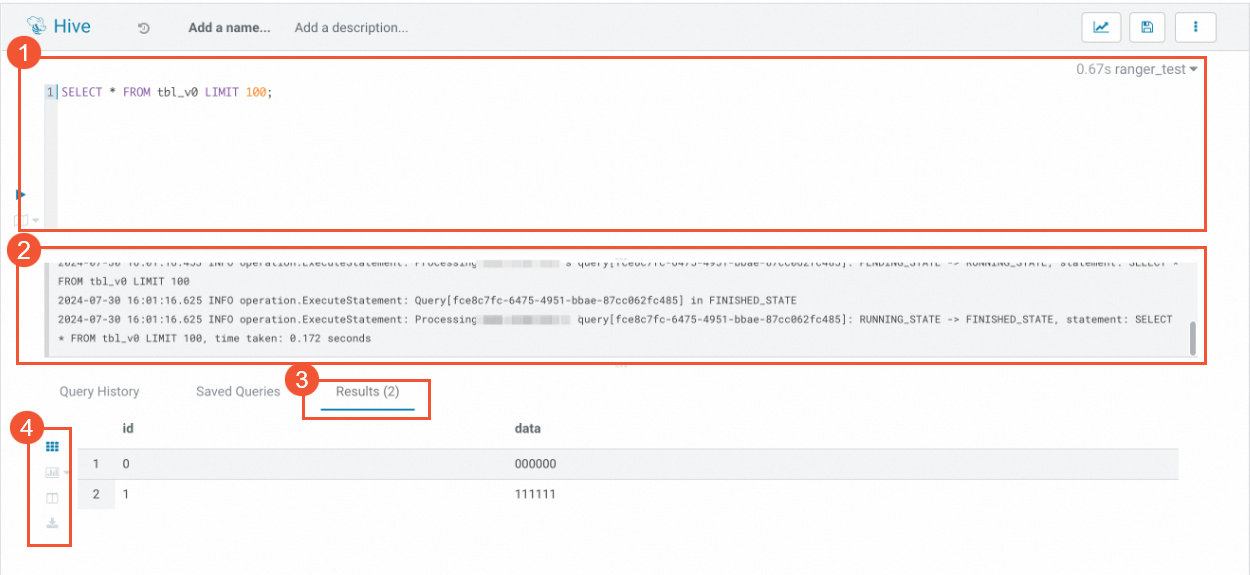
Area |
Description |
① |
The SQL editor. It lets you quickly edit SQL. |
② |
SQL operational logs. |
③ |
The Results tab displays the results of the current SQL query. |
④ |
Result display options. You can export the current results or generate a chart based on them. |
SQL runs in the current user's session. You can recreate and shut down the current session from the session entry in the upper-right corner.
If you restart the Spark Driver, you must shut down the current session from the session entry and then refresh the page.
Manage SQL with Documents
In the navigation pane on the left, click  to open the Documents page.
You can use Hue to save and manage SQL statements. These statements are saved as queries in Documents. You can also create notebooks from queries to manage and run multiple queries at once.
The Documents page displays all saved queries and notebooks. You can manage your queries and notebooks on this page.
View LDFS files with Files
In the navigation pane on the left, click  to open the Files page.
You can use the file browser to browse LDFS files. On the Files page, you can view the LDFS files of the current instance.
All Hue users have read permissions for all folders and write permissions for the
/userfolder.The user who creates a folder or uploads a file in the
/userfolder has both read and write permissions for that item. Other users have only read permissions.