Agent
Agent mode completes end-to-end coding tasks using built-in tools for project search, file editing, and terminal commands. Extend its capabilities by configuring MCP tools.
The new Qoder CN documentation site is now available. Content on this site may not reflect the latest product features and changes. Visit docs.qoder.cn for the latest product documentation.
Agent mode requires version 2.5.0 or later in VS Code or JetBrains IDEs. This feature is in preview.
Core features:
-
Project-level changes: Breaks down tasks and modifies project files. Iterates through multi-turn chats or snapshot reverts.
-
Automatic codebase awareness: Detects project frameworks, technology stacks, relevant code, and error messages from task descriptions—no manual context needed.
-
Tool use: Uses 10+ built-in tools for file I/O, code search, and error diagnosis. Supports MCP tool configuration and integrates with ModelStudio MCP Square.
-
Command execution: Generates and runs terminal commands autonomously.
Use programming tools
includes 10+ built-in tools that the agent invokes autonomously: file search, read/write, directory browsing, symbol retrieval, error diagnosis, and terminal execution.
The agent selects tools, runs them, and plans next steps based on the results.
Execute commands
Agent mode runs terminal commands autonomously. By default, each command requires your confirmation:
-
Click run to execute the command in the IDE terminal.
Background tasks show a "background running" indicator. The agent continues other work and retrieves results when needed.
If you encounter issues running terminal commands, see Terminal execution exceptions for solutions.
To auto-execute specific commands, add them to the allowlist in plugin settings. Separate commands with commas.
To configure, navigate to the Chat settings page, find the Auto-Run section, and add the commands you want to auto-run in the input field under Terminal in Agent Mode.
Call MCP tools
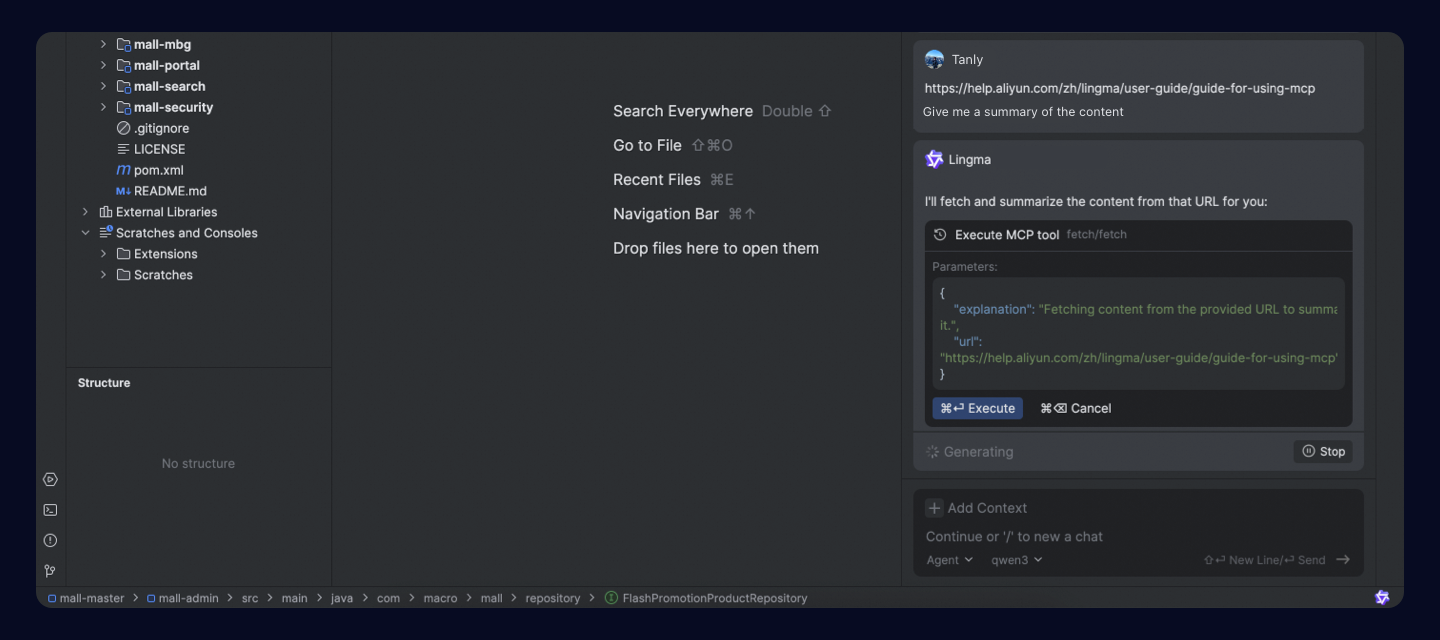
With MCP tools configured, the agent decides whether to invoke them. Each MCP call requires confirmation — click execute to proceed. The agent uses returned results as context for subsequent steps.
For more details on using MCP in Qoder CN, see Model Context Protocol.