MCP FAQ
This topic describes common errors that occur when you install and run the MCP service. It provides solutions and troubleshooting steps for issues such as missing command environments, service initialization failures, and configuration errors.
Service addition or installation errors
1. Missing environment for the npx command
Error message: failed to start command: exec: "npx": executable file not found in $PATH
Solution: Download and install Node.js.
Node.js must be version 18 or later, and npm must be version 8 or later. Earlier versions might cause tool calls to fail.
Visit the Node.js official website to download and install Node.js 18 or a later version, or follow these steps:
2. Missing environment for the uvx command
Error message: failed to start command: exec: "uvx": executable file not found in $PATH
Solution: Install uv. uvx is a command-line interface provided by uv for running Python scripts quickly.
Go to the Python official website to download and install Python 3.8 or a later version, or follow these steps:
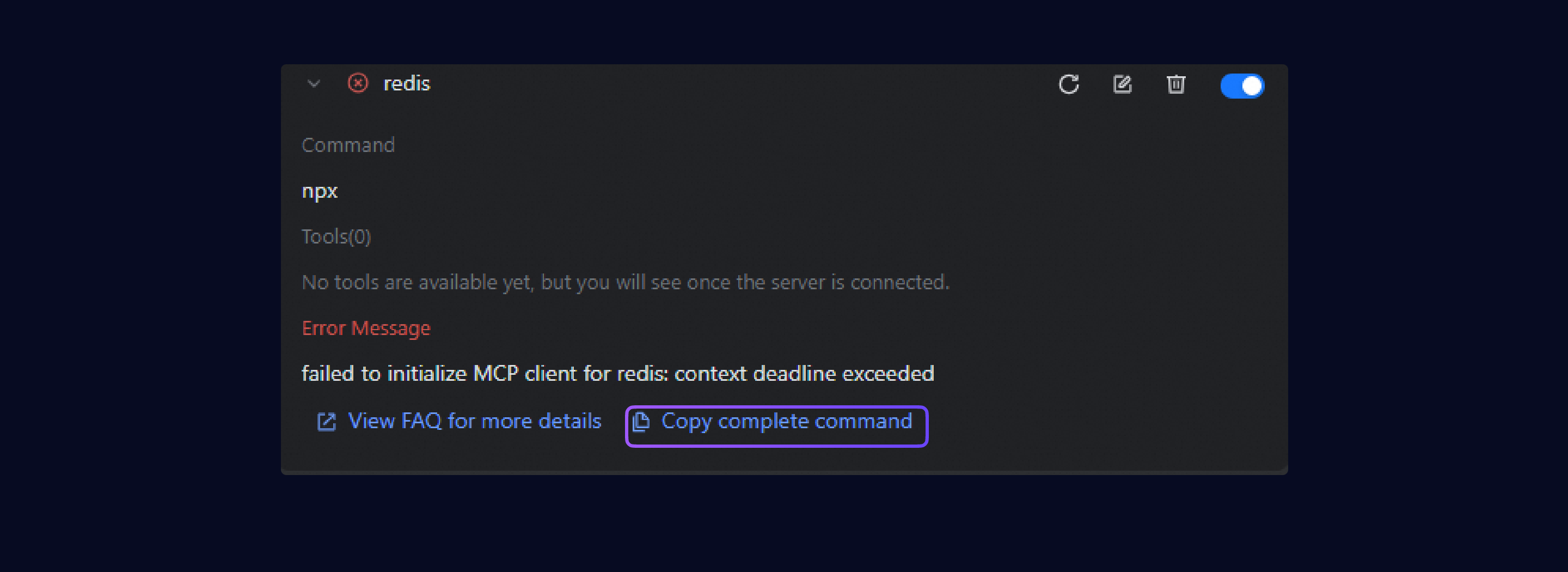
3. Failed to initialize MCP Client
Error message: failed to initialize MCP client: context deadline exceeded
Possible causes:
Incorrect service parameter settings: The MCP service parameters are incorrect, which prevents service initialization.
Resource pull failure: The installation fails because network issues prevent resources from being pulled.
Network security restrictions: The MCP service fails to initialize because it is blocked by internal corporate security software.
Troubleshooting steps:
1. Click to copy the full command. |
|
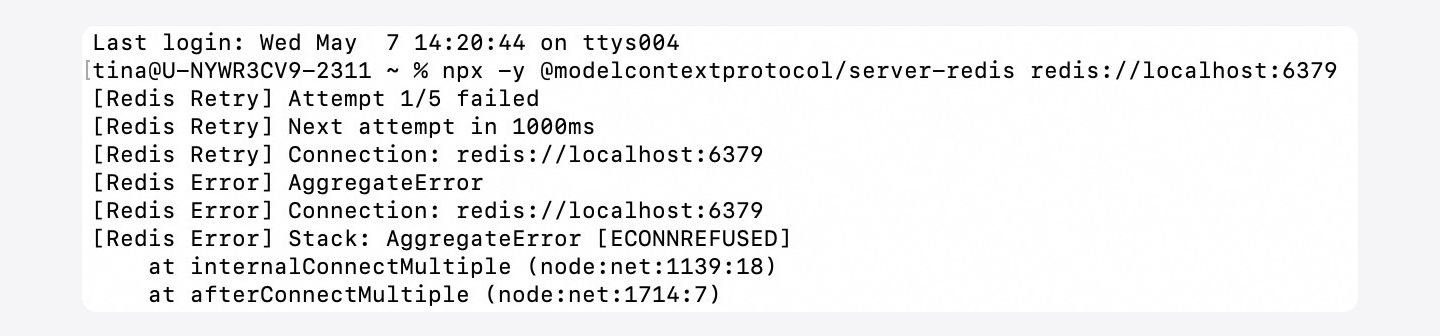
2. Run the command in a terminal to obtain detailed error information. |
|
3. Analyze the error message and apply the corresponding fix. | Common issue 1: Configuration error In the error example, the message shows that the connection failed because the Redis connection URL is incorrect. To resolve this issue, check and correct the URL configuration by editing the MCP service. Common issue 2: Resource pull failure If the command fails to run because of a resource pull failure, run the following command to add a traffic mirror source. Then, restart the Lingma process and try again. Windows systemmacOSCommon issue 3: Node.js is blocked by security software Based on the security software's blocking notification, authorize the Node.js process or add its executable files to an allowlist. |
Tool usage issues
If you encounter issues with services from the MCP Marketplace, contact the ModelScope community for technical support.
ModelScope Developer Group (DingTalk group number: 44837352)
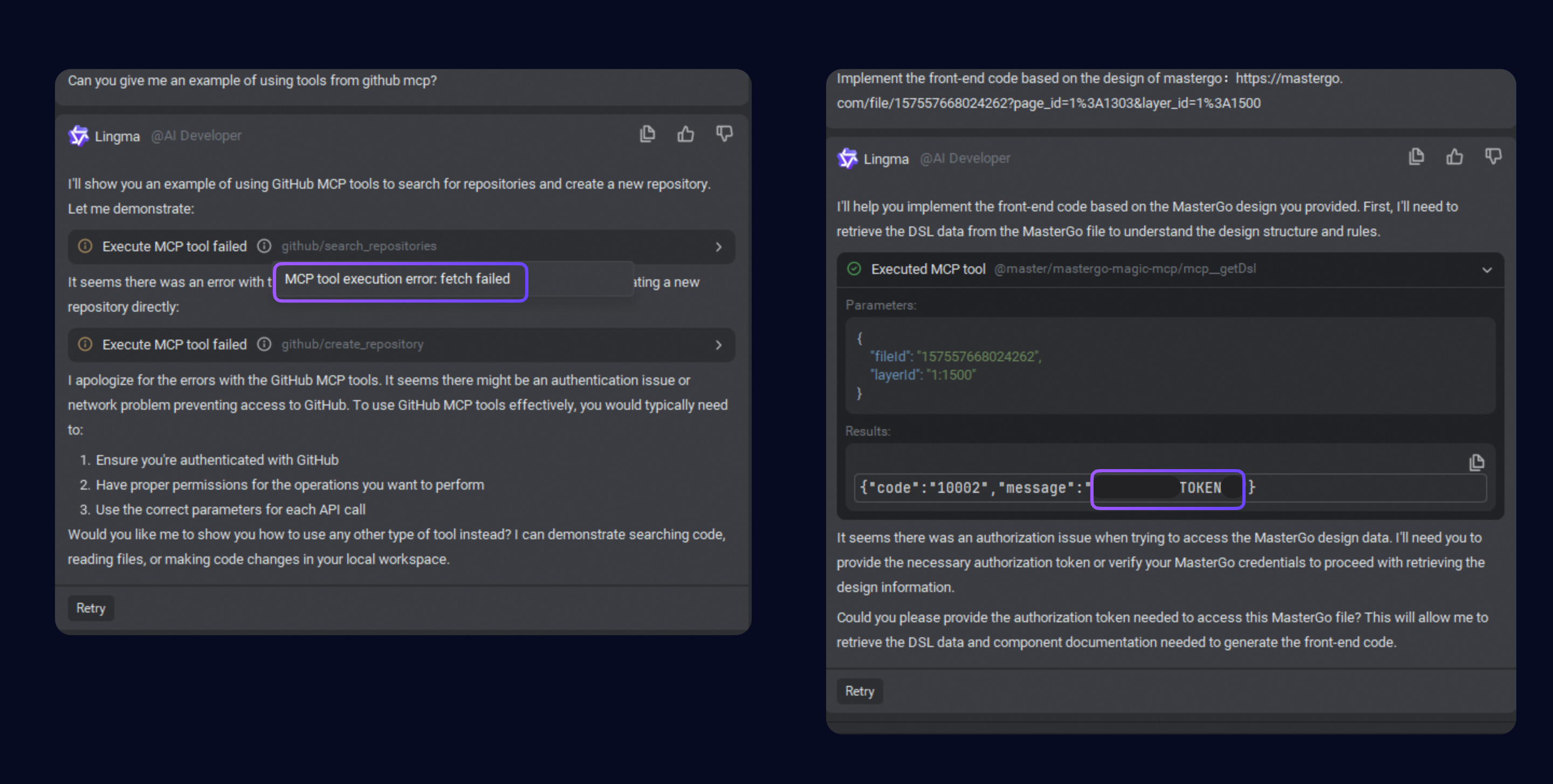
1. Tool execution fails due to incorrect environment variables or parameters
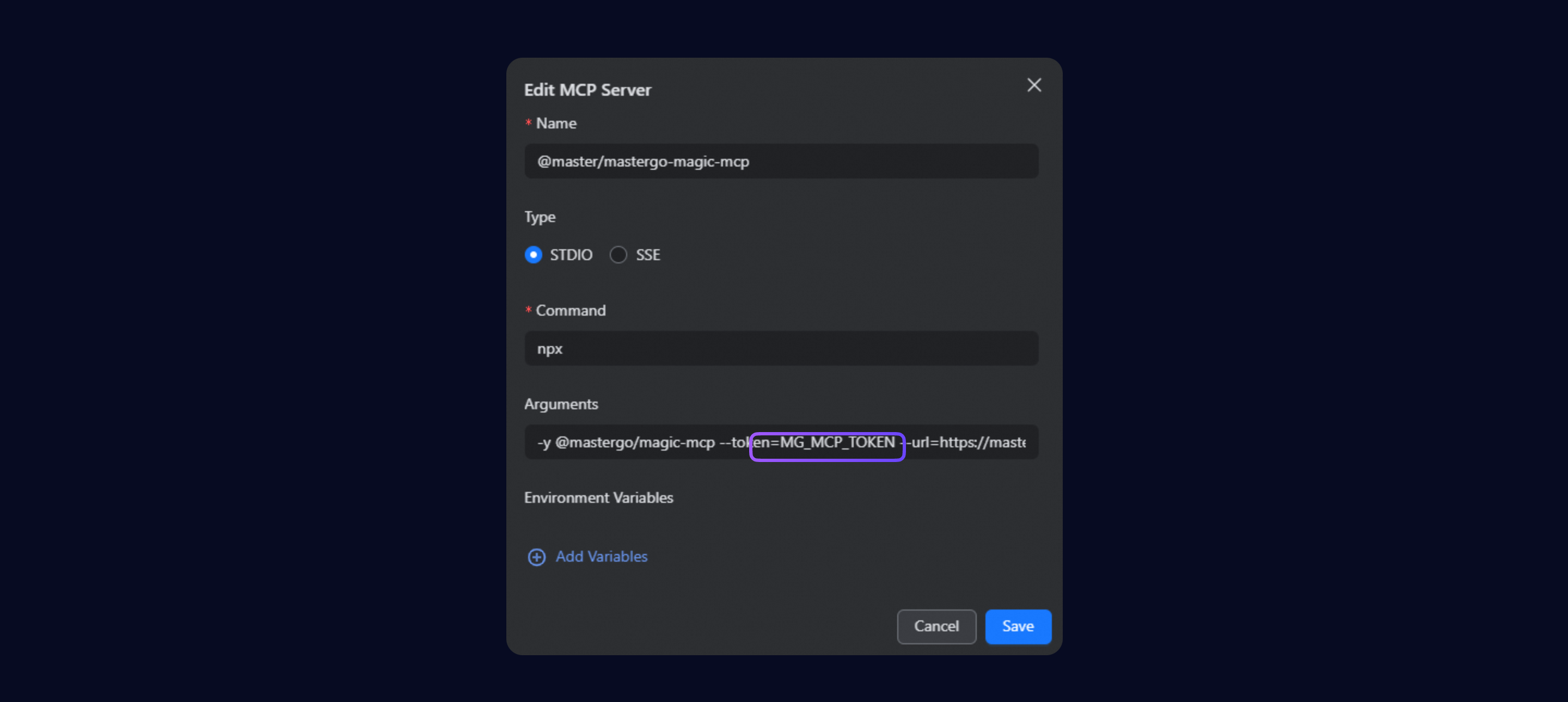
If an MCP tool call fails or returns an unexpected result, first expand the tool call details to view the specific error message. Then, analyze the message to troubleshoot the issue. Important For some MCP services, such as Mastergo and Figma, key authentication information like an API_KEY or TOKEN is included in the parameters (args). After you install these services from the MCP Marketplace, you must still configure these parameters manually. |
|
|
|
2. The model cannot call MCP tools
Confirm that you are in Agent mode.
ImportantIf no project folder is open, the system enters AI Chat mode and cannot call MCP tools. First, load the corresponding project folder and switch to Agent mode.
Confirm that the MCP service is in the Connected state:
If the service connection is interrupted, click the |
|
 icon on the right side of the interface. The system automatically tries to restart the MCP service.
Suggestion: Avoid using similar names for MCP services and their tools. For example, if both TextAnalyzer-Pro and TextAnalyzer-Plus have a tool named fetchText with similar functions, this can cause ambiguity when the model makes a call.
3. Personal Settings and the MCP tool page do not open, and the session panel is blank
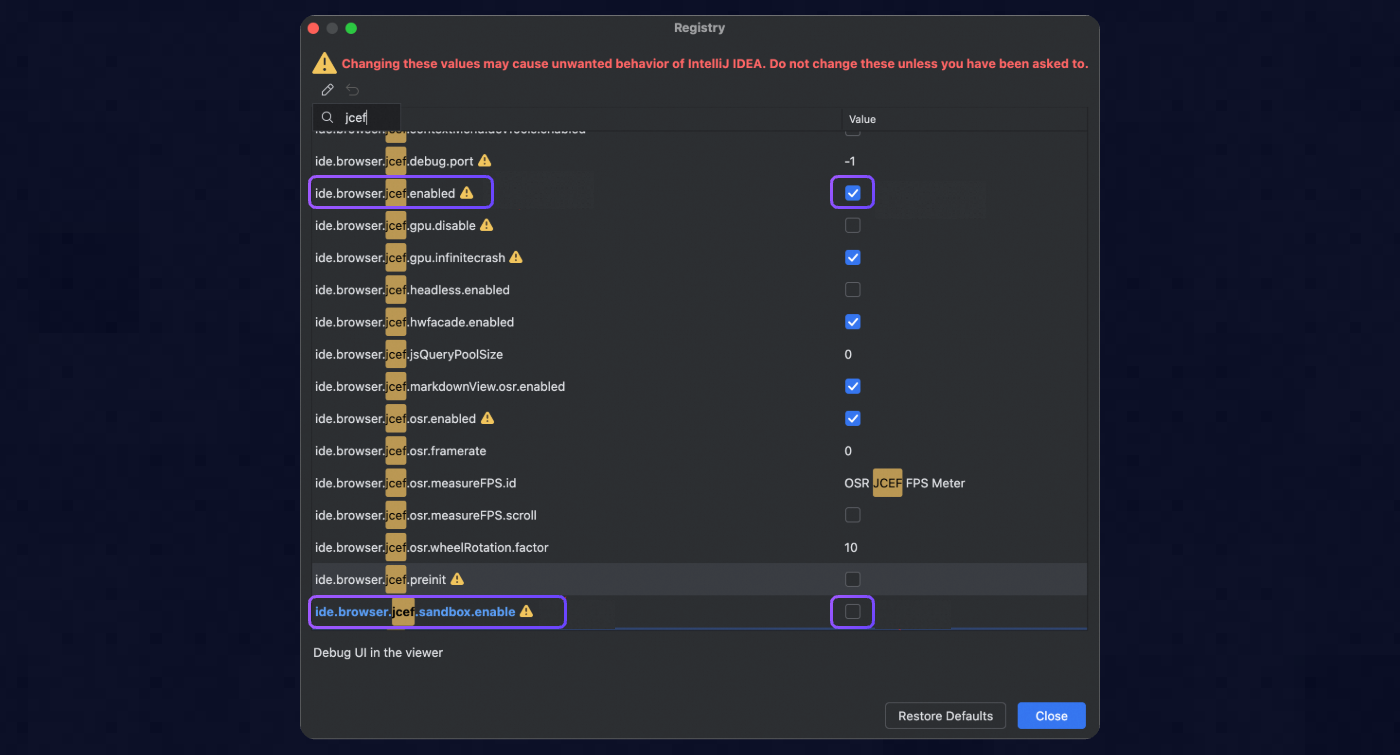
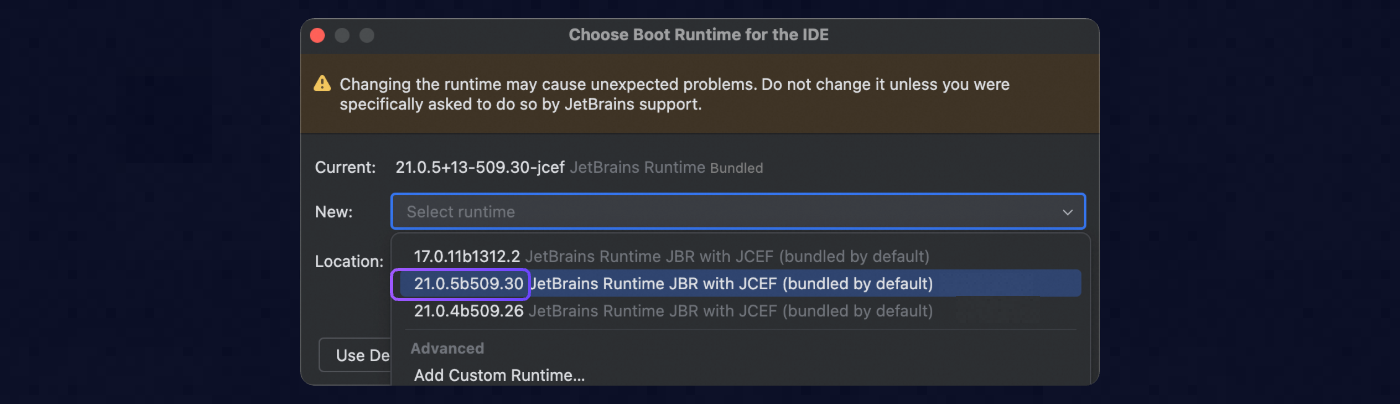
This issue occurs when the page is blank and the idea.log file contains the following error message: "WARN - #c.i.u.j.JBCefApp - JCefAppConfig.class is not from a JBR module".
Cause: The default settings in Android Studio do not support JCEF. This prevents pages, such as Personal Settings and the MCP tool page, from loading.
Solution:
|
|
|
|
4. The MCP service list fails to load
The service list is stuck in a loading state.
Restart the IDE.
If the issue persists, you can start the Lingma service manually:
Windows system
Navigate to the
.lingma/bin/x.x.x/CPU_architecture_64_system/directory.Run the command:
Lingma.exe startmacOS
Click the Apple icon in the upper-left corner of your screen and select About This Mac to view your processor model. Then, navigate to the corresponding directory based on your processor model.
M1 chip:
/.lingma/bin/x.x.x/aarch64_darwin/LingmaIntel chip:
/.lingma/bin/x.x.x/x86_64_darwin/Lingma
Run the command:
Lingma startAfter the service starts, click the logon button again.