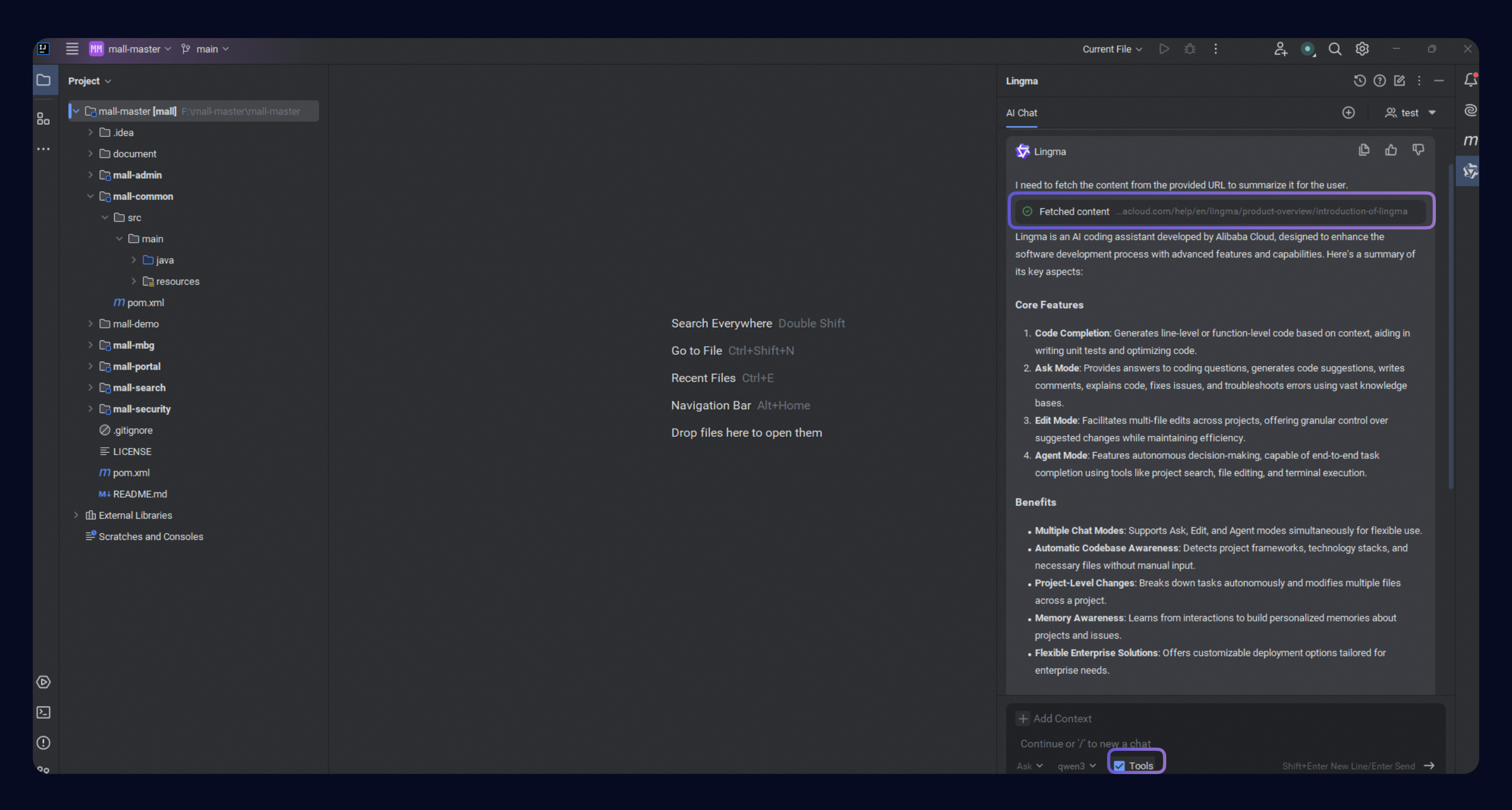
Ask mode in answers coding questions, generates code suggestions, adds comments, optimizes code, explains code, fixes issues, and troubleshoots compilation errors.
Ask general questions
To get help with coding problems, open the AI Chat panel from the IDE side toolbar or use a keyboard shortcut, and switch to Ask mode.
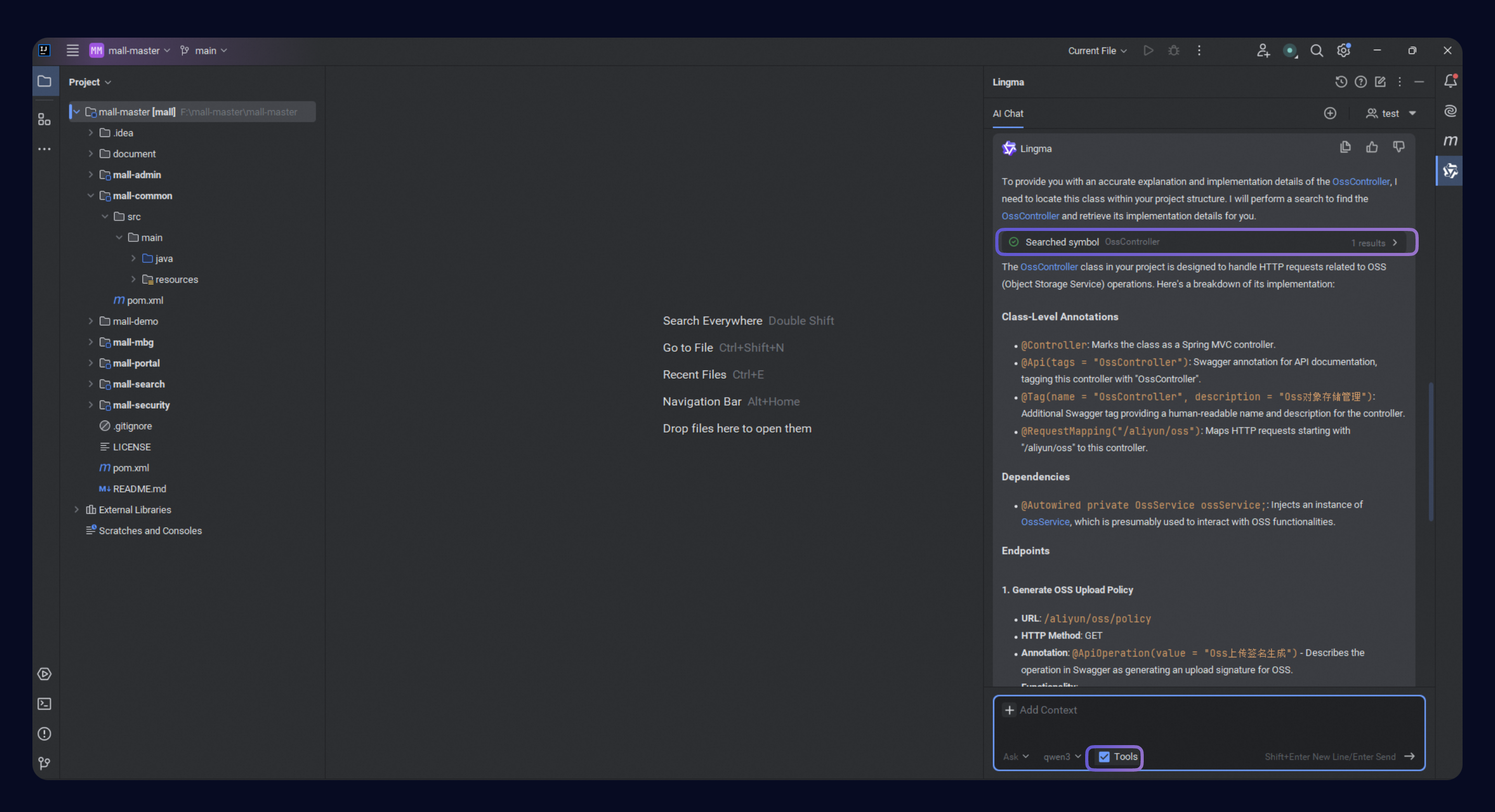
Ask about code
To ask about specific code, select a code snippet or file, then type your question in the AI Chat window. responds based on the selected code.
Commands
Commands are supported in Visual Studio Code and JetBrains IDE plug-in only, not in Qoder CN IDE.
How to trigger commands
supports the following ways to trigger commands:
-
Right-click menu: Select code in the editor, right-click, and choose a command from the submenu.
-
Type /: In the chat box, type / to list quick commands and select one.
-
Quick access above functions: Click the quick access button above a function to generate unit tests, comments, explanations, or optimizations without selecting code.
Ask mode provides four built-in commands:
|
Command |
Details |
|
Explain Code |
Recognizes the programming language of selected code and generates explanations. |
|
Generate Unit Test |
Generates unit tests based on frameworks, such as JUnit, Mockito, Spring Test, unit test, and pytest. |
|
Generate Comments |
Generates method and inline comments in one click. |
|
Code Optimization |
Detects issues from syntax errors to performance problems and suggests improvements. |
Add requirements to commands
Add specific requirements in the chat box alongside your command. Examples:
-
Select
/unittestand specify a framework, such as JUnit 5. -
Select
/commentand add details, such as including the date at the start.
Suggest fixes
Quick fix
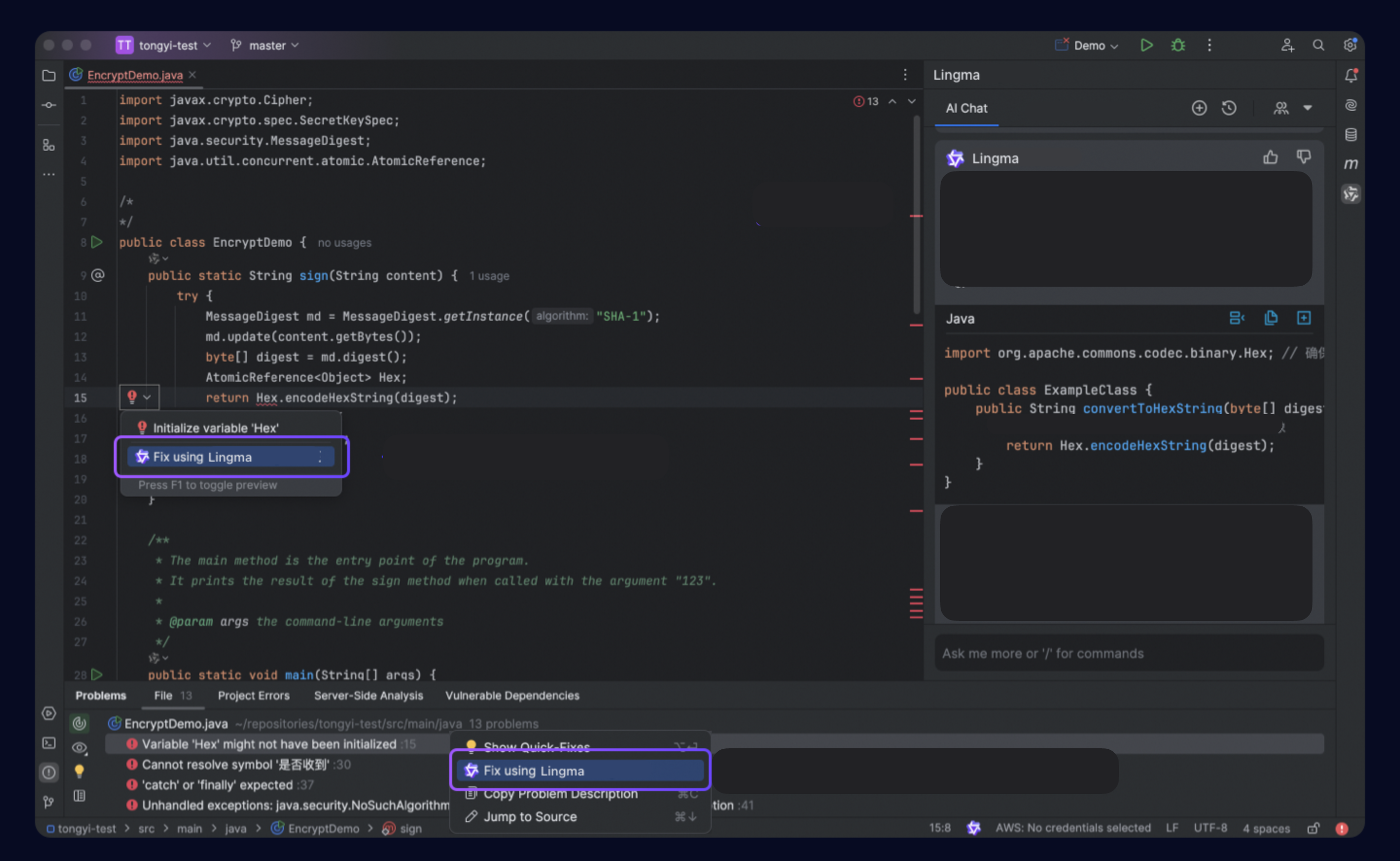
To fix code issues, provides one-click fix suggestions for bugs and errors.
To do so, either:
-
In the editor, find the error icon and select Fix using Qoder CN from the list.
-
In the Problem tool window, find the row with the error message, right-click it, and select Fix using Qoder CN from the list.
Troubleshooting (IntelliJ IDEA)
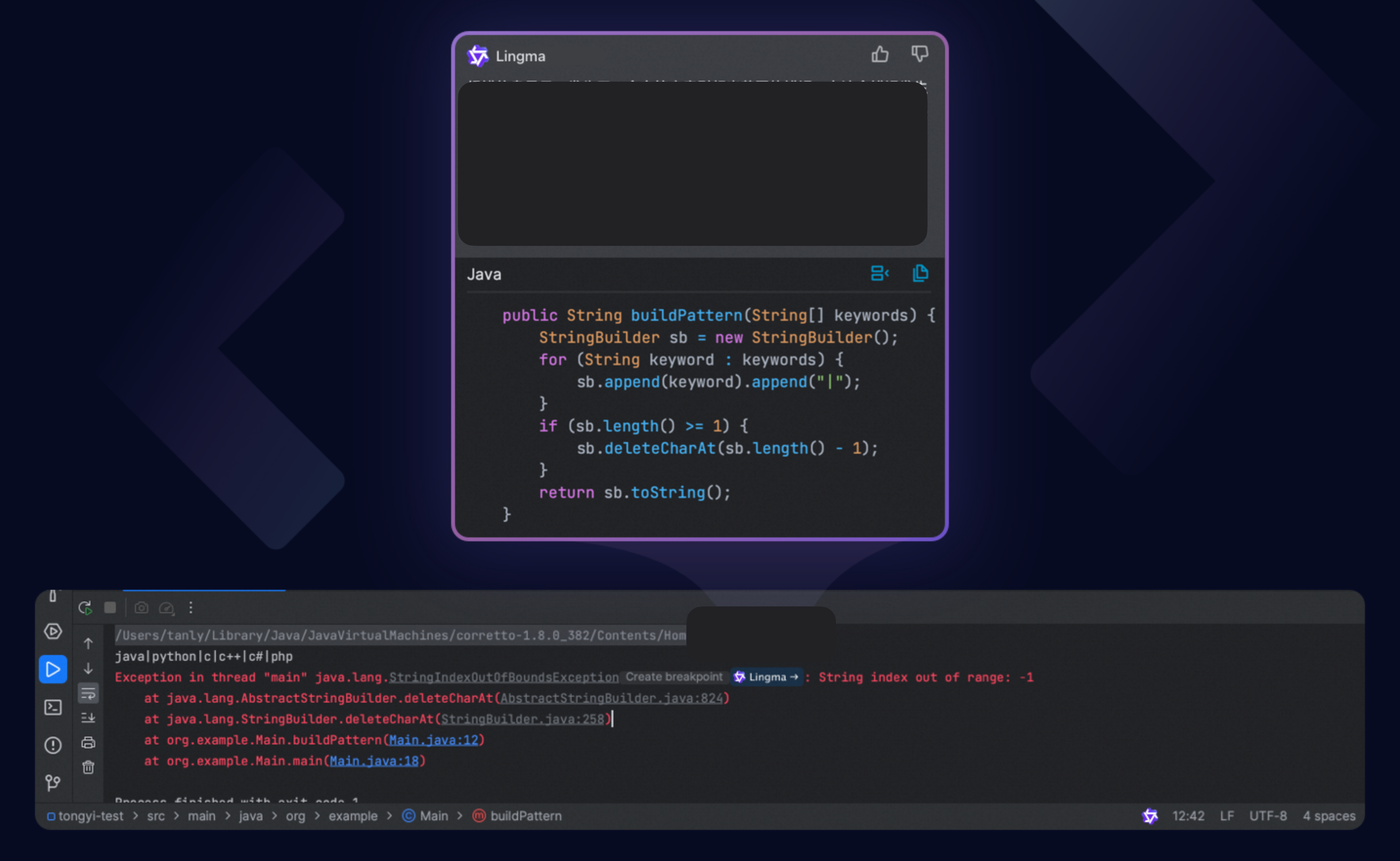
If an exception occurs while running code in IntelliJ IDEA, click the Qoder CN icon in the Run tool window. Qoder CN provides troubleshooting suggestions based on the code context and error messages.
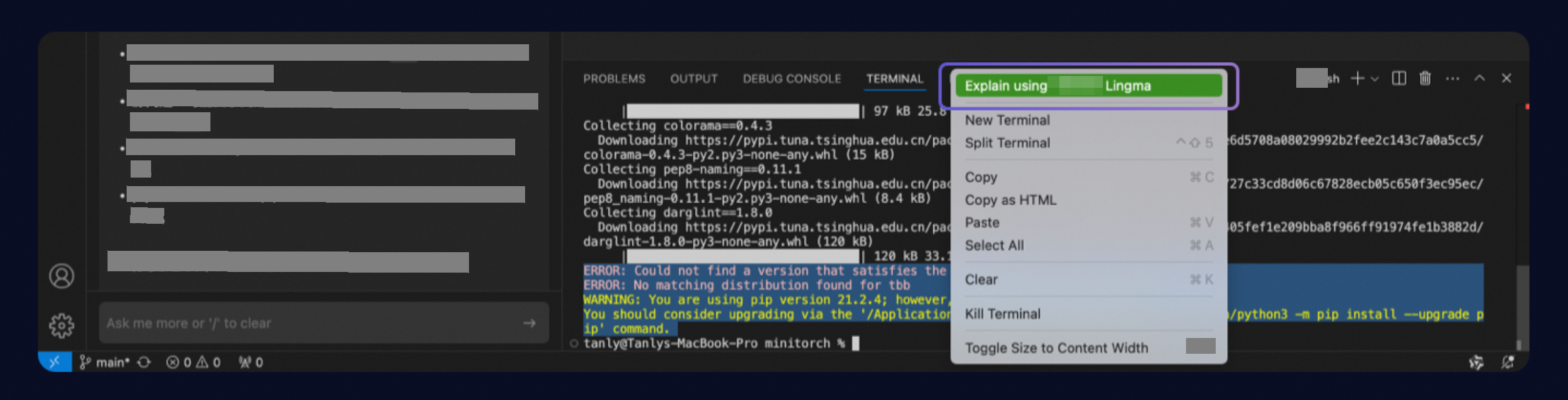
Troubleshooting (VS Code)
If an error occurs after compiling or running code in the VS Code terminal, right-click the message and select Explain using Qoder CN. Qoder CN explains the error and suggests fixes.