Manage default commands and create custom commands for your organization.
Extension management is supported for the Visual Studio and JetBrains IDE plug-ins only. Qoder CN IDE is not supported.
|
Supported edition |
Enterprise Dedicated Edition |
For Enterprise Dedicated Edition, Qoder CN admins and global admins can manage commands and control access in Extension of the Qoder CN console. Authorized developers with command access can type / to invoke these commands.
-
Make sure Qoder CN is updated to version 1.4.0 or later.
-
Changes take 5–10 minutes to take effect after you enable or modify a command.
Manage commands
View commands
Qoder CN admins and global admins can view default and custom commands in the Extensions section of the console.

Click a command card to view its details, access control, and usage.
Create commands
To create a command, click Create Command in Extensions.
Step 1: Enter basic information

-
Name: 1–64 characters. Supports Chinese, English, and numbers.
-
Name: 1–64 characters. Supports letters, numbers, underscores, and spaces. Displayed to developers when they type
/in Qoder CN. Use a clear, consistent naming format. -
Description: Explain the command's purpose. Maximum 200 characters.
-
Icon: Select an icon and color for the command.
-
Access control:
-
Public: Members authorized to access Qoder CN
-
Private: Members authorized to access the commands
-
Step 2: Configure command details

-
Prompt: Up to 5,000 characters. Define the system identity and requirements.
-
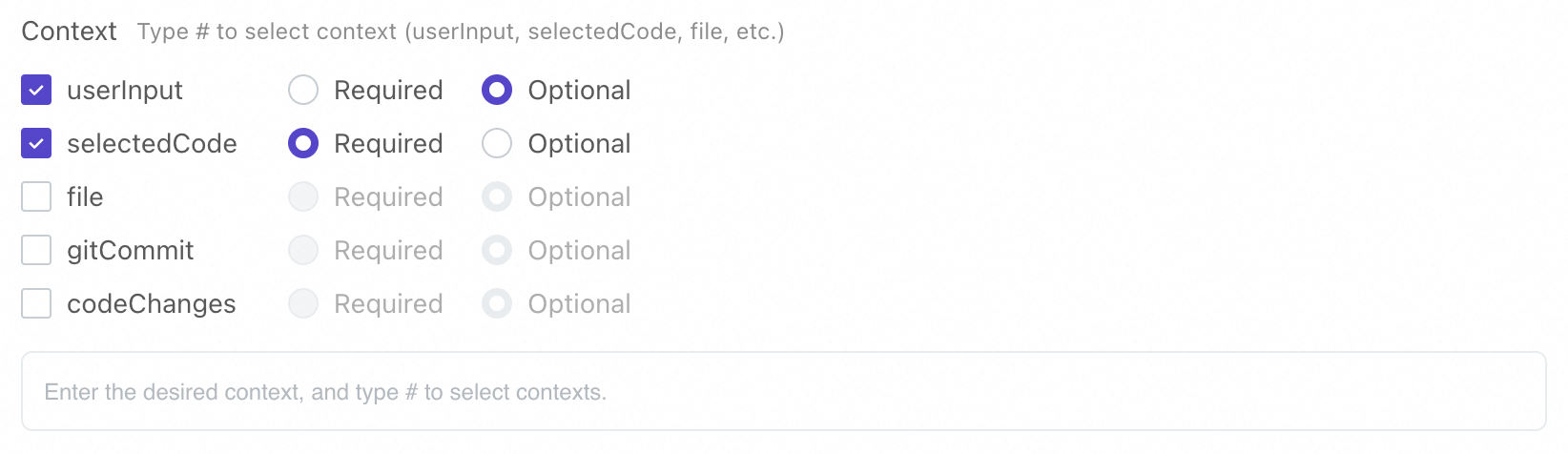
Context: Select contexts such as
#userInputand#selectedCode. Developers can access these by typing#in Qoder CN. -
Chat History: When enabled, the command includes chat history as context.
Manage access control
Manage access control on the command details page.
-
For a public command, click View under Access Control to see authorized developers.

-
For a private command, click View under Access Control to add or remove authorized developers.

Enable or disable commands
-
Enable commands in the console so developers can invoke them with
/in Qoder CN. -
Changes take 5–10 minutes to take effect. Once active, developers can use commands in Qoder CN
Test the command before rolling it out to all users:
-
Change the command access to Private.
-
Add only testers to the list.
-
Turn on the switch to enable the command.
-
Testers can then test the command in the Qoder CN.
After testing, configure access control as needed.

To disable a command, turn off its switch. The command no longer appears in the / command list.
Modify commands
On the command details page, click Modify in the upper-right corner to edit the command.
Delete commands
To delete a command, click Delete in the upper-right corner. This action is irreversible.
Use commands
Developers with access can invoke commands by typing / in Qoder CN's chat box.

Examples
Command configuration
The following table lists the details of a command.
|
Command name |
API reference generation |
|
Icon |
Any icon |
|
Description |
The command generates API references after API development is complete. |
|
Access control |
Set the access control based on your business requirements. |
|
Prompt |
|
|
Context configuration |
Generate an API reference in Markdown format based on |