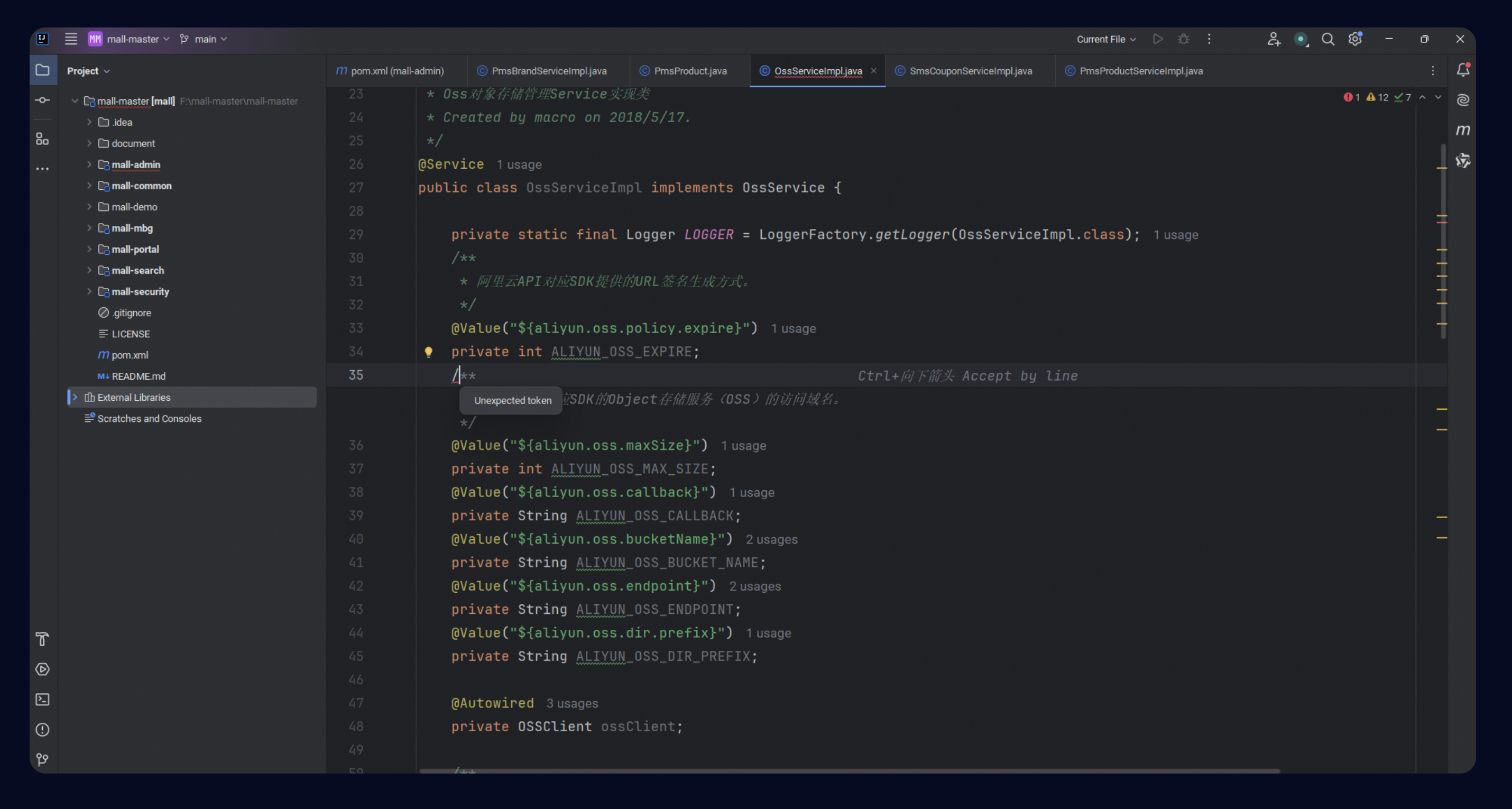
Next Edit Suggestion (NES) dynamically predicts your next code change based on full code context, recent edits, and cursor position. Press Tab to apply the suggested change.
NES is available only in JetBrains IDEs and Qoder CN IDE. Upgrade Qoder CN to v2.5.4 or later in JetBrains, or follow the installation guide.
Enable Next Edit Suggestion
JetBrains IDE
-
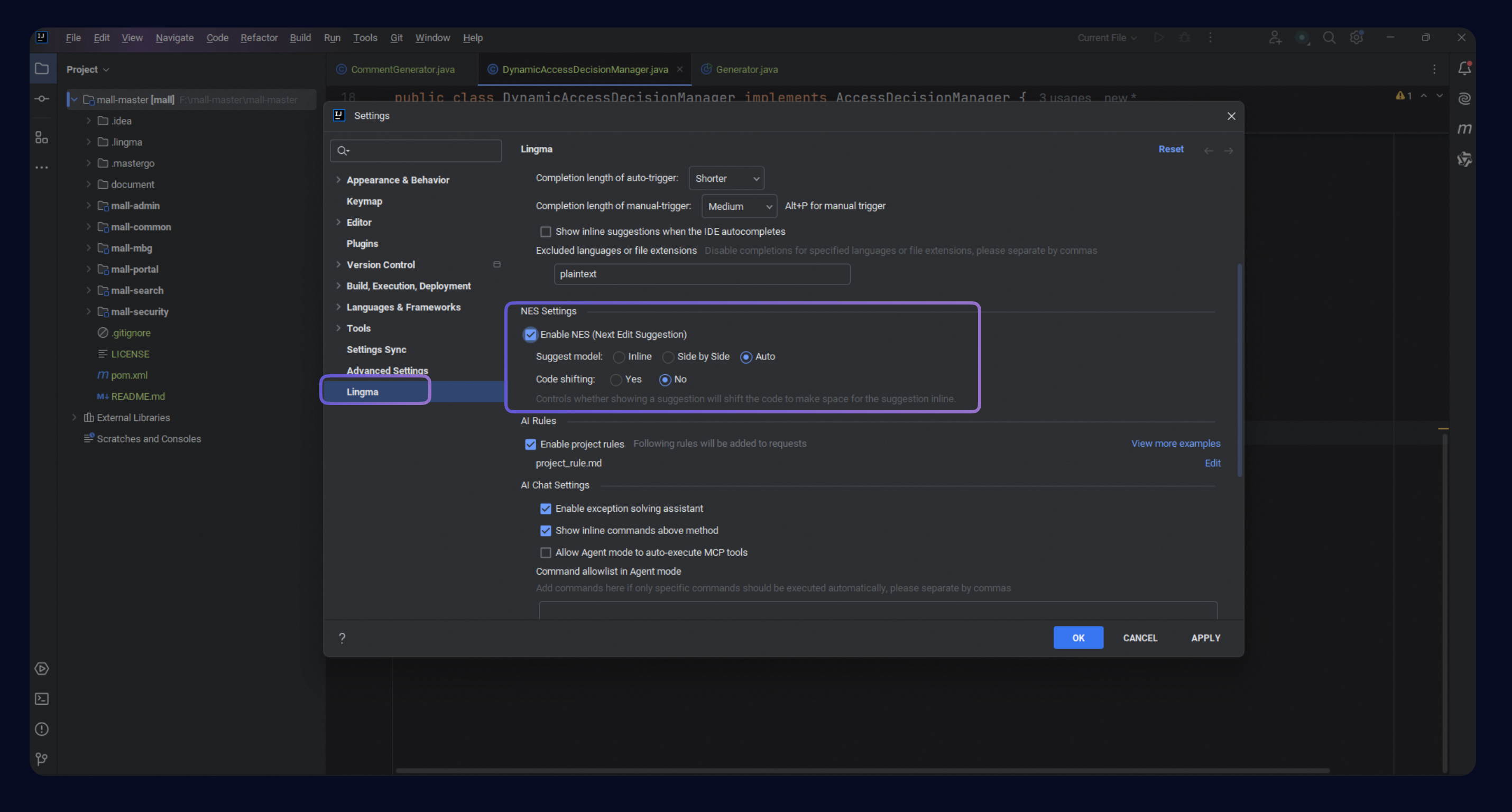
Go to Settings > Qoder CN. Under NES Settings, select Enable NES (Next Edit Suggestion). This feature is disabled by default. When enabled, suggestion mode defaults to auto and code shifting defaults to No.
-
Three suggestion modes are available: inline, side by side, and auto. Code shifting applies only in inline and auto modes, and controls whether existing code shifts to accommodate suggestions.
Qoder CN IDE
In the upper-right corner of Qoder CN IDE, click the user icon or use the keyboard shortcut (
⌘ ⇧ , on macOS or Ctrl shift , on Windows), select Settings, and enable Next Edit Suggestion (NES).
Qoder CN IDE supports only auto mode, which automatically switches between inline and side-by-side display based on context.
-
auto (default): Dynamically switches between inline and side by side. Uses inline when the combined pixel width of the change and suggestion exceeds the visible editor area; otherwise uses side by side.
-
inline: Displays suggestions directly within your code. Whether existing code shifts or the suggestion appears as an overlay depends on the code shifting setting.
Action
Description
Effect
Deletion
Single or multiple inline deletions. A word, characters within a word, or consecutive words are treated as a single deletion.

Delete single or multiple lines.

Modification
A single inline modification (word, characters, or consecutive words) is displayed as a word-level or phrase-level change.

Modification within a single line is displayed as an inline, character-level diff.
-
With code shifting (creates space)

-
Without code shifting (displays as an overlay)
Modifications across multiple consecutive lines are displayed as an inline, character-level diff.
-
With code shifting (creates space)
-
Without code shifting (displays as an overlay)
Addition
Add a single line.
-
With code shifting (creates space)
-
Without code shifting (displays as an overlay)
Add multiple consecutive lines.
-
With code shifting (creates space)
-
Without code shifting (displays as an overlay)
-
-
side by side: Displays suggestions in a diff view alongside your code.
Action
Description
Effect
Deletion
Single or multiple inline deletions. A word, characters within a word, or consecutive words are treated as a single deletion.
Delete single or multiple lines.
Modification
A single inline modification (word, characters, or consecutive words) is displayed as a word-level or phrase-level change.
Single or multi-line modifications.
Addition
Add single or multiple lines. The suggestion appears at the target line number, with an arrow positioned between the previous and target lines.










Use cases
-
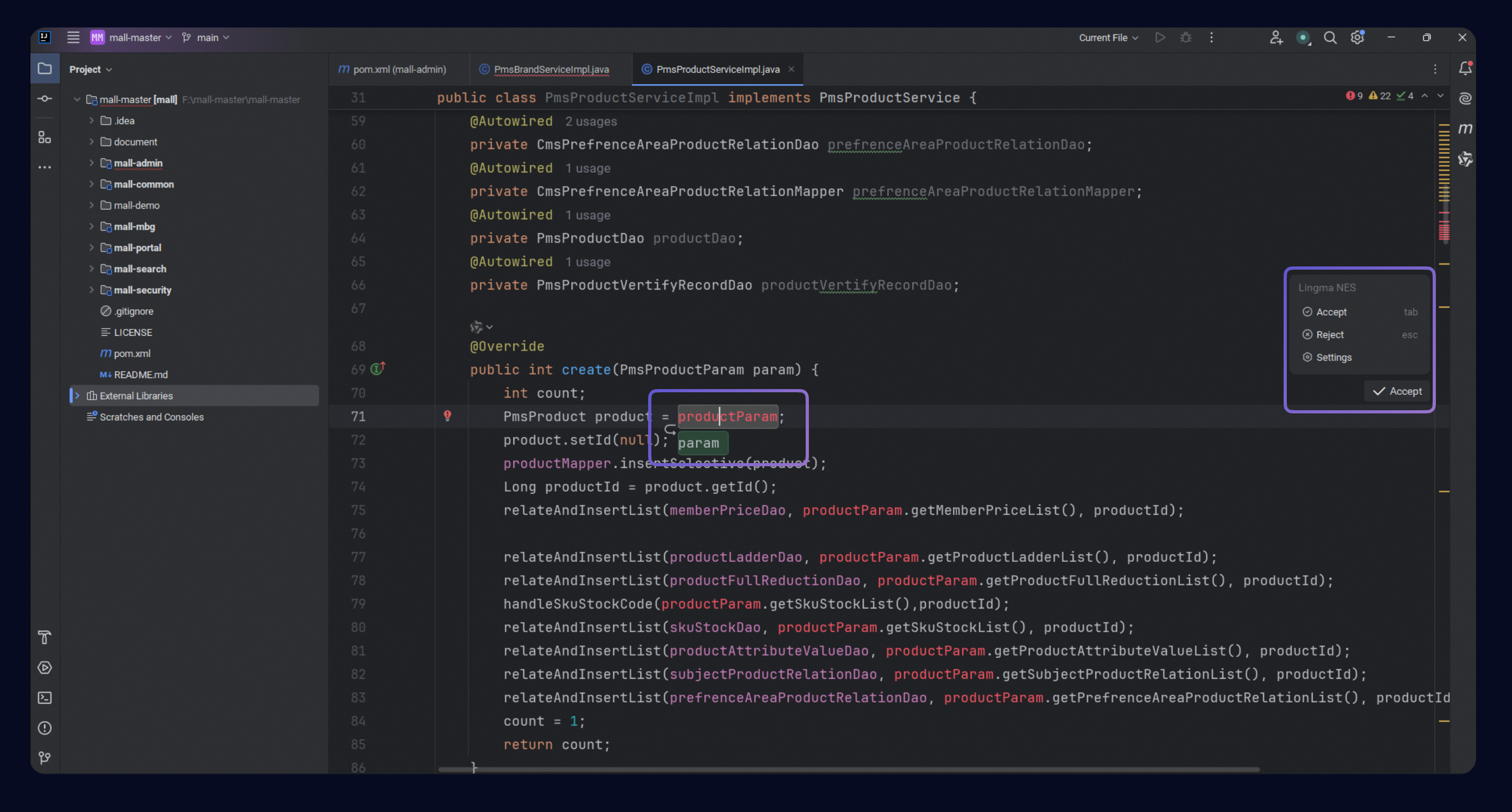
Interact with suggestions: Hover over the accept button to open the Qoder CN NES menu, then click accept or reject. You can also press
Tabto accept orEscto reject. Click Settings to adjust preferences. -
Navigate to out-of-view suggestions in the same file: If the next suggestion is outside the current viewport, a
button appears. Click it or press Tabto jump to the suggestion. -
Navigate to suggestions in other files: If the next suggestion is in a different file, a
button appears. Click it or press Tabto open that file and jump to the suggestion.
 button appears. Click it or press
  button appears. Click it or press
 Common NES use cases in JetBrains IDEs:
Rename
When you rename a parameter, NES suggests updating all related occurrences in the current context.
Refactor
NES suggests optimizations and refactoring for existing code within a function.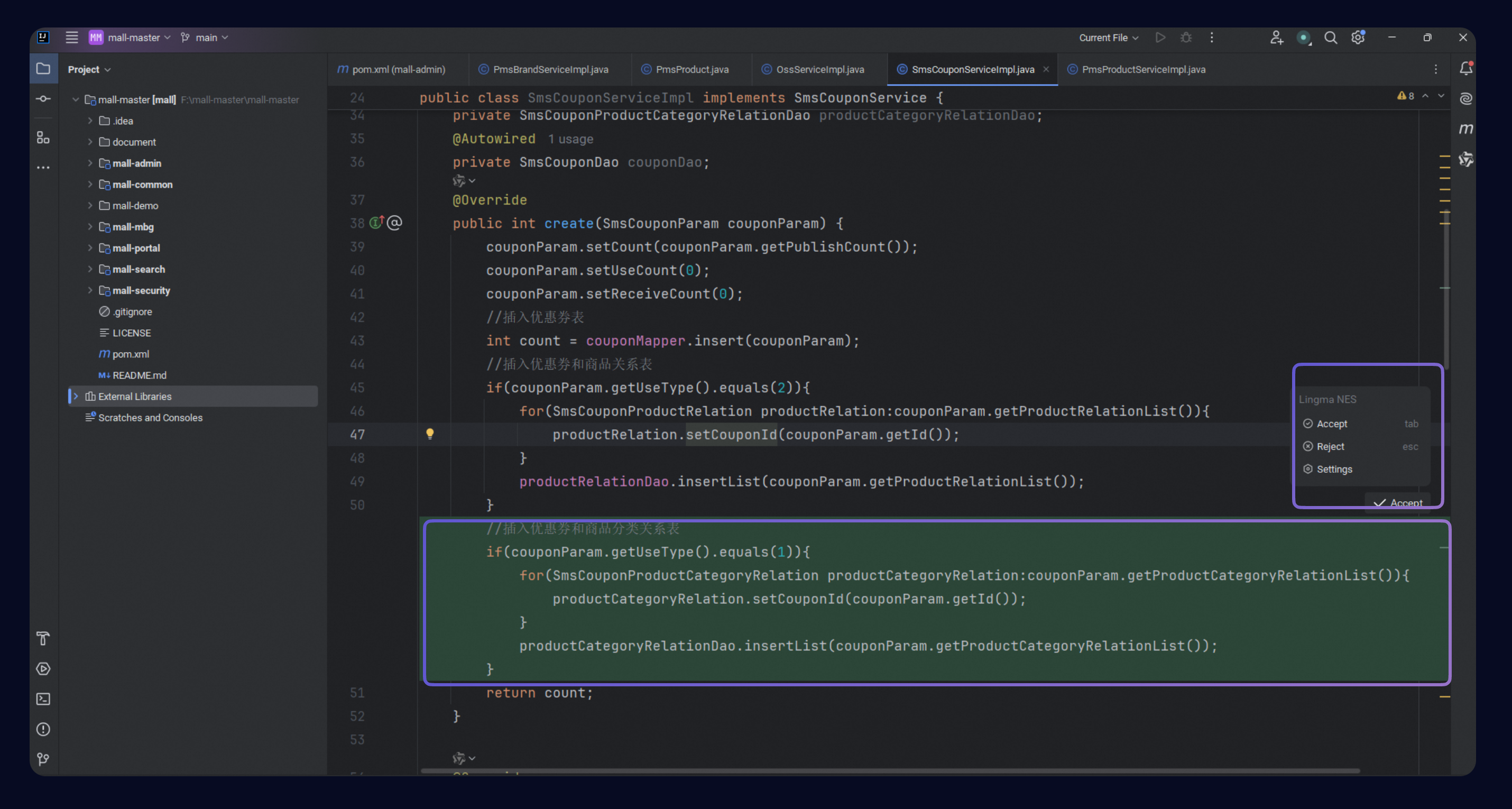
Add variables, fields, parameters, or comments
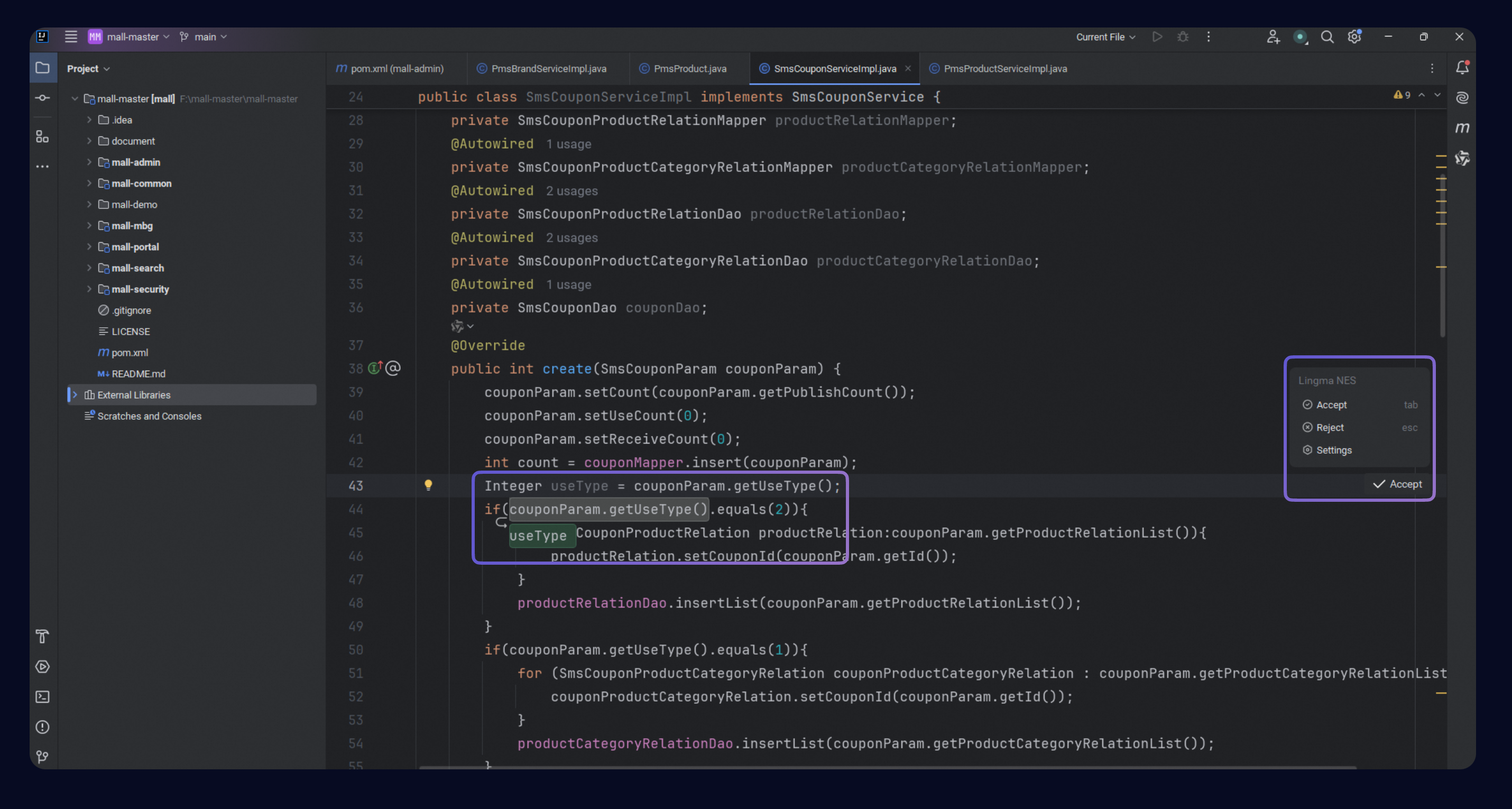
Add a variable
When you add a variable inside a code block, NES suggests updates to subsequent code that accesses that variable.
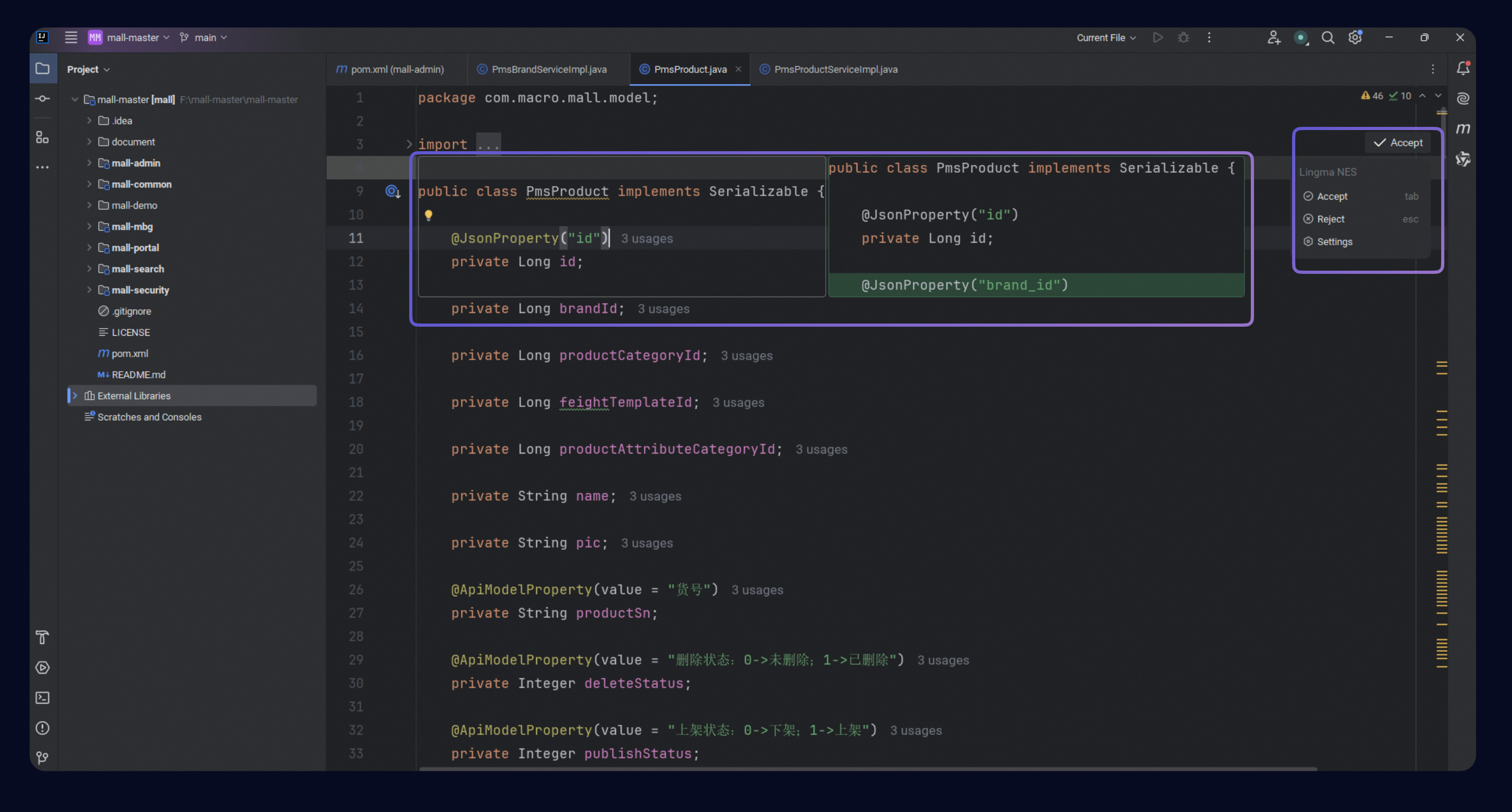
Add a field
After adding an annotation to a field, NES suggests adding the same annotation to other relevant fields.
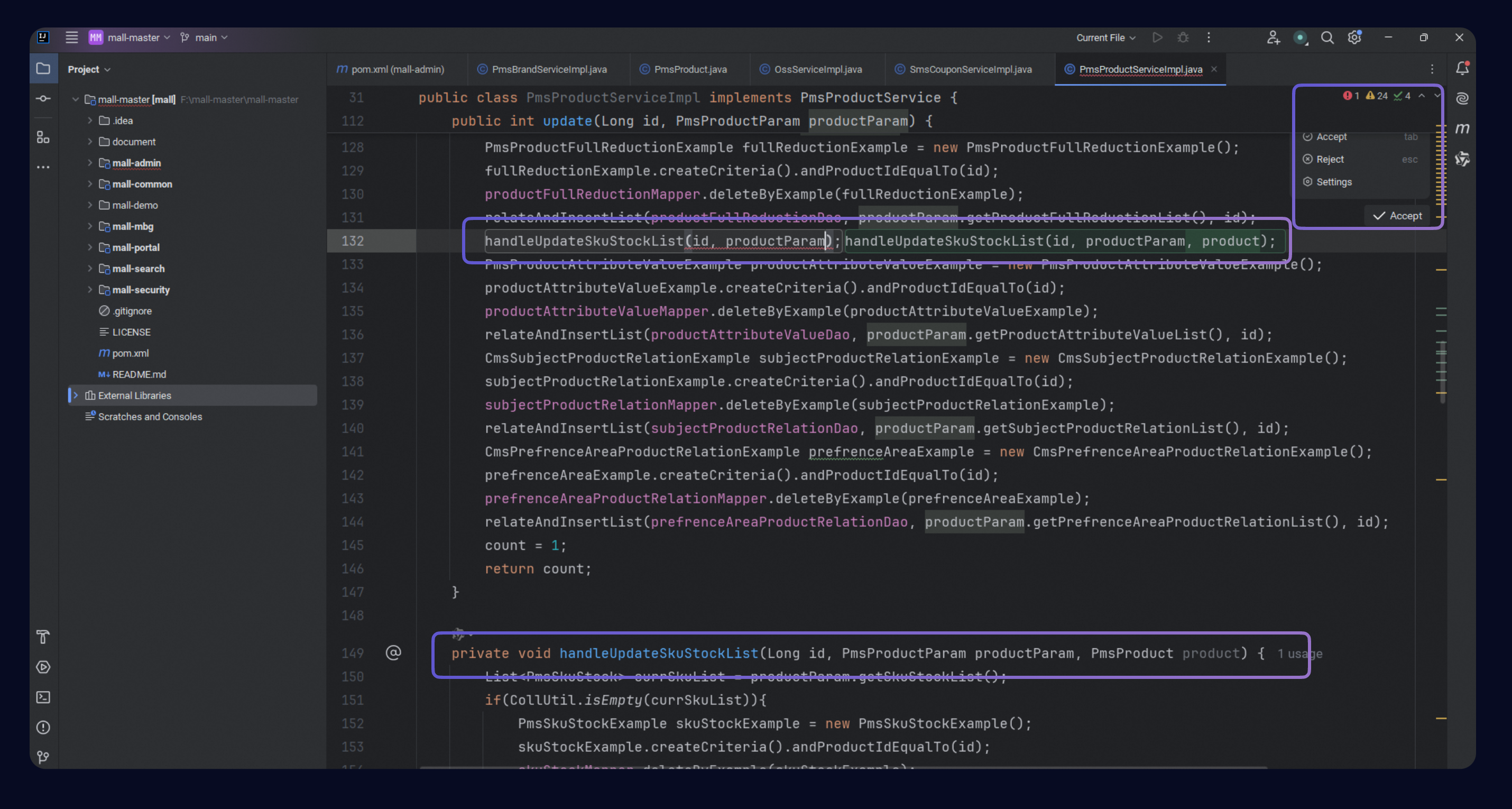
Add a parameter
When you add a parameter to a function, NES suggests adding it to all call sites for that function.
Add a comment
Type / at the target location to trigger a comment suggestion. Press Ctrl + ↓ to accept the current inline suggestion.