General mode
Media Production Studio in general mode provides multi-stream mixing, graphic packaging, and live subtitles for a wide range of live streaming scenarios. This guide walks you through setting up and producing a live stream in general mode.
Prerequisites
You have activated Media Production Studio. For more information, see Activate Media Production Studio.
You have added a domain name for production and configured its CNAME record. For more information, see Add an accelerated domain name and Configure a CNAME record for live streaming.
(Optional) To select a video source from the ApsaraVideo Live console, add a live streaming domain name and configure a CNAME record for it. For more information, see Add a live streaming domain name and Configure a CNAME record for live streaming.
(Optional) To select a video source from the media library, add an ApsaraVideo VOD domain name and configure a CNAME record for it. For more information, see Add an ApsaraVideo VOD domain name and Configure a CNAME record for ApsaraVideo VOD.
(Optional) To use the live recording feature, activate the storage service for recordings. For more information, see Record live streams to OSS.
You have read the API development guide. For more information, see Development guide.
Background
For a list of supported live centers, see Service regions. Support for additional centers will be added in the future.
The production service provides APIs for managing studios, input media sources, layouts, components, rundown lists, scenes, audio, channels, and standby resources. The following sections describe how to integrate general mode by using these APIs.
Workflow
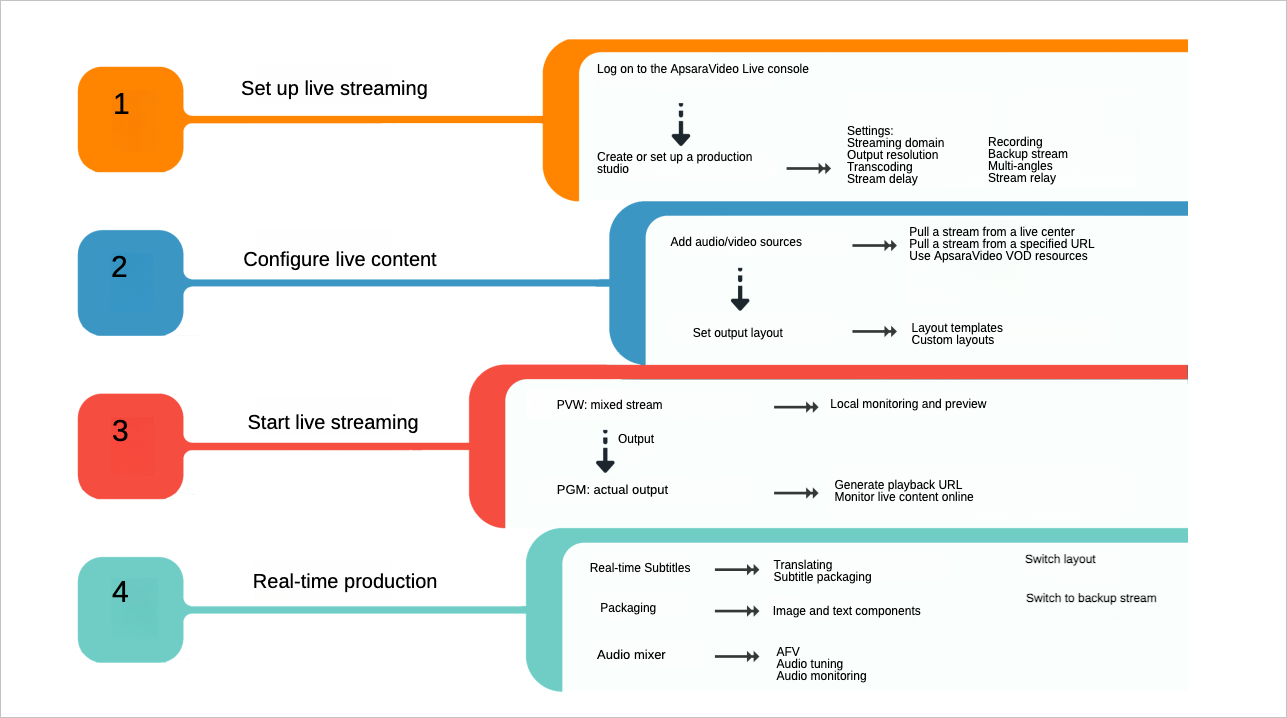
The production workflow in general mode includes the following stages:
Set up live streaming: Use the Media Production Studio console to configure settings for the streaming domain name, output quality, transcoding, and recording.
Configure the live stream: Add audio and video assets and set up an output layout for the added assets.
Start the live stream: When the stream starts, use PVW to preview the mixed output and use PGM to send the final output to your audience.
Produce in real time: During production, use features like live subtitles, graphic packaging, and the audio mixer to adjust the content and effects.
Tutorial video
Watch this video to learn how to get started quickly with general mode. For the video tutorial, see Media Production Studio quick start.
Console
Live stream settings
Log on to the ApsaraVideo Live console. In the left-side navigation pane, choose .
Find the production studio you created and click Open in the Actions column.
When you open a newly created production studio, the Studio Settings panel appears automatically. After you configure the settings, click OK.
If this is not your first time, you can also click Live Stream Settings in the upper-right corner of the page to open the panel and configure the studio.
In the Studio Settings panel, enter a Name for the studio, and select a Live Center, such as China (Shanghai), and a resource group.
Parameter
Description
Domain Name
In the Domain Name drop-down list, select a domain name that has a configured CNAME record.
Output
From the Output drop-down list, select the original resolution for the live stream. Valid values: Low Definition (360p, 640×360), Standard Definition (480p, 854×480), High Definition (720p, 1280×720), Ultra High Definition 1080p (1920 × 1080), Portrait Low Definition (360P 360×640), Portrait Standard Definition (480P 480×854), Portrait High Definition (720P 720×1280), and Portrait Ultra High Definition 1080p (1080 × 1920).
Transcoding Specifications
Low Definition (360p, 640×360)
Standard Definition (480p, 854×480)
High Definition (720p, 1280×720)
Ultra High Definition 1080p (1920 × 1080)
After configuring the output, you can set transcoding specifications for the live stream. Select the checkboxes for the desired transcoding specifications, such as Low Definition (360p, 640×360), Standard Definition (480p, 854×480), High Definition (720p, 1280×720), or Ultra High Definition 1080p (1920 × 1080). You can select multiple specifications.
NoteYou can select multiple transcoding specifications, but their resolution cannot exceed the original stream's resolution. For example, if you select Low Definition, viewers can switch between Original Quality and Low Definition during playback.
Recording Settings
(Optional) Turn on the Recording Settings switch to enable recording.
You can choose automatic recording, which starts with the live stream, or manual recording, which lets you start and stop recording as needed.
Set the storage location for the live stream recordings.
NoteThe storage location must be in the same region as the Media Production Studio instance. Cross-region recording is not supported.
Select the storage formats for the recording files. You can select multiple formats.
Set the recording interval. For example, if you set it to 10 minutes, a new recording file is generated every 10 minutes.
Stream Delay
(Optional) Turn on the Stream Delay switch to set the delay for the output. The range is 15s–300s.
Standby Video
(Optional)
Live Stream: Choose Select from ApsaraVideo Live Console or Enter a live URL. to specify a standby video.
VOD Resource: Click Select and choose a VOD video from the list. This video will be used as a placeholder before the live stream starts or if the stream is interrupted.
ImportantAll assets from ApsaraVideo VOD (VOD sources, standby videos) must be in the same region as the Media Production Studio instance. Media Production Studio does not support selecting VOD videos from a different region. For example, if you are using Media Production Studio in China (Shanghai), your assets must also be stored in ApsaraVideo VOD in China (Shanghai).
Image: Click Select From Media Library or Local Upload to specify a standby image. Supported formats are JPG and PNG, with a maximum file size of 10 MB.
Multi-way Stream Relay
(Optional) Click Add URL to set the relay destination.
ImportantAfter you add or delete a relay URL, you must restart the PGM output for the changes to take effect.
Relaying to third-party platforms incurs additional stream relay fees. By default, you get three free relay URLs per domain name. Any additional URLs are charged. The billing standard is the same as that for live center stream relay. For more information, see Live center stream relay billing.
Live content
Click + Add Media File to open the Add Resource panel. Add live streams or VOD videos as your video sources.
Method
Description
Live Stream
Select Live Stream: Select a domain name to list its live streams. Then, choose an ingest URL to add to the studio.
Enter Streaming URL: Enter a valid streaming URL. RTMP, FLV, and RTS formats are supported.
VOD
Click Select, choose a video from the media library, and set the playback to Once or Loop.
(Optional) Set the playback start time. This setting is applied when you synchronize the asset to PGM.
Click OK to add the video.
NoteTo use a VOD asset from the VOD, you must first go to the ApsaraVideo VOD console, select More from the drop-down list, and then choose Use for Live Production. The asset is available in Media Production Studio only after it is uploaded and preprocessed. For more information about preprocessing rules and billing, see the ApsaraVideo VOD pricing page.
Image
Select From Media Library: Click Select Image and choose an image from the media library list.
Local Upload: Upload an image from your local machine. Supported formats are JPG and PNG, with a maximum file size of 10 MB. The uploaded image is stored in the ApsaraVideo VOD media library.
Local Stream Ingest
Ingest methods:
Screen Sharing: Share your screen. You can select an application window or your entire desktop as the input source.
Camera Streaming: Use your local camera as the input source.
Resolution: Select an appropriate resolution.
Set up the output screen layout.
Click +Layout. In the Add Layout pop-up window, select a Layout Type, such as single pane, side-by-side, top-and-bottom, or quad view. In the Set Video section, assign a video source to each screen area, such as A and B, and then click OK.
NoteThe video sources in a layout must be unique and cannot be empty.
After adding a layout, start the live stream and click the layout. This applies the selected Layout (such as side-by-side or picture-in-picture) to the PGM output.
Start live stream
Click Start Live Streaming. The PVW area displays the mixed content from the video sources.
ImportantBilling starts when you click Start Live Streaming and continues even if you close the web page. The Media Production Studio instance keeps running and incurring charges. To stop the service and billing, you must click Stop.
The PVW area is for previewing and adjusting the stream. This content is not visible to the audience. After previewing, you can click Synchronize to PGM to make the content live for viewers.
Click Synchronize to PGM to send the final live content to your audience.
Real-time production
While the stream is live, you can use the following features to adjust content and effects in real time.
Drag the Volume Slider up or down to adjust the program volume.
Audio Follows Video (selected): PVW only displays video without audio. When you select Audio Follows Video and click Synchronize to PGM, the audio from the PVW source is sent to the PGM output. Audio from other sources is muted by default. You can use the audio mixer to manage the audio output for all video sources.
Audio Follows Video (unselected): When switching from PVW to PGM, if Audio Follows Video is not selected, the audio from the PVW video source will not be sent to the PGM output.
Click the gear icon above a video source to access its settings.
Set subtitle styles and enable bilingual translation.
Live subtitles use real-time speech recognition to convert audio into on-screen text. The recognized text can also be translated in real time, and you can display the source language, the target language, or both.
Translation is supported between Chinese, English, Spanish, and Russian. Real-time translation makes content accessible to a global audience, which is especially useful for cross-border e-commerce and international events.
Click Live Subtitles to open the subtitle component window.
Set the component name, font style, size, position, video source, source language, and translation language. You can preview the effect in the left pane. After you complete the settings, click OK to save. In the Subtitle Component window, you can configure the following parameters: Name, Font, Size (including font color), Subtitle Background (on/off switch, color, and opacity), Size Adjustment, Subtitle Delay (in milliseconds), Position Adjustment (supports fine-tuning up, down, left, and right, and preset positions at the top, middle, and bottom of the screen), and Video Source. The left preview pane shows a real-time preview of the subtitle style. When you are finished, click OK.
Insert effects like watermarks, logos, or text banners into the live stream.
Add an image
Click Image to open the image component window.
Click Upload Image and select an image file from your local machine. After the upload, set the component name, scale (size), and position. A preview is available on the left. Click OK to save.
Add text
Click Text to open the text component window.
Enter your text in the input box, then set the component name, font style, size, display mode, and position. A preview is available on the left. Click OK to save.
Change the video stream layout. You can create up to 20 layouts.
Click Switch to Standby. If a stream interruption or other issue occurs, you can switch to the standby source in real time to ensure the live broadcast continues smoothly.
API
To integrate and use Media Production Studio in general mode, call the following API operations in this order:
Create and configure the studio in general mode. For more information, see CreateCaster and SetCasterConfig.
Add video resources. For more information, see AddCasterVideoResource.
Add a studio layout. For more information, see AddCasterLayout.
(Optional) Add a studio component. For more information, see AddCasterComponent.
Start the studio. For more information, see StartCaster.
Set the playback scene. For more information, see SetCasterSceneConfig.
Stop the studio. For more information, see StopCaster.
Web SDK
You can also integrate with the Web SDK. Integrate the Live Producer Web SDK.