Image Translation Online Editing Platform User Guide

Updated at:

The Image Translation Online Editing Platform is a Software as a Service (SaaS) offering from Alibaba Cloud Image Translation. On the Alibaba Cloud Image Translation product page, you can activate the service to use your free quota or purchase a resource plan. You can access the online editing platform from the Image Translation product card in the Machine Translation console.

Purchase flow for the online editing platform

1. Activate now

立即开通.jpeg

  • Read and agree to the Image Translation Exclusive Terms. Then, click Activate Now.

image

2. Go to the console

After the service is activated, click Management Console to open the console.

开通完成页面.jpeg

3. Purchase a resource plan

  • In the console, click Purchase Resource Plan on the Image Translation product card. Purchase a plan as needed.

    Note
    • If you do not purchase a resource plan, your account will switch to pay-as-you-go billing after your free quota is used up.

    • You can purchase resource plans in the console or directly on the online translation platform.

image

  • Select the Resource Plan Type, Resource Plan Specification, and Subscription Duration as needed. Click Buy Now.

image

  • Confirm the order details. Read and agree to the Image Translation Resource Plan Exclusive Terms. Then, click Go to Payment.

image

  • After the payment is successful, a success page is displayed. Click Management Console to open the console.

image

  • When you open the console, the Third-party Application Authorization dialog box is displayed. Click the Authorize button to grant authorization.

image

image

Online editing platform user guide

1. Select an image source and upload images

The platform supports PNG, JPEG, JPG, and BMP formats. Images must be 5 MB or smaller, with dimensions no larger than 4000 × 4000 pixels.

image.png

2. Upload local images

Click upload or paste local images directly. You can upload up to 50 images at a time.

上传本地图片1.jpeg

上传本地图片2.jpeg

3. Upload online images

Enter image URLs. You can upload up to 50 URLs at a time. Enter each URL on a new line.

上传在线图片.jpeg

4. Append or re-upload images

  • You cannot mix images from different sources for translation. Translate only images from the same source at one time.

  • To upload local images by pasting, use Chrome 91 or later. Other browsers or older versions of Chrome may be incompatible.

Append local images

Note

Click upload or paste local images to append them. The total number of images for a single translation cannot exceed 50.

追加本地图片.jpeg

Append online images

Note

Enter image URLs or paste local images to append them. The total number of images for a single translation cannot exceed 50.

追加本地图片.jpeg

5. Select the domain, source language, and target language

Note

For details about supported language pairs, see Image Translation Product Introduction.

Select domain

选择领域

When you select the E-commerce domain, you can choose whether to translate the text on the main product entity.

忽略商品主体

Select source language

源语种

Select target language

目标语种

6. Preview images or enter online edit mode

Enter preview mode

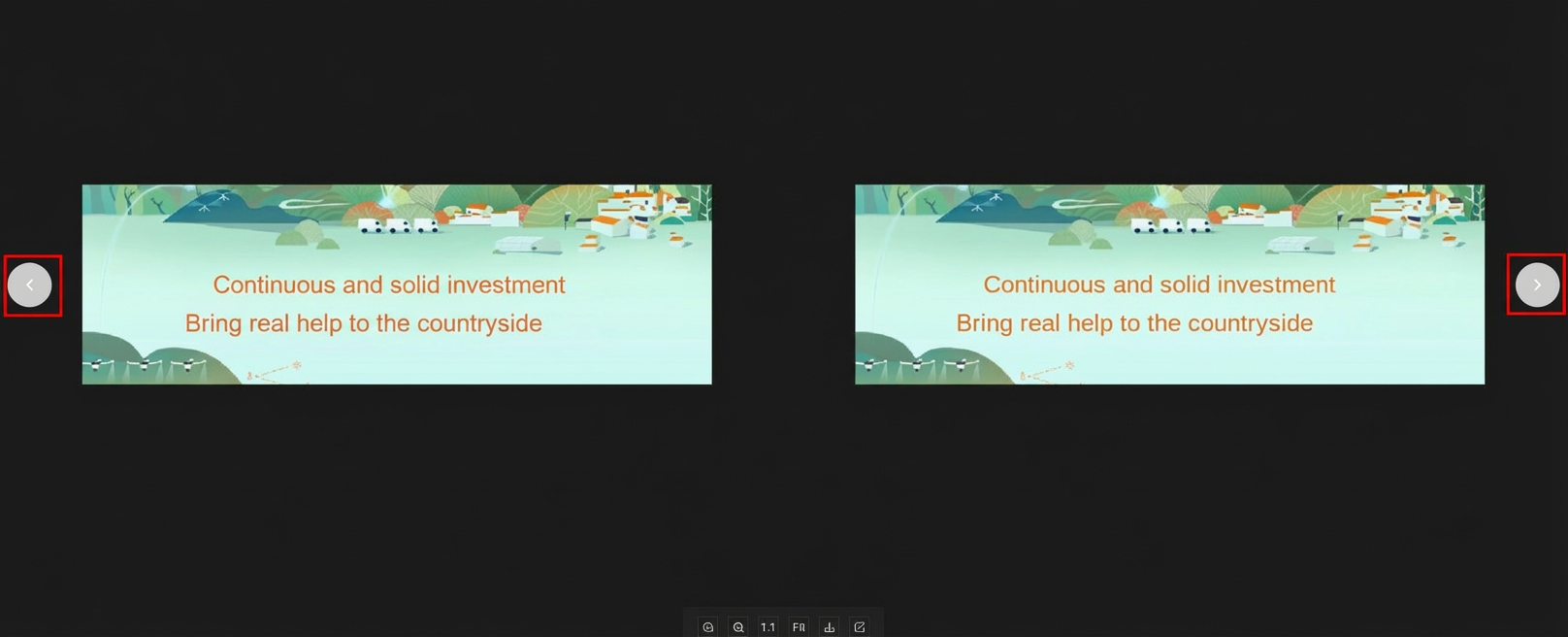
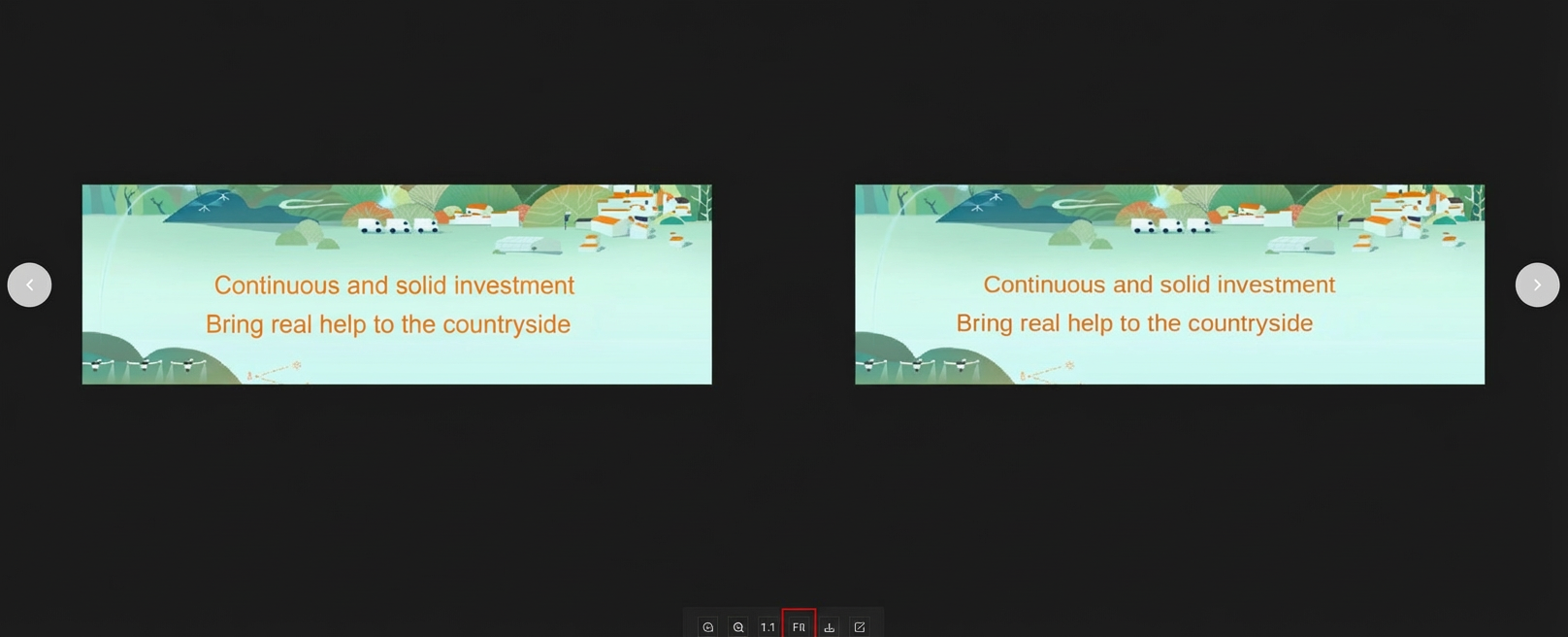
Click the image you want to preview to enter preview mode.

预览图片1.jpeg

Switch preview images

切换预览图片.jpeg

Edit translated image

编辑图片.jpeg

7. Edit the translated image

The editor is divided into the image list area, layer list area, main function area, translated image editing area, and layer information area.

Image list area

图片列表区.jpeg

Collapse the image list

收起图片列表区.jpeg

Layer list area

图层列表区.jpeg

  • Hide, lock, or delete layers

    隐藏图层.jpeg

  • Collapse the layer list

    收起图层列表.jpeg

Main function area

主功能区.jpeg

Preview the current image.

预览当前图片.jpeg

Translated image editing area

译图编辑区.jpeg

A floating window with common functions. This window can be collapsed.

悬浮窗.jpeg

Layer information area

图层信息区.jpeg

Collapse the layer information area.

收起图层信息区.jpeg

Editing operations

Edit text

  • You can modify the source and translated text. If you modify the source text, the translation is automatically updated after you move the mouse out of the text box. You can change the font, font size, color, bold, italic, underline, strikethrough, sentence case, uppercase, and lowercase. You can also align and distribute text layers as needed.

  • Modify the source and translated text. If you modify the source text and move the mouse out of the text box, the text is re-translated.

    编辑译文.jpeg

  • You can upload open source or authorized fonts. This feature is available only to users of the online translation platform.

    上传字体.jpeg

  • The default line height is automatic. You can also enter a specific line height as needed. To restore the automatic line height, enter `auto`. To make the line height the same as the font size, click the single line spacing button.

    单倍行距.jpeg

  • Modify the text background fill mode.

    背景填充.jpeg

  • Modify the layer order.

    图层顺序.jpeg

  • Select the alignment and distribution for layers.

    对齐方式.jpeg

Edit background

You can modify the background fill mode. Options include smart inpainting, no fill, and color fill. You can align and distribute background layers as needed.

Modify the background fill mode.

背景背景填充.jpeg

Modify the layer order.

背景图层顺序.jpeg

Select the alignment and distribution for layers.

背景对齐方式.jpeg

Restore

Select the tool, frame the content to restore, and click Confirm Restore. The content reverts to its state before translation.

复原.jpeg

Translate selected text (You can use this feature up to 20 times per image)

Select the tool, frame the content to translate, and click Translate Text.

取词翻译.jpeg

One-click Replace

Select the tool to replace proper nouns and brand names with one click. You can choose whether to ignore case.

一键替换.jpeg

One-click Image Cutout

Select the tool. Based on the image requirements of the publishing platform, select a background color. Then, use the one-click cutout feature to generate the final image.

一键抠图.jpeg

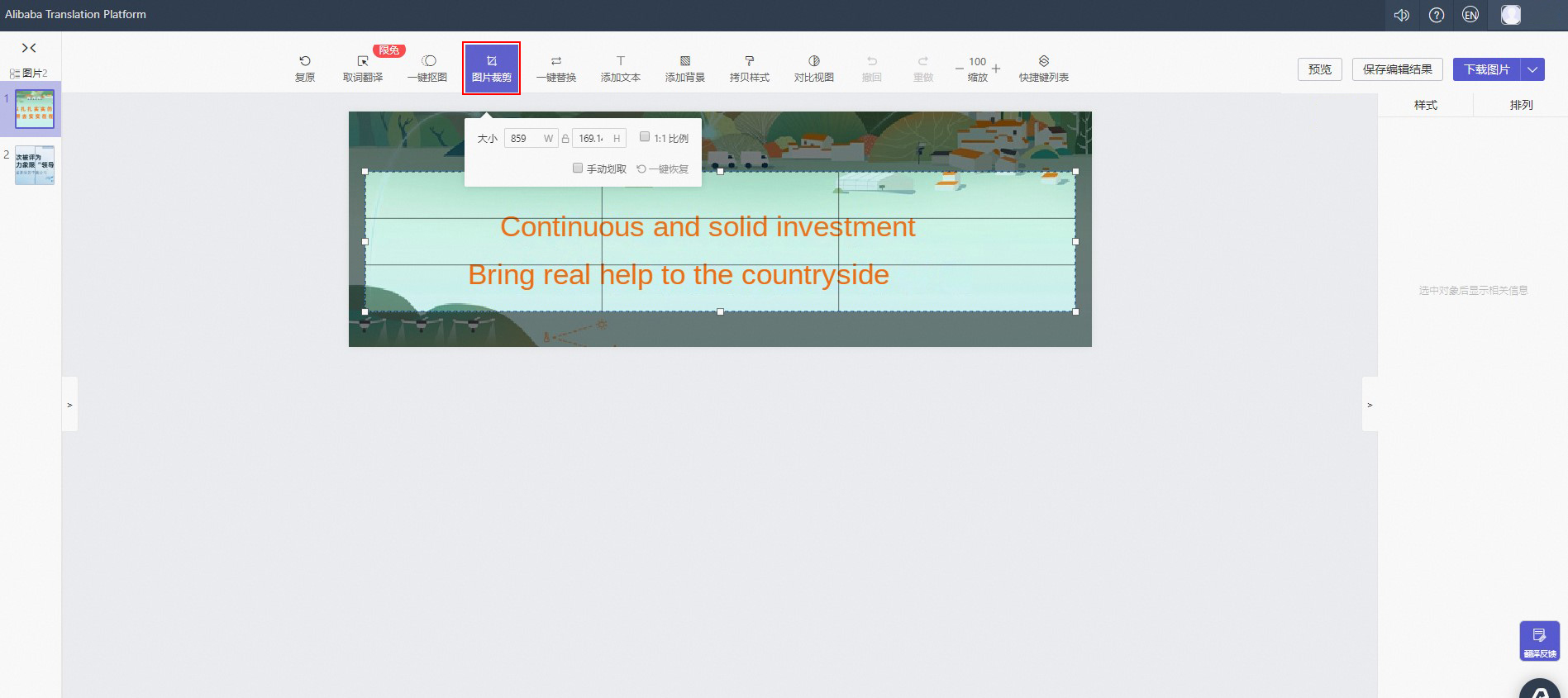
Image Crop

Select the tool. Based on the image requirements of the publishing platform, crop the image to the required dimensions.

图片裁剪.jpeg

Comparison View

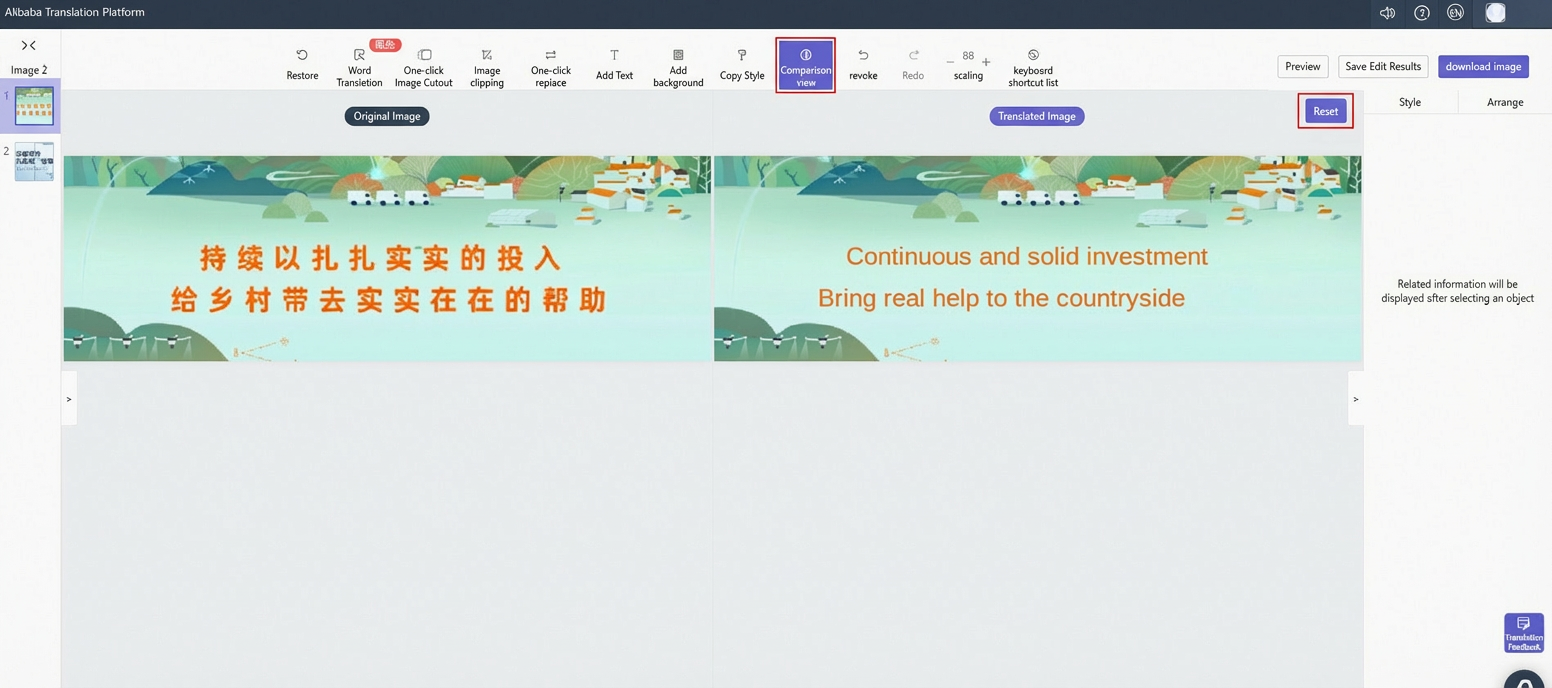
Select the tool to enter a mode where you can compare the translated image with the original. Use the keyboard shortcut: Space + mouse drag to drag the translated image. After dragging, click the reset button to return it to its original position.

对比视图.jpeg

Download images

You can download the current image or all images as needed.

下载图片

Keyboard shortcut list

Translated image editing area

Feature

Keyboard Shortcut

Restore

Ctrl + Shift + R

Translate selected text

Ctrl + Shift + I

Add text

T

Add background

R

Copy style

Ctrl + Shift + C

Comparison view

C

Undo

Ctrl + Z

Redo

Ctrl + Shift + Z

Zoom in

Ctrl + [+]

Zoom out

Ctrl + [-]

Save

Ctrl + S

Download image

Ctrl + Shift + S

Select all layers

Ctrl + A

Fine-tuning layers

↑↓←→

Delete selected layer

Ctrl + Backspace

Move layer

Shift + move

Increase/Decrease font size

Ctrl + Shift +</>

Select text

Alt + select

Select background

Ctrl + select

One-click Image Cutout

Ctrl + M

Image Crop

Shift + S

One-click Replace

Ctrl + Shift + F

Drag translated image

Space + mouse drag

Layer list area

Feature

Keyboard Shortcut

Select multiple layers

Ctrl + left-click

Contiguous selection of layers

Shift + left-click

Previous/Next page

Alt + Scroll (The mouse pointer must be in the layer list area)

8. History and batch download

View history

历史记录

Download images

下载图片.jpeg

Edit images

历史记录编辑图片.jpeg