Manage projects
You can manage the projects assigned to you, including viewing project lists and details.
Access the project management page
- Log in to the Alibaba Cloud Marketplace Delivery Center.
- In the left navigation pane, select
 > My Projects.
This opens the My Projects page.
> My Projects.
This opens the My Projects page.
View the project list
On the My Projects page, projects are organized by status into three tabs: All Projects, Pending Projects, and Processed Projects.
View project details
While a project is in progress, you can view its progress, business information, operator messages, process logs, and project notes. You can also manage files uploaded during the project.
- On the My Projects page, find the target project.
- In the Actions column, click Details.
- On the Project Details page, view the project details.
- View project progress, operator information, and business information
- On the left, you can see all the workflow nodes of the project and the current node. Click a node to expand it and view its details.
- On the right, you can specify the contact information and business information for the node's operator.
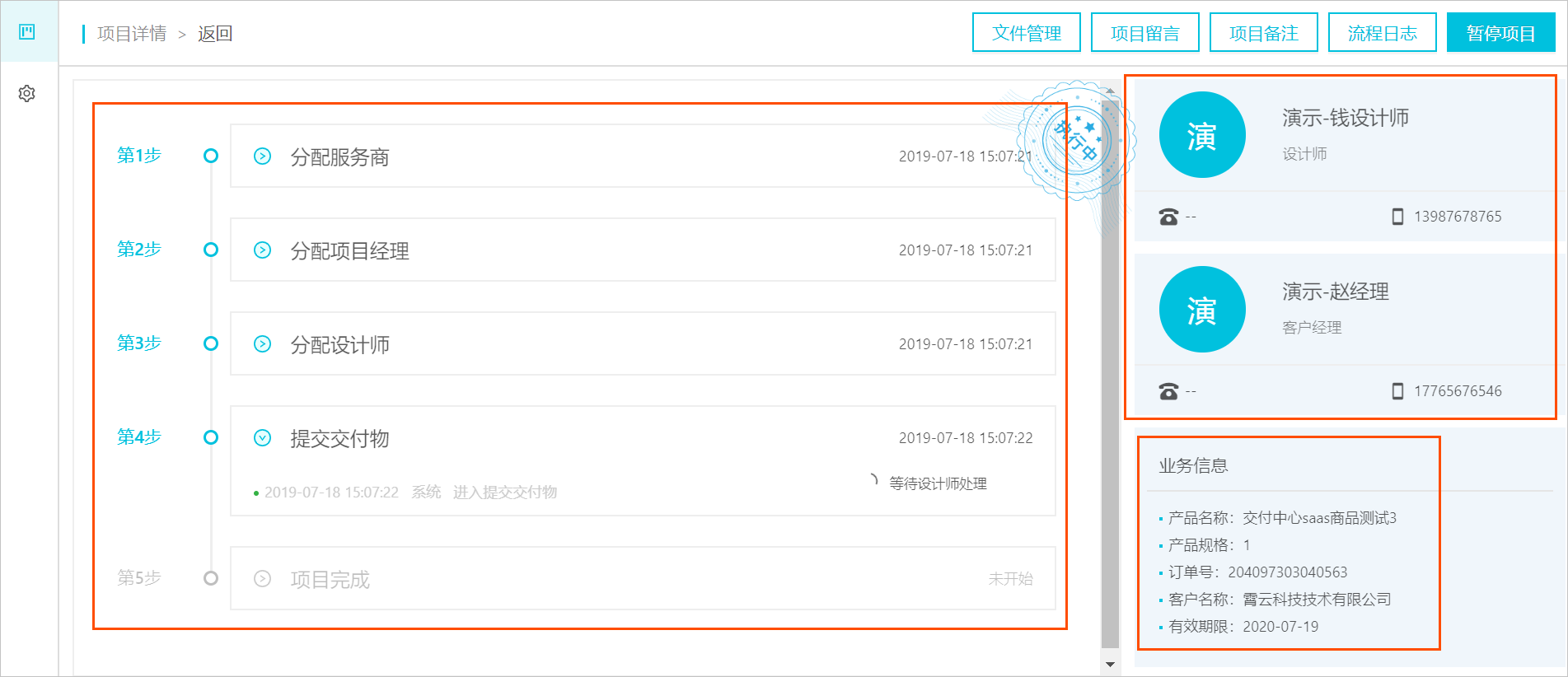
- View operator messages
Click Project Message in the upper-right corner to view messages from operators for each project node.
As a service provider, you can add messages when you are the operator for the current node.
- View project notes
Click Project Notes in the upper-right corner to view notes added by the operator during the project. These notes are not visible to the customer.
As a service provider, you can add notes when you are the operator for the current node.
- View the process log
Click Process Logs in the upper-right corner to view the operational log for the project. If the operator changes during the project, the change notes appear in the process log.
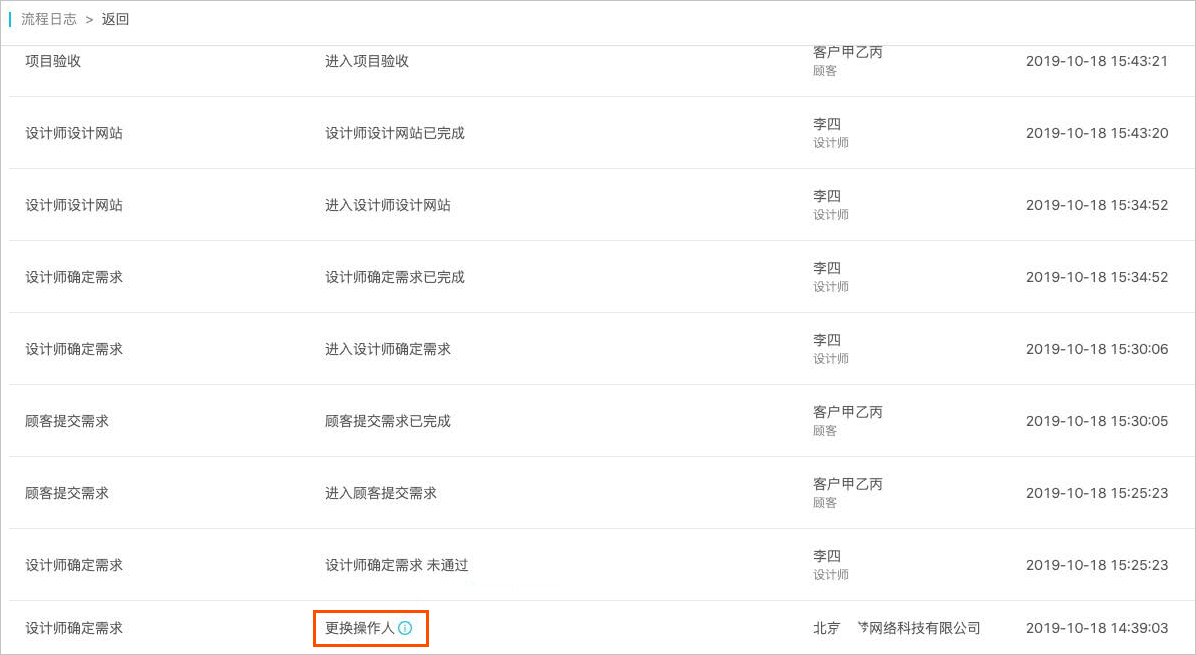
- Manage uploaded files
Click File Management in the upper-right corner to view and download files uploaded by operators at each node of the project.
As a service provider, you can add attachments when you are the operator for the current node.
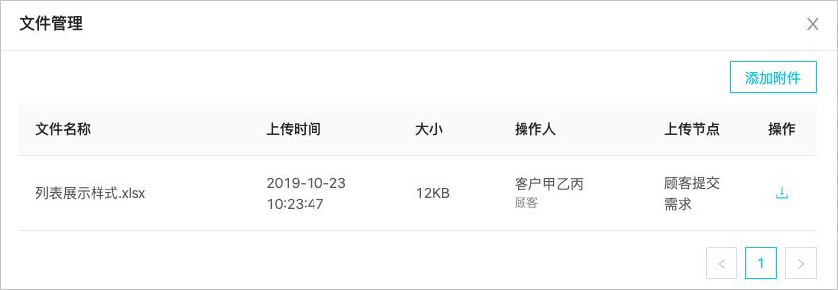
- View project progress, operator information, and business information