Publish a Data Exchange product
You can publish and sell your Data Exchange products on Alibaba Cloud Marketplace. This topic describes how to publish a Data Exchange product.
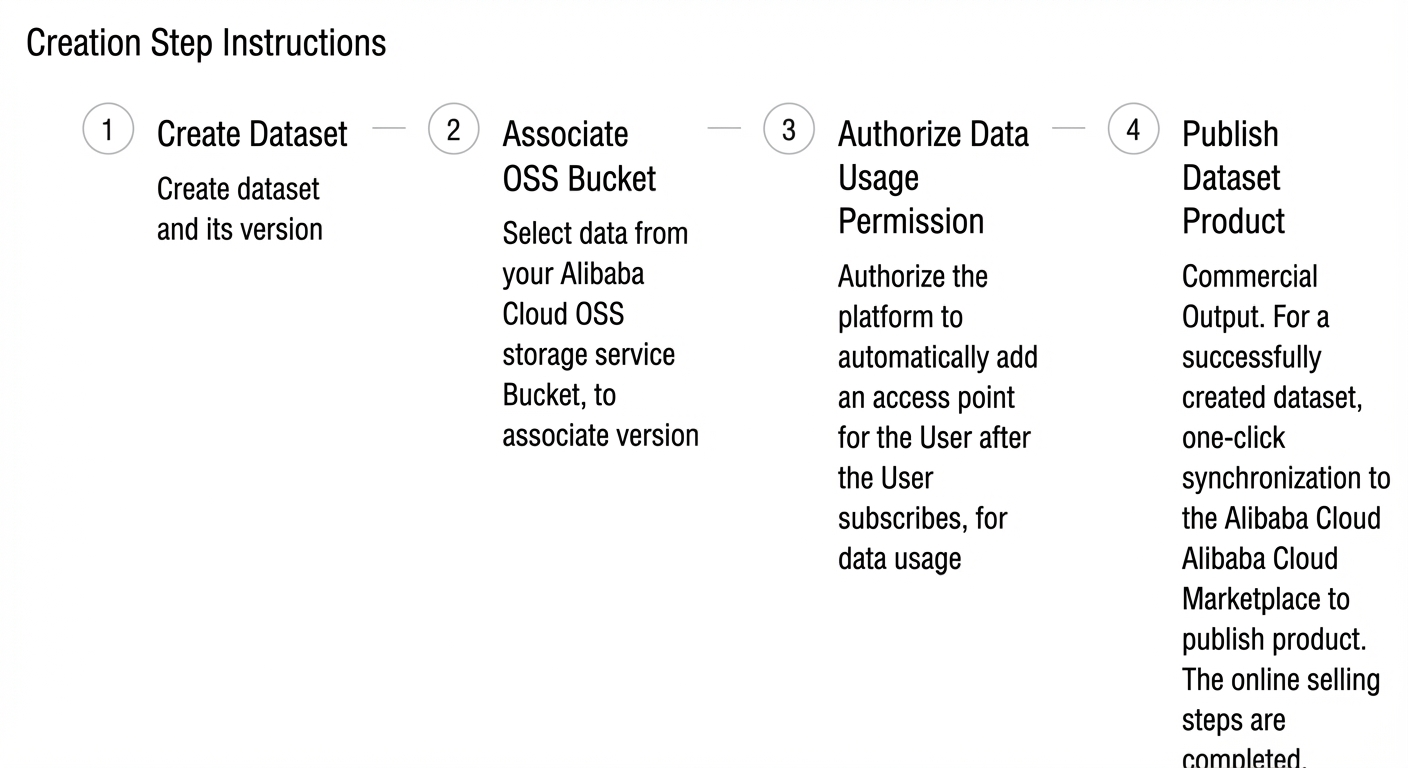
Step 1: Create a dataset
1. Go to the Alibaba Cloud Management Console. In the top search bar, search for and select Data Exchange to open its console.
2. In the Data Exchange console, click Create Dataset.
For Dataset Type, select Aliyun OSS Data - Import and associate Alibaba Cloud OSS data, then enter a dataset name (up to 100 characters) and a description (up to 200 characters).
Step 2: Create a version with OSS data
1. Create a dataset version. Define a version name, description, and data type, and then associate it with files stored in an OSS bucket. Note: If you are new to OSS, see Quick start.
The available data types are Image, Audio, Video, Text, and Other. Click Associate Alibaba Cloud OSS Data. In the panel that appears, select the target bucket, and then select the folders or files to associate.
2. Choose a billing method for data access. This option determines who pays for the data transfer and request fees when a customer downloads or transfers your data after purchase. The default is Requester Pays, which means the customer pays these fees. If you choose to pay these fees as the provider, you are responsible for all OSS traffic and request fees generated by customer activity.
Step 3: Publish a dataset product
1. To commercialize a completed dataset, sync it to the Alibaba Cloud Marketplace Service Provider Management Console with a single click.
Note: If you are not yet an Alibaba Cloud Marketplace partner, click here to join.
On the My Datasets page, find your dataset with a status of Completed. In the Actions column, click Publish Product to sync the dataset to Alibaba Cloud Marketplace for commercialization.
2. Log in to the Alibaba Cloud Marketplace Service Provider Management Console. In the left-side navigation pane, choose Product > Product Management, and then click Publish Product.
3. Configure the product integration information:
In the product integration section, select Data Exchange, enter a product name, and associate it with your dataset.
Important: A dataset can be associated with only one product.
4. Configure the basic product information. The key fields for datasets are described below:
4.1. Data dictionary and data sample:
Provide a data dictionary to describe your data fields in a table, and a data sample to showcase non-tabular data such as videos or images. This helps customers understand the features of your data product.
The data dictionary must be a CSV file smaller than 1 MB. You can download a template. The data sample must be a compressed package in .zip, .tar, .tar.gz, .tar.bz2, or .rar format, and smaller than 50 MB.
4.2. For Product Category, select Data Products / Dataset. For custom tags, choose tags that best describe your product.
In the product category section, you must also configure drop-down options such as Dependent Cloud Service, Target User (for example, Developer), and Application Scenario (for example, Cloud Adoption). Available custom tags include Bank Card Authentication, Real-name Authentication API, Face Recognition, Image Recognition, Machine Translation, Traffic Violation Inquiry, and Data API.
5.1. Choose a billing method. You can select subscription, which is suitable for datasets that receive continuous version updates, or pay-as-you-go, which is ideal for one-time purchases of datasets that are not expected to be updated.
Note: The billing method cannot be changed after the product is published.
You must also configure the Visible in Marketplace (if set to "No", the product will not be displayed on Alibaba Cloud Marketplace) and Enterprise Customers Only (select "Yes" or "No") options. A selection is required for both options.
5.2. Configure product specifications. Enter a specification name, set the pricing and validity period, and add any extra billable items.
For pricing, you can select Monthly Pricing and Annual Pricing. For each, you can set the Subscribable Duration, New Purchase Price, and Renewal Price. For extra billable items, you can configure the Metering Item ID, Pricing Method (Fixed Pricing or Tiered Pricing), and Minimum Order Quantity.
6.1. Configure the agreement, which is the online contract presented to customers. You can use your own standard agreement format or import and modify a template. If you do not have any special qualifications, enter "None".
Important: The product agreement cannot be changed after the product is published.
6.2. Data qualifications: For dataset products, you must state the data source and provide a qualification certificate. Supported certificates include those from official institutions, such as the Shanghai Data Exchange and Zhejiang Data Exchange.
In the Data Source drop-down list, you can select options such as Self-produced. For the Qualification Certificate, you can upload a PDF, .zip, .tar, .tar.gz, .tar.bz2, or .rar file up to 5 MB in size.
7. Confirm and submit for approval. The Alibaba Cloud Marketplace operations team will review your product submission. If approved, your product is published. If rejected, you must modify the submission and resubmit it for review.