Set product discounts
The Alibaba Cloud Marketplace platform lets you configure product discounts. Third-party marketplace service providers can set various types of discounts, such as direct reductions and percentage discounts, for all or specific product specifications. You can target these discounts to specific customers based on your marketing needs. This topic describes how to set up a discount promotion for a product.
Notes
You can set multiple discount promotions for each listed product. If multiple discounts are active at the same time, the best discount is automatically applied when a customer makes a purchase.
Direct reduction discounts apply only to subscription orders. They are not supported for pay-as-you-go products.
When you set a direct reduction discount, make sure the discount amount is not greater than the original price of the product. Otherwise, customers cannot place orders.
Percentage discounts can be applied to subscription orders and pay-as-you-go bills. For mixed payment products, if you want a discount to apply to both the subscription and pay-as-you-go parts, you must set up two separate discount promotions. Use the Discount Scope setting to differentiate them.
Set a product discount
- Log on to the ISV portal of Alibaba Cloud Marketplace.
Go to the Create Product Discount page.
Method 1: Go from Product Management.
In the navigation pane on the left, choose .
In the product list, find the target product with a listing status of Listed. In the Operation column, click Set Discount. The product list is a table that includes columns such as Product Name, Commodity Code, and Listing Status.
Method 2: Go from Create Product Discount.
In the navigation pane on the left, choose .
Click Create Discount.
In the Edit Discount Form area, enter the discount information and click Submit.
The Edit Promotion form contains the following settings: Promotion Name (a text input box), Promotion Period (a date picker to set the start and end times), Promotion Type (options include Discount and Direct Reduction), and Select Target Audience (options include All Customers, Specified Customers, and Customer Segments).
On the Select Product page, set the discount scope.
Setting
Parameter
Description
Set basic properties
Discount Name
Enter a custom name. This name appears in the discount information on the product page.
Discount Period
Set the start and end times for the discount promotion.
Effective at a specific time
This option is only supported for pay-as-you-go bills. It is not supported for subscription orders.
If you leave this blank or unchecked, the discount is active at all times. For cross-day periods, such as 22:00 to 05:00 the next day, the discount is applied on a daily loop.
Discount Type
1. Discount: A reduction from the original price of a product.
If you select this type, enter a discount coefficient. For example, 0.75 means a 25% discount (75% of the original price), 0 means free, and 1 means the original price.
2. Direct Reduction: A fixed amount subtracted from the original price.
This discount type is only supported for subscription orders, not for pay-as-you-go bills. If you select this type, enter the reduction amount. The reduction amount must be less than the original price of the product. Otherwise, customers cannot purchase the product.
Select Target Customers
All Customers
If your promotion needs to apply to all customers, select "All Customers".
First-time purchase only: If you select Yes, the discount applies only to a customer's first purchase of this product.
Enterprise users only: If you select Yes, the discount applies only to users who have completed enterprise identity verification for their Alibaba Cloud account.
Target Object
If your promotion is for a single customer, select "Specific Customers (single user)" and enter the customer's account UID.
Scoped object
If your promotion is for a group of customers, select "Batch Customers (batch table)". Upload a .txt file containing the account IDs of the target customers.
Select Product
Product Name
You can search for the product by its name or commodity code. The product must be listed and approved.
Supported Discount Scope
1. Supports all order types
For subscription users, the discount applies to all their order types.
2. Supported order types
For subscription users, the discount applies to some of their order types. For example, you can support discounts for new purchases but not for renewals. The available order types are: New Purchase, Renewal (including auto-renewal), and Upgrade.
3. Discounts can be applied to the entire bill after an order is placed.
For pay-as-you-go users, the discount applies to the entire bill after they place an order. The discount is reflected in the user's billing details.
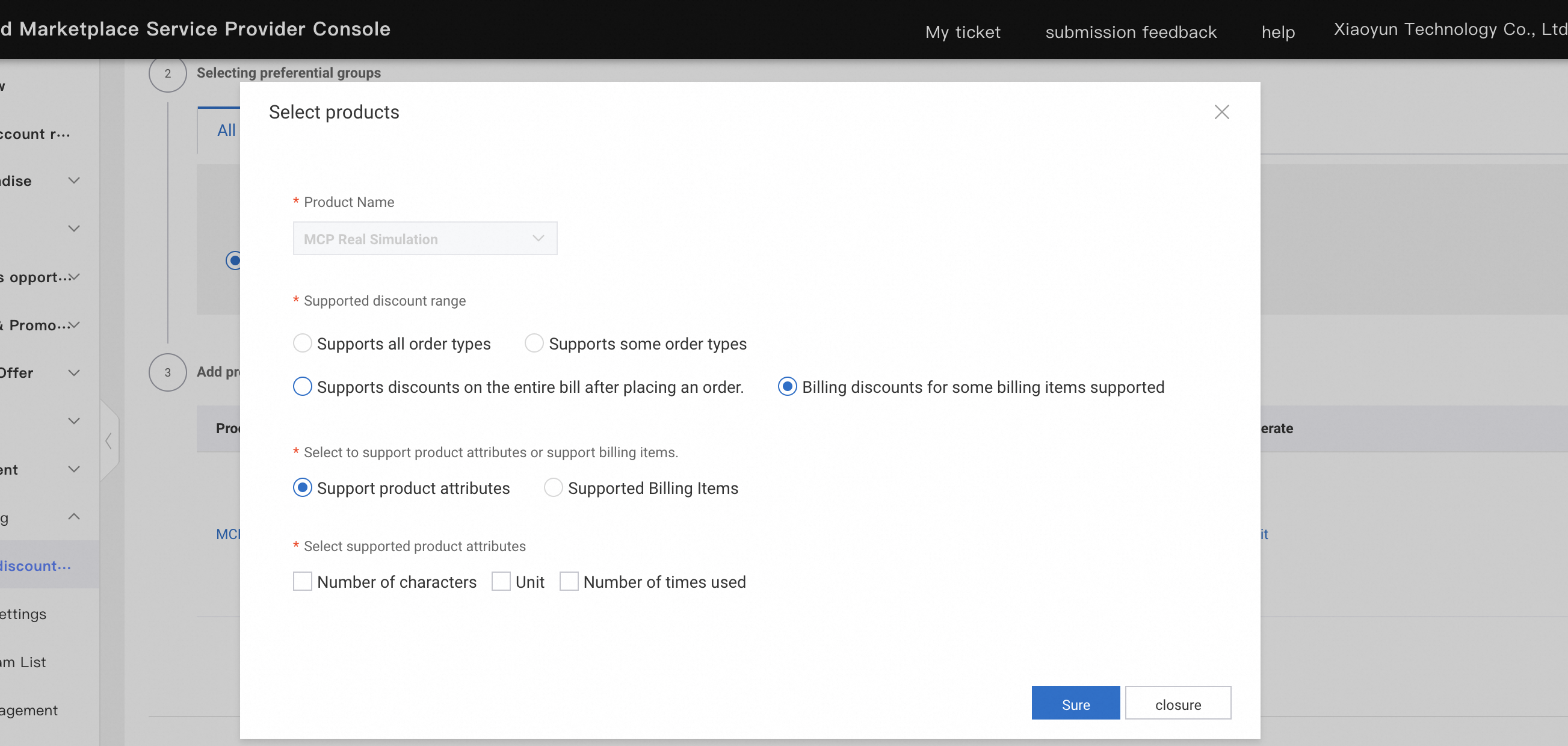
4. Billing discounts for partial usage of product properties
For pay-as-you-go users, if your product bills based on certain properties, you can set the discount to apply only to those properties. The discount information is reflected in the user's billing details. The available product properties depend on the metering items you configured when you listed the product.
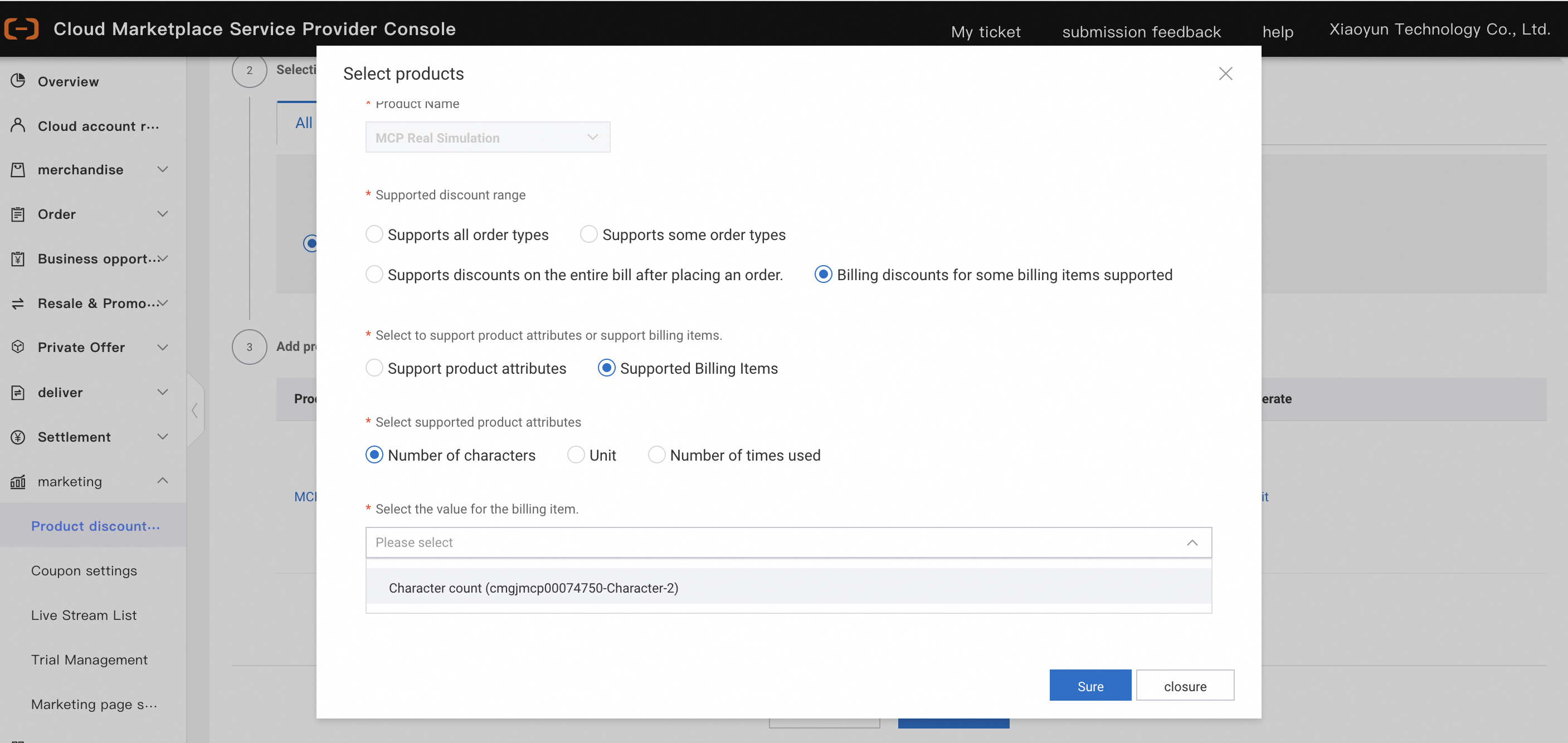
4. Support for discounts for partially used billing items
For pay-as-you-go users, if your product discount applies only to specific billing items, first select the corresponding product property, and then select the values for the billing items under that property. For example, for a text model, the product property is "Thousand Tokens". This property has multiple selectable values that you can configure as needed. The discount information will be reflected in the user's billing details. Note that the available billing items depend on the range of billing items you configured when you listed the product.
In the Creation Successful dialog box, click the link to the discounted product to view the result.
The discount is now in a pre-published state. The discount information is visible only to your account.
The discount is configured as follows.
After a discount is published, the price section on the product page displays the original price, a discount tag (such as Limited-Time Offer), and the discounted price. This allows customers to see the final price at a glance.
After you confirm the discount, return to the Creation Successful dialog box and click Confirm and Publish. Alternatively, you can click "Publish" in the discount promotion list. After the discount is published, it is visible to all users.
Manage product discounts
You can manage existing discounts by viewing, editing, deleting, or performing other operations on them.
- Log on to the ISV portal of Alibaba Cloud Marketplace.
In the navigation pane on the left, choose .
In the discount list, perform an operation on the desired product.
The discount promotion list is a table that displays information about created discounts. It includes columns such as Discount Name, Product, Publication Status, Effective Status, Discount Type, and Creation Time. The Operation column provides links to View, Confirm and Publish, Edit, and Delete.
If you want to...
You can...
View discount details
In the Operation column, click View.
Publish a discount that is in a pre-published state
In the Operation column, click Confirm and Publish. Then, in the Note dialog box, click Confirm.
Modify discount information
In the Operation column, click Edit. Then, modify the information as needed.
Delete a discount
In the Operation column, click Delete. Then, in the Note dialog box, click Confirm.
After you delete a discount, customers can no longer use it.