Best practices for elastic reserved CUs
This topic uses typical scenarios to demonstrate how to select and configure subscription and elastic reserved compute resources. It also provides suggestions to help you reduce costs and improve efficiency.
Background information
MaxCompute previously supported custom quota splitting and time-based configurations for subscription reserved compute resources. You could divide a day into a maximum of three time periods and assign different reserved CU amounts to different quotas for each period. This feature greatly improved the utilization of compute resources.
MaxCompute now offers elastic reserved CUs. When combined with the new quota plan and time plan features, you can flexibly scale compute resources based on evaluations to reduce costs and improve efficiency.
The prices and evaluation methods in the scenarios in this topic are for demonstration purposes only.
For actual prices, see the product purchase page.
In practice, consider multiple factors and test your configuration for a period to find the optimal settings.
Scope
To configure and use elastic reserved CUs, you must first purchase subscription reserved resources. The maximum number of elastic reserved CUs that you can configure is equal to your subscription reserved CU amount. The minimum is 50 CUs, and the step size is 10 CUs.
Elastic reserved CUs are pay-as-you-go and billed hourly. Billing starts when a scale-out is successful and stops when a scale-down is successful. If usage continues for more than one hour, metering data is pushed on the hour. Hourly bills are generated with a three-hour delay.
The price of an elastic reserved CU is
0.315 CNY/CU/hour, and the price of a subscription reserved compute resource is150 CNY/CU/month.If you use elastic reserved CUs for more than 16 hours per day (the cost for 16 hours is
1 CU × 0.315 CNY/CU/hour × 16 hours × 30 days = 151.2 CNY/CU/month), it is more cost-effective to purchase subscription reserved CUs.
Scenario 1: Idle resources
Production jobs run overnight, causing compute demand to peak. Some lines of business have strict time requirements for data, which means that compute results must be generated before a specific time. Compared to the night, the number of compute requests is lower during the day. However, to meet the high demand at night, you purchase a higher level of CUs for your MaxCompute subscription. This results in significant resource idling during the day.
Typical CU usage plan
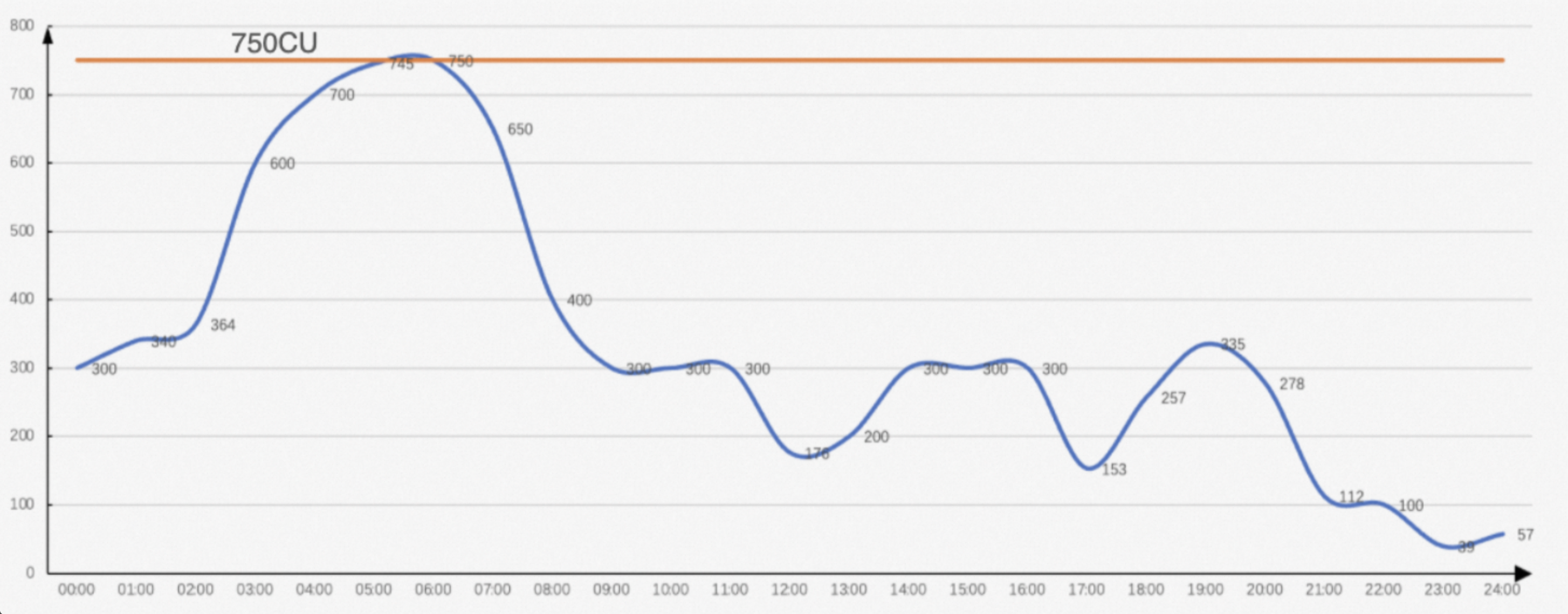
The typical daily CU usage trend for this scenario is shown in the following figure. You purchase 750 CUs of subscription reserved computing resources primarily to cover the five-hour computing peak from 03:00 to 08:00.
The original monthly fee is 750 CUs × 150 CNY/CU/month = 112,500 CNY/month.
The following figure shows the usage trend of subscription reserved CUs:
Elastic reserved CU plan
The business requires guaranteed performance during the peak hours in the early morning and during secondary peaks. You can purchase 400 subscription reserved CUs and 350 elastic reserved CUs for five hours (from 03:00 to 08:00). The usage trend for the plan that combines subscription reserved CUs and elastic reserved CUs is shown in the following figure:
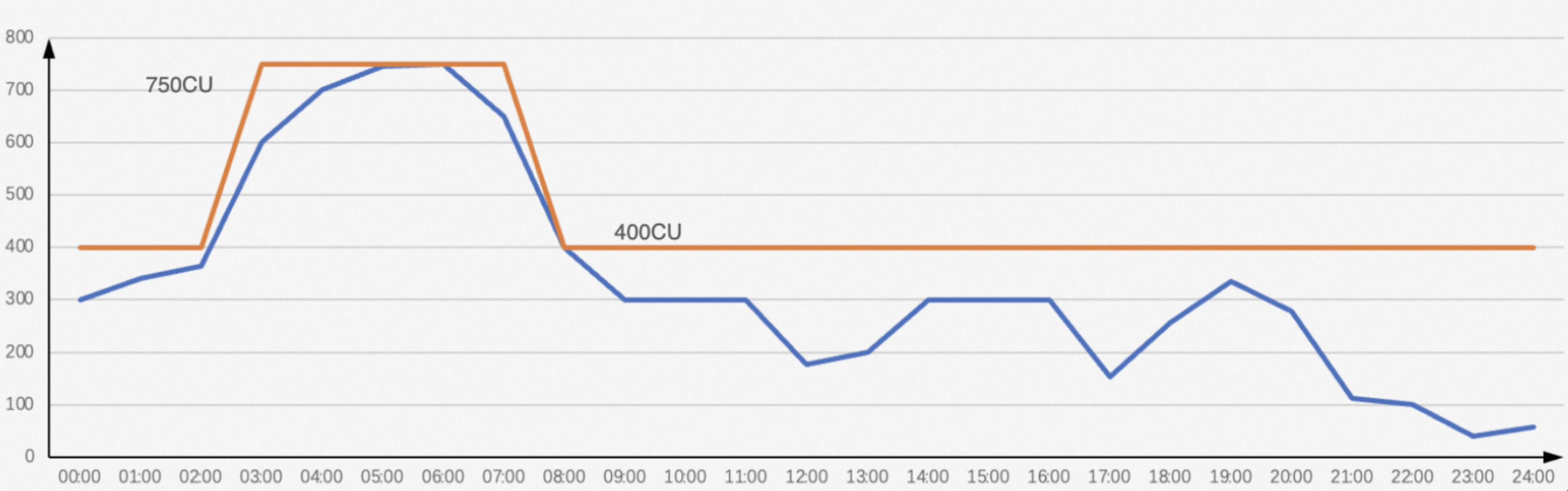 The monthly fee for the elastic reserved CU plan is 400 × 150 + 350 × 0.315 × 5 × 30 = 76,537.5 CNY. Compared to the plan that does not use elastic reserved CUs, you can save about
 31% on costs per month.
Configuration steps for the elastic reserved CU plan
Log in to the MaxCompute console and select a region in the upper-left corner.
In the left-side navigation pane, choose .
Downgrade the quota
To downgrade MaxCompute subscription resources, follow these steps.
On the Quotas page, click Downgrade in the Actions column of the target quota.
On the Downgrade page, configure the required number of CUs after the downgrade, click Buy Now, and complete the downgrade.
For more information about the downgrade rules, see Unsubscription rules.
View the downgrade order on the Alibaba Cloud Orders page.
NoteA downgrade directly deducts CUs from the Default Quota. Before you downgrade, use the MaxCompute console to decrease or delete the minimum value of a custom quota. This ensures that the minimum value of the default quota is at least (the number of CUs to be downgraded) + 1. For more information, see Configure Quotas.
If you downgrade immediately after an upgrade, you may receive a smaller refund for the following two reasons:
The previous order had a discount. For example, a one-year subscription has a 15% discount. If the original price is 1,000 CNY, the actual payment is 850 CNY. The refund for the downgrade is calculated based on 850 CNY.
A coupon was used for the previous order. When you downgrade, the refund for the old configuration only includes the cash amount, not the coupon amount.
For more information about refunds for downgrading subscription specifications, see Release resources and unregister services.
Add a configuration plan
You can add a new quota configuration plan for MaxCompute subscription resources by following these steps. In this example, the value of Elastically Reserved CUs for the tier-1 quota is
350.On the Quotas page, click Quota Configuration in the Actions column of the target quota.
On the Quota Configuration page, select the Scaling Configuration tab.
On the Scaling Configuration tab, click Add Configuration Plan. In the Add Configuration Plan dialog box, enter a Configuration Plan Name and configure Elastically Reserved CUs for both the level-1 and level-2 quotas.
Click OK to add the plan.
Edit the time plan
You can monitor quota resource consumption daily and adjust the amount of elastic reserved CUs at any time as needed.
On the Scaling Configuration tab, click Edit Time Plan in the Scheduled Scaling Management section.
Click Add Effective Period, and then select an Effective start time and a Configuration Plan.
The following table provides an example of a time plan:
Effective Start Time (UTC+8)
Configuration Plan
00:00
Default
03:00
The quota configuration plan added in the previous step
08:00
Default
The number of elastic reserved CUs for the Default plan is
0.
Scenario 2: Speed up job output with low cost and high reliability
You have purchased MaxCompute subscription reserved compute resources and have already configured tier-2 quota splitting, time-based settings, and priorities. The CU resource utilization is high throughout the day. The business now has new requirements for the generation time of certain business data and expects the data to be produced earlier to deliver more value.
Typical CU usage plan
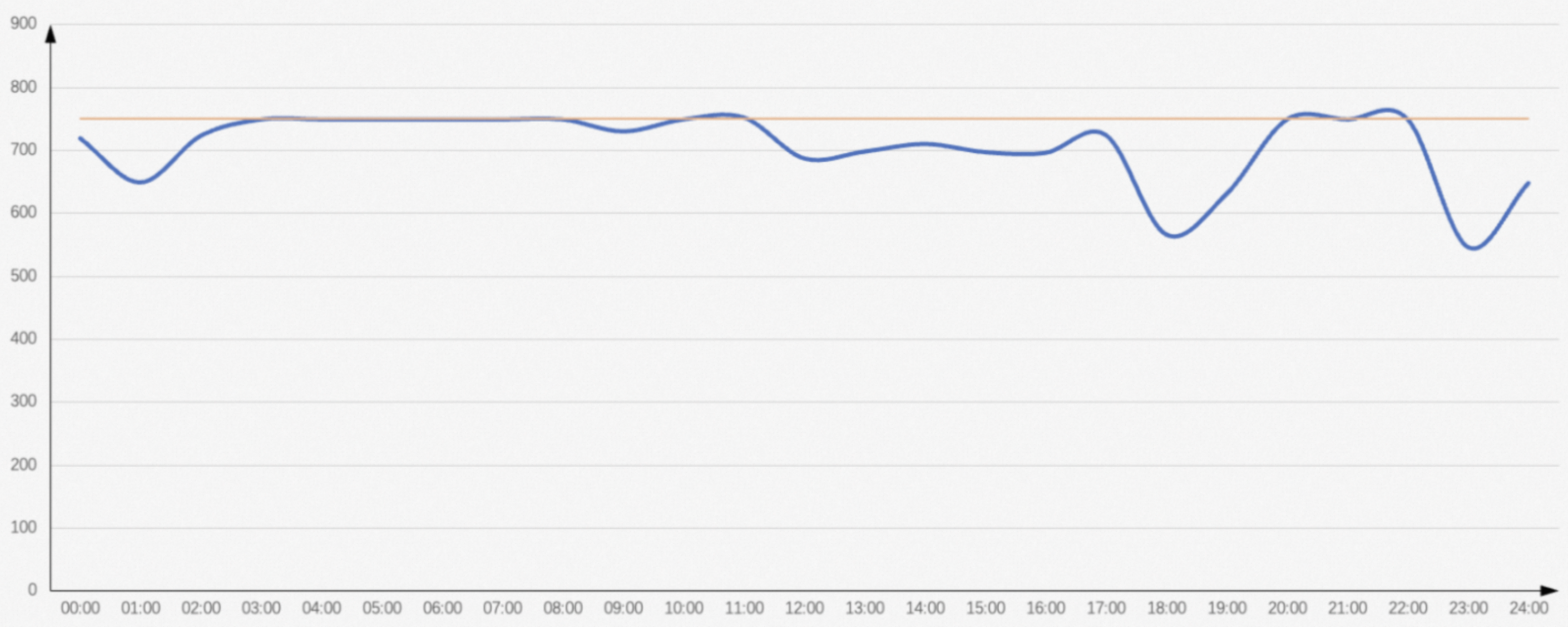
In this scenario, the typical daily CU usage trend is shown in the following figure. You purchase 750 subscription reserved compute resources. The resource utilization is high throughout the day, reaching almost 100%. The average job completion time is long. An important dataset that was previously generated before 7:00 is now required by the business to be generated before 6:00. The original monthly fee for this plan is 750 CUs × 150 CNY/CU/month = 112,500 CNY/month.
The following figure shows the usage trend of subscription reserved CUs:
Elastic reserved CU plan
The resource request trend shows that the resource request volume exceeds 750 CUs between 3:00 and 7:00. To ensure that certain jobs are completed before 6:00, you need to scale out during this peak period.
Use Information Schema to gather statistics on the CU distribution for the jobs related to this data as a reference. The preceding figure shows that the resource usage is at its maximum from 3:00 to 8:00. Therefore, you can calculate the total CU amount for the four hours from 3:00 to 7:00.
Assume that a total of 2,000 CUs are used in four hours, which means 500 CUs are required to run for four hours. To complete the jobs one hour earlier, the number of CUs required per hour is 2000 / 3 = 667 CUs. Because job dependencies may lead to fewer requests at the beginning and more requests later, you can add an extra buffer. For example, adding 30% results in a CU amount of 667 × 1.3 = 867 CUs. The final number of CUs to scale out starting from 3:00 is 867 - 500 = 367.
The step size for elastic reserved CUs is 50. Therefore, you can first set the number of elastic reserved CUs to 350 for three hours. The trend is shown in the following figure.
In this scenario, the required number of additional elastic reserved CUs is predicted based on the ideal average CU consumption. In practice, you can use this method as a reference, but you must monitor your business and make adjustments as needed.
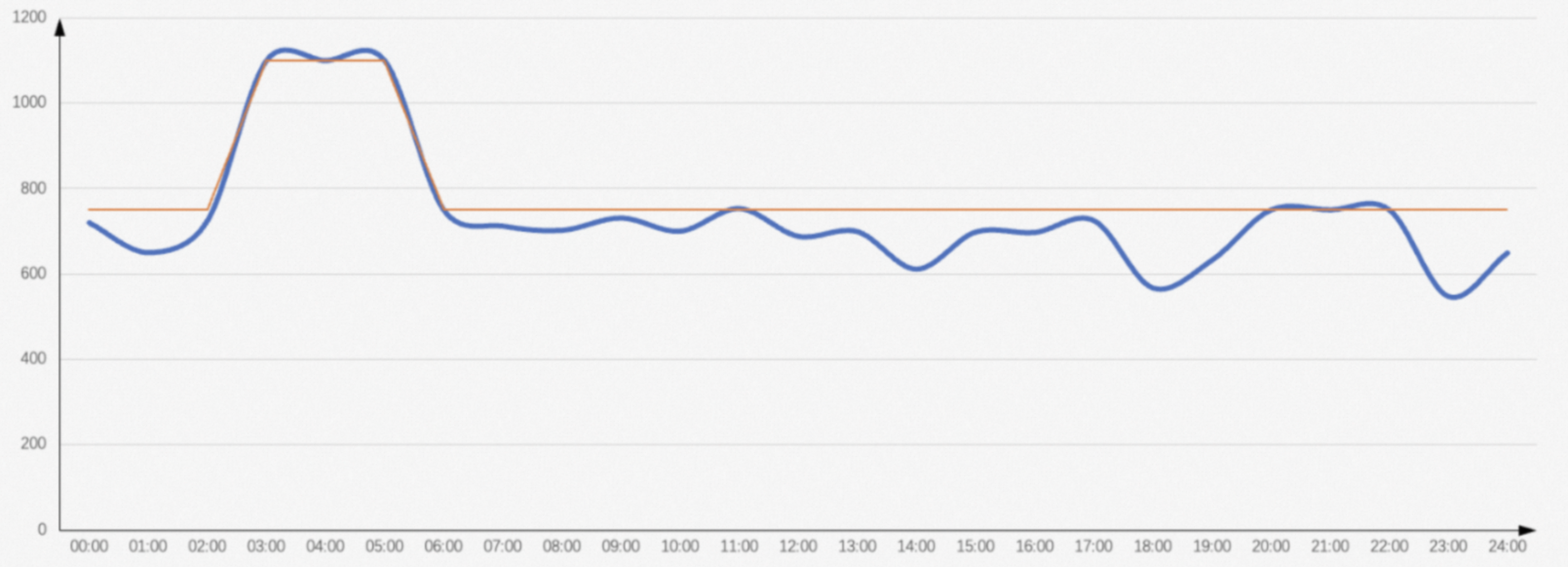
To ensure the business runs as expected:
If you purchase subscription reserved CUs, you need to spend an extra
350 CUs × 150 CNY/CU/month = 52,500 CNY/month.With the elastic reserved CU plan, you only need to spend an extra
350 CUs × 0.315 CNY/CU/hour × 3 × 30 = 9,922.5 CNYper month.
Using the elastic reserved CU plan can save you about 81% on costs per month.
Configuration steps for the elastic reserved CU plan
These steps assume that you have not used a time-based configuration before, or that you have reset any existing time-based configuration.
Log in to the MaxCompute console and select a region in the upper-left corner.
In the left-side navigation pane, choose .
Add a configuration plan
You can add a quota configuration plan for MaxCompute subscription resources by following these steps. In this example, the value of Elastically Reserved CUs for the tier-1 quota is
350.On the Quotas page, click Quota Configuration in the Actions column of the target quota.
On the Quota Configuration page, select the Scaling Configuration tab.
On the Scaling Configuration tab, click Add Configuration Plan. In the Add Configuration Plan dialog box, enter a Configuration Plan Name and configure Elastically Reserved CUs for both the level-1 and level-2 quotas.
Click OK to add the plan.
Edit the time plan
You can monitor quota resource consumption daily and adjust the amount of elastic reserved CUs at any time as needed.
On the Scaling Configuration tab, click Edit Time Plan in the Scheduled Scaling Management section.
Click Add Effective Period, and then select an Effective start time and a Configuration Plan.
The following table provides an example of a time plan:
Effective Start Time (UTC+8)
Configuration Plan
00:00
Default
03:00
The quota configuration plan added in the previous step
06:00
Default
The number of elastic reserved CUs for the Default plan is
0.
Scenario 3: Non-reserved resources fail to meet peak demand
You have purchased both subscription reserved compute resources and non-reserved compute resources for MaxCompute. Resource demand is high at night and low during the day. During peak hours for job requests, very few non-reserved compute resources can be preempted. This means that non-reserved compute resources cannot improve the resource fulfillment rate during business peaks, which affects the speed of business output.
Typical CU usage plan
In this scenario, the typical daily CU usage trend is shown in the following figure. You purchase 750 subscription reserved compute resources, mainly to guarantee compute capacity during the five-hour peak from 3:00 to 8:00. At the same time, you purchase 300 non-reserved compute resources to speed up processing during peak hours. The original monthly fee is 750 CUs × 150 CNY/CU/month + 300 CUs × 40 CNY/month = 124,500 CNY.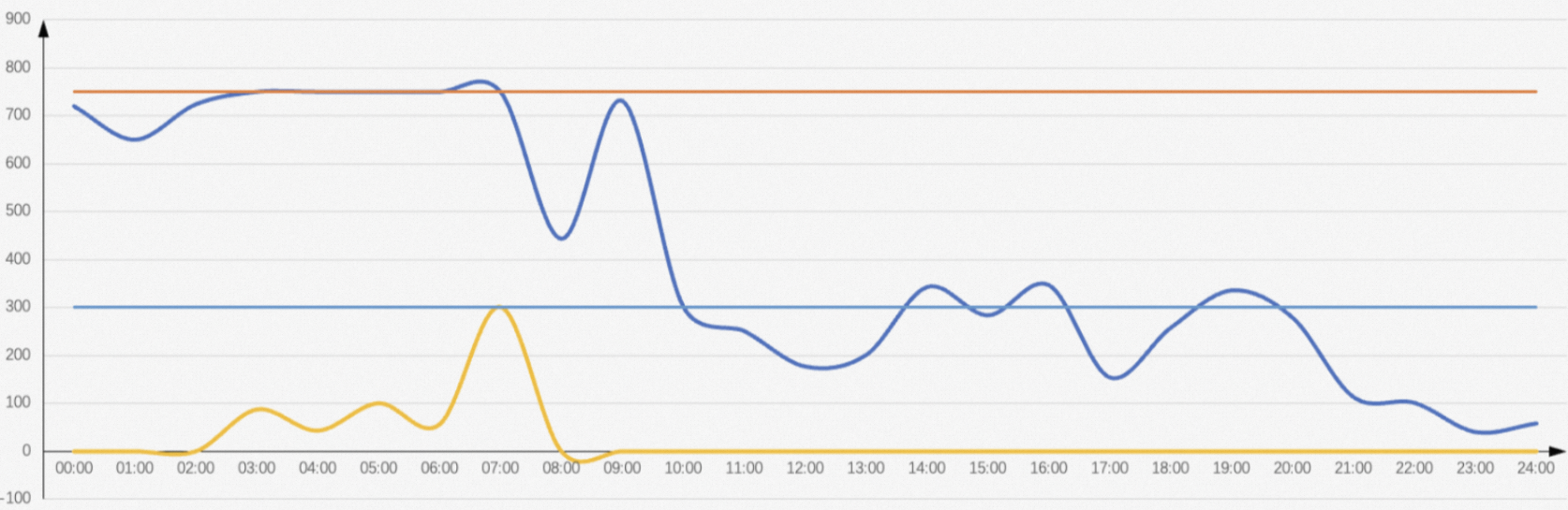 In the preceding figure, the non-reserved compute resources could not be preempted during business peak hours. Later, when there were no requests, they were even less useful and failed to meet expectations. At the same time, many resources were idle for a long time after
 10:00, with actual usage not exceeding 400 CUs.
Elastic reserved CU plan
From the resource usage trend:
From
00:00to3:00(three hours), 750 CUs can meet business needs, but the usage level is very high.From
3:00to8:00and from9:00to10:00(a total of six hours), 750 CUs do not meet business needs.After
10:00, 400 CUs are sufficient to meet business needs.
The time that 750 CUs are used exceeds eight hours. The monthly fee for elastic reserved CUs is not cost-effective if they are used for more than eight hours per day. Therefore, the plan is as follows:
Keep the purchase of 750 subscription reserved compute resources.
Replace the non-reserved compute resources with elastic reserved CUs, and consider accelerating for four hours between
3:00and7:00. The cost can be converted from the non-reserved compute resource fees. The fee for non-reserved compute resources is300 × 40 = 12,000 CNY/month. The number of elastic reserved CUs would be12,000 / 30 / 4 / 0.315 = 318CUs. The step size for elastic reserved CUs is 50, so you can choose 300 elastic reserved CUs. This provides 300 dedicated CUs during this period and also saves costs.
The trend for the elastic reserved CU plan is shown in the following figure.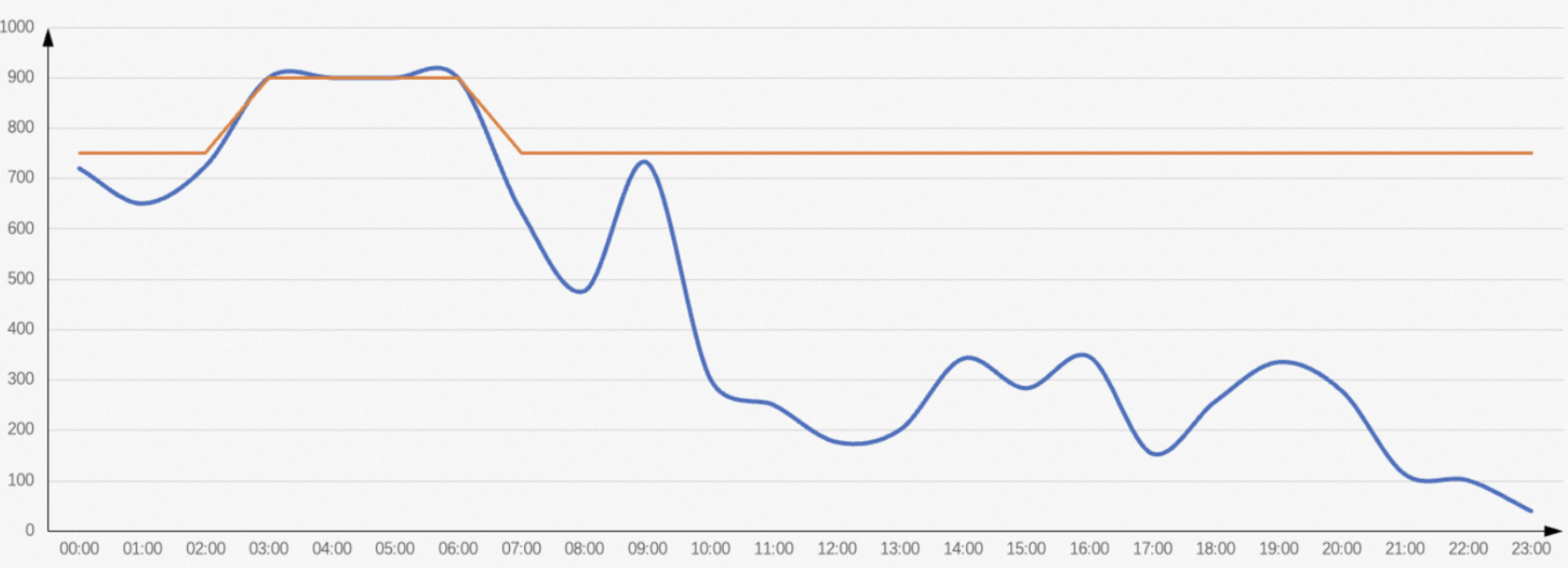 As shown in the preceding figure, without increasing the budget, the use of elastic reserved CUs from
 3:00 to 7:00 improves the resource fulfillment rate during this period, thereby increasing job speed and allowing some business tasks to be completed earlier.
Configuration steps for the elastic reserved CU plan
These steps assume that you have not used a time-based configuration before, or that you have reset any existing time-based configuration.
Log in to the MaxCompute console and select a region in the upper-left corner.
In the left-side navigation pane, choose .
Add a configuration plan
For MaxCompute subscription resources, you can add a new quota configuration plan by following these steps. In this example, the value of Elastically Reserved CUs for the tier-1 quota is
150.On the Quotas page, click Quota Configuration in the Actions column of the target quota.
On the Quota Configuration page, select the Scaling Configuration tab.
On the Scaling Configuration tab, click Add Configuration Plan. In the Add Configuration Plan dialog box, enter a Configuration Plan Name and configure Elastically Reserved CUs for both the level-1 and level-2 quotas.
Click OK to add the plan.
Edit the time plan
You can monitor quota resource consumption daily and adjust the amount of elastic reserved CUs at any time as needed.
On the Scaling Configuration tab, click Edit Time Plan in the Scheduled Scaling Management section.
Click Add Effective Period, and then select an Effective start time and a Configuration Plan.
The following table provides an example of a time plan:
Effective Start Time (UTC+8)
Configuration Plan
00:00
Default
03:00
The quota configuration plan added in the previous step
07:00
Default
The number of elastic reserved CUs for the Default plan is
0.