dbt and MaxCompute ecosystem integration
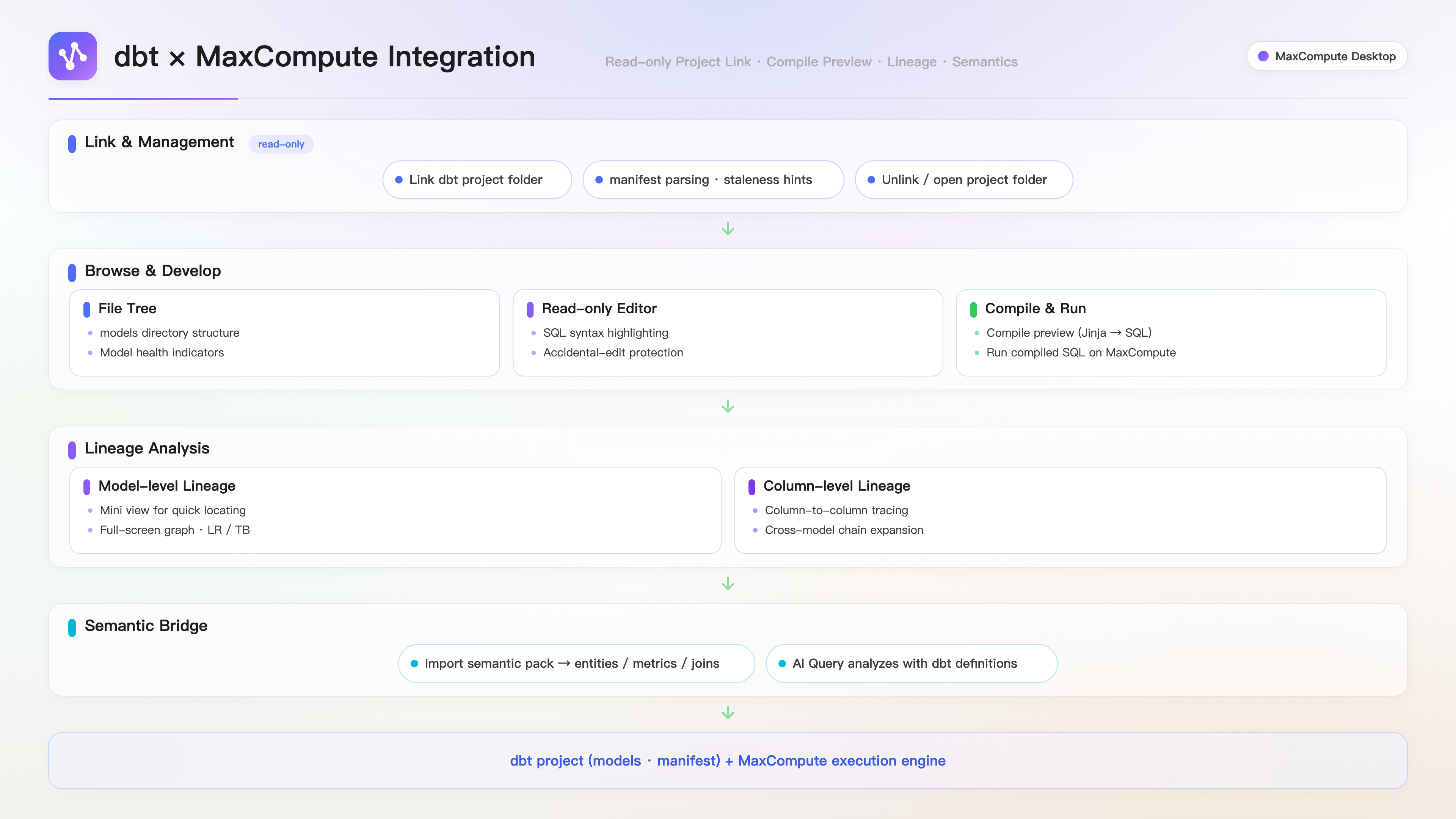
This integration helps data teams use dbt for model development and MaxCompute for data lakehouse computing. By linking your local dbt project, you can browse model structures, compile and execute SQL, visualize data lineage, and import semantic assets into AI Query, all without switching between the dbt command-line interface (CLI), odpscmd, and dbt docs.
Overview
The client reads the manifest.json file from your local dbt project to enable model browsing, SQL compilation previews, lineage analysis, and semantic package imports, without invoking the dbt CLI. The client performs all operations in read-only mode and does not modify any dbt project files.
Use cases
Manage dbt projects and MaxCompute data pipelines in one place: View models and execute SQL in a single interface without switching between editors, terminals, and dbt docs.
Analyze the impact of model changes: Before modifying a model, you can use the lineage graph to see upstream and downstream dependencies and assess the impact of your changes. Column-level lineage allows you to drill down to the field level.
Reuse dbt semantic assets for AI-powered queries: You can convert semantic models and metrics from your dbt project into OSI (Open Semantic Interface) semantic packages, the format used by AI Query. This allows AI Query to answer questions based on standardized entities, metrics, and dimensions.
Feature summary
Feature category | Features |
Project management | Link projects, switch between multiple projects, refresh the manifest, unlink projects, and open the project folder |
Model browsing | File tree, model health status, read-only editor, and navigation/hover previews for |
Compilation and execution | SQL compilation preview (with four-level fallback) and execution of compiled results in a unified results panel |
Lineage analysis | Model-level lineage graphs (full-screen and mini-view), column-level lineage, and a node details panel |
AI semantic asset import | Import dbt semantic models and metrics as OSI semantic packages with automatic compilation |
Prerequisites
You have created and successfully connected to a MaxCompute data source. You need an active connection to execute compiled SQL, but not to browse data lineage.
You have a local dbt project that contains
dbt_project.ymlandprofiles.ymlin its root directory.You have generated a
manifest.jsonfile. If you have not, rundbt docs generateordbt compilein your terminal. The client relies entirely on the manifest data and does not invoke the dbt CLI.
Quick start
Follow these steps to link a dbt project, then compile and execute a model.
In the dbt Projects side panel, click + (Link Project).
In the Project Path input field, enter the root directory path of your dbt project. If you are using the desktop client, you can click Browse to select the directory from your file system.
Click Link. The button changes to "Detecting..." and, once successful, the panel loads the project overview and file tree.
In the file tree, click a
.sqlmodel file. The client opens the file in a read-only editor tab.Switch to the SQL Compilation Preview tab in the bottom panel and click Compile (Shortcut: Shift+Cmd+Enter).
After the compilation succeeds, click Execute Compiled Result (Shortcut: Cmd+Enter). The results are displayed in the unified results panel at the bottom.
Link and manage dbt projects
Link a project
In the dbt Projects panel, click + to open the link dialog.
Enter the Project Path, which should point to the root directory of your dbt project (the directory containing
dbt_project.yml).Click Link. The client verifies the existence of
dbt_project.ymlandprofiles.ymland then parsesmanifest.json.After a successful link, the panel displays a project overview, including the dbt version, the number of models, data sources, and metrics, the project path, and the last update time of the manifest.
To link multiple projects, repeat these steps. A dropdown menu appears at the top of the panel to switch between projects.
Refresh manifest and outdated notifications
If the manifest file's modification time is earlier than that of other project files, a yellow notification bar appears with the message "The manifest may be outdated. We recommend refreshing it." Click the notification or the refresh icon at the top to reload the manifest. This updates the file tree, lineage graph, and health status to reflect the latest changes.
The refresh action only re-reads the manifest.json file from your disk; it does not run dbt compile. If you have modified your models, first run dbt compile or dbt docs generate in your terminal to update the manifest, and then return to the client to refresh.
Unlink a project
Click the unlink icon at the top of the panel and then click Confirm Unlink in the confirmation dialog. You must relink the project to use the dbt features.
Open the project folder
The project path in the overview section is clickable. In the desktop client, clicking it opens the folder directly in your file system.
Browse models and health status
File tree
After you link a project, the models/ directory structure appears in the panel. You can expand and collapse directories, which display the number of files they contain. .sql files are shown with a blue code icon, and .yml configuration files are shown with a yellow icon.
Open, compile, and execute models
Read-only editor
When you click a .sql model file in the file tree, it opens in a read-only Monaco editor tab with Jinja syntax highlighting. Within the editor, you can Cmd+Click on ref('model_name') and source('source_name', 'table_name') to navigate to the corresponding file. Hovering over these functions displays details such as the node name, type, materialization, description, and column information.
You can also open .yml configuration files for viewing, but the compilation and lineage panels will not be available.
SQL compilation preview
The SQL Compilation Preview tab lets you compile your code. When you click Compile, the client retrieves the compiled result based on a set of priorities.
A successful compilation displays the executable SQL, with its source indicated on the right (for example, via manifest). If the compilation fails, an error message is displayed in a red area at the top.
Execute compiled result
After a successful compilation, two buttons appear:
Execute Compiled Result (green, Shortcut: Cmd+Enter): Sends the SQL to the current MaxCompute connection for execution. The results appear in the unified results panel, where you can view Logview progress, switch to chart visualizations, and export data.
Copy Compiled SQL: Copies the compiled SQL to your clipboard.
Before execution, ensure you are connected to a MaxCompute instance. Otherwise, the client prompts, "Please connect to a MaxCompute instance first."
View lineage
Model-level lineage (mini-view)
The Lineage tab in the bottom panel displays a mini-lineage graph centered on the current model, showing two levels of upstream and downstream dependencies by default. The current model is the highlighted node, upstream dependencies are blue, and downstream dependencies are red. A legend is provided in the top-left corner, and zoom/fit controls are in the top-right. If downstream dependencies exist, a message like "Impacts N downstream models" is shown. You can click an adjacent node to navigate to its file.
Full-screen lineage graph
Click Open Lineage Graph in the bottom panel or Locate in Lineage Graph in the editor toolbar to open the full-screen lineage graph in a new tab. The toolbar at the top provides search (Cmd+F), layout orientation (horizontal LR / vertical TB), and zoom/fit controls. You can filter nodes by type: source, model, exposure, or metric. Clicking a node highlights its upstream and downstream paths. Double-clicking a node opens its corresponding file, and right-clicking allows you to copy the table name. When a node is selected, its details, including description, dependencies, and column information, are displayed at the bottom.
Column-level lineage
The Column-level Lineage tab in the bottom panel shows the source-to-target field mapping for each column in the target model. The left side groups source columns by source model, and the right side shows target columns. Target columns are color-coded by transformation type (Passthrough, Rename, Transform, or Raw), with a legend provided in the top-left corner.
Import semantic package
Convert semantic assets from your dbt project into an OSI semantic package for use with AI Query.
In the dbt panel, click Import Semantic Package.
In the Target Semantic Domain input field, enter a domain name. If left blank, the client automatically generates a name based on the project name.
Click Import. The client reads the
semantic_manifest.jsonfile from your project and converts the dbt semantic models, metrics, and saved queries into an OSI semantic package, which includes entities, metrics, dimension terms, relationships, and validation queries.After the import completes, the client automatically compiles the semantic domain into the runtime index, making it available to AI Query.
The dialog box shows the import results and provides notifications about any lossy conversions, categorized by severity (error, warning, or info). For example:
If the target domain already exists, it will be overwritten.
Expressions for
derivedorratiometrics that reference other metric names may require manual adjustment.The window and grain semantics for
cumulativemetrics are not fully preserved.dbt
saved_queryobjects are converted to placeholder SQL, and the actual query must be completed manually.
If the target semantic domain already exists, the import will overwrite its contents. Confirm that the domain name is correct before proceeding.
After importing, review the notifications and manually update any items that underwent a lossy conversion in the semantic package.