Filesystem catalog external projects
You can use MaxCompute to create an external project by mapping a Paimon catalog directory in OSS. This creates a project that mirrors the standard Paimon file system hierarchy. Access permissions are based on the authorization granted to a user's RAM role for the OSS bucket, supporting read and write operations on both metadata and data in the Paimon lake format. With this catalog-level mapping, you are responsible for ensuring file system compliance and managing your own permissions and storage for files in the lake format. This approach is ideal for stream-batch integration scenarios where permissions are controllable and you can handle maintenance independently.
Limitations
-
Only tables in Paimon format are supported.
-
Writing to Dynamic Bucket tables is not supported.
-
Writing to Cross Partition tables is not supported.
-
For more information, see Data type mapping.
Procedure
Step 1: Grant permissions to a RAM user
If you are a RAM user, ensure the following policy is attached to your account. For instructions, see Manage RAM user permissions.
-
AliyunMaxComputeFullAccess: Grants the permissions required to create external data sources and external projects.
Step 2: Create a FileSystem Catalog external data source
-
Activate OSS and create a bucket to store your Paimon data. For more information, see Quick start.
-
Log on to the MaxCompute console, and select a region in the upper-left corner.
-
In the navigation pane on the left, choose .
-
On the External Data Source page, click Create External Data Source.
-
In the Create External Data Source dialog box, configure the parameters. The following tables describe the parameters.
Parameter
Required
Description
External Data Source Type
Yes
Select
FileSystem Catalog.External Data Source Name
Yes
The name of the external data source. The name must meet the following requirements:
-
It must start with a letter and can contain only lowercase letters, digits, and underscores (_).
-
It must be 128 characters or fewer.
Example:
external_fs.Description
No
Optional. A description of the external data source.
Region
Yes
Defaults to the current region.
Authentication and Authorization
Yes
Defaults to Alibaba Cloud RAM role.
Role ARN
Yes
The Alibaba Cloud Resource Name (ARN) of the RAM role. This role must have permissions to access OSS.
-
Log on to the Resource Access Management (RAM) console.
-
In the navigation pane on the left, choose .
-
In the Basic Information section, you can find the ARN.
Example:
acs:ram::124****:role/aliyunodpsdefaultrole.Storage Type
Yes
-
OSS
-
OSS-HDFS
Endpoint
Yes
The endpoint is automatically generated. For the China (Hangzhou) region, the endpoint is
oss-cn-hangzhou-internal.aliyuncs.com.Foreign Server Supplemental Properties
No
Additional properties that define how tasks that use this data source access the source system.
NoteFor information about the supported parameters, see the latest updates in the official documentation. More parameters will be gradually made available as the product evolves.
-
-
Click OK to create the external data source.
-
On the External Data Source page, find the target data source and click Details in the Actions column.
Step 3: Create an external project
-
Log on to the MaxCompute console, and select a region in the upper-left corner.
-
In the navigation pane on the left, choose .
-
On the External Project tab, click Create Project.
-
In the Create Project dialog box, configure the project information as prompted and click OK.
Parameter
Required
Description
Project Type
Yes
Defaults to external project.
Region
Yes
Defaults to the current region. This parameter cannot be modified.
Project Name (Globally Unique)
Yes
Must be 3 to 28 characters long, start with a letter, and contain only letters, digits, and underscores (_).
MaxCompute Foreign Server Type
No
Select FileSystem Catalog.
MaxCompute Foreign Server
No
-
Use Existing: Select an existing external data source.
-
Create Foreign Server: Create and use a new external data source.
MaxCompute Foreign Server Name
Yes
-
Use Existing: Select the name of an existing external data source from the drop-down list.
-
Create External Data Source: The name of the new external data source is used.
Bucket Catalog
Yes
Select the full path from the OSS bucket to the catalog-level file system directory. Example:
oss://paimon-fs/paimon-test/.Table Format
Yes
Defaults to Paimon.
Billing Method
Yes
Subscription or Pay-as-you-go.
Default Quota
Yes
Select an existing quota.
Description
No
A custom description for the project.
-
Step 4: Use SQL to access data
Deleting an external project does not delete the underlying data because the project is only a mapping to the data source.
However, unlike with standard external tables, running a DROP TABLE or DROP SCHEMA command in an external project sends the request to the peer service. This permanently deletes the corresponding table or database. Use DROP operations with caution.
-
Select a connection tool to log on to the external project.
-
List the schemas in the external project. By default, only the database paths that store Paimon tables are listed.
-- Enable schema syntax at the session level. SET odps.namespace.schema=true; SHOW schemas; -- The following result is returned. ID = 20250922********wbh2u7 default OK -
List the tables in a schema within the external project.
-- is the name of the schema displayed in the external project. USE SCHEMA <schema_name>; SHOW tables; -
Create a new schema in the external project.
CREATE schema <schema_name>; -- Example: CREATE schema schema_test; -
Use the new schema.
use schema <schema_name>; -- Example: use schema schema_test; -
Create a table in the schema and insert data.
-
Syntax:
-- Create a table. CREATE TABLE [IF NOT EXISTS] <table_name> ( <col_name> <data_type>, ... ) [COMMENT <table_comment>] [PARTITIONED BY (<col_name> <data_type>, ...)] ; -- Insert data. INSERT {INTO|OVERWRITE} TABLE <table_name> [PARTITION (<pt_spec>)] [(<col_name> [,<col_name> ...)]] <select_statement> FROM <from_statement> -
Example:
CREATE TABLE new_table(id INT,name STRING);

INSERT INTO new_table VALUES (101,'Alice'),(102,'Bob');

-- Query the new_table table.
SELECT * FROM new_table;

-- The following result is returned.
+------------+------------+
| id         | name       |
+------------+------------+
| 101        | Alice      |
| 102        | Bob        |
+------------+------------+
-
Configure Paimon table properties
Apache Paimon includes specific core configuration options. When you create a Paimon table in an external project, you can configure these options by adding them to the TBLPROPERTIES clause of the Paimon external table.
Configuration method: Add parameters with the prefix mcfed. to the TBLPROPERTIES list. The parameter names must be the same as the native parameters of open-source Paimon.
Example
Configuring buckets, a primary key, and a partition key
Create the table and configure its properties
-- Switch to the external project. This is not needed if you are already in it.
use <your external project>;

-- Enable schema syntax for the current session.
SET odps.namespace.schema=true;

-- Select the schema to use.
use schema <your schema>;

CREATE TABLE oss_extable_bucket_pk_pt_bucket
(
    id BIGINT,
    name STRING,
    dt STRING
)tblproperties (
    'mcfed.bucket'='3', -- Number of buckets
    'mcfed.bucket-key'='id', -- Bucket key. Optional if a primary key is specified.
    "mcfed.primary-key"="dt,id", -- Primary key
    "mcfed.partition"="dt" -- Partition field
    );
Insert data into the external table
INSERT INTO oss_extable_bucket_pk_pt_bucket PARTITION (dt='2025-06-18')
  VALUES (1, 'Alice'),(2, 'Bob');
INSERT INTO oss_extable_bucket_pk_pt_bucket PARTITION (dt='2025-06-19')
  VALUES (3, 'Charlie'),(4, 'David'),(5, 'Eva');
Query the external table
SELECT * FROM oss_extable_bucket_pk_pt_bucket;

-- Sample output:
+------------+---------+------------+
| id         | name    | dt         |
+------------+---------+------------+
| 1          | Alice   | 2025-06-18 |
| 2          | Bob     | 2025-06-18 |
| 4          | David   | 2025-06-19 |
| 3          | Charlie | 2025-06-19 |
| 5          | Eva     | 2025-06-19 |
+------------+---------+------------+
Log on to the Data Lake Formation (DLF) console and select a region in the upper-left corner.
View the details of the table created in the catalog:
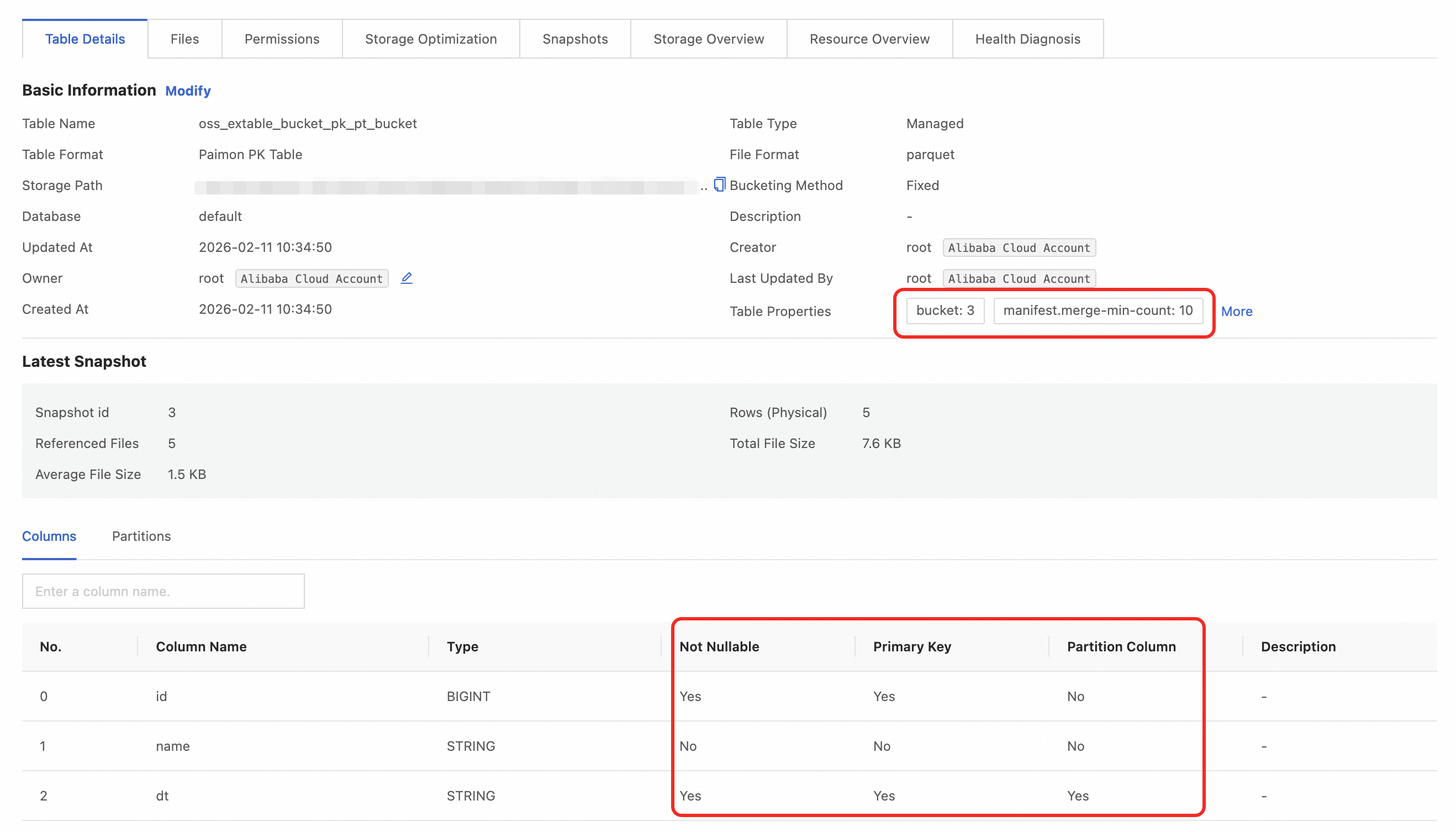
Data type mapping
For more information about MaxCompute data types, see Data types (Version 1.0) and Data types (Version 2.0).
Paimon data type | MaxCompute 2.0 data type | Read/write support | Description |
TINYINT | TINYINT | 8-bit signed integer. | |
SMALLINT | SMALLINT | 16-bit signed integer. | |
INT | INT | 32-bit signed integer. | |
BIGINT | BIGINT | 64-bit signed integer. | |
BINARY(MAX_LENGTH) | BINARY | Binary data type. The current length limit is 8 MB. | |
FLOAT | FLOAT | 32-bit binary floating-point type. | |
DOUBLE | DOUBLE | 64-bit binary floating-point type. | |
DECIMAL(precision,scale) | DECIMAL(precision,scale) | A decimal exact numeric type. The default is
| |
VARCHAR(n) | VARCHAR(n) | Variable-length character type. n is the length, which must be in the range of [1, 65535]. | |
CHAR(n) | CHAR(n) | Fixed-length character type. n is the length, which must be in the range of [1, 255]. | |
VARCHAR(MAX_LENGTH) | STRING | The current length limit for the string type is 8 MB. | |
DATE | DATE | The date type format is | |
TIME, TIME(p) | Not supported | Represents a time of day without a time zone, with nanosecond precision. TIME(p) indicates the precision of the fractional part, which must be in the range of 0 to 9. The default is 0. MaxCompute has no corresponding type. | |
TIMESTAMP, TIMESTAMP(p) | TIMESTAMP_NTZ | A timestamp type without a time zone, precise to nanoseconds. Reading a table requires disabling the native feature | |
TIMESTAMP WITH LOCAL TIME_ZONE(9) | TIMESTAMP |
| |
TIMESTAMP WITH LOCAL TIME_ZONE(9) | DATETIME | A timestamp type precise to nanoseconds. The format is | |
BOOLEAN | BOOLEAN | BOOLEAN type. | |
ARRAY | ARRAY | Complex type. | |
MAP | MAP | Complex type. | |
ROW | STRUCT | Complex type. | |
MULTISET<t> | Not supported | MaxCompute has no corresponding type. | |
VARBINARY, VARBINARY(n), BYTES | BINARY | Variable-length binary string data type. |