Office collaboration
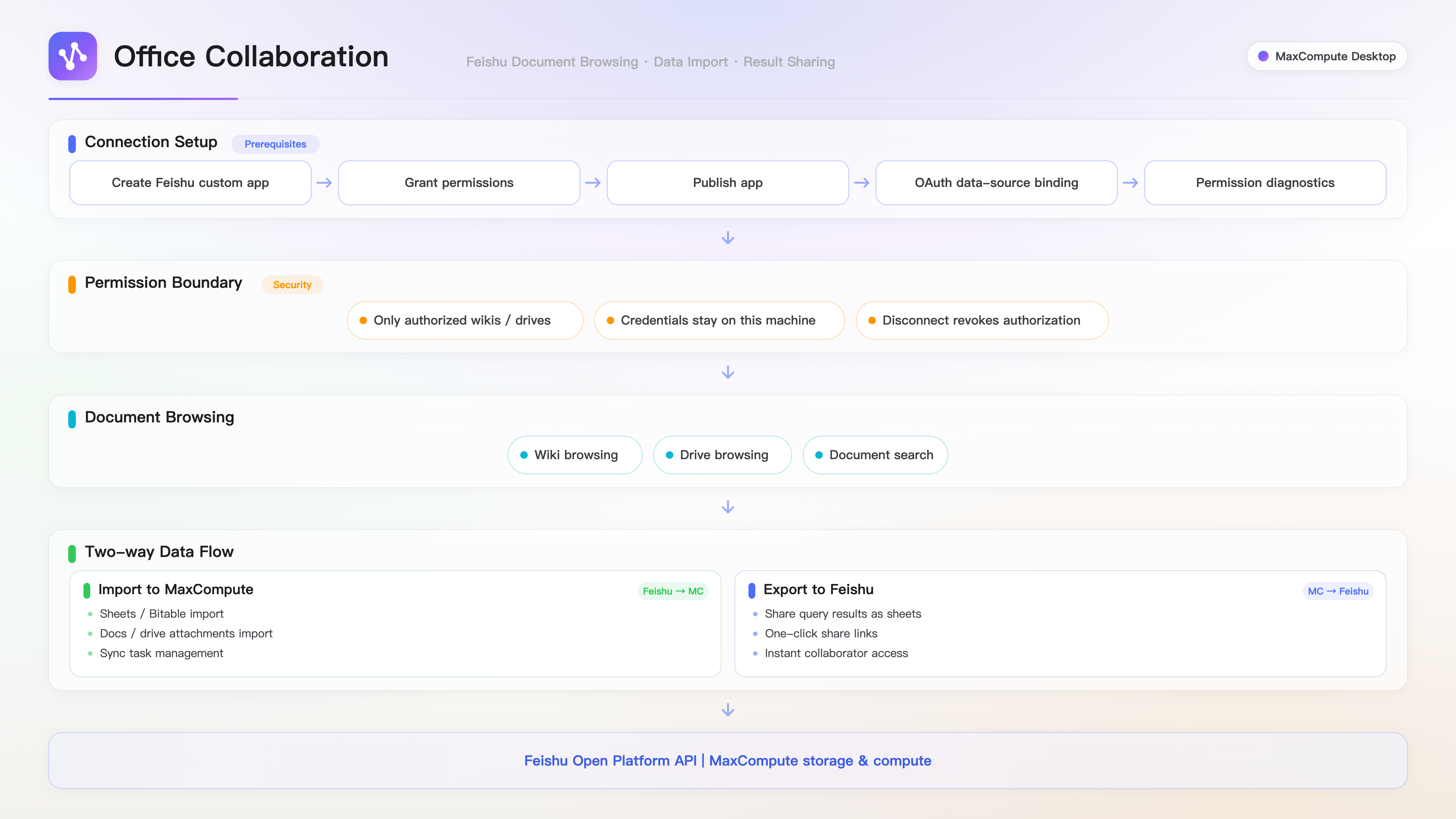
The office collaboration module connects the Feishu document ecosystem with the MaxCompute data platform. You can import data from Feishu Drive files, Wiki documents, and online spreadsheets into MaxCompute tables for offline analysis. You can also share MaxCompute query results as Feishu online spreadsheets for team collaboration.
Overview
The client uses the Feishu Open API to access documents you have permission to view. You can import structured data, such as online spreadsheets and Bitable, and unstructured content, such as documents and files, into MaxCompute. You can also share query results back to Feishu.
Use cases
Archive structured data: Your team maintains data such as attendance records, registrations, or inventory lists in Feishu online spreadsheets and needs to archive this data to MaxCompute for offline correlation analysis.
Share query results: You need to publish calculation results from MaxCompute as a Feishu online spreadsheet and share it via a link with collaborators who do not have MaxCompute permissions.
Process unstructured documents: You need to import office files, such as PDF, DOC, or PPT files, from Feishu Drive into MaxCompute for batch processing tasks like text extraction, optical character recognition (OCR), or translation.
Feature index
Feature category | Feature |
Data import | Import online spreadsheets, Bitable, online documents, and files from Feishu Drive |
Data export | Share query results to Feishu online spreadsheets |
Document browsing | Browse Wiki, Feishu Drive, and search for documents |
Connection management | Bind Feishu applications, use OAuth authorization, run permission diagnosis, and manage disconnection |
Prerequisites
Before you use the Feishu integration, complete the following prerequisites:
1. Create a custom Feishu application
Go to the Feishu Developer Console, and click Create Custom App.
Enter an application name and description.
On the credentials and basic information page, get the App ID and App Secret.
2. Enable permissions
On the permission management page in the Feishu Developer Console, enable the following permissions:
Permission | Purpose |
| Browse the file list in Feishu Drive |
| Browse Wiki spaces |
| Read the content of online documents |
| Read data from online spreadsheets |
| Read data from Bitable |
| Export document content |
3. Release the application
On the version management and release page in the Feishu Developer Console, release the application. For personal editions of Feishu, changes to an application are released automatically.
4. Permission scope
The application can only access the following documents:
Documents the application creates.
Documents shared directly with the application.
Wiki spaces where the application is a collaborator.
To access more documents, add the application as a collaborator to the target documents or Wiki spaces in Feishu.
Configure Feishu connection
Connect to the data source
In the sidebar, click the Office Collaboration icon to open the collaboration panel.
Click the Feishu connector to enter the Feishu feature area.
Click Authorize with Lark. If you see an "App ID/App Secret not configured" message, go to the Settings page and enter the App ID and App Secret for your Feishu application.
The Feishu authorization page opens in your browser. Confirm the authorization to return to the client.
After successful authorization, the panel displays the current Feishu username and switches to the document browser.
Permission diagnosis
After a successful connection, a permission diagnosis runs automatically to check the following items in sequence:
Token retrieval: Checks if the access token can be obtained.
Wiki: Checks if the list of Wiki spaces is accessible.
Feishu Drive files: Checks if files in Feishu Drive are accessible.
Document search: Checks if the search API is available.
If all checks pass, the document browser opens. If a check fails, verify that you have enabled the corresponding permission in the Feishu Developer Console.
Disconnect
In the Feishu feature area, click Disconnect to clear the local authorization credentials. After you disconnect, you must authorize again to use the Feishu features.
Browse Feishu documents
Once authorized, the document browser displays two root nodes:
Wiki: Expand this node to view accessible Wiki spaces and their child nodes.
Drive: Expand this node to view the folders and files in Feishu Drive.
Supported document types:
Type | Description |
Online document (docx) | A Feishu online document. When imported, the document is converted into text blocks. |
Online spreadsheet (sheet) | A Feishu online spreadsheet. When imported, the column structure is preserved. |
Bitable (bitable) | A Feishu Bitable. When imported, the data is converted into records. |
Folder (folder) | You can expand folders to browse their child nodes. |
File (file) | PDF, DOC, PPT, image, and other files. |
Import Feishu data to MaxCompute
The client supports two import modes: file import and table import.
File import
This mode is suitable for online documents and files in Feishu Drive. It imports the document content into a MaxCompute table for text processing.
In the document browser, select the documents that you want to import.
A count of the selected items appears at the top. Click Configure Sync.
Enter a task name and a table name prefix. The default prefix is
feishu_.Click Start Sync.
Table import
This mode is suitable for online spreadsheets and Bitable. It imports tabular data into a MaxCompute table, preserving column names and data types.
In the document browser, select the target tables.
Switch to Table Import mode.
Preview the table schema and sample data.
After you confirm the column mapping, click Start Sync.
Sync tasks
Synchronization tasks run asynchronously. After creating a task, you can view its progress in the task list. When the task completes, the data is written to a MaxCompute table, where it can be queried by using SQL.
Share query results to Feishu
In the query results panel, you can share the current results as a Feishu online spreadsheet.
Run a query and wait for the results.
On the toolbar of the results panel, click Share to Lark.
The client creates a new online spreadsheet in Feishu and writes the column names and data rows.
After the sharing is complete, a message appears: "Shared to Feishu, click to open". Click the message to go to the Feishu spreadsheet page.
Before you share, ensure that you have authorized Feishu. The shared spreadsheet is created in the Feishu Drive of the authorized user.