When a user-defined function (UDF) runs in MaxCompute, its output goes to the worker node's StdOut and StdErr streams, which you can view in LogView. This guide shows you how to add structured log printing to a UDF and control log verbosity at query time.
How it works
UDFs run on remote worker nodes in a distributed environment. After you test a UDF locally, the code you commit may produce unexpected results due to data differences or logic errors. Log printing lets you inspect execution details in LogView without re-running tests locally.
MaxCompute exposes two log streams per worker node:
StdOut — output from
System.out.println()(INFO and DEBUG messages)StdErr — output from
System.err.println()(WARNING and ERROR messages, stack traces)
Log4j and other third-party logging libraries are supported, but they require extra configuration to redirect output to StdOut and StdErr. If logs go to a file instead, they are not accessible in LogView. To avoid configuration complexity, this guide wraps System.out and System.err in a lightweight Logger class.
Steps overview
To add log printing to a UDF, complete these steps:
Write code — Implement a
Loggerclass and reference it in your UDF.Debug code locally — Run the UDF locally to verify log output.
Package and create the UDF — Bundle the classes into a JAR file, add it as a MaxCompute resource, and create the UDF.
Run the UDF in MaxCompute — Call the UDF in a SQL query and view logs in LogView.
Prerequisites
Before you begin, ensure that you have:
A MaxCompute project
Access to LogView for the project
Write code
Implement the Logger class
The following MyLogger class wraps System.out and System.err to provide INFO, DEBUG, WARNING, and ERROR levels. Each log entry includes a timestamp, the class name, and the log level.
import java.io.PrintWriter;
import java.io.StringWriter;
import java.text.SimpleDateFormat;

public class MyLogger {

  private static final SimpleDateFormat DATEFORMATE = new SimpleDateFormat("yyyy-MM-dd HH:mm:ss");

  public static MyLogger getLogger(String name) {
    return new MyLogger(name);
  }

  private static boolean debug = false;

  private String prefix;

  public static void setDebug(boolean enableDebug) {
    debug = enableDebug;
  }


  public MyLogger(String name) {
    if (name == null) {
      this.prefix = "";
    } else {
      this.prefix = name + " - ";
    }
  }

  private String logCurrentTime() {
    return "[" + dateFormat.format(System.currentTimeMillis()) + "]";
  }

  public void log(String msg) {
    info(msg);
  }

  public void info(String msg) {
    System.out.println(logCurrentTime() + " " + prefix + msg);
  }

  public void debug(String msg) {
    if (MyLogger.debug) {
      System.out.println(logCurrentTime() + " [DEBUG] " + prefix + msg);
    }
  }

  public void warn(String msg) {
    System.err.println(logCurrentTime() + " [WARNING] " + prefix + msg);
  }

  public void warn(String msg, Throwable ex) {
    warn(msg);
    System.err.println(getStackTrace(ex));
  }

  public void error(String msg) {
    System.err.println(logCurrentTime() + " [ERROR] " + prefix + msg);
  }

  public void error(String msg, Throwable ex) {
    error(msg);
    System.err.println(getStackTrace(ex));
  }

  private String getStackTrace(Throwable t) {
    StringWriter sw = new StringWriter();
    t.printStackTrace(new PrintWriter(sw));
    return sw.toString();
  }

}
Add the Logger to your UDF
Reference MyLogger in your UDF class using a static final field. The example below converts a STRING column to INTEGER and logs each operation:
public static final MyLogger logger = MyLogger.getLogger(MyUdf.class.getName());Complete UDF code:
public class MyUdf extends UDF {

  public static final MyLogger LOGGER = MyLogger.getLogger(MyUdf.class.getName());

  @Override
  public void setup(ExecutionContext ctx) throws UDFException, IOException {
    logger.info("setup MyUdf");
  }

  public Integer evaluate(String s) {
    logger.debug("input s: " + s);
    int ret = 0;
    try {
      ret = Integer.parseInt(s);
    } catch (Exception e) {
      logger.error("parseInt error!", e);
    }
    return ret;
  }

}
Control DEBUG logging at query time
In MaxCompute, a UDF processes every row in the query result set. Printing DEBUG logs for each row can rapidly fill log storage. Use a flag parameter to enable DEBUG logging only when needed.
To toggle DEBUG logging without modifying code, read a custom property in the setup method:
@Override
  public void setup(ExecutionContext ctx) throws UDFException, IOException {
    logger.info("setup MyUdf");
    Properties properties = ctx.getConfigurations();
    boolean debug = Boolean.parseBoolean(properties.getProperty("odps.user.properties.mylogger.debug", "false"));
    MyLogger.setDebug(debug);
  }
odps.user.properties.mylogger.debug is a custom flag parameter with a default of "false". Enable it for a specific SQL execution using a SET statement:
set odps.user.properties.mylogger.debug=true;The flag applies only to the SQL execution that includes the SET statement. Omit the SET statement when debugging is complete to stop printing DEBUG logs.
Debug code locally
Run the following test code on your local machine to verify that the Logger class and UDF behave as expected before committing to MaxCompute.
Test 1: INFO and error stack only (DEBUG disabled)
public static void main(String[] args) throws UDFException, IOException {
   MyUdf myUdf = new MyUdf();
   myUdf.setup(new LocalExecutionContext());
   myUdf.evaluate("");
   myUdf.evaluate("1");
   myUdf.evaluate("2");
   myUdf.evaluate("3");
 }
Result: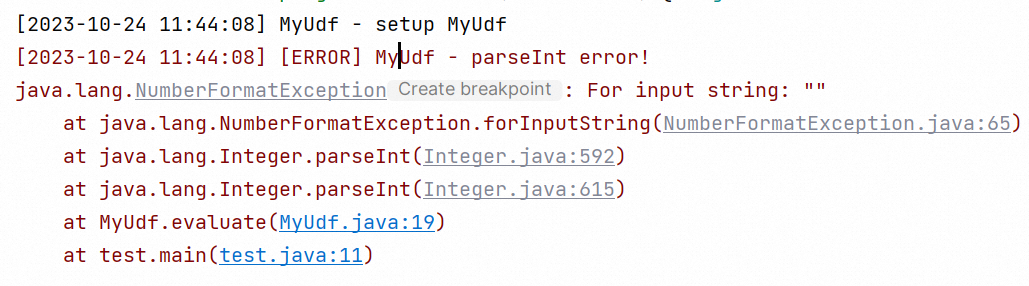
Test 2: INFO, DEBUG, and error stack (DEBUG enabled)
Call MyLogger.setDebug(true) before setup() to turn on the DEBUG switch. Turn it off after debugging to avoid unnecessary log printing.
public static void main(String[] args) throws UDFException, IOException{
        MyLogger.setDebug(true); // Print DEBUG logs.
        MyUdf MyUdf = new MyUdf();
        MyUdf.setup(new LocalExecutionContext());
        MyUdf.evaluate("");
        MyUdf.evaluate("1");
        MyUdf.evaluate("2");
        MyUdf.evaluate("3");
    }
The following result is returned: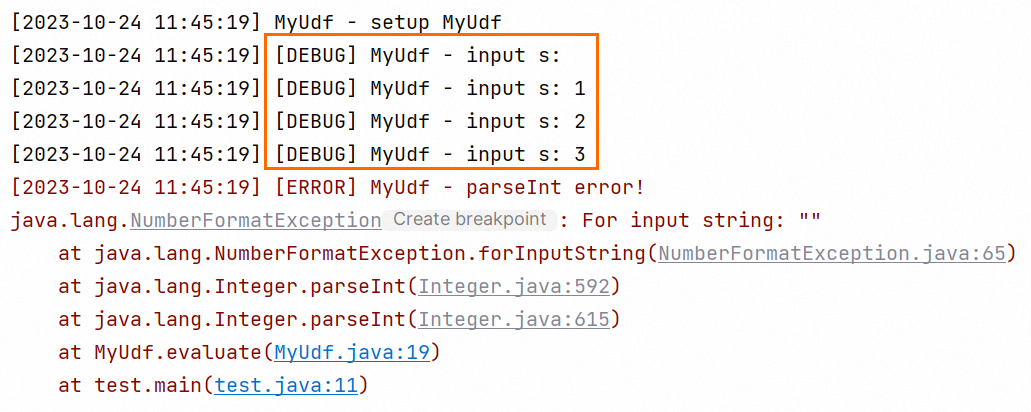
Package and create the UDF
After local testing passes, package MyLogger and MyUdf into a JAR file, then register the UDF in MaxCompute.
Add the JAR file as a MaxCompute resource. For more information, see Add resources.
Create a UDF named
stringToInt. For more information, see Create a UDF.
Run the UDF and view logs
Prepare table data
Create a test table and insert sample data:
create table string_table(s string);
insert overwrite table string_table values (''), ('1'), ('2'), ('3');
Run without DEBUG logging
Call the UDF to convert the STRING column to INTEGER:
set odps.sql.type.system.odps2=true;
select stringToInt(s) from string_table;
Expected result:
+------+
| _c0  |
+------+
| 0    |
| 1    |
| 2    |
| 3    |
+------+
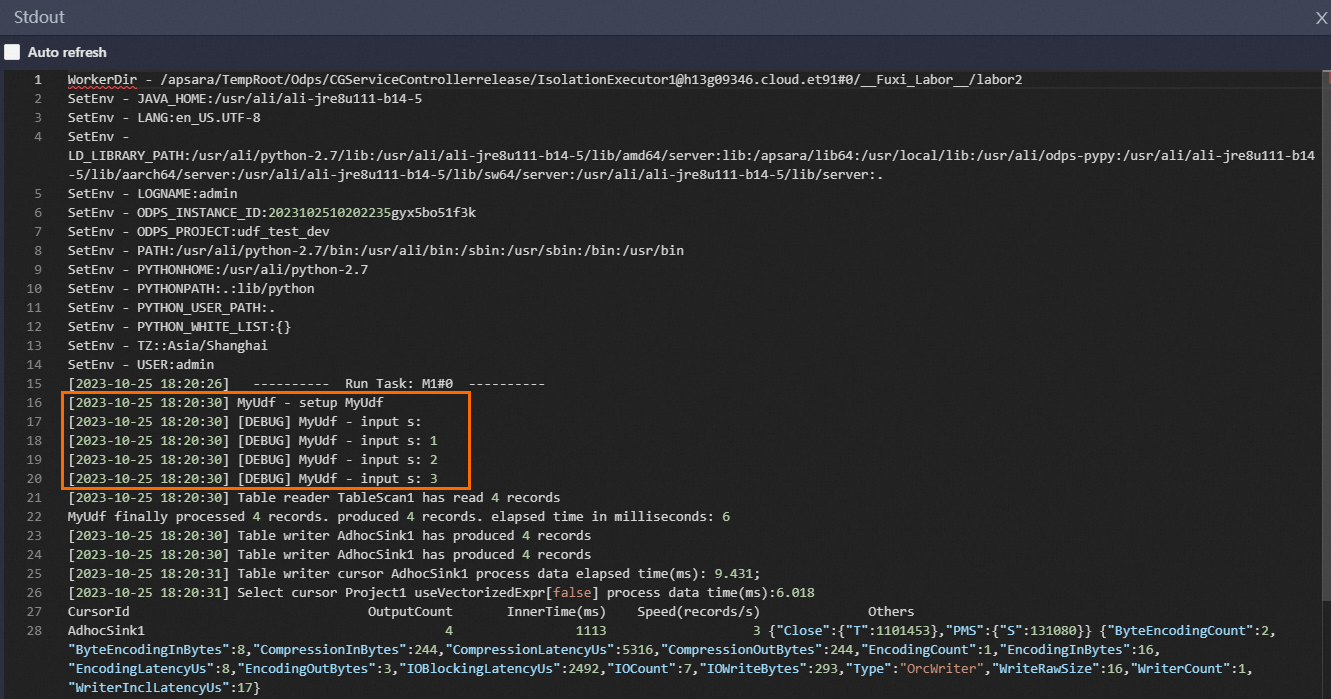
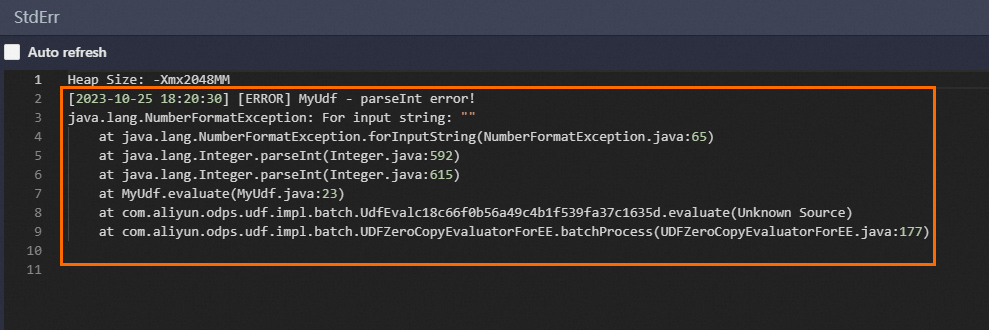
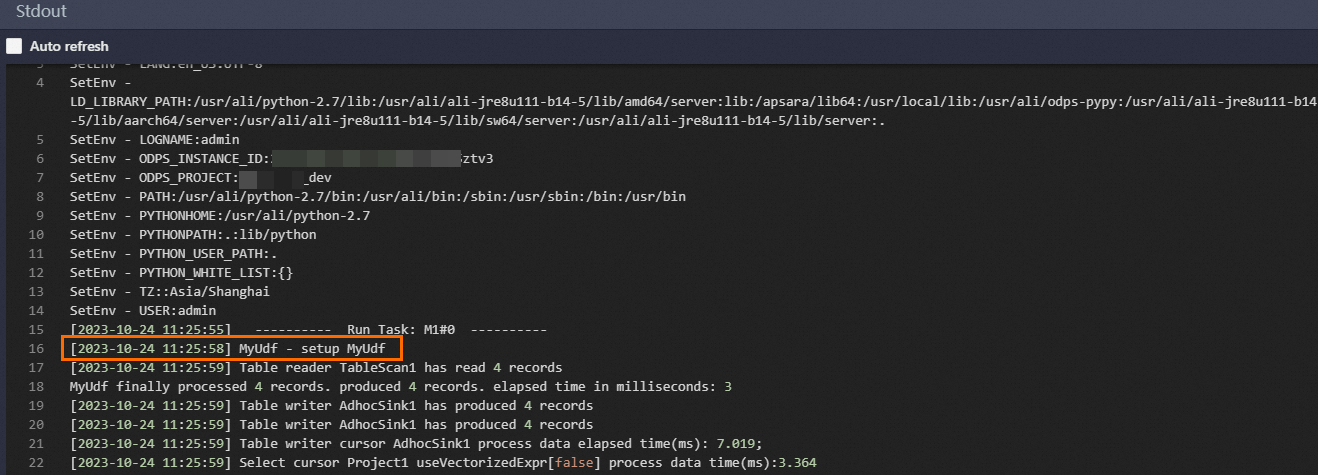
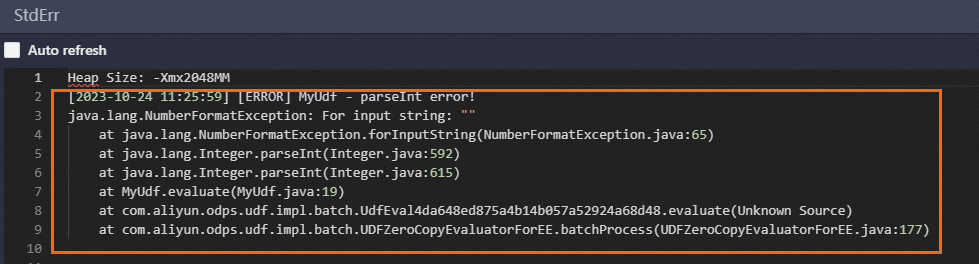
Open LogView and check StdOut and StdErr. StdOut shows INFO messages, and StdErr shows error stack traces.
Run with DEBUG logging
Add the DEBUG flag to the SQL execution:
set odps.sql.type.system.odps2=true;
set odps.user.properties.mylogger.debug=true;

select stringToInt(s) from string_table;
Expected result:
+------+
| _c0  |
+------+
| 0    |
| 1    |
| 2    |
| 3    |
+------+
Open LogView and check StdOut and StdErr. StdOut shows both INFO and DEBUG messages. StdErr shows error stack traces.