Commit and publish
This topic describes the commit and publish flow in Mobi.
What is a commit
In Mobi, a commit is the primary way to create and manage application versions during development. The commit feature supports three main operations: create, query, and rollback. Each commit records a summary, the committer's account information, and the creation time, along with a unique ID generated by Mobi.
How to create a commit
In the upper-right corner of the application designer, select the commit option from the dropdown menu. Enter a brief summary to describe the current version.
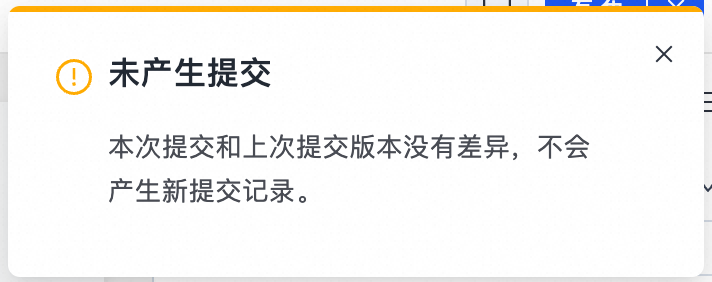
If you attempt to commit an application that has no changes since the last commit, a new commit record is not created. A notification appears in the application designer.
How to roll back
The commit history for the application is displayed in the version management panel on the left. Hover over a commit record to display the button to roll back to that version. Click the button to open the rollback configuration panel.
Before you roll back, you can choose to commit your current work. To do this, select the option to commit the current workspace before rolling back in the configuration panel, and then enter the commit information. If you do not commit your current work, the application data will be overwritten by the version you are rolling back to. This can cause data loss.
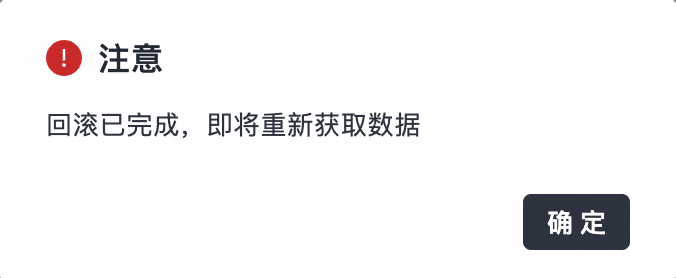
After the rollback is complete, refresh the application. The data is overwritten by the historical version.
If you choose to commit before a rollback, a new commit record is not created if there are no changes since the last commit.
Publish to the development environment
In the application designer, click the publish button in the upper-right corner to configure the publish flow. An application is published based on a specific commit. You can either create a new commit from the current application or select a historical commit to publish.
After you publish, the record appears in the publish history panel on the left. Hover over a record with a running status to access the application's runtime.
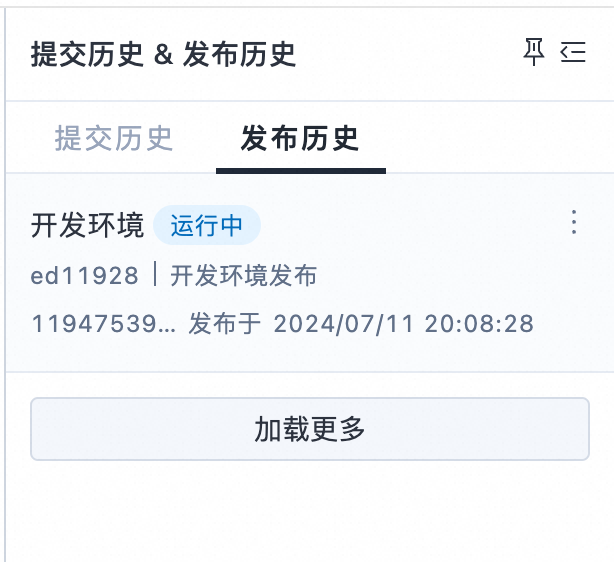
The publish history displays all publish records for the application. To republish a historical version, start a new publish flow from the publish history list.
Publish to the production environment
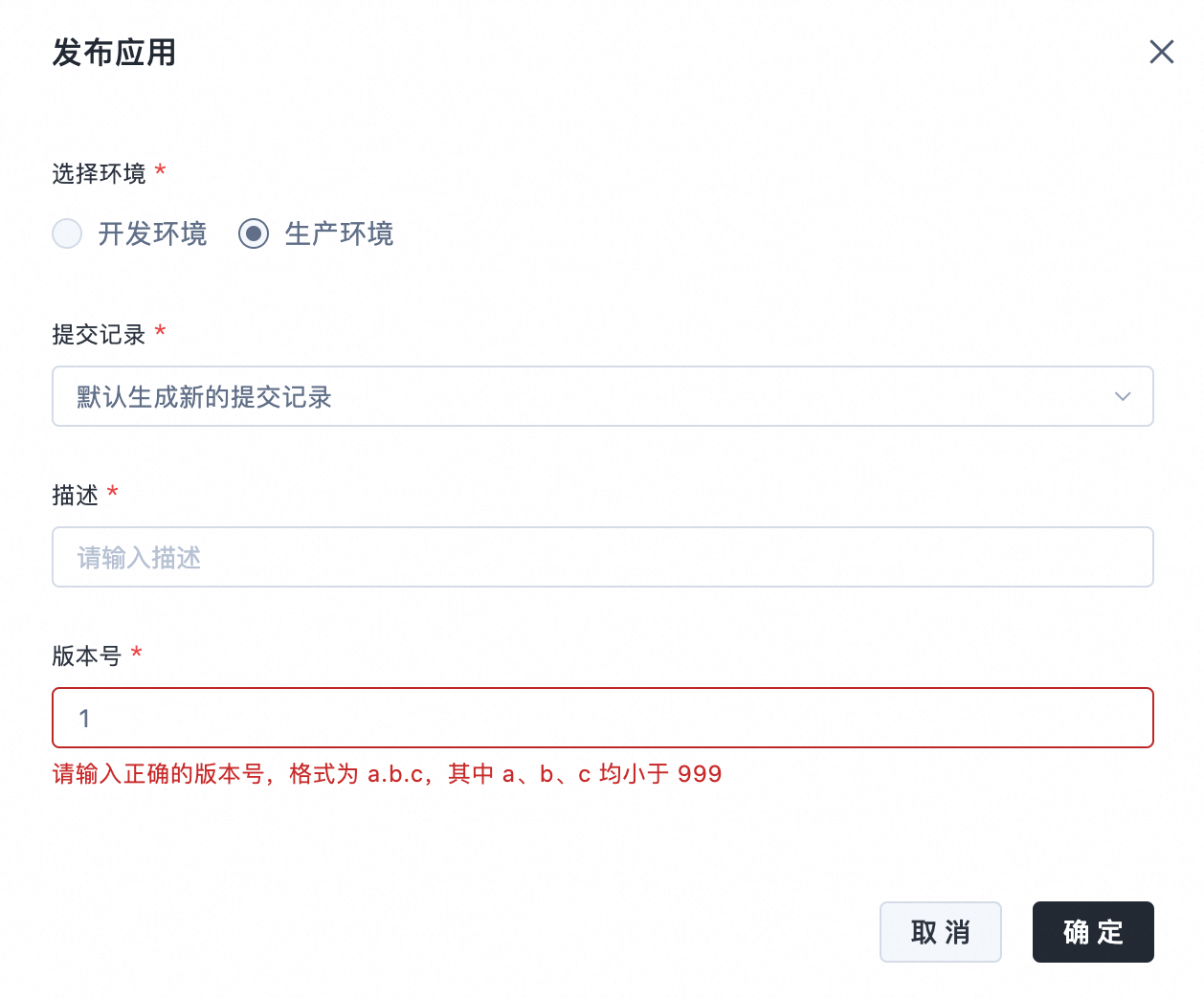
The flow for publishing to the production environment is similar to that for the development environment. You must enter a version number for production releases. A version number is a string of three numbers, each less than 999, separated by periods (.).
If a domain name is not configured for the production environment in your workspace, you cannot publish to it. Configure a domain name for the production environment before you publish the application.