The Copilot content settings feature on the Mobi platform provides detailed customization options. You can adjust the application's content display for different scenarios by configuring the top bar, welcome message, role content, and input area. This lets you create a personalized interactive experience for both user and assistant roles.
Features
The Copilot content settings feature on the Mobi platform supports the following:
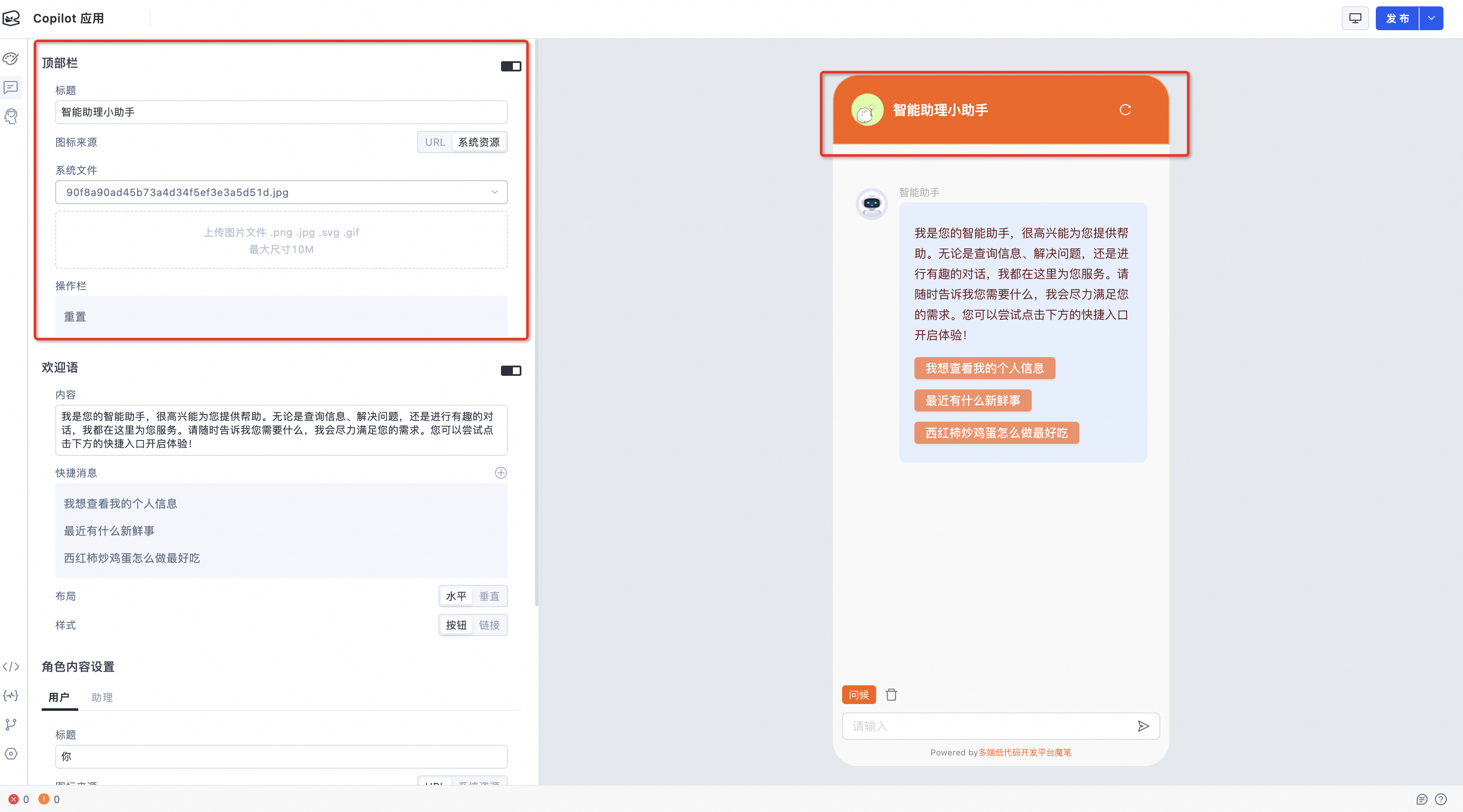
Top bar settings: Customize the title and icon of the top bar to reinforce your application's brand identity.
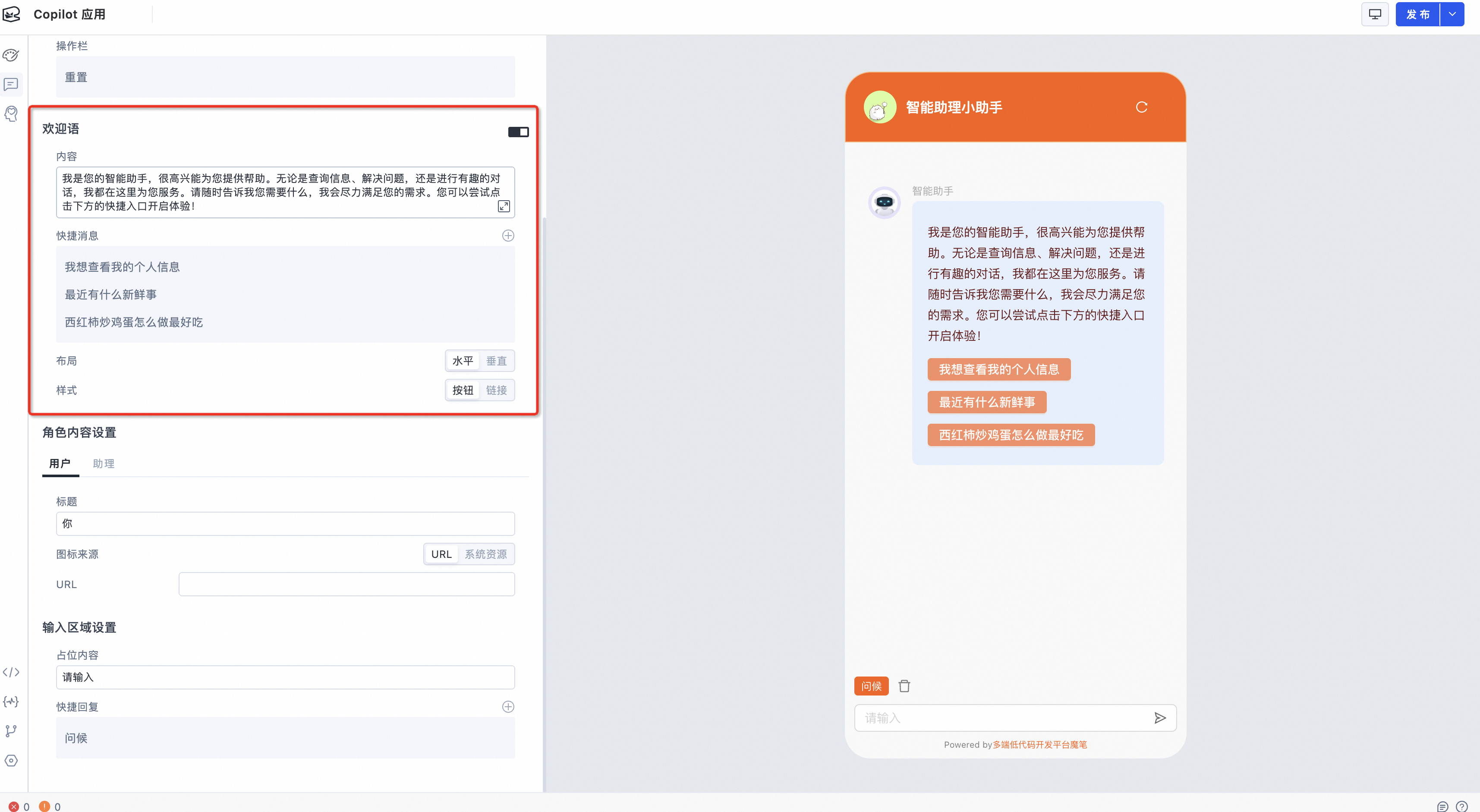
Welcome message settings: Edit the content of the welcome message, add quick messages, and configure the layout and style.
Role content settings: Configure separate settings for user and assistant content. This includes common settings and assistant-specific options such as debug information.
Input area settings: Customize placeholder text and quick replies in the input area to enhance the user input experience.
Instant updates: Changes to content settings take effect immediately and are automatically reflected in the application interface. You do not need to save your changes.
Steps
1. Access Copilot content settings
Log on to the Mobi platform and navigate to the designer.
In the navigation pane on the left, click Content Settings.

2. Configure the top bar
In the Content Settings section, you can customize the title and icon of the top bar.
You can choose a title and icon style that matches the purpose and style of your application.
3. Configure the welcome message
You can edit the welcome message text to guide users.
You can add quick message buttons to allow users to quickly select common operations or information.
You can configure the layout and style of the welcome message to attract user attention and provide guidance.
4. Configure role content
User role content settings
You can set the title and icon for the user role to personalize the user interface.

Assistant role content settings
You can set the title and icon for the assistant role to personalize the user interface.
You can configure the switch for assistant debug information to show or hide it as needed.
Extra area: You can customize the extra area at the bottom of the message to provide more assistant information and features.
Toolbar: You can configure the content and trigger behaviors of the interactive toolbar that appears when a user hovers over a session bubble. Options include Resend, Copy, and Play. The trigger behaviors for each option are as follows:
Resend: Resends the question associated with the content in the session bubble, or the question itself.
Copy: Copies the content of the session bubble to the clipboard.
Play (RAG only): Plays the current message using the configured text-to-speech service. Currently, this feature is supported only for messages from retrieval-augmented generation (RAG) skill responses.
Text-to-speech: This setting is required for the Play behavior and is used to play the current message. For more information, see Text-to-speech (Alibaba Cloud Intelligent Speech Interaction).

Common role content settings
You can set profile pictures and content to display on separate lines.
Configure the input area
You can define the placeholder content for the input area to guide users on how to interact with the application.
You can enable speech input, image input, and file input to allow users to send items such as images and files. This improves the interactive experience.
Speech input requires you to attach a speech-to-text service. For more information, see Speech-to-text (Alibaba Cloud Intelligent Speech Interaction).
After you enable file input, refer to the documentation for the Large Language Model (LLM) platform that you are using to learn how to process uploaded files. If you are connecting to the Alibaba Cloud Model Studio platform, see How to quickly build an Alibaba Cloud Model Studio chat application with file interaction capabilities.
You can set the Send button to a "loading" state. During this time, you can pre-process user-uploaded files.
You can add quick reply options to allow users to quickly send common replies or requests.

Advanced Settings
You can set a fallback for the scroll behavior on Android or iOS devices. This prevents chat response jitter on specific device models.


Content debugging
Real-time preview: The Mobi platform provides a real-time preview. You can instantly see the effect of any changes that you make to the settings.
Input test: You can enter content in the Copilot input area to simulate user interactions.