Control the knowledge base retrieval scope for Model Studio RAG applications
This topic describes how to use Moflow permission groups for fine-grained control over the knowledge base retrieval scope in Alibaba Cloud Model Studio retrieval-augmented generation (RAG) applications.
Solution overview

To implement fine-grained knowledge base retrieval using Moflow, follow these six steps:
Retrieve the user's permission group list: In the application, retrieve the current user's permission group list using
{{mobi.currentUser.groups}}.Query the knowledge base IDs that correspond to the permission groups: Use the built-in database or your own database to store the mapping between permission group IDs and knowledge base IDs. This mapping table lets you quickly map the permission group list from the first step to a list of knowledge base IDs.
Create a knowledge base: If the table from the second step does not contain a knowledge base ID for the current permission group, a knowledge base has not been created for that group. You can create a new knowledge base by calling the Model Studio API operation to create a knowledge index.
Store the new mapping: Persistently store the mapping between the new knowledge base ID returned by the API in the third step and the permission group in the table. This facilitates future retrievals.
Limit the retrieval scope of the RAG application: In the integration operation of the Model Studio application, use the list of knowledge base IDs obtained in the second step (or the knowledge base ID returned in the third step if a new one was created) as the parameter for the knowledge base ID list. This allows retrieval within a specified knowledge base scope.
Restrict document uploads to the knowledge base: On the knowledge base management page, you can list the knowledge bases and documents visible to the user based on the list of knowledge base IDs from the second step (or the ID returned in the third step if a new knowledge base was created). When a user uploads a document, they can only select a knowledge base ID from this list.
Prerequisites
Create a Model Studio application as described in the Retrieval-Augmented Generation (RAG) documentation. To use the application's knowledge base retrieval scope parameter, do not configure a knowledge base for the application.
After you publish the Model Studio application, obtain the API-KEY and application ID.
Create an unstructured category to store all user documents and record its category ID.
Step 1: Get the user's permission group list
Create a global variable named
currentUserGroups.Retrieve the user's permission group list using
{{mobi.currentUser.groups}}. You can filter the permission groups as needed.Set the filtered list of permission group names to the
currentUserGroupsvariable.// Get the names of the user's permission groups const currentGroups = mobi.currentUser.groups.map(obj=>obj.name).filter( name => name !== "DEFAULT_END_USER" && name !== "END_USER" ); currentUserGroups.setValue(currentGroups)
You can retrieve the permission groups of a logged-on user using {{mobi.currentUser.groups}} only in a published application. You cannot retrieve the permission groups of a design-time user in the application designer.
Step 2: Query the knowledge base IDs that correspond to the permission groups
Create a table named
group_index_mappingto record the mapping between permission groups and knowledge bases.CREATE TABLE group_index_mapping ( id INT AUTO_INCREMENT PRIMARY KEY, group_id VARCHAR(32) NOT NULL UNIQUE, index_id VARCHAR(32) NOT NULL UNIQUE, INDEX idx_group_id (group_id) );Create an integration operation to query the
index_idbased on thegroup_id.
Step 3: Create a knowledge base
Create an HTTP integration operation or an Alibaba Cloud OpenAPI integration operation to call the Alibaba Cloud Model Studio API to create a knowledge index. For more information, see CreateIndex - Create a knowledge base.
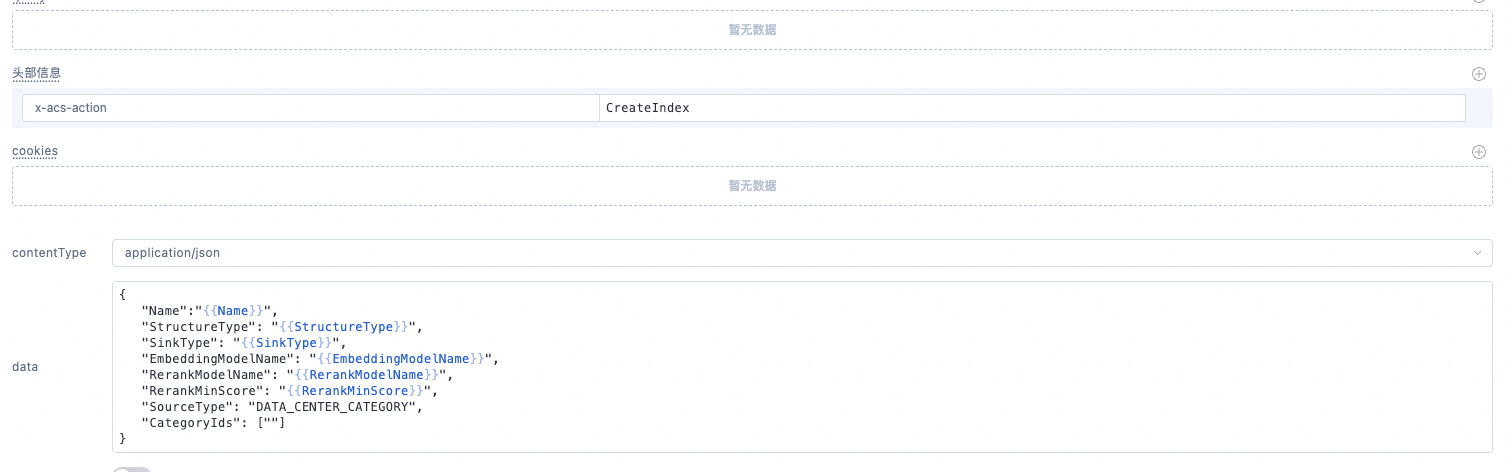
Call the integration operation
globalCreatedIdxto create the knowledge base. Use the permission group name as the name for the new knowledge base.globalCreateIdx.trigger({ "Name": groupId, "StructureType": "unstructured", "SinkType": "DEFAULT", "EmbeddingModelName": "text-embedding-v2", "RerankModelName": "gte-rerank-hybrid", "RerankMinScore": "0.2", "SourceType": "DATA_CENTER_CATEGORY", "CategoryIds": [""] })
Step 4: Store the new mapping
Create an integration operation to insert the mapping between the new knowledge base ID returned in Step 3 and the permission group name into the mapping table.
Consolidate the frontend functions from Step 1 to Step 4.
const idxObjs = [];  // Stores the array of knowledge base objects for the current user
const idxIds = [];  // Stores the array of knowledge base IDs for the current user
let selectedKey = 0;
const currentGroups = currentUserGroups.value;  // 1. Get the permission groups of the current user

for (let i = 0; i < currentGroups.length; i++) {
    selectedKey = i + 1;
    const groupId = currentGroups[i];
    console.log(groupId);

    const indexId = await SelectIndexId.trigger({
        "groupId": groupId
    }); // 2. Query the knowledge base ID that corresponds to the permission group

    if (indexId.data.length === 0) {
        // 3. If no knowledge base ID exists for the permission group, call the Model Studio API to create a knowledge base
        const currentIdx = await globalCreateIdx.trigger({
            "Name": groupId,
            "StructureType": "unstructured",
            "SinkType": "DEFAULT",
            "EmbeddingModelName": "text-embedding-v2",
            "RerankModelName": "gte-rerank-hybrid",
            "RerankMinScore": "0.2",
            "SourceType": "DATA_CENTER_CATEGORY",
            "CategoryIds": [""]
        });

        // New knowledge base ID returned by the API
        const idxId = currentIdx.data.body.Data.Id;

        // 4. Persistently store the new mapping
        await InsertIndexMapping.trigger({
            "groupId": groupId, "indexId": idxId,
        });

        idxObjs.push({
            "name": groupId, "id": idxId, "selectedKey": String(selectedKey)
        });
        idxIds.push(idxId);
    } else {
        // If an ID exists, directly get the knowledge base ID
        const idxId = indexId.data[0].index_id;
        idxObjs.push({
            "name": groupId, "id": idxId, "selectedKey": String(selectedKey)
        });
        idxIds.push(idxId);
    }
}

// Store in the global variable currentIdxIds to define the subsequent knowledge base retrieval scope
currentIdxIds.setValue(idxIds);

// Return an array of objects to configure the display on the knowledge base management page
return idxObjs;
Step 5: Limit the retrieval scope of the RAG application
Create a global variable named
currentIDxIDs.Store the array of knowledge base IDs visible to the user, obtained in Step 2 or Step 3, in the global variable
currentIDxIDs.In the Model Studio application integration operation used on the conversation page, use this variable to set the parameter for the list of knowledge base IDs that defines the retrieval scope.
Step 6: Restrict document uploads to the knowledge base
You can create a maximum of 1,000 categories in Alibaba Cloud Model Studio. For more information, see Data Import. This limit restricts large-scale user category isolation. Therefore, we recommend that you use a single category as a staging area for the knowledge base. You can also delete the category management page to hide the underlying management details and add logic to the knowledge base management page for uploading documents to a specific knowledge base:

You can add an upload button named uploadButton. The file is uploaded to the Moflow system file storage. After the upload is successful, the frontend function is executed.
You can add a new integration operation, ApplyFileUploadLease, to request a file upload lease. For more information, see ApplyFileUploadLease - Request a file upload lease. The configuration is as follows:
You can add an UploadRemoteFile integration operation. For the integrated resource, select file/System Built-in Integration/System Built-in File Integration. This is a built-in system resource and does not need to be created. The configuration for the integration operation is as follows:
You can add the UploadFile integration operation to upload request files to a preset category. For more information, see AddFile - Add file. The configuration is shown in the following figure:
You can add the SubmitIndexAddDocumentsJob operation to provide an API for uploading documents to a specified knowledge base. For more information, see SubmitIndexAddDocumentsJob - Submit a knowledge base append job. The configuration is as follows:
Create a frontend function named uploadBailianFile and attach it to the successful system upload event of the uploadButton. This function executes steps 2 through 6 of the process.
// 1. Click the uploadButton to trigger the frontend function.
// 2. Calculate the MD5 hash.
const base64String = uploadButton.values[0].base64Data;
const wordArray = CryptoJS.enc.Base64.parse(base64String);
const md5Hash = CryptoJS.MD5(wordArray);
const md5Hex = md5Hash.toString(CryptoJS.enc.Hex);

// 3. Call the Model Studio API to request a document upload lease and get the lease document ID.
const response = await ApplyFileUploadLease.trigger({
  "Md5": md5Hex,
  "FileName": uploadButton.values[0].name,
  "SizeInBytes": uploadButton.values[0].size
});
const fileUploadLeaseId = response.data.Data.FileUploadLeaseId;

// Lease parameters
const url = response.data.Data.Param.Url;
const contentType = response.data.Data.Param.Headers["Content-Type"];
const bailianExtra = response.data.Data.Param.Headers["X-bailian-extra"];

// 4. Upload to the Model Studio server for temporary storage.
const responseRemote = await UploadRemoteFile.trigger({
  "url": url,
  "contentType": contentType,
  "bailianExtra": bailianExtra,
  "fileId": uploadButton.values[0].fileId
});

// 5. Call the Model Studio API to upload the document to the preset category.
const respnseUpload = await UploadFile.trigger({
  "fileUploadLeaseId": fileUploadLeaseId
});
const fileId = respnseUpload.data.body.Data.FileId;

// 6. Upload the document to the specified knowledge base.
const submitResp = await SubmitIndexAddDocumentsJob.trigger({
  "DocumentIds": [fileId]
});

// Refresh the document list.
const responseListFile = await globalListFileByIdx.trigger();
return responseListFile
To use the CryptoJS library in the frontend function, you must import the third-party library from https://g.alicdn.com/code/lib/crypto-js/4.2.0/crypto-js.min.js.