This document describes how to use the Android software development kit (SDK) provided by Mobi to integrate a Copilot application into an Android application.
Android SDK usage guide
1. Usage example
Add dependencies
SDK Maven repository address:
https://maven.aliyun.com/nexus/content/repositories/releasesSDK Gradle dependency:
implementation 'com.aliyun.mobi:mobi-copilot:1.0.1'Use the SDK
Import the MobiCopilot class in your Java or Kotlin file.
import com.mobi.sdk.MobiCopilot;Create a MobiCopilot instance using MobiCopilot.Builder() and passing the required configuration items.
MobiCopilot mobiCopilot = new MobiCopilot.Builder()
        .setUrl("Copilot application publish address")
        .setAccessToken("The accessToken obtained through the Mobi OpenAPI, for production environment only")
        .setWebView(webView)
        .setCustomRouter(new MobiCopilot.MobiCopilotRouter() {
            @Override
            public void navigateTo(String routerKey, Map<String, Object> routerParams) {
                // Custom feature routing logic
            }

            @Override
            public void onNavigateError(String routerKey, MobiCopilot.MobiError error) {
                // Custom feature routing error handling logic
            }
        })
        .build();
2. Detailed instructions
Configuration item set methods
Set method |
Configuration item type |
Required |
Description |
setWebView |
WebView |
Yes |
The WebView component used to load and display the Copilot application |
setUrl |
String |
Yes |
Copilot application URL |
setAccessToken |
String |
Invalid development environment Required in the production environment |
Development environment application: You do not need to pass an accessToken. Production environment application: Generate an accessToken using the GenerateNativeUserToken API and pass it to the SDK. |
setCustomRouter |
MobiCopilotRouter |
Yes |
Feature routing handler object |
Load the Copilot application
Load the Copilot application using mobiCopilot.loadCopilot(). The optional parameter is a MobiCopilot.MobiErrorListener instance, which is used to receive and handle runtime errors from the Copilot application.
mobiCopilot.loadCopilot(new MobiCopilot.MobiErrorListener() {
    @Override
    public void onError(MobiCopilot.MobiError error) {
        // Custom runtime error handling logic
    }
});
Update the identity authentication token
The accessToken has a time-to-live (TTL) of 300 seconds. Before it expires, you must obtain a new one using the RefreshNativeUserToken API. Then, set the new accessToken using mobiCopilot.updateAccessToken(newAccessToken);.
MobiCopilotRouter description
Defines the custom feature routing logic.
Method name |
Parameters |
Description |
navigateTo |
String routerKey, Map<String, Object> routerParams |
Invoked when a feature route is triggered normally |
onNavigateError |
String routerKey, MobiCopilot.MobiError error |
Invoked when an error occurs in a feature route |
MobiCopilotRouter Description
Defines the custom runtime error handling logic.
Method name |
Parameters |
Description |
onError |
MobiCopilot.MobiError error |
Invoked when a runtime error occurs in the Copilot application |
Note that when a feature routing error occurs, both onNavigateError and onError are invoked.
MobiError description
This is the error object defined by the SDK.
Method name |
Return value type |
Description |
getCode |
String |
Gets the error code |
getMessage |
String |
Gets the error message |
Error code |
Description |
AccessTokenError |
The accessToken has expired. |
NavigateError |
Navigation error, such as a parameter that cannot be serialized. |
updateAccessTokenError |
Error updating the accessToken. |
3. Compatibility
The SDK is compatible with Android 7.0 and later. Because the Copilot application runs in a WebView, the WebView version provided by the client directly affects the application's performance.
Currently, the Copilot application is compatible with com.google.android.webview version 80 and later.
We continuously optimize the compatibility of the Copilot application. These optimizations take effect in real time, so you do not need to update your Android application.
Android SDK demo project guide
Mobi provides an Android demo to show how to use the Copilot Android SDK.
1. Create an application from a Copilot application template and publish it to a development or production environment.
2. Download the demo project to your local machine. The project structure is as follows:
.
├── README.md
├── build.gradle
├── settings.gradle
├── gradle/
│   ├── libs.versions.toml
│   └── wrapper/
│       ├── gradle-wrapper.jar
│       └── gradle-wrapper.properties
└── demo/
    ├── build.gradle
    └── src/
        └── main/
            ├── AndroidManifest.xml
            ├── res/
            └── java/
                └── com/
                    └── mobi/
                        └── demo/
                            ├── MainActivity.java
                            ├── CopilotFragment.java
                            ├── LeaveFragment.java
                            ├── MeetingFragment.java
                            └── NonScrollableViewPager.java
3. Obtain application runtime information
Obtain the application address from the environment context.
4. Pass the application URL and accessToken to the SDK as parameters.
Configure the development environment access URL of the Copilot application in the demo/src/main/java/com/mobi/demo/CopilotFragment.java file of the project.
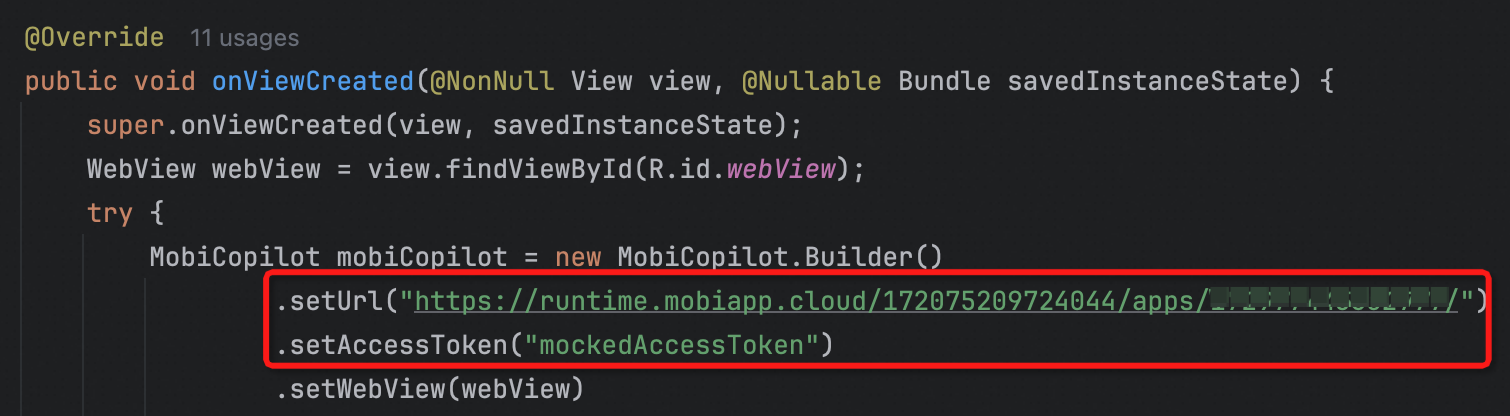
Development environment application: You do not need to pass an accessToken. If the logon configuration of the Copilot application does not allow anonymous access, you must authenticate through the logon page. We recommend logging on with a test account. You can also create a source of identity to add other logon methods. If anonymous access is allowed, no authentication is required.
Production environment application: If the logon configuration of the Copilot application does not allow anonymous access, you must first create and enable a Native identity source in the Mobi console under Users and Permissions > Identity Sources. Ensure that the permission group for this identity source has sufficient access permissions. Then, generate an accessToken using the GenerateNativeUserToken API and pass it to the SDK. The accessToken has a TTL of 300 seconds. Before it expires, you must obtain a new one using the RefreshNativeUserToken API. Finally, set the new accessToken using
mobiCopilot.updateAccessToken(newAccessToken);. If anonymous access is allowed, no authentication is required. Note that you should not pass an accessToken when you configure the SDK. If you pass an accessToken, identity authentication is performed based on the token, and anonymous access does not take effect.
5. Run the demo
Start the project using Android Studio.
Access the Copilot application in the development environment through the logon page. Use an accessToken to access the Copilot application in the production environment.
After you successfully access the Copilot application, you can enter a request, such as for a leave request or to book a meeting room. Copilot then sends a corresponding feature routing card. You can use this feature routing card to navigate to a native page with the parameters extracted by the intent frame.
6. Notes
The navigateTo method registered in this demo is only adapted for the feature routing configuration in applications created from the App Copilot Template. If you modify the feature routing configuration, you must update the navigateTo method to handle the navigation behavior for different route identities and parameters.
If Android Studio reports an incompatible Gradle plugin, you can update Android Studio or try downgrading the plugin version in gradle/libs.versions.toml.
This project uses Gradle plugin version 8.7 by default. Building the project requires a Java environment of JDK 17 or later.