Environments and domain names
This topic describes environments and domain names in Mobi App workspaces.
What is an environment
An environment is an abstraction of the infrastructure resources for a Mobi App application at runtime. To avoid having to manage an environment for each application, Mobi App provides workspace-level environment management. This does not mean that applications within the same workspace share a physical environment without isolation. Instead, it means that all applications in the workspace use the same environment configuration, such as the environment identity and domain names.
Environment types
After a workspace is initialized, Mobi App automatically creates two default environments for it: a development environment and a production environment. Applications published in the development environment expire after 24 hours. To access an expired application in the development environment, you must publish it again. Mobi App provides the development environment for development and testing purposes, not for long-term site hosting.
Mobi App will support creating and managing your own environments in a workspace in the future. This feature is not yet available.
How to add a domain name
You can add a domain name that has an ICP filing to the Mobi App platform. After you publish an application, you can access it over HTTPS using your own domain name.
The Mobi App platform supports two methods for adding a domain name and setting up an SSL certificate:
Use Alibaba Cloud Web Application Firewall (WAF). Add your domain name to WAF before you add it to the Mobi App platform.
Use the free test certificate and built-in WAF service provided by the Mobi App platform. This method is for testing only. For large-scale production releases, you must configure your own WAF and HTTPS certificate.
Regardless of the method you choose, the domain name must have an ICP filing.
If you use the free test certificate and built-in WAF service from the Mobi App platform, you must add Alibaba Cloud to the ICP filing information as a service provider for your primary domain name. A domain name can have multiple service providers in its ICP filing. Adding Alibaba Cloud as a service provider simply adds another provider to the list. Even if your primary domain name is already filed with another service provider, adding Alibaba Cloud will not affect the existing filing information with the original provider. For more information about the process, see ICP filing process.
If your domain name does not have an ICP filing, you may encounter the following issues:
1. Requests are blocked, which makes the application inaccessible.
2. An HTTPS test certificate cannot be generated. When you access the application through a browser, the browser displays a security warning.
The following sections describe how to add a domain name in Mobi App.
1. Add a domain name to Alibaba Cloud Web Application Firewall
Add a domain name
In the Mobi App console, go to Workspace Settings > Domain Name Settings. Click Add Domain Name, and then enter the subdomain and primary domain name you want to attach.
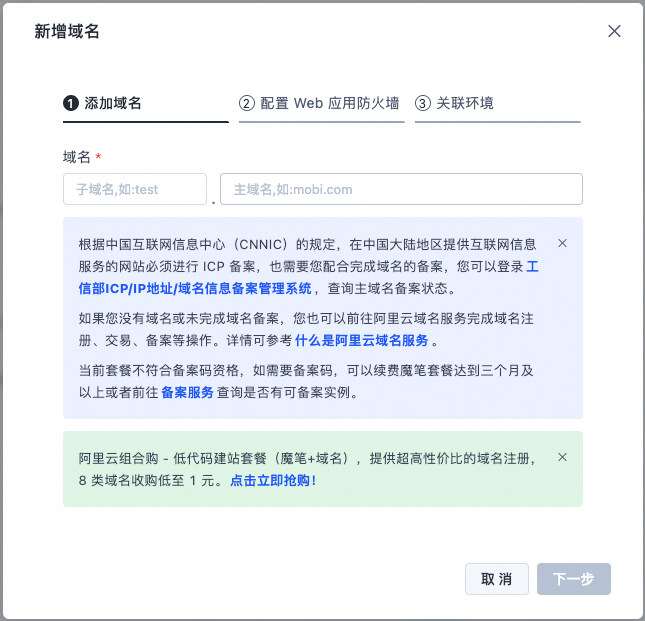
Do not use uppercase letters in the domain name.
After you add the domain name, the Mobi App configuration wizard appears.
Select a configuration method
If you select Manual Configuration, the specific steps are displayed.
If you choose to configure manually, note the following when you add the WAF configuration:
Accurate domain name: Ensure the domain name that you configure in WAF is identical to the domain name that you intend to use.
CNAME mode only: The Mobi App platform currently supports adding domain names to WAF only in canonical name (CNAME) mode.
Strictly follow the procedure: Follow the steps in the official guide in order. Do not skip or reorder steps.
Any configuration error during manual setup will cause validation to fail.
If you select Automatic Configuration, a button appears to start the automated configuration process. The first time you select automatic configuration, you are prompted to grant the required permissions. For more information about the permissions, see Mobi App service-linked role.
Manual configuration: Domain validation
Add the TXT record from the previous step, 2995c31dc3824df48dc836f75ff86451, to your DNS records.
Manual configuration: Configure Web Application Firewall
Web Application Firewall configuration guide
In the WAF configuration, select the HTTPS protocol.
Set the server address to the origin URL from the Web Application Firewall configuration.
Enter the origin URL from the Mobi App domain name configuration card into the server address input box, as shown in the following figure.
Manual configuration: Configure the CNAME DNS record
Add the CNAME from WAF to your DNS records.
Validate the domain name
Click the button to start validating the domain name. Validation may fail if the DNS configuration has not yet taken effect. Wait for the DNS settings to propagate, and then try again.
If the first validation attempt fails and the Add Domain Name panel closes, you can find the domain name with a "Configuring" status in the domain name list. Click the record to continue the validation process.
2. Use the free test certificate and built-in WAF service
Add a domain name
In the Mobi App console, go to Workspace Settings > Domain Name Settings. Click Add Domain Name, and then enter the domain name you want to attach.
After you add the domain name, set Type to System Default. The following page appears.
Select a configuration method
If you select Manual Configuration, the specific steps are displayed.
If you select Automatic Configuration, a button appears to start the automated configuration process. The first time you select automatic configuration, you are prompted to grant the required permissions. For more information about the permissions, see Mobi App service-linked role.
Manual configuration: Domain validation
Follow the on-screen instructions to add the TXT record from the previous step to your DNS records.
Manual configuration: Configure the CNAME DNS record
Follow the on-screen instructions to add the default CNAME address from the Mobi App platform to your DNS records.
Validate the domain name
Click the button to start validating the domain name. Validation may fail if the DNS configuration has not yet taken effect. Wait for the DNS settings to propagate, and then try again.
The free test certificate provided by the Mobi App platform is intended for personal websites or testing purposes. We do not recommend using it for commercial websites. If you have a commercial website, you must purchase a commercial certificate.
Each workspace supports only one free test HTTPS certificate.
Associate a domain name with an environment
After the domain name is validated, it appears in the domain name list. From the list, you can associate the domain name with an environment or cancel the association.
The Mobi App platform pre-configures the default domain name
runtime.mobiapp.cloudfor the development environment. You cannot cancel the association for or delete this domain name.If a domain name is associated with an application that has a custom path configured, you cannot cancel its association or delete it.
Set a custom application path
After you set a domain name, you can use the application endpoint to access your application. You can also set a custom access address, also known as a custom path, for applications in the production environment. Each application currently supports up to five custom paths.
A custom application path can be the root path ("/") or a multi-level subpath such as "/abc/def" (up to five levels deep).
Valid characters for subpaths:
Numbers, letters, hyphens (-), and underscores (_). The regular expression is: [a-zA-Z0-9_-].
Important notes:
Assume Application A has a custom path set to the root path ("/"). Within Application A, a page named B has the path "/abc". Application C also has its custom path set to "/abc".
In this case, accessing the path "/" directs you to Application A. If you then navigate to page B within the application, the URL updates to "/abc". However, if you refresh the page at this point, you will be redirected to Application C.
/abc/*will match Application C, while/*will match Application A.
Therefore, if you set a custom path to the root path for an application, avoid setting the path of any page within that application to be the same as the custom path of another application.